1. Introduktion
This manual provides essential information for the proper setup, operation, and maintenance of your VIOTEK GNV34DB 34-inch Ultrawide Gaming Monitor. Please read this manual thoroughly before using the product to ensure optimal performance and longevity. Keep this manual for future reference.

Image: The VIOTEK GNV34DB monitor from a front-right angle, showcasing its curved display.
2. Pakkens indhold
Verify that all items listed below are present and in good condition upon opening the package. If any items are missing or damaged, please contact customer support.
- VIOTEK GNV34DB 34-Inch Ultrawide Gaming Monitor
- AC Adapter
- HDMI kabel
- DisplayPort-kabel
- Brugervejledning (dette dokument)
3. Opsætning
3.1 Montering af stativ
- Tag forsigtigt skærmens og stativets komponenter ud af emballagen.
- Fastgør stativets base til stativets hals med de medfølgende skruer.
- Fastgør den samlede stander til bagsiden af skærmen. Sørg for, at alle forbindelser er fastgjort.
3.2 VESA-montering
Skærmen understøtter VESA-montering (75x75 mm) for alternative monteringsløsninger. Fjern stativet, før du monterer et VESA-kompatibelt beslag.
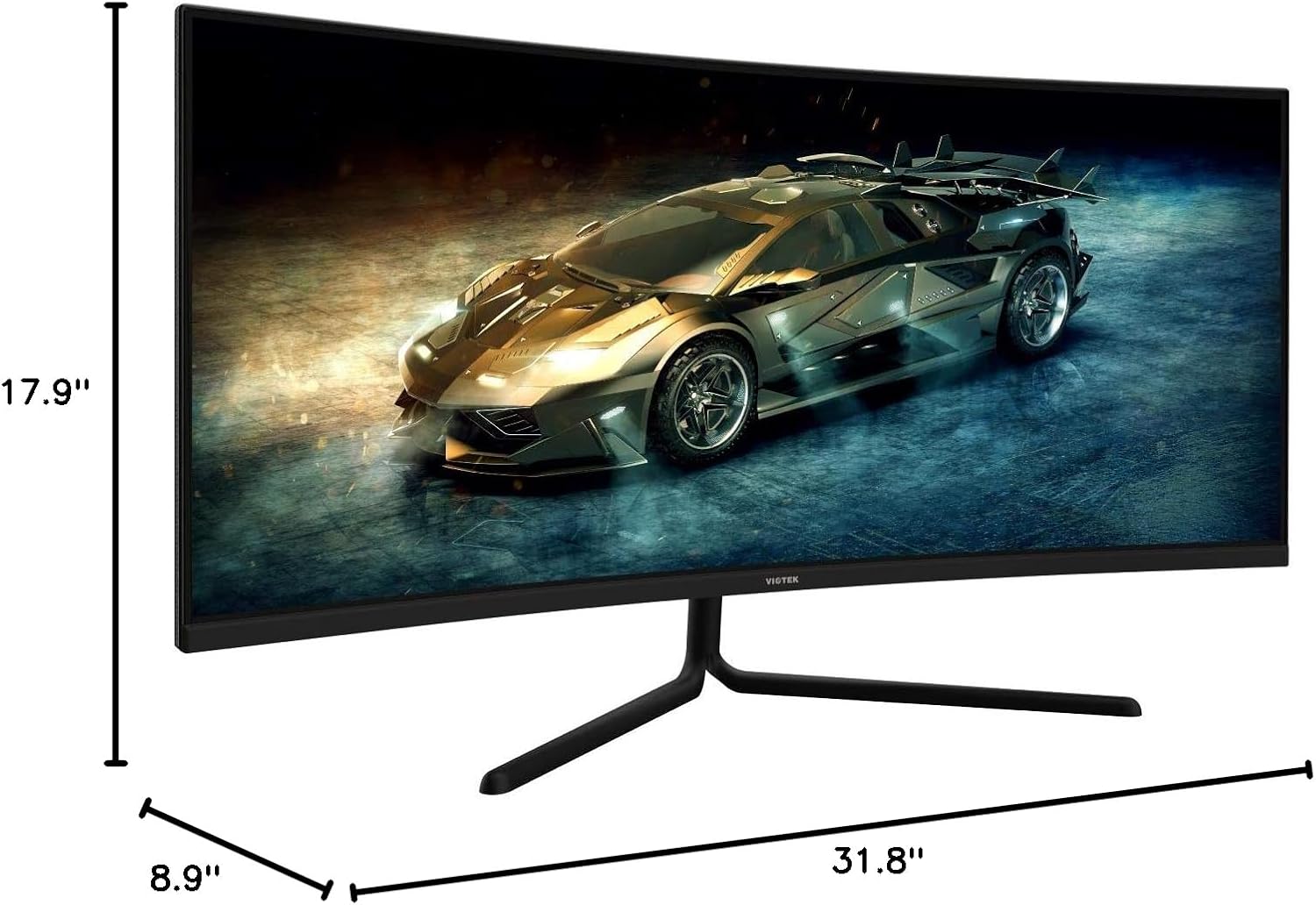
Image: Monitor dimensions are shown as 31.8 inches wide, 17.9 inches high, and 8.9 inches deep, indicating the physical size for placement and VESA compatibility.
3.3 Tilslutning til en enhed
Connect your computer or other devices to the monitor using the appropriate ports. Ensure the monitor is powered off before making connections.
- DisplayPort (DP 1.2): For optimal performance, use the included DisplayPort cable to connect to your graphics card.
- HDMI (HDMI 1.4 / HDMI 2.0): Use an HDMI cable to connect to devices supporting HDMI output.
- 3.5 mm lydudgang: Connect external speakers or headphones to this port for audio output.

Billede: Bagsiden view of the monitor highlighting the available input ports: DisplayPort 1.2, 3.5mm Audio Out, two HDMI 1.4 ports, and one HDMI 2.0 port.
4. Betjeningsvejledning
4.1 Tænd/sluk
Tryk på tænd/sluk-knappen på skærmen for at tænde eller slukke den. Strømindikatorlampen lyser, når skærmen er aktiv.
4.2 On-Screen Display (OSD) menu
The OSD menu allows you to adjust various monitor settings. Use the control buttons (typically located on the back or bottom of the monitor) to navigate the menu.
- Lysstyrke/kontrast: Adjust display luminance and contrast levels.
- Farveindstillinger: Modify color temperature, gamma, and individual RGB values.
- Inputkilde: Manually select the active input (DP, HDMI 1, HDMI 2, HDMI 3).
- Billedtilstand: Select from preset display modes optimized for different content types (e.g., Standard, Movie, Game).
- Overdrive: Adjust response time for reduced motion blur.
4.3 Nøglefunktioner
- AMD FreeSync: This technology synchronizes the monitor's refresh rate with your graphics card's frame rate to eliminate screen tearing and stuttering during gaming. Enable FreeSync in the OSD menu and in your graphics card's control panel.

Image: A visual comparison demonstrating the effect of AMD FreeSync, showing a distorted image when FreeSync is off and a smooth image when FreeSync is on.
- GAMEPLUS: Activate on-screen crosshairs for enhanced aiming accuracy in games.

Image: A gaming scene on the monitor with three different GAMEPLUS crosshair options displayed at the bottom, indicating enhanced aiming features.
- FPS/RTS Optimization: Specific display modes designed to enhance visibility in First-Person Shooter (FPS) and Real-Time Strategy (RTS) games, often by adjusting gamma and contrast in dark areas.
- 1500R krumning: The monitor's 1500R curve provides a more immersive viewing experience by matching the natural curvature of the human eye, reducing eye strain and expanding the perceived field of view.

Billede: Et overheadbillede view of the curved monitor on a desk, illustrating the 1500R curvature and its benefit of providing full field of view dækning.
- UWQHD (3440x1440) Resolution & 21:9 Aspect Ratio: Offers a wide workspace and immersive cinematic experience.

Image: The monitor displaying a vibrant game scene, with an overlay highlighting its 34-inch size, 21:9 aspect ratio, and 3440x1440p UWQHD resolution.
5. Specifikationer
| Feature | Specifikation |
|---|---|
| Skærmstørrelse | 34 tommer |
| Paneltype | VA -panel |
| Krumning | 1500R |
| Opløsning | 3440x1440p (UWQHD) |
| Aspektforhold | 21:9 |
| Opdateringshastighed | 100 Hz |
| Svartid | 6ms GTG (5ms Overdrive) |
| Viewi vinkel | H178° / V178° |
| Display farver | 16.7 mio |
| Farveskala | sRGB: 99%, NTSC: 85% |
| Kontrastforhold | 3000:1 (statisk), 1M:1 (dynamisk) |
| Lysstyrke | 300 cd/m² |
| VESA-kompatibilitet | 75x75 mm |
| Havne | 1x DP 1.2, 2x HDMI 1.4, 1x HDMI 2.0, 1x 3.5mm Audio Out |
| Tilt justering | -5° ~ 15° |
| Dimensioner (med stativ) | 31.8 x 17.9 x 8.9 tommer (808.65 x 454.19 x 225.58 mm) |
| Vægt | 15.5 lbs (7.02 kg) |
6. Fejlfinding
Hvis du støder på problemer med din skærm, kan du se følgende almindelige problemer og løsninger:
- Ingen strøm:
- Sørg for, at strømkablet er korrekt tilsluttet skærmen og en fungerende stikkontakt.
- Kontroller, at strømadapteren fungerer korrekt.
- Intet signal:
- Check that the video cable (DP or HDMI) is firmly connected to both the monitor and your computer.
- Vælg den korrekte inputkilde via OSD-menuen.
- Ensure your computer's graphics card is properly installed and drivers are up to date.
- Flimrende skærm:
- Ensure the video cable is not damaged and is properly connected.
- Juster opdateringshastigheden i din computers skærmindstillinger.
- Disable or enable FreeSync in the OSD menu and graphics card settings to see if it resolves the issue.
- Døde pixel:
- Refer to the warranty section for information on Viotek's Zero-Tolerance Dead Pixel Policy.
7. Vedligeholdelse
Follow these guidelines to maintain your monitor's performance and appearance:
- Rengøring af skærmen: Tør forsigtigt skærmen af med en blød, fnugfri klud. Brug en skærmspecifik rengøringsopløsning på kluden, ikke direkte på skærmen, til genstridige pletter.
- Rengøring af Casing: Brug en blød, tør klud til at rengøre skærmens casing. Undgå slibende rengøringsmidler eller opløsningsmidler.
- Ventilation: Sørg for, at skærmens ventilationsåbninger ikke er blokerede for at forhindre overophedning.
- Opbevaring: Når skærmen ikke er i brug i længere perioder, skal den opbevares køligt og tørt, helst i originalemballagen.
8. Garanti og support
Your VIOTEK GNV34DB monitor is covered by a 3 års begrænset garanti. This warranty includes Viotek's Zero-Tolerance Dead Pixel Policy, ensuring that your display is free from dead pixels upon purchase.

Image: A graphic highlighting the 3-year warranty and Zero Dead Pixel policy for parts and labor.
For warranty claims, technical support, or any inquiries, please contact Viotek customer service. Details can typically be found on the official Viotek webwebstedet eller via din købsdokumentation.


