1. Introduktion
Welcome to the user manual for your ROCCAT Kone AIMO Gaming Mouse, model ROC-11-820-BK. This document provides essential information to help you set up, operate, and maintain your gaming mouse, ensuring optimal performance and longevity. Please read these instructions carefully before using the device.
2. Produktet er slutview
2.1 Nøglefunktioner
- High-precision optical Owl-Eye sensor with adjustable DPI from 100 to 16,000.
- Ergonomic design for comfortable right-handed use.
- Customizable AIMO RGB illumination system.
- 8 standard buttons with additional programmable inputs, allowing for up to 23 assignable functions.
- Durable performance coating for enhanced grip.
- 4D Titan Wheel for versatile scrolling.
2.2 Komponenter
The ROCCAT Kone AIMO Gaming Mouse features a standard layout with several programmable buttons and an advanced optical sensor.
- Venstre- og højreklikknapper
- 4D Titan Scroll Wheel (with left/right tilt)
- DPI Cycle Buttons (+/-)
- Thumb Buttons (forward/back, Easy-Shift[+] button)
- Optical Sensor (located on the underside)
- Braided USB Cable

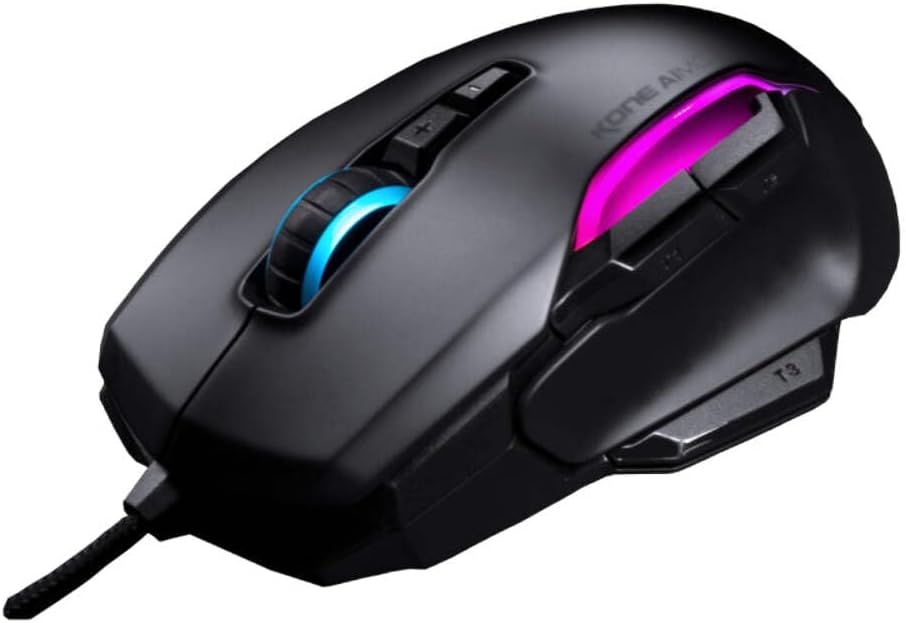
Figur 1: Vinklet view of the ROCCAT Kone AIMO Gaming Mouse. This image displays the mouse from an angled perspective, showcasing its contoured shape designed for right-handed users. The illuminated scroll wheel and side light strips are visible, indicating the customizable RGB lighting features.
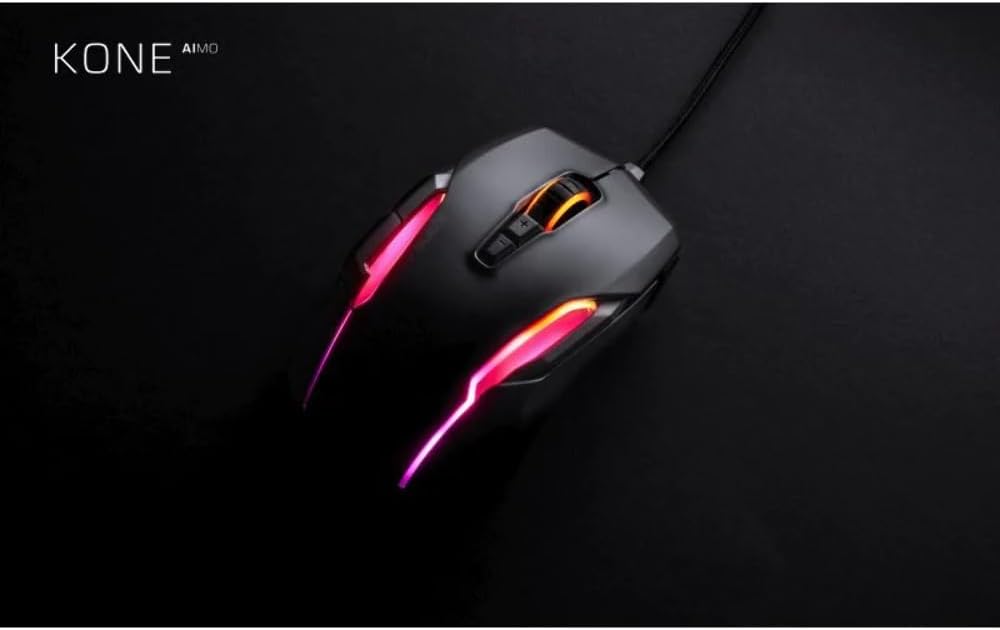
Figur 2: Top-down view of the ROCCAT Kone AIMO Gaming Mouse. This view illustrates the placement of its primary buttons, scroll wheel, and the dynamic RGB lighting zones along the body and scroll wheel. The 'KONE AIMO' branding is also visible.
3. Opsætning
3.1 Tilslutning af musen
- Find en ledig USB-port på din computer.
- Plug the USB connector of the ROCCAT Kone AIMO mouse into the USB port.
- Your operating system (Windows or macOS) will typically detect the device automatically and install basic drivers.
3.2 Software Installation (ROCCAT Swarm)
To unlock the full customization potential of your ROCCAT Kone AIMO mouse, including DPI adjustments, button remapping, macro creation, and RGB lighting effects, it is recommended to install the ROCCAT Swarm software.
- Besøg den officielle ROCCAT webwebsted: www.roccat.com/pages/swarm
- Download the latest version of the ROCCAT Swarm software.
- Følg instruktionerne på skærmen for at installere softwaren.
- Once installed, launch ROCCAT Swarm to configure your mouse settings.
4. Betjeningsvejledning
4.1 Grundlæggende brug
- Bevægelse: Bevæg musen hen over en flad overflade for at styre markøren på skærmen.
- Venstre klik: Primær handling, valg.
- Højreklik: Kontekstmenu, sekundær handling.
- Scrollhjul: Rul op eller ned gennem dokumenter og web pages. The 4D Titan Wheel also allows for horizontal scrolling (tilt left/right) in supported applications.
- DPI Buttons: Use the '+' and '-' buttons located behind the scroll wheel to cycle through pre-set DPI sensitivity levels. These can be customized in the Swarm software.
4.2 Customization with ROCCAT Swarm
The ROCCAT Swarm software provides extensive options for personalizing your Kone AIMO mouse:
- DPI-indstillinger: Adjust the sensor sensitivity in 1 DPI increments.
- Knap tildeling: Remap any of the 8 standard buttons and utilize the Easy-Shift[+] button to assign secondary functions, effectively expanding the number of programmable inputs to 23.
- Makro Manager: Opret og tildel komplekse makrosekvenser til knapper.
- AIMO-belysning: Customize the RGB lighting effects, colors, and brightness. Synchronize lighting with other AIMO-compatible ROCCAT devices.
- Afstemningsfrekvens: Adjust the mouse's reporting rate to your computer.
- Profile Ledelse: Opret og gem flere profiles for different applications or games, and switch between them easily.
5. Vedligeholdelse
5.1 Rengøring
- Frakobl musen fra computeren, før du rengør den.
- Brug en blød, fnugfri klud lidt damprengøres med vand eller en mild rengøringsopløsning til at tørre musens overflade af.
- For crevices and around buttons, use a cotton swab or compressed air to remove dust and debris.
- Undgå at bruge skrappe kemikalier, slibende rengøringsmidler eller for meget fugt, da disse kan beskadige musen.
- Ensure the optical sensor on the underside is clean and free of obstructions for optimal tracking performance.
5.2 Opbevaring
When not in use, store the mouse in a clean, dry environment away from extreme temperatures and direct sunlight. Avoid coiling the cable too tightly to prevent damage.
6. Fejlfinding
If you encounter issues with your ROCCAT Kone AIMO Gaming Mouse, please refer to the following common troubleshooting steps:
- Musen reagerer ikke:
- Sørg for, at USB-kablet er korrekt tilsluttet en fungerende USB-port på din computer.
- Prøv at tilslutte musen til en anden USB-port.
- Genstart din computer.
- Kontrollér, om musen virker på en anden computer for at udelukke et systemspecifikt problem.
- Tracking Issues / Cursor Jumps:
- Rengør den optiske sensor på undersiden af musen.
- Ensure you are using the mouse on a suitable surface (e.g., a mouse pad). Avoid highly reflective or uneven surfaces.
- Check the DPI settings in ROCCAT Swarm; reset to default if necessary.
- Buttons Not Working / Incorrect Functions:
- Verify button assignments within the ROCCAT Swarm software.
- Sørg for at du bruger den rigtige profile for your application or game.
- Update ROCCAT Swarm to the latest version.
- RGB-belysning virker ikke:
- Ensure ROCCAT Swarm is installed and running.
- Check the illumination settings within Swarm.
- Update the mouse firmware via ROCCAT Swarm.
If these steps do not resolve your issue, please visit the ROCCAT support webwebsted for yderligere hjælp.
7. Specifikationer
Figur 3: Dimensions of the ROCCAT Kone AIMO Gaming Mouse. This image provides a top-down view of the mouse, overlaid with its approximate dimensions: 12.5 cm in length and 8.51 cm in width. This helps users understand the physical size of the mouse.
| Feature | Detalje |
|---|---|
| Mærke | ROCCAT |
| Modelnummer | ROC-11-820-BK |
| Forbindelse | USB (med ledning) |
| Sensortype | Optical (Owl-Eye) |
| DPI rækkevidde | 100 - 16,000 DPI (adjustable in 1 DPI increments) |
| Antal knapper | 8 standard buttons, up to 23 programmable functions with Easy-Shift[+] |
| Håndorientering | Højrehåndet |
| Operativsystemkompatibilitet | Windows, macOS |
| Dimensioner (L x B x H) | 12.5 x 8.51 x 3.99 cm (ca. 4.92 x 3.35 x 1.57 tommer) |
| Vægt | 131.54 g (ca. 0.29 lbs) |
| Særlige funktioner | Ergonomic Design, AIMO RGB Illumination, Performance Coating, 4D Titan Wheel |
8. Garanti og support
Your ROCCAT Kone AIMO Gaming Mouse is covered by a manufacturer's warranty. For detailed information regarding warranty terms, conditions, and duration, please refer to the warranty card included with your product or visit the official ROCCAT support webwebsted.
For technical support, driver downloads, firmware updates, and frequently asked questions, please visit: support.roccat.com
Always ensure you have the latest drivers and firmware installed for optimal performance and compatibility.


