Indledning
The TC Helicon GoXLR MINI is an intuitive all-in-one audio interface designed for live streamers and content creators. It provides individual control over application volumes in Windows, features a studio-quality Midas preamp, and offers comprehensive audio routing capabilities. This manual provides essential information for setting up, operating, maintaining, and troubleshooting your GoXLR MINI.

Billede: Forside view of the GoXLR MINI, showcasing its four main faders for Mic, Chat, Music, and System, along with various control buttons and LED indicators.
Opsætning
Fysiske forbindelser
Before connecting your GoXLR MINI, ensure your computer is powered off. Connect the GoXLR MINI to your computer using the provided USB cable. The device is powered via USB.
- Mikrofonindgang: Connect your XLR microphone to the 'MIC PREAMP XLR In' port. The Midas preamp ensures high-quality audio capture.
- Line In/Out: Use the 'Line In' and 'Line Out' 3.5mm jacks for connecting external audio sources or sending audio to other devices.
- USB-forbindelse: Connect the GoXLR MINI to your computer via the USB 2.0 Type B port.
- Optisk indgang: For console audio, connect your console's optical output to the 'Optical' port.
- Hovedtelefonudgang: Connect your headphones to the 3.5mm or 1/4" headphone jack on the front of the device for monitoring your audio.
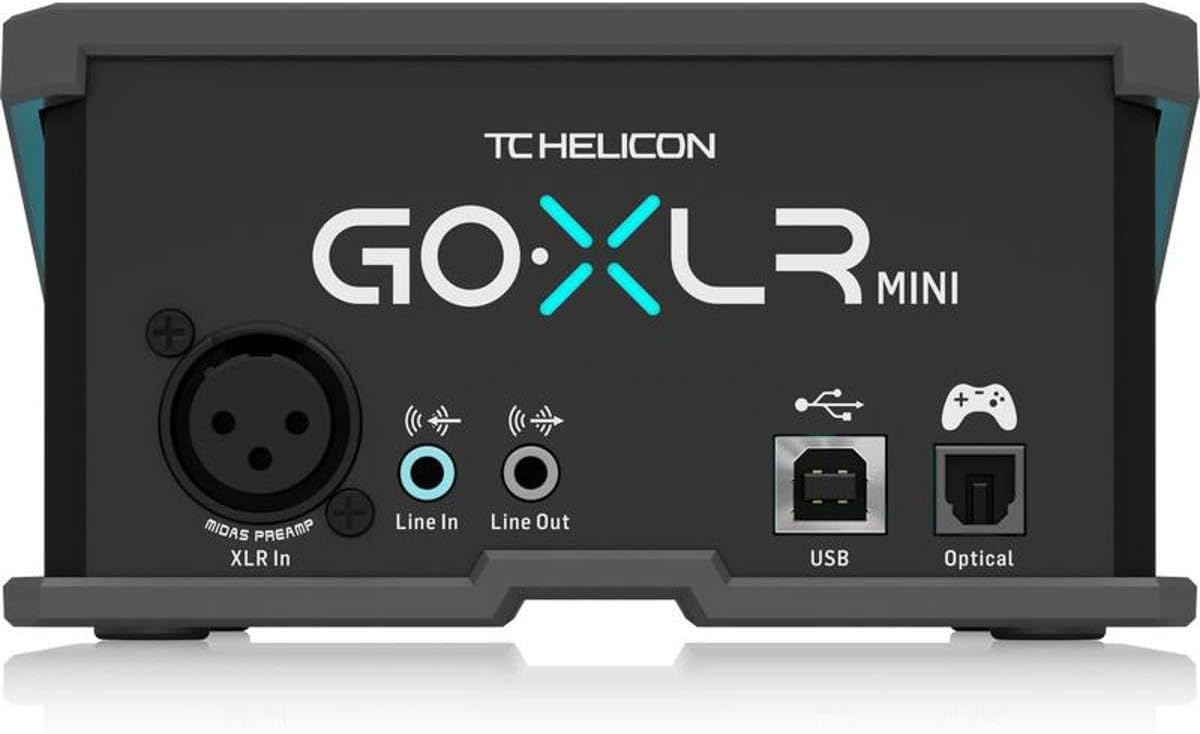
Billede: Bagside view of the GoXLR MINI, showing the XLR microphone input, Line In/Out, USB port, and Optical input.
Software installation
The TC Helicon GoXLR App is essential for full functionality and customization of your GoXLR MINI. Download the latest version of the GoXLR App from the official TC Helicon website. The software is officially supported on Windows 7, 8, 10, and 11. There is no official Linux or macOS support.
- Download the GoXLR App installer.
- Kør installationsprogrammet og følg instruktionerne på skærmen.
- Once installed, launch the GoXLR App. It should automatically detect your connected GoXLR MINI.
- Follow the initial setup wizard within the app to configure your microphone and basic audio settings.
Drift
Fader kontrol
The GoXLR MINI features four physical faders that allow you to control the volume levels of different audio sources in real-time:
- Mikrofon: Controls your microphone volume.
- Snak: Adjusts the volume of your voice chat application (e.g., Discord).
- Musik: Controls the volume of your music playback.
- System: Manages the overall system audio volume.
Mute-knapper
Each fader has a dedicated mute button below it. Pressing these buttons will mute the corresponding audio channel. The buttons illuminate to indicate their status.
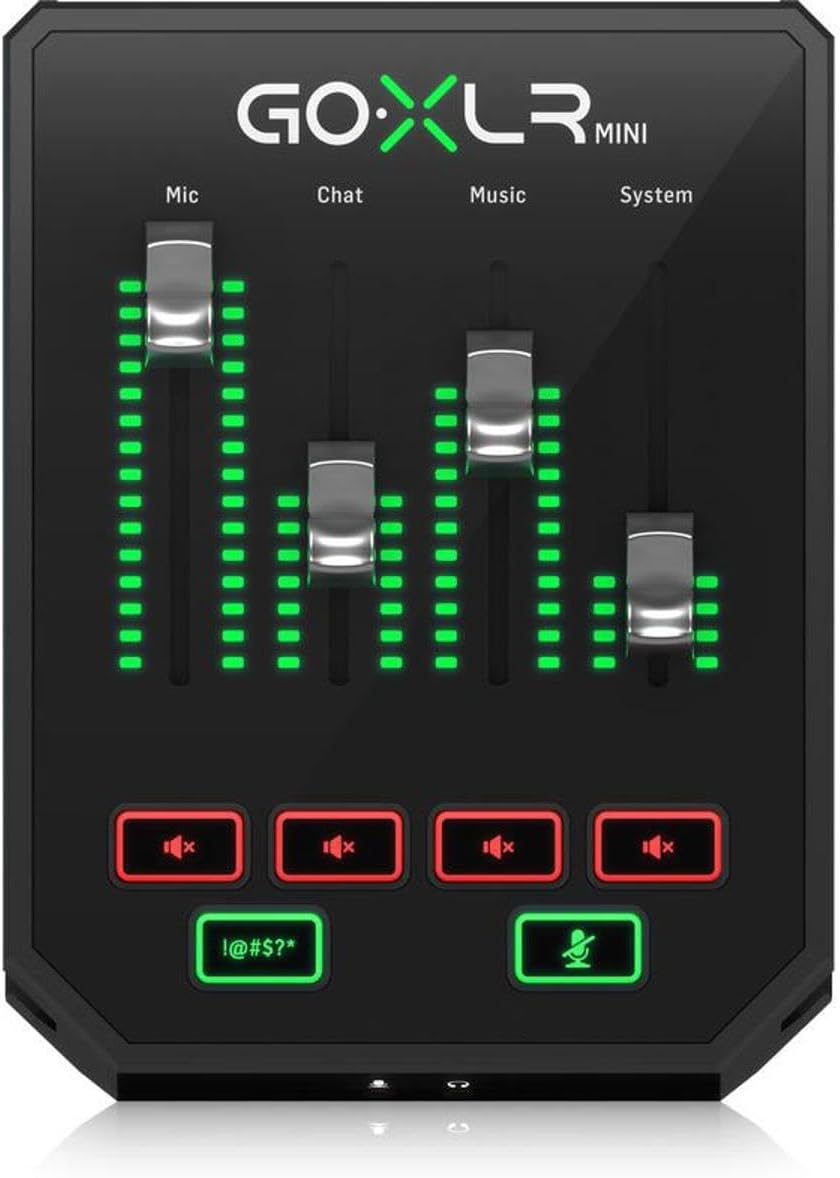
Billede: Forside view of the GoXLR MINI, showing the mute buttons below each fader illuminated in red, indicating that the channels are muted.
Cough and Bleep Buttons
- Cough Button: Temporarily mutes your microphone. This is useful for muting coughs or other unwanted sounds during a live broadcast. Its behavior (hold to mute or toggle mute) can be configured in the GoXLR App.
- Bleep Button: Censors your audio with a bleep sound. This is useful for censoring explicit language or sensitive content during a live broadcast.
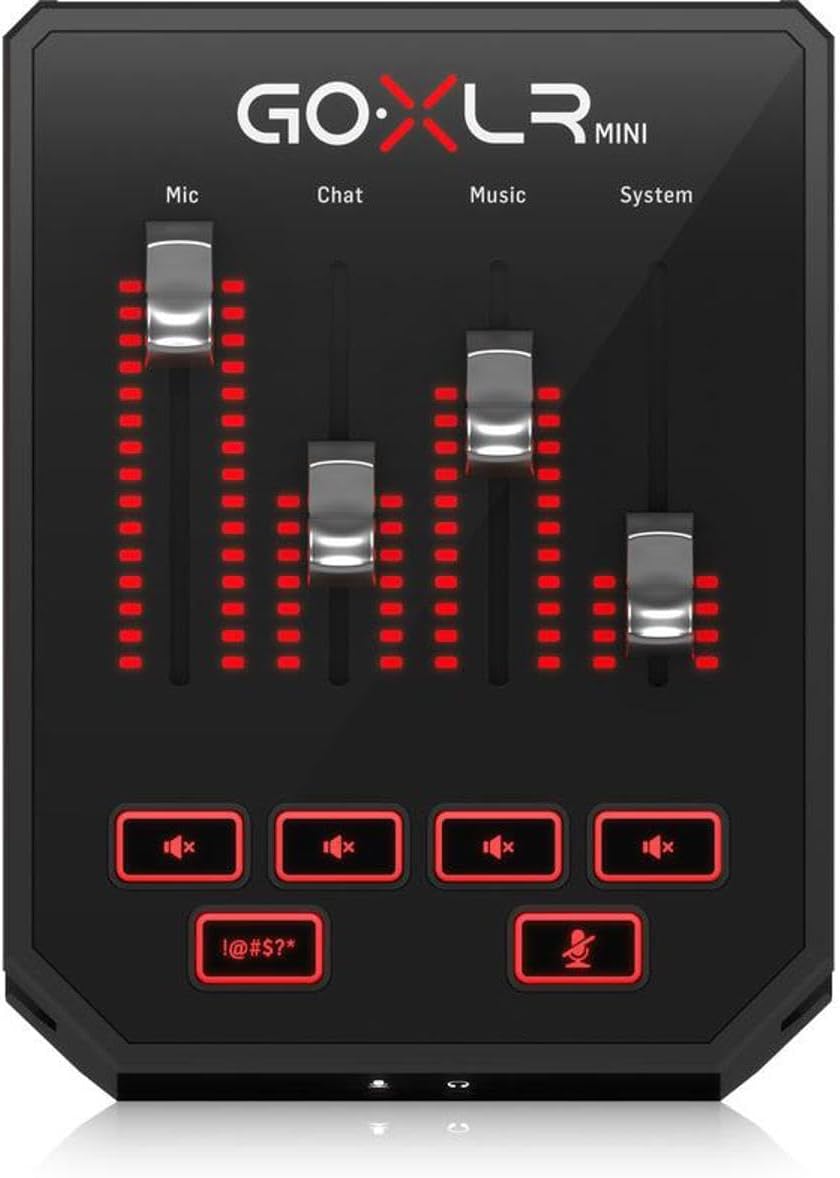
Image: A hand pressing the dedicated cough button on the GoXLR MINI, which temporarily mutes the microphone output.
GoXLR App Interface Overview
The GoXLR App provides extensive control and customization options for your device:
- Profiles: Opret og administrer flere pro'erfiles to quickly switch between different audio setups, lighting configurations, and microphone settings.
- Mic Setup: Configure your microphone type (Dynamic or Condenser with +48V phantom power), adjust gain levels, and monitor your input with a real-time mic meter.
- Port: Control the gate settings to automatically shut off your mic when input falls below a set threshold, reducing background noise. Advanced settings include threshold, attenuation, attack, and release.
- Equalizer: Shape the sound of your voice with adjustable Bass, Mid, and Treble controls. Fine-tune options are available for specific frequencies (50Hz, 160Hz, 480Hz, 1.5kHz, 4.5kHz, 7.8kHz).
- Kompressor: Control the loudness and softness of your mic sound for a more even output. Adjustable parameters include threshold, ratio, attack, release, and make-up gain.
- Mixer: Assign audio sources to the four faders (Mic, Voice Chat, Music, Game, Console, Line In, System, Sample, Headphone, Line Out). Configure mute options for various outputs (Mute All, Mute to Stream, Mute to Voice Chat, Mute to Phones, Mute to Line Out).
- Belysning: Customize the LED lighting for faders, buttons, and global accents. Choose from a color wheel or predefined colors, and set gradient or meter styles for faders.
- Rute: Manage how audio inputs are routed to different outputs (Headphones, Broadcast, Stream Mix, Line Out, Chat Mic). This allows for precise control over what each listener or recording hears.
Opretholdelse
To ensure the longevity and optimal performance of your TC Helicon GoXLR MINI, follow these maintenance guidelines:
- Rensning: Brug en blød, tør klud til at rengøre enhedens yderside. Undgå at bruge slibende rengøringsmidler, opløsningsmidler eller stærke kemikalier, da disse kan beskadige overfladen og de indvendige komponenter.
- Støvforebyggelse: Keep the device in a clean, dust-free environment. Dust can accumulate in ports and vents, potentially affecting performance.
- Opbevaring: When not in use for extended periods, store the GoXLR MINI in a cool, dry place away from direct sunlight and extreme temperatures.
- Kabelstyring: Ensure all cables are connected securely and are not under undue strain or bent sharply, which can lead to damage over time.
Fejlfinding
If you encounter issues with your GoXLR MINI, try the following basic troubleshooting steps:
- No Power/Device Not Detected:
- Ensure the USB cable is securely connected to both the GoXLR MINI and your computer.
- Prøv en anden USB-port på din computer.
- Genstart din computer.
- No Audio Input/Output:
- Check all audio cable connections (microphone, headphones, line in/out).
- Verify fader levels on the GoXLR MINI and within the GoXLR App.
- Ensure the correct audio devices are selected in your operating system's sound settings (e.g., GoXLR MINI for input and output).
- Check the routing matrix in the GoXLR App to ensure inputs are correctly routed to outputs.
- Softwareproblemer:
- Close and restart the GoXLR App.
- Check for software updates within the GoXLR App's 'System' tab.
- If problems persist, try reinstalling the GoXLR App.
- Forvrænget lyd:
- Adjust microphone gain to prevent clipping (indicated by red on the mic meter).
- Tjek for interferens fra andre elektroniske enheder.
- Sørg for sample rates are consistent across your system and applications.
For more detailed troubleshooting or persistent issues, refer to the official TC Helicon support resources.
Specifikationer
| Feature | Detalje |
|---|---|
| Modelnummer | GOXLRMINI |
| Varens vægt | 1.61 pund (730 gram) |
| Produktdimensioner | 6.61 x 5.2 x 2.76 tommer (16.8 x 13.2 x 7 cm) |
| Mikrofonkanaler | 1 (with Midas Preamp) |
| Fader Channels | 4 (Mic, Chat, Music, System) |
| Forbindelsesteknologi | USB |
| Hardware-interface | USB 2.0 Type B |
| Kompatible enheder | Personlig computer |
| Understøttede operativsystemer | Windows 7, 8, 10, 11 |
Garanti og support
For detailed warranty information, please refer to the warranty card included with your product or visit the official TC Helicon website. TC Helicon provides various support resources to assist you with your GoXLR MINI.
- Online ressourcer: Besøg TC Helicon Store on Amazon for product information and links to official support.
- Hjælp i appen: The GoXLR App includes a 'Help & Support' section under the 'System' tab, offering tutorials and assistance.
- Brugermanual (PDF): A comprehensive PDF user manual is available for download her.
- Brugervejledning (PDF): An additional PDF user guide is available for download her.


