Indledning
The Ruko F11PRO is a high-performance 4K UHD camera drone designed for both beginners and experienced pilots. It features GPS auto return, a powerful brushless motor, and extended flight time, ensuring a stable and enjoyable flying experience. This manual provides essential information for safe operation and optimal performance of your Ruko F11PRO drone.
Hvad er der i æsken
Kontroller, at alle komponenter er til stede, før du fortsætter med opsætningen:
- 1 x Ruko F11 Pro Drone
- 2 x 11.1V 2500mAH Battery (1 in the drone)
- 1 x bæreskal
- 1 x sender (fjernbetjening)
- 1 x skruetrækker
- 2 x Charging Cable (Charger not included)
- 4 x ekstra propelblade
- 1 x brugermanual

This image displays the Ruko F11PRO drone, its remote controller, two batteries, a carrying case, charging cables, a screwdriver, and extra propeller blades, all included in the package.
Specifikationer
| Feature | Detalje |
|---|---|
| Mærke | Ruko |
| Modelnavn | F11PRO |
| Aldersinterval | Voksen |
| Farve | Sort |
| Videooptagelsesopløsning | 2160P, 4K, 30fps |
| Effektiv stillopløsning | 8.3 MP |
| Forbindelsesteknologi | Wi-Fi |
| Færdighedsniveau | Nybegynder |
| Varens vægt | 1.15 pund (18.34 ounces) |
| Batterikapacitet | 2500 mioamp Timer |
| Videooptagelsesformat | MP4 |
| Fjernbetjeningsteknologi | Fjernbetjening |
| Kontroltype | Wi-Fi-kontrol |
| Medietype | Micro SD |
| Maksimal rækkevidde | 500 meter |
| Materiale | Aluminium |
| Battericellesammensætning | Lithium |
| Produktdimensioner | 6.9 cm L x 4.1 cm B x 3.15 cm H |
| Udgivelsesdato | 1. juli 2019 |
Opsætningsvejledning
1. Udfoldning af dronen
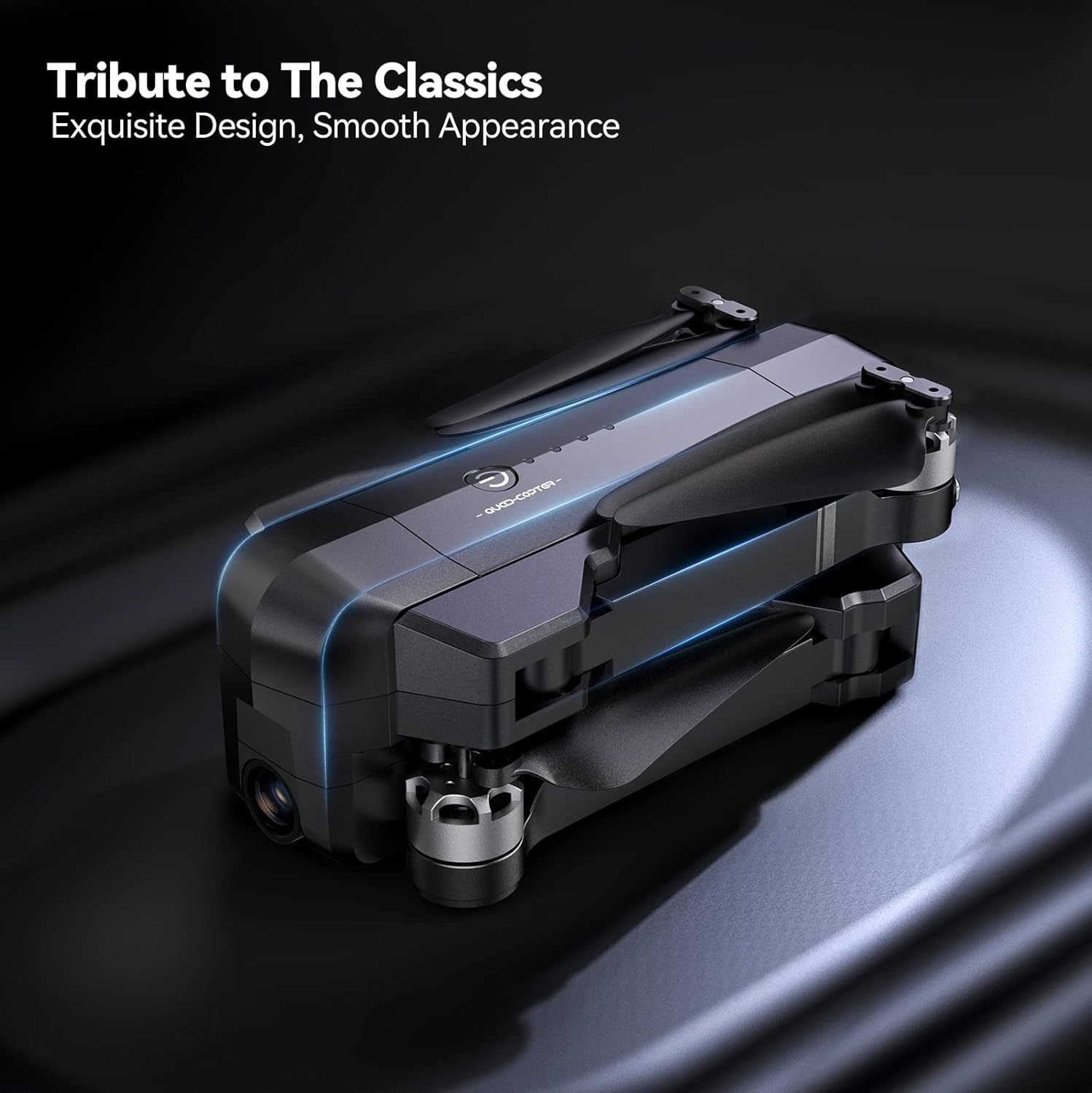
Gently unfold the drone arms until they click into place. Ensure all propellers are free from obstruction and securely attached.

The drone is shown with its arms extended and propellers in position, indicating it is ready for pre-flight checks.
2. Batteriinstallation og opladning
Insert the charged 11.1V 2500mAh battery into the drone's battery compartment. Connect the charging cable to the battery and a suitable USB power source (charger not included). A full charge provides up to 30 minutes of flight time per battery.

Et nærbillede view of the drone's battery, showing its design and power indicator lights.

The drone battery connected to a charging cable, illustrating the charging process.
3. Opsætning af fjernbetjening
Install your smartphone onto the remote controller's phone holder. Connect the remote controller to your smartphone using the provided cable.

The remote controller with a smartphone mounted, ready for app-controlled flight.
4. Appinstallation og forbindelse
Download the official Ruko Pro app from your device's app store. Power on the drone and the remote controller. Connect your smartphone to the drone's Wi-Fi network (usually named "Ruko-F11PRO-XXXX"). Open the Ruko Pro app to establish connection and view det levende feed.

A smartphone screen displaying the Ruko Pro app interface, showing flight data and controls.
5. GPS-kalibrering
For stable flight and GPS features like Auto Return Home, proper GPS calibration is crucial. Follow the on-screen instructions in the Ruko Pro app to calibrate the drone's compass and GPS before each flight. This typically involves rotating the drone horizontally and vertically.

An illustration showing the drone being rotated for GPS calibration, a critical step for accurate positioning.
Betjeningsvejledning
Start og landing
Place the drone on a flat, open surface. Press the one-key takeoff button on the remote controller or within the app. The drone will automatically ascend to a safe height. To land, press the one-key landing button, and the drone will descend and land automatically.
Flykontrol
Use the joysticks on the remote controller to maneuver the drone:
- Venstre joystick: Styrer højde (op/ned) og drejning (rotation til venstre/højre).
- Højre joystick: Styrer bevægelse fremad/bagud og venstre/højre.

En detaljeret view of the remote controller, highlighting the joysticks and control buttons.
Intelligente flyvetilstande
The Ruko F11PRO offers several intelligent flight modes for enhanced creativity and ease of use:
- Følg mig: The drone automatically follows the remote controller or a designated subject.
- Fly Around (Circle Fly): The drone orbits a specified point of interest.
- Interessepunkt: The drone flies around a chosen point, keeping it centered in the camera.
- Hand Gesture Shots: Udfør specifikke håndbevægelser for at udløse foto- eller videooptagelse.

Visual representations of the drone executing various intelligent flight modes, including following a subject, flying along a set path, and circling a point of interest.
Kamerabetjening
The 4K UHD camera captures stunning photos and 2.9K/30fps videos. The camera features a 90° adjustable tilt and a 120° FOV lens for wide-angle shots.
- Foto/videooptagelse: Use the dedicated buttons on the remote controller or the app interface to take photos or start/stop video recording.
- Justering af kameravinkel: Adjust the camera's tilt using the scroll wheel on the remote controller.

This image highlights the drone's 4K camera capabilities, including its adjustable angle and wide field of view.
Sikkerhed og regler
FAA Compliance and Remote ID
The Ruko F11PRO drone features an integrated Remote ID module, fully compliant with FAA regulations. No additional Remote ID module is required. Ensure you are aware of and comply with all local aviation regulations before flying.

A visual representation of the drone's internal Remote ID module, indicating its FAA compliance.
Flymiljø
Always choose an open area free of magnetic or radio interference, buildings, and other obstructions (maintain a distance greater than 32 feet). Avoid flying in strong winds (the drone can resist up to Level 6 wind).
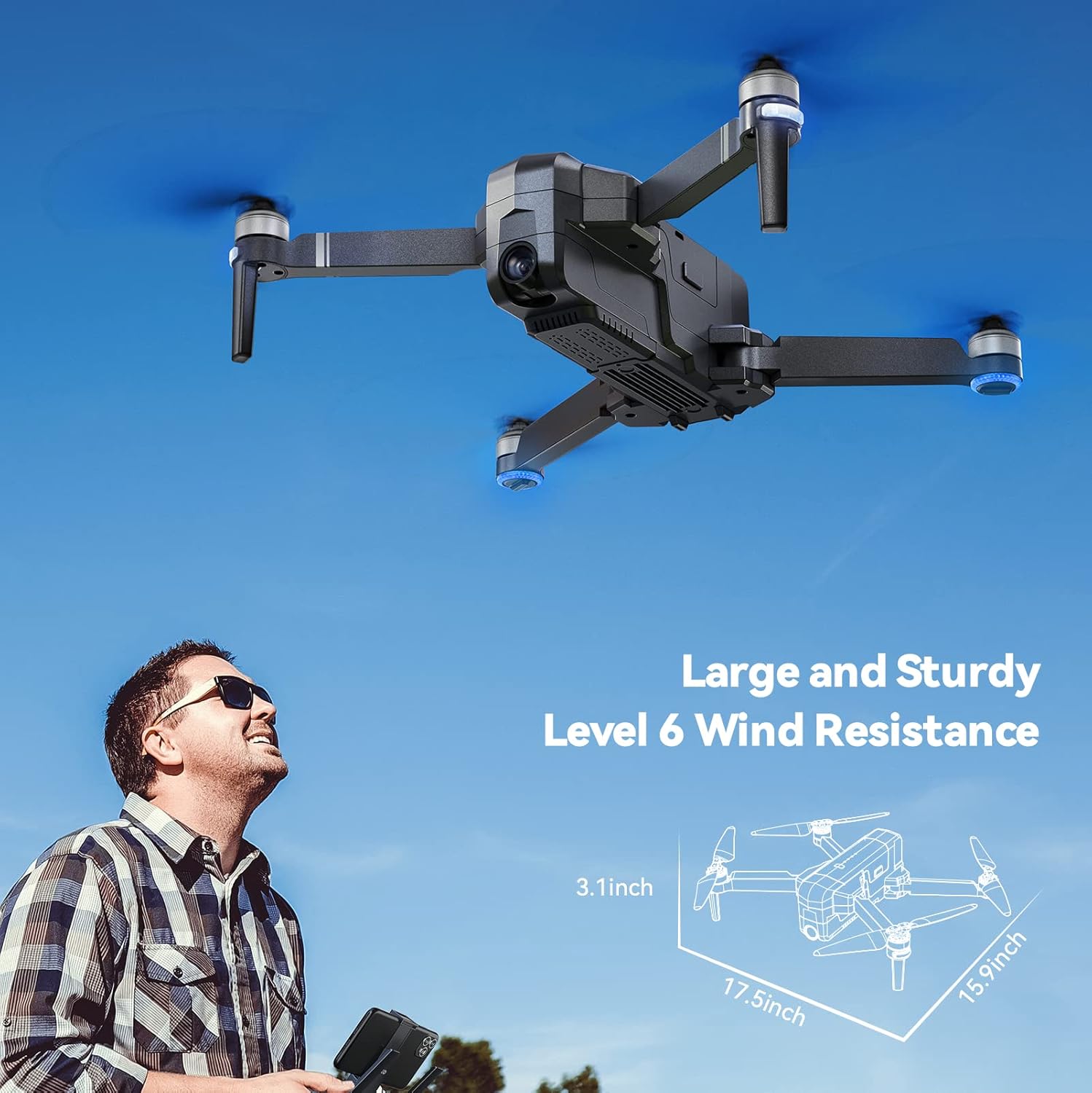
The drone is depicted flying outdoors, emphasizing its ability to withstand Level 6 winds due to its brushless motor.
Begyndertilstand
The default Beginner Mode automatically sets up geofences, limiting flight distance and height to prevent loss. Once familiar with flight skills, you can disable Beginner Mode for extended range.

An illustration showing the drone's flight path restricted by a virtual geofence, a feature of Beginner Mode.
Opretholdelse
Propelpleje
Regularly inspect propellers for any damage (cracks, bends, chips). Replace damaged propellers immediately using the provided screwdriver and extra blades.
Rensning
Use a soft, dry cloth to clean the drone body and camera lens. Avoid using liquid cleaners or solvents.
Batteriopbevaring
Store batteries in a cool, dry place away from direct sunlight and extreme temperatures. For long-term storage, charge batteries to approximately 50-60% capacity.
Fejlfinding
Drone tænder ikke
- Sørg for, at batteriet er fuldt opladet og korrekt isat.
- Tryk og hold tænd/sluk-knappen nede i et par sekunder.
Unable to Connect to App
- Verify the drone and remote controller are powered on.
- Check that your phone is connected to the drone's Wi-Fi network.
- Genstart appen, og prøv igen.
GPS Signal Weak or Lost
- Ensure you are flying in an open area away from tall buildings or strong magnetic interference.
- Perform GPS calibration as described in the Setup Guide.
- If signal is lost during flight, the drone will auto-return to home (RTH) if GPS was locked at takeoff.

The drone is shown returning to its takeoff point, illustrating the GPS Auto Return Home feature activated by low power or signal loss.
Garanti og support
Ruko offers a 30-day return or exchange policy and a 90-day free warranty for the F11PRO drone.
For any questions regarding product operation, troubleshooting, or warranty claims, please contact Ruko Customer Service:
- Telefon: +1 (888) 892-0155 (Mon-Fri: 8 AM to 2 AM (next day) PST, Sat-Sun: 8 AM to 5 PM (PST))
- E-mail: service@rukotoy.com
This image provides contact details for Ruko customer support, including phone number and email address, along with operating hours.
Officielle produktvideoer
Currently, there are no official product videos from the seller available for embedding in this manual. Please refer to the written instructions and diagrams for guidance.


