Indledning
Thank you for choosing the Netum NT-2028 2.4G Wireless Handheld Laser Barcode Scanner. This manual provides detailed instructions for setting up, operating, and maintaining your device. Please read this manual carefully before use to ensure optimal performance and longevity of your scanner.
Produkt overview
Nøglefunktioner:
- Model: NT-2028
- Forbindelse: 2.4G Wireless via USB Dongle, also supports USB Cable (Corded)
- Lyskilde: Laser
- Scanningstype: Laser
- Scanningshastighed: 200 scanninger pr. Sekund
- Scannerfunktion: 1D Barcode Scanning (e.g., UPC/EAN, Code 128, Code 39, etc.)
- Type: Håndholdt
- Hukommelse: 128 MB for offline storage of scanned data
- Magt: Batteridrevet
Pakkeindhold:
- Netum NT-2028 Barcode Scanner
- 2.4G USB trådløs dongle
- USB-opladnings-/datakabel
- Brugervejledning (dette dokument)
- Stand (if included with your specific package)

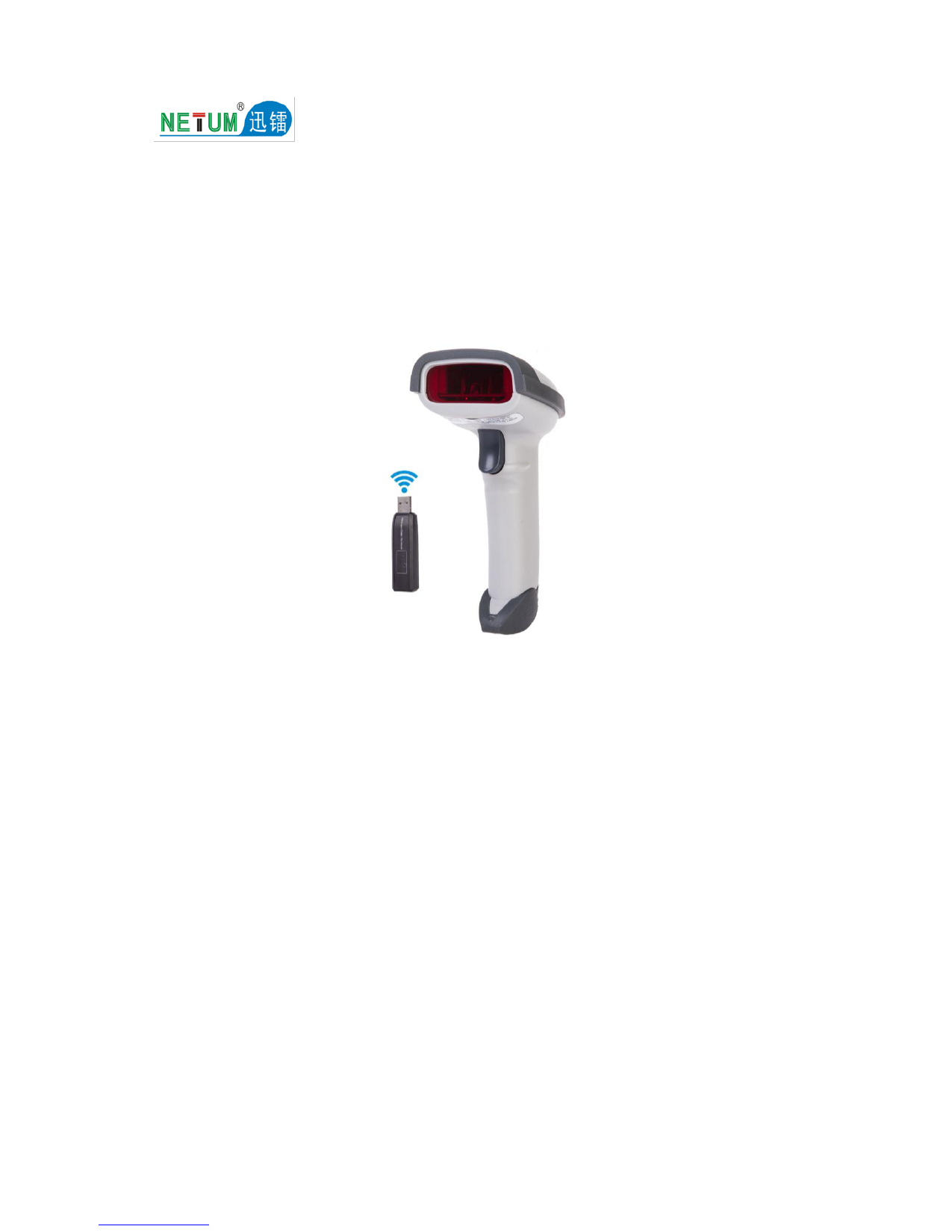
Image 1: Netum NT-2028 Barcode Scanner with its 2.4G USB wireless dongle. The scanner is black, ergonomically shaped for handheld use, and the dongle is a small USB device.
Opsætningsvejledning
1. Charging the Scanner:
Before initial use, fully charge the scanner. Connect the USB charging cable to the scanner's charging port and the other end to a USB power adapter (not included) or a computer's USB port. The indicator light will show charging status.
2. Connecting via 2.4G Wireless Dongle:
- Insert the 2.4G USB wireless dongle into an available USB port on your computer or host device.
- The operating system will automatically install the necessary drivers. This may take a few moments.
- Turn on the barcode scanner. It should automatically pair with the dongle. A successful connection is usually indicated by a specific sound or light pattern on the scanner.
- Åbn en teksteditor, et regneark eller et andet program, hvor du vil have de scannede data vist.
- Scan a barcode to test the connection. The data should appear in your application.
3. Connecting via USB Cable (Corded Mode):
- Connect the USB data cable directly from the scanner to a USB port on your computer or host device.
- The scanner will function as a wired device. Drivers will install automatically.
- Test by scanning a barcode into an application.

Image 2: Netum NT-2028 Barcode Scanner shown with its 2.4G USB wireless dongle and the USB charging/data cables, illustrating the connectivity options.
Betjeningsvejledning
Basic Scanning:
- Ensure the scanner is powered on and connected to your host device (via wireless dongle or USB cable).
- Point the scanner's laser beam at the barcode you wish to scan.
- Press the trigger button. A successful scan is typically indicated by a beep and/or a green light.
- The scanned data will be transmitted to your connected device and appear in the active application.
Advanced Settings (Programming Barcodes):
The NT-2028 scanner supports various configuration options, such as adding prefixes/suffixes, changing transmission modes (e.g., instant upload, storage mode), and enabling/disabling specific barcode types. These settings are typically configured by scanning special programming barcodes found in a dedicated programming guide (often a separate booklet or PDF). Refer to the official Netum support website for the comprehensive programming guide specific to the NT-2028 model.
Data Storage Mode (Offline Mode):
When out of wireless range or disconnected, the scanner can store scanned barcodes in its internal 128 MB memory. To activate this mode and upload stored data, refer to the programming guide for specific barcode commands. Once reconnected, scan the "Upload Data" programming barcode to transmit all stored data to your host device.
Opretholdelse
Rensning:
- Use a soft, clean, damp cloth to wipe the exterior of the scanner.
- Brug ikke slibende rengøringsmidler, opløsningsmidler eller stærke kemikalier, da disse kan beskadige enheden.
- For the scanning window, use a lint-free cloth and a mild glass cleaner if necessary. Ensure no liquid enters the scanner housing.
Opbevaring:
Store the scanner in a cool, dry place away from direct sunlight and extreme temperatures. When not in use for extended periods, ensure the battery is partially charged (around 50%) to prolong its lifespan.
Batteripleje:
- Undgå at aflade batteriet helt ofte.
- Charge the battery using only the provided USB cable or a compatible power source.
- Hvis batteriets ydeevne forringes betydeligt, skal du kontakte kundesupport for at få hjælp.
Fejlfinding
| Problem | Mulig årsag | Løsning |
|---|---|---|
| Scanneren tænder ikke. | Lavt batteri. | Oplad scanneren helt. |
| No data transmitted after scanning. |
|
|
| Scanner beeps but no data appears. |
|
|
| Scanner not reading certain barcodes. |
|
|
Specifikationer
- Model: NT-2028
- Mærke: NETUM
- Forbindelse: 2.4G Wireless (via USB Dongle), USB Cable (Corded)
- Lyskilde: Laser
- Scanningstype: Laser
- Scanningshastighed: 200 scanninger pr. Sekund
- Scannerfunktion: 1D-stregkodescanning
- Type: Håndholdt
- Hukommelse: 128 MB
- Strømkilde: Batteridrevet
- Pakkedimensioner: 5.71 x 4.29 x 2.28 cm
- Varens vægt: Cirka 158.98 g
Garanti og support
For warranty information, technical support, or to download the full programming guide, please visit the official NETUM webwebstedet eller kontakt din lokale forhandler. Gem din købskvittering til garantikrav.
NETUM Official Store: Visit NETUM Store on Amazon