1. Introduktion
The SecuX W20 is a hardware wallet designed for secure storage and management of digital assets, including cryptocurrencies, tokens, and NFTs. It features an intuitive touchscreen and Bluetooth connectivity, providing a user-friendly interface while maintaining robust security measures.
2. Pakkens indhold
Verify that all items are present in your SecuX W20 package:
- SecuX W20 Hardware Wallet
- USB-C kabel
- Recovery Seed Phrase Cards
- Hurtig startvejledning
3. Enhed overview
The SecuX W20 features a 2.8-inch color touchscreen for direct interaction and transaction verification. It includes a USB-C port for charging and wired connectivity, and a Bluetooth module for wireless connection to compatible devices.

Image: The SecuX W20 device showing its account portfolio screen.
4. Indledende opsætning
- Oplad enheden: Connect the SecuX W20 to a power source using the provided USB-C cable. Ensure the device is fully charged before proceeding with setup.
- Tænd: Press and hold the power button until the SecuX logo appears on the screen.
- Set Up PIN: Follow the on-screen instructions to create a Personal Identification Number (PIN). This PIN will be required for device access and transaction authorization. The dynamic keypad enhances security against shoulder surfing.
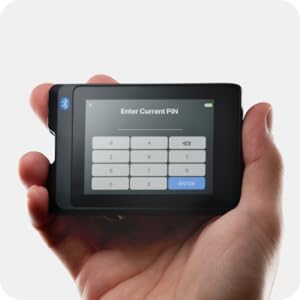
Image: The SecuX W20 displaying the PIN entry screen.
- Generate/Restore Recovery Phrase: The device will guide you through generating a new 24-word recovery phrase or restoring from an existing one. Write down your recovery phrase on the provided cards and store it in a secure, offline location. Do not share this phrase with anyone.
- Connect to SecuXess: Download the SecuXess mobile app or access the web interface via a desktop browser. Follow the instructions within the app/web interface to pair your W20 device via Bluetooth or USB.
5. Betjening af enheden
5.1 Navigering på berøringsskærmen
The 2.8-inch color touchscreen allows for intuitive navigation. Swipe and tap to select options, view your portfolio, and authorize transactions.

Image: A user's hand operating the intuitive touchscreen of the SecuX W20.
5.2 Managing Cryptocurrencies
Through the SecuXess app or web interface, kan du view your portfolio, check account balances, and manage over 10,000 coins and tokens across more than 300 blockchain networks.

Image: The SecuX W20 hardware wallet shown alongside a laptop running the SecuXess management interface.
5.3 Sending and Receiving Assets
To send or receive assets, initiate the transaction through the SecuXess app/web interface. The transaction details will be displayed on your W20 device for clear-sign verification. Confirm the details on the device before authorizing the transaction with your PIN.
5.4 MetaMask and WalletConnect Support
The SecuX W20 supports connection to MetaMask via QR-based linking and WalletConnect for access to various DeFi applications and marketplaces. This allows for secure interaction with decentralized applications (DApps) by signing transactions directly on your hardware wallet.

Image: The SecuX W20 connected to a mobile device, illustrating DApp connectivity.
6. Sikkerhedsfunktioner
The SecuX W20 incorporates multiple layers of security to protect your digital assets:
- Secure Element (SE) Chip: Equipped with a certified CC EAL5+ Infineon Solid Flash Secure Element chip, which securely stores your private keys in an isolated environment.
- Offlinelager: Your private keys are stored offline on the device, isolated from internet-connected systems, protecting them from online hacking threats and phishing attacks.
- PIN-beskyttelse: Access to the device is secured by a user-defined PIN. The device features a dynamic keypad to prevent pattern recognition. After 5 unsuccessful PIN entries, the device automatically resets to protect against brute-force attacks.
- Clear-Sign Transactions: All transaction details are displayed on the device's screen for your review and explicit authorization, preventing malicious transactions from being signed without your knowledge.
- Tamper-Proof Seal: The device comes with a tamper-proof seal to ensure its integrity upon arrival. Inspect this seal before first use.

Image: Diagram of the Infineon EAL5+ Secure Element chip for enhanced security.

Billede: Et nærbillede view of the SecuX W20 highlighting its tamper-proof seal.
7. Supported Cryptocurrencies and Tokens
The SecuX W20 supports over 10,000 coins and tokens on more than 300 blockchain networks. This includes major cryptocurrencies such as Bitcoin (BTC), Ethereum (ETH), Tether (USDT), USDC, BNB, XRP, Cardano (ADA), Polygon (MATIC), Dogecoin (DOGE), Shiba Inu (SHIB), Solana (SOL), Tron (TRX), Litecoin (LTC), and Avalanche (AVAX), among others. For a comprehensive and up-to-date list, please refer to the official SecuX webwebsted.

Image: The SecuX W20 displaying its interface, with various cryptocurrency logos indicating broad support.
8. Forbindelse
The SecuX W20 offers flexible connectivity options:
- Bluetooth: Connect wirelessly to your mobile device (iOS/Android) or desktop computer for convenient management via the SecuXess app.
- USB: Connect directly to your computer via the USB-C cable for a wired connection to the SecuXess web interface.
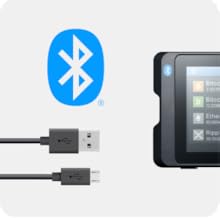
Image: The SecuX W20 with its USB-C cable, demonstrating connectivity options.
9. Firmwareopdateringer
Regular firmware updates are released to enhance security, add new features, and improve device performance. It is recommended to keep your device's firmware updated. The SecuXess app or web interface will guide you through the update process. Ensure your device is sufficiently charged before initiating an update.
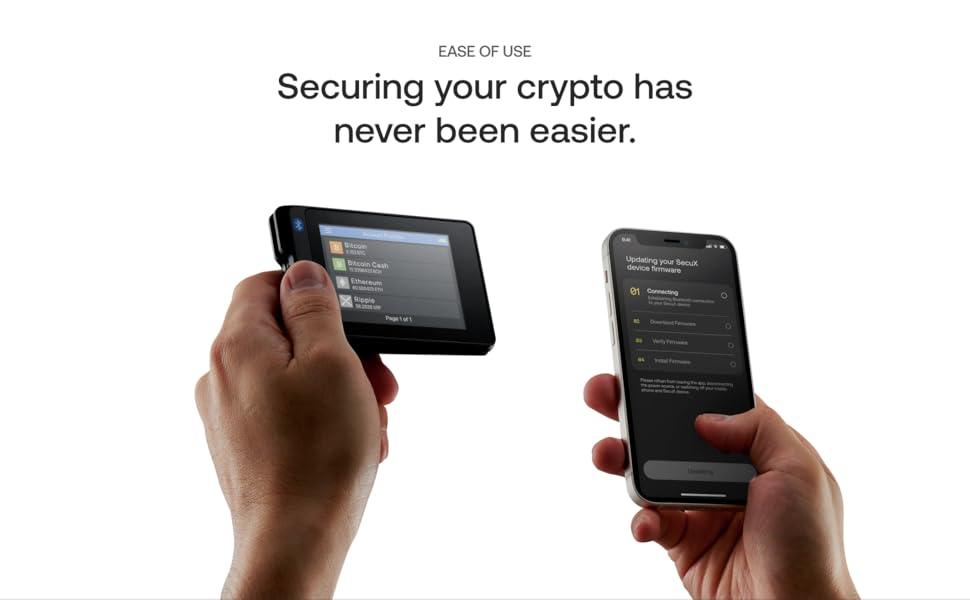
Image: Illustrates the process of updating the SecuX W20 firmware via a smartphone.
10. Fejlfinding
- Forbindelsesproblemer: If you experience difficulty connecting via Bluetooth or USB, try restarting both your SecuX W20 and the connecting device (phone/computer). Ensure Bluetooth is enabled on your host device and the SecuXess app/web interface is up to date.
- Firmwareopdateringsproblemer: If a firmware update fails, ensure a stable internet connection and sufficient battery on your W20. Try the update again. If issues persist, contact support.
- Enheden reagerer ikke: Hvis enheden ikke reagerer, skal du trykke på tænd/sluk-knappen og holde den nede i cirka 10-15 sekunder for at fremtvinge en genstart.
- Transaction Fees: Transaction or network fees are determined by the blockchain networks and vary with network traffic. SecuX does not profit from these fees.
11. Specifikationer
| Produktdimensioner | 3.5 x 2.32 x 0.51 tommer |
| Varens vægt | 1.8 ounce |
| Skærm diagonal | 2.8 tommer / 8 cm |
| Batteri | 1 Lithium Polymer batteri (medfølger) |
| Forbindelse | Bluetooth, USB-C |
| Sikkerhedschip | Infineon Solid Flash CC EAL5+ Secure Element |
12. Garanti og support
For any questions, technical assistance, or support inquiries regarding your SecuX W20 hardware wallet, please visit the official SecuX website. A dedicated support team is available to provide guidance and ensure a seamless experience. SecuX prioritizes customer privacy and does not store any personal information or have access to your private keys.
Note: Your private key is stored securely within the device itself and is never uploaded to any website or server. You maintain full self-custody of your digital assets.


