1. Opsætning og første brug
This section guides you through the initial setup of your NEC VersaPro VK26TX-G laptop.
1.1 Udpakning og inspektion
Carefully remove the laptop and all accessories from the packaging. Verify that all components are present and undamaged. The standard package includes the laptop, AC adapter, and power cord.
1.2 Tilslutning af strøm
- Connect the AC adapter to the power input port on the side of the laptop.
- Sæt netledningen i AC-adapteren og derefter i en stikkontakt.
- Lad batteriet oplade i mindst 30 minutter før første brug, eller indtil batteriindikatoren viser tilstrækkelig opladning.

Image 1.1: The NEC VersaPro VK26TX-G laptop in an open position, displaying the Windows 10 desktop environment. This view shows the screen, keyboard, and touchpad, ready for initial setup.
1.3 Første opstart og Windows-opsætning
Press the power button located above the keyboard to turn on the laptop. Follow the on-screen instructions to complete the Windows 10 Pro setup process. This typically involves selecting your region, language, creating a user account, and connecting to a Wi-Fi network.
1.4 Tilslutning af eksterne enheder
Din bærbare computer har forskellige porte til tilslutning af eksterne enheder:
- USB-porte: Til mus, tastaturer, ekstern lagring og andre USB-enheder.
- VGA port: Til tilslutning af eksterne skærme eller projektorer.
- LAN-port: Til kablede netværksforbindelser.
- Lydstik: Til hovedtelefoner eller eksterne højttalere.

Billede 1.2: A view of the left side of the laptop, highlighting various connectivity ports such as USB, VGA, and the LAN port, essential for connecting external devices and networks.

Billede 1.3: A view of the right side of the laptop, showing additional USB ports and the integrated DVD-ROM drive, useful for optical media.
2. Betjening af din bærbare computer
This section covers the basic operation of your NEC VersaPro VK26TX-G.
2.1 Tænd/sluk og dvaletilstand
- Tænd: Tryk på tænd/sluk-knappen.
- Luk ned: Klik på Start-knappen, og derefter på Tænd/sluk > Luk ned.
- Genstart: Klik på Start-knappen, og derefter på Tænd/sluk > Genstart.
- Sove: Klik på Start-knappen, derefter på Tænd/sluk > Slumretilstand, eller luk låget på den bærbare computer.
2.2 Tastatur og touchpad
The laptop features a full-sized keyboard and a multi-touch touchpad for navigation.
- Tastatur: Standard QWERTY layout with function keys (F1-F12) for various shortcuts (e.g., volume, brightness).
- Touchpad: Supports gestures like scrolling (two fingers), zooming (pinch), and right-click (two-finger tap or press bottom-right).
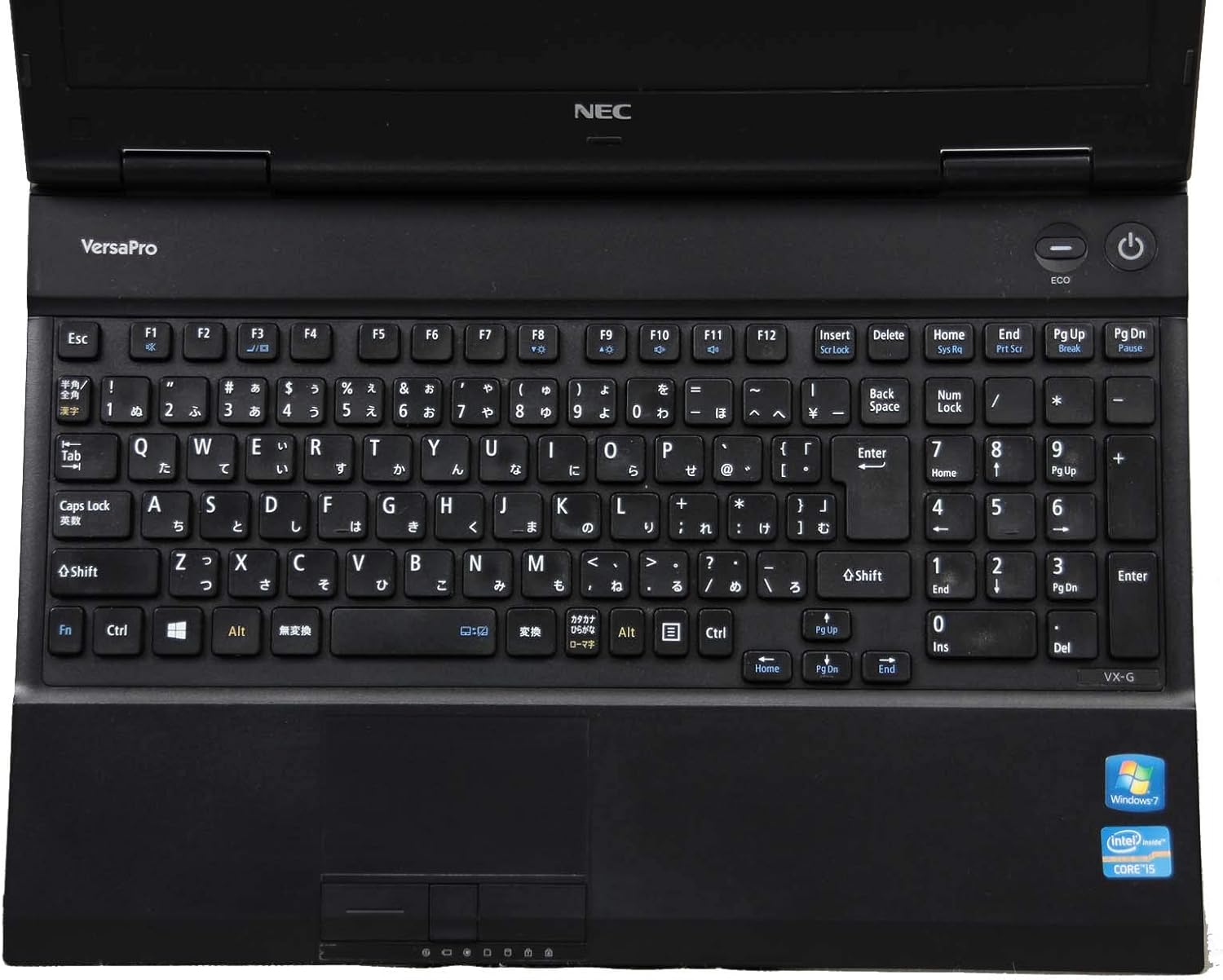
Billede 2.1: Top-down view of the laptop's keyboard and touchpad, illustrating the layout and input areas for user interaction.
2.3 Tilslutning til Wi-Fi
- Klik på Wi-Fi-ikonet i proceslinjen (nederste højre hjørne af skærmen).
- Vælg det ønskede netværk fra listen.
- Indtast netværkssikkerhedsnøglen (adgangskoden), hvis du bliver bedt om det, og klik derefter på 'Opret forbindelse'.
2.4 Using the DVD-ROM Drive
The integrated DVD-ROM drive allows you to read optical discs. To open the tray, press the eject button located on the drive itself. Insert a disc, then gently push the tray back in. Windows will typically detect the disc automatically.
2.5 Windows 10 Pro and WPS Office
Your laptop comes pre-installed with Windows 10 Pro, offering advanced features for productivity and security. It also includes WPS Office, a suite of applications compatible with Microsoft Office formats, for document creation, spreadsheets, and presentations.
3. Vedligeholdelse og pleje
Korrekt vedligeholdelse sikrer din bærbare computers levetid og optimale ydeevne.
3.1 Rengøringsinstruktioner
- Skærm: Brug en blød, fnugfri klud, der er specielt designet til elektronik.ampen it slightly with water or a screen cleaner. Do not spray liquid directly onto the screen.
- Tastatur og kabinet: Use a soft cloth, slightly dampened with water or a mild cleaning solution. For dust in crevices, use compressed air.
- Sluk altid den bærbare computer og tag stikket ud, inden du rengør den.
3.2 Pleje af batterier
- Undgå ekstreme temperaturer.
- For optimal battery life, avoid constantly keeping the laptop plugged in at 100% charge. Occasionally allow the battery to discharge to around 20-30% before recharging.
- Hvis du opbevarer den bærbare computer i længere tid, skal du sørge for, at batteriet er opladet til omkring 50-60%.
3.3 Softwareopdateringer
Regularly update your Windows operating system and device drivers to ensure security, stability, and performance. Windows Update can be accessed via Settings > Update & Security > Windows Update.
3.4 Datasikkerhedskopiering
Det anbefales kraftigt at sikkerhedskopiere dine vigtige data regelmæssigt til et eksternt drev eller cloud-lagring for at forhindre datatab.
4. Fejlfinding af almindelige problemer
This section provides solutions for common problems you might encounter.
4.1 Bærbar computer tænder ikke
- Sørg for, at strømadapteren er korrekt tilsluttet både den bærbare computer og en fungerende stikkontakt.
- Kontroller, at stikkontakten fungerer ved at tilslutte en anden enhed.
- Hvis batteriet er helt afladet, skal du lade det oplade i et par minutter, før du forsøger at tænde det.
4.2 Ingen visning på skærmen
- Kontroller, om den bærbare computer er tændt.
- Juster skærmens lysstyrke ved hjælp af funktionstasterne (f.eks. Fn + F2/F3).
- If an external monitor is connected, try disconnecting it or switching display modes (e.g., Fn + F7).
4.3 Problemer med Wi-Fi-forbindelse
- Sørg for, at Wi-Fi er aktiveret (tjek Wi-Fi-ikonet i proceslinjen).
- Genstart din router og dit modem.
- Glem netværket, og genopret forbindelsen, og indtast adgangskoden igen.
- Run the Windows Network Troubleshooter (Settings > Network & Internet > Status > Network troubleshooter).
4.4 Langsom ydeevne
- Luk unødvendige programmer, der kører i baggrunden.
- Søg efter og installer eventuelle ventende Windows-opdateringer.
- Run a disk cleanup and defragmentation (for HDD models).
- Scan for malware eller virus.
5. Specifikationer
Detailed technical specifications for the NEC VersaPro VK26TX-G laptop.
| Feature | Specifikation |
|---|---|
| Mærke | NEC |
| Modelnavn | VersaPro VK26TX G |
| Formfaktor | Laptop |
| Skærmstørrelse | 15.6 tommer |
| Opløsning | 1366 x 768 pixels (Full WXGA) |
| CPU Brand | Intel |
| CPU type | Core i5 |
| CPU hastighed | 2.6 GHz |
| RAM kapacitet | 4 GB |
| HDD-kapacitet | 250 GB |
| Harddisk type | HDD |
| Meddelelse | Wi-Fi |
| Operativsystem | Windows 10 Pro |
| Optisk drev | DVD-ROM |
6. Garanti og support
Information regarding your product's warranty and available support services.
6.1 Produktgaranti
Dette produkt indeholder typisk en 90 dages garanti from the date of purchase. This warranty covers manufacturing defects and hardware malfunctions under normal use. Please refer to your purchase documentation for specific terms and conditions. Note that battery remaining capacity is generally not covered under warranty.

Image 6.1: An informational graphic highlighting the 90-day warranty period and the inclusion of a legitimate Windows OS license.
6.2 Kundesupport
A dedicated support system is in place to assist you with any issues or inquiries. If you encounter a problem with the product, professional staff are available to help diagnose the situation, investigate the cause, and propose appropriate solutions, including exchanges or repairs if necessary.
For inquiries regarding the usage of software or applications, or for specific malfunctions, please contact the manufacturer's official support channels directly.

Image 6.2: An informational graphic outlining the comprehensive customer support system, including professional staff assistance for product issues.


