1. Introduktion
Thank you for choosing the Meetion MT-C500 USB Gaming Kit. This comprehensive 4-in-1 kit is designed to enhance your gaming experience on both game consoles and personal computers. It includes a high-performance gaming keyboard, a precise gaming mouse, a comfortable gaming headset, and a durable mouse pad. This manual provides essential information for setup, operation, maintenance, and troubleshooting to ensure optimal performance and longevity of your gaming kit.

Figure 1.1: Meetion MT-C500 4-in-1 Gaming Kit components.
2. Produktet er slutview
2.1 Kitkomponenter
- Gaming tastatur: A full-sized USB keyboard with backlit keys, designed for responsive and comfortable gaming.
- Gaming mus: A USB wired mouse offering precise tracking and ergonomic design for extended gaming sessions.
- Gaming headset: A comfortable headset with integrated microphone, providing clear audio and communication.
- Musemåtte: A durable surface optimized for mouse tracking accuracy.
2.2 Nøglefunktioner
- USB-forbindelse: All components connect via standard USB ports for universal compatibility.
- Baggrundsbelyst tastatur: Features vibrant backlighting for enhanced visibility and aesthetic appeal in low-light conditions.
- Ergonomisk design: Keyboard and mouse are designed for comfort during prolonged use.
- Plug and Play: No additional drivers typically required for basic functionality.

Figure 2.1: Gaming Keyboard.
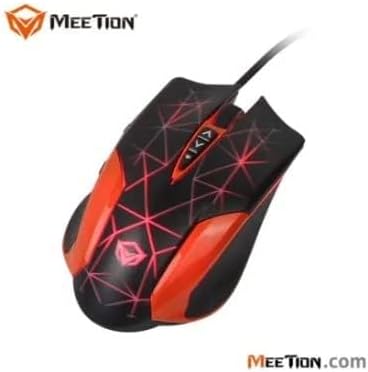
Figure 2.2: Gaming Mouse.

Figure 2.3: Gaming Headset.
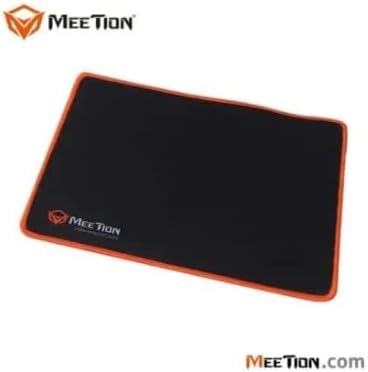
Figure 2.4: Mouse Pad.
3. Opsætningsvejledning
Follow these steps to set up your Meetion MT-C500 Gaming Kit:
- Udpak komponenter: Carefully remove all components (keyboard, mouse, headset, mouse pad) from the packaging.
- Position Mouse Pad: Place the mouse pad on a flat, stable surface where you intend to use your mouse.
- Tilslut tastatur: Locate an available USB port on your game console or PC. Insert the USB connector of the keyboard firmly into the port.
- Tilslut mus: Insert the USB connector of the mouse into another available USB port on your game console or PC.
- Tilslut headset: The headset typically uses a single 3.5mm audio jack for both audio and microphone. Connect this jack to the corresponding audio port on your game console controller, PC, or a USB audio adapter if required. If your headset has separate audio and microphone jacks, connect them to the respective ports.
- Systemgenkendelse: Your operating system or game console should automatically detect and install the necessary drivers. This process may take a few moments.
- Test funktionalitet: Once recognized, test the keyboard by typing, the mouse by moving the cursor and clicking, and the headset by playing audio and testing the microphone.
4. Betjeningsvejledning
4.1 Brug af tastatur
- Indtastning: Brug standard QWERTY-layoutet til tekstinput.
- Baggrundslys kontrol: The keyboard features a single-color backlight. Specific key combinations (e.g., Fn + Scroll Lock or a dedicated light key) may be used to toggle the backlight on/off or adjust brightness. Refer to the keyboard's markings for exact controls.
- Funktionstaster: Utilize the F1-F12 keys, often in combination with the 'Fn' key, for multimedia control or system shortcuts as indicated by their secondary icons.
4.2 Brug af mus
- Bevægelse: Move the mouse across the mouse pad to control the cursor on screen.
- Klik: Brug venstre og højre knap til primære og sekundære handlinger.
- Scrollhjul: Use the scroll wheel for vertical scrolling in documents and web pages. The scroll wheel may also function as a clickable button.
- DPI-justering: If present, use the dedicated DPI button (often located near the scroll wheel) to cycle through different sensitivity settings for the mouse.
4.3 Brug af headset
- Lydudgang: Ensure the headset is selected as the default audio output device in your system settings for game audio and communication.
- Mikrofonindgang: Position the microphone appropriately for clear voice capture. Verify the microphone is enabled and selected as the input device in your system or game communication settings.
- Lydstyrkekontrol: Adjust audio volume using the inline volume control on the headset cable or through your system's audio settings.
5. Vedligeholdelse
Proper maintenance ensures the longevity and performance of your gaming kit:
- Rengøring af tastaturet: Use a soft, dry cloth to wipe down the keyboard surface. For dust between keys, use compressed air. Avoid liquid cleaners directly on the keys.
- Rengøring af musen: Tør musens overflade af med en blød, let fugtig kludamp cloth. Ensure no moisture enters the internal components. Clean the optical sensor area gently with a cotton swab if tracking issues occur.
- Rengøring af headsettet: Wipe earcups and headband with a soft, dry cloth. Do not immerse in water. Clean the microphone foam cover if applicable.
- Rengøring af musemåtten: Most fabric mouse pads can be gently hand-washed with mild soap and water, then air-dried completely before use.
- Kabelstyring: Undgå skarpe bøjninger eller for meget træk i USB-kablerne for at forhindre skader.
- Opbevaring: Store the kit in a clean, dry environment away from extreme temperatures and direct sunlight when not in use.
6. Fejlfinding
If you encounter issues with your Meetion MT-C500 Gaming Kit, refer to the following common problems and solutions:
- Tastatur/mus reagerer ikke:
- Ensure the USB cable is securely plugged into the port.
- Try plugging the device into a different USB port.
- Restart your game console or PC.
- Test the device on another computer or console to rule out system-specific issues.
- Tastaturbaggrundsbelysning virker ikke:
- Press the backlight control key (e.g., Fn + Scroll Lock) to toggle the light.
- Sørg for, at tastaturet er korrekt tilsluttet og modtager strøm.
- Problemer med musesporing:
- Sørg for, at musemåttens overflade er ren og fri for snavs.
- Rengør den optiske sensor på undersiden af musen.
- Headset No Audio/Microphone Not Working:
- Check that the 3.5mm audio jack(s) are fully inserted into the correct ports.
- Verify that the headset is selected as the default playback and recording device in your system's sound settings.
- Check the inline volume control on the headset cable and ensure it is not muted or set to minimum volume.
- Test the headset on another device to confirm its functionality.
7. Specifikationer
| Feature | Beskrivelse |
|---|---|
| Modelnummer | MT-C500 |
| Mærkenavn | MØDE |
| Forbindelsesteknologi | USB |
| Kompatible enheder | Spillekonsol, PC |
| Tastaturbeskrivelse | Spil |
| Anbefalet anvendelse af produktet | Spil |
| Særlige funktioner | Baggrundsbelyst, Ergonomisk |
| Farve | Sort |
| Tastaturbaggrundsbelysning Farvestøtte | Enkelt farve |
| Stil | Moderne |
| Pakkedimensioner | 50.1 x 24.4 x 13.8 cm |
| Varens vægt | 2.11 kg |
8. Garanti og support
For information regarding warranty coverage, technical support, or service for your Meetion MT-C500 Gaming Kit, please refer to the warranty card included with your product or visit the official Meetion webDu kan også kontakte den forhandler, hvor du købte produktet, for at få hjælp.
Gem venligst dit købsbevis for garantikrav.


