1. Introduktion
This manual provides comprehensive instructions for the ALLWAY Dual USB Interface Module, designed to enhance the connectivity of your Ford vehicle's SYNC 3 system. This module enables Apple CarPlay and Android Auto functionality, offering seamless integration of your smartphone with your vehicle's infotainment system. Please read this manual thoroughly before installation and operation to ensure proper functionality and safety.
2. Kompatibilitet
This Dual USB Interface Module is specifically designed for Ford vehicles equipped with the SYNC 3 system. It is crucial that your SYNC 3 system has been updated to version 2.2 or above. Updates can typically be found on the official Ford Owner's webwebsted.
Vigtig bemærkning:
- This module is ONLY compatible with Ford SYNC 3 systems. It is NOT compatible with SYNC 2.
- This module will NOT fit Mustang and Focus models.
- Verify your SYNC version before purchase and installation. Refer to the comparison image below to distinguish between SYNC 2 and SYNC 3.
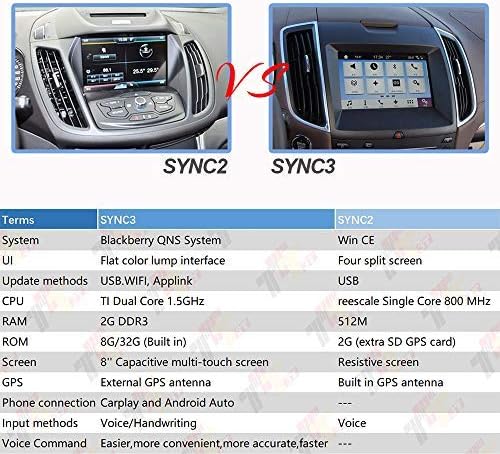
Figure 2.1: Visual comparison between Ford SYNC 2 and SYNC 3 systems. Ensure your vehicle has SYNC 3 for compatibility.

Figure 2.2: Another visual guide showing a compatible SYNC 3 screen with CarPlay and an incompatible SYNC 2 screen.
3. Nøglefunktioner
- Genuine Dual USB interface Module for Ford APPLE CARPLAY SYNC3.
- Interchange Part Number: HC3Z-19A387-B or HC3T-14F014-BC.
- Enables Apple CarPlay and Android Auto functionality.
- Direct replacement for existing USB interface module.
- Plug and play installation after software update.
4. Specifikationer
| Attribut | Detalje |
|---|---|
| Mærke | ALLWAY |
| Modelnummer | AW-URM-001 |
| Udskiftningsdelnumre | HC3Z-19A387-B, HC3T-14F014-BC |
| UPC | 704888365557 |
| Varens vægt | 2.39 ounce |
| Pakkedimensioner | 2.91 x 2.87 x 2.05 tommer |
| Kompatible enheder | Ford vehicles with SYNC 3 (version 2.2+) |
| Fjernbetjening inkluderet? | Ingen |

Figure 4.1: Detailed dimensions of the ALLWAY Dual USB Interface Module.
5. Opsætning og installation
The installation of the ALLWAY Dual USB Interface Module is a direct replacement process. Prior to physical installation, ensure your Ford SYNC 3 system is updated to version 2.2 or higher. This software update is critical for CarPlay and Android Auto functionality.
5.1. Software Update (If Necessary)
- Visit the official Ford Owner's webwebsted.
- Enter your Vehicle Identification Number (VIN) to check for available SYNC 3 updates.
- Download the latest SYNC 3 software update (version 2.2 or higher) to a USB flash drive.
- Follow the on-screen instructions in your vehicle to install the update. This process may take some time.
5.2. Fysisk installation
Nødvendige værktøjer: A plastic pry tool or a small flat-head screwdriver (to avoid scratching surfaces).
- Locate the Existing Module: The USB interface module is typically located in the center console or dashboard.
- Remove the Old Module: Carefully use a plastic pry tool to gently pry out the existing USB module from its housing. Apply even pressure to release the retaining clips.
- Afbryd ledninger: Once the old module is loose, disconnect the electrical connectors from its rear. These are typically 'pinch and pull' connectors.
- Connect the New Module: Take the ALLWAY Dual USB Interface Module and connect the vehicle's wiring harnesses to the corresponding ports on the back of the new module. Ensure connections are secure.
- Insert the New Module: Align the new module with the opening and push it firmly into place until it clicks, indicating the retaining clips have engaged.

Figur 5.1: Forside view of the ALLWAY Dual USB Interface Module.

Figur 5.2: Bagside view of the module, illustrating the connection points for the vehicle's wiring harnesses.
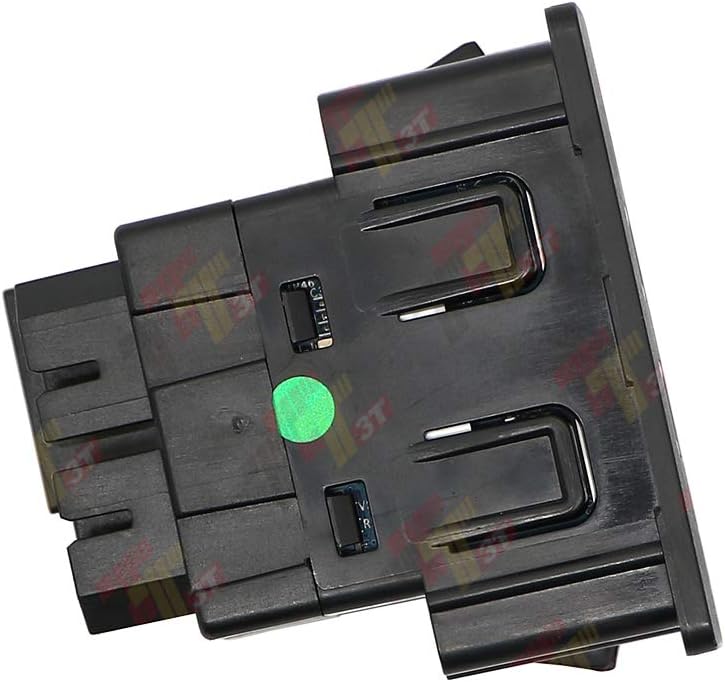
Figur 5.3: Side view of the module, showing its profile and mounting tabs.
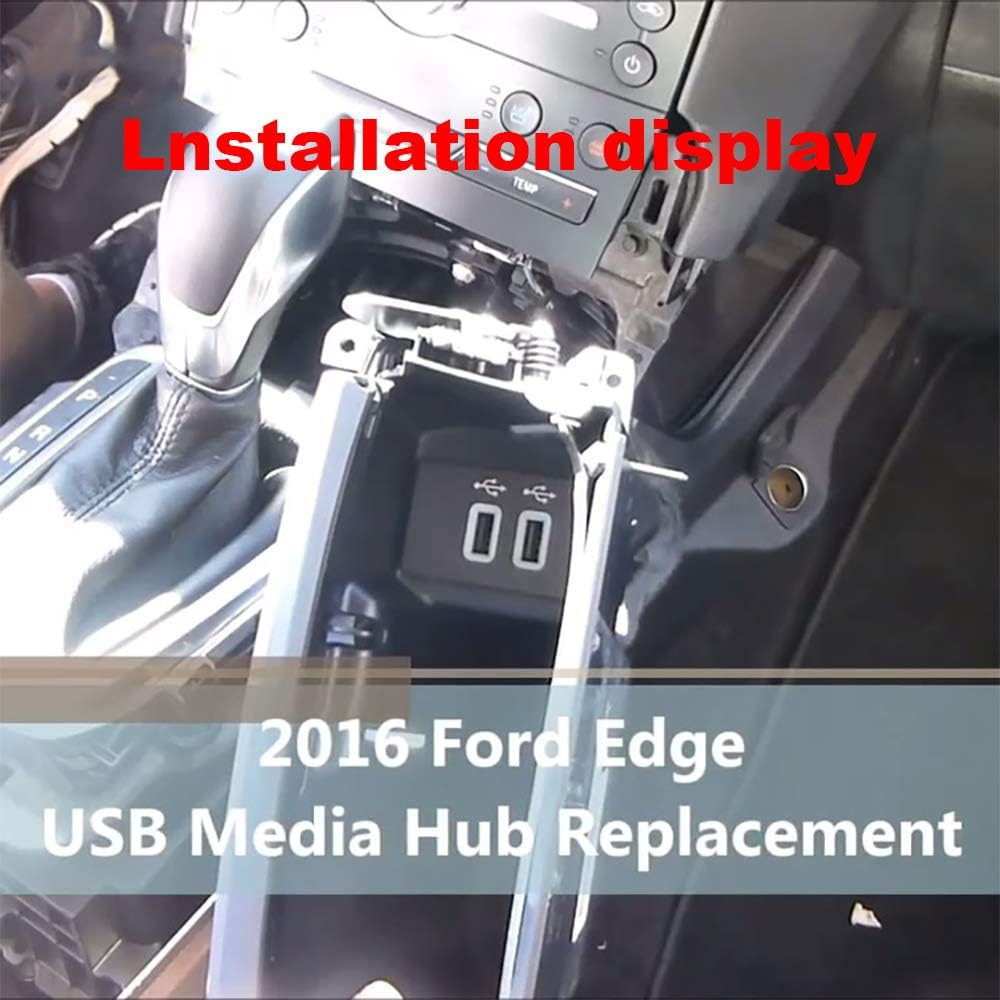
Figur 5.4: Eksample installation in a 2016 Ford Edge, showing the module being fitted into the console.

Figur 5.5: Eksample installation in a 2016 Ford F-150, demonstrating the module in place.
5.3. Installationsvideoer
Video 5.1: This video demonstrates the installation process for a CarPlay USB Media Hub Upgrade Module, similar to the ALLWAY module. It provides a visual guide to replacing the existing unit.
Video 5.2: A demonstration of a CarPlay USB Interface Hub, showcasing its features and potential installation steps for Ford vehicles.
Video 5.3: Denne video giver en oversigtview of a Sync 3 Medium Box Hub, which is compatible with Ford and Lincoln vehicles, and may include installation guidance.
6. Betjeningsvejledning
Once the ALLWAY Dual USB Interface Module is installed and your SYNC 3 system is updated, you can begin using Apple CarPlay or Android Auto.
- Tilslut din smartphone: Use a certified USB cable to connect your Apple iPhone or Android smartphone to one of the USB ports on the newly installed module.
- Indledende opsætning: The first time you connect your phone, your SYNC 3 system may prompt you to enable Apple CarPlay or Android Auto. Follow the on-screen instructions to grant necessary permissions.
- Adgang til CarPlay/Android Auto: Once enabled, the CarPlay or Android Auto interface should automatically appear on your vehicle's touchscreen. You can typically switch between the SYNC 3 interface and CarPlay/Android Auto using an icon on the screen or a dedicated button (if available).
- Brug af funktioner: Navigate through your phone's compatible apps (e.g., navigation, music, messaging) directly from the vehicle's touchscreen or using voice commands.

Figure 6.1: The Apple CarPlay interface displayed on a Ford SYNC 3 screen after connecting a smartphone via the USB module.
7. Vedligeholdelse
The ALLWAY Dual USB Interface Module requires minimal maintenance. To ensure optimal performance and longevity:
- Hold havne rene: Periodically inspect the USB ports for dust, debris, or foreign objects. Use a soft, dry cloth or a small, non-metallic brush to gently clean the ports if necessary.
- Undgå væskespild: Prevent liquids from spilling onto or into the USB module, as this can cause damage and malfunction.
- Brug kvalitetskabler: Always use high-quality, certified USB cables for connecting your smartphone to ensure stable data transfer and charging.
8. Fejlfinding
If you encounter issues with your ALLWAY Dual USB Interface Module, refer to the following common troubleshooting steps:
- CarPlay/Android Auto Not Activating:
- Ensure your SYNC 3 system is updated to version 2.2 or higher. This is a common reason for non-activation.
- Verify your smartphone's operating system is up-to-date.
- Try a different, certified USB cable. Faulty cables are a frequent cause of connectivity issues.
- Restart your smartphone and reconnect it.
- Check your phone's settings to ensure CarPlay/Android Auto is enabled and allowed to connect to your vehicle.
- No Power/Charging from USB Ports:
- Check the vehicle's fuse box for any blown fuses related to the USB ports or infotainment system.
- Ensure the module is correctly seated and all electrical connectors are securely attached.
- Module Does Not Fit:
- Double-check the compatibility section (Section 2) to confirm your vehicle model and SYNC version are supported. This module is not universal.
- Compare the dimensions of your original module with the provided dimensions (Figure 4.1) to ensure proper fitment.
- Intermitterende forbindelse:
- This can often be resolved by using a different, higher-quality USB cable.
- Ensure the USB ports are clean and free of debris.
9. Garanti og support
For warranty information or technical support regarding your ALLWAY Dual USB Interface Module, please contact ALLWAY customer service through their official channels or the retailer from whom the product was purchased. Keep your purchase receipt and product information handy when contacting support.


