1. Introduktion
This manual provides essential information for setting up, operating, and maintaining your KEYESTUDIO 37-in-1 Sensor Starter Kit for BBC Micro:bit. This kit is designed to introduce users to electronics programming and includes a variety of sensors and modules for educational projects. It is compatible with both Micro:bit V1.5 and V2 boards.
2. Pakkens indhold
Verify that all components listed below are present in your kit. The kit includes a Keyestudio sensor shield and 37 types of sensor modules, along with necessary accessories.

Billede: Overview of the KEYESTUDIO 37-in-1 Sensor Starter Kit, showing the product box and all included modules and accessories laid out for inspection.
Sættet indeholder typisk:
- Keyestudio Sensor Shield (fully compatible with Micro:bit)
- Various Digital LED Modules (e.g., White, Red, 3W, RGB)
- Analog Temperature Sensor (LM35)
- Fotocellsensor
- Passive and Active Buzzer Modules
- Traffic Light Module
- Analog Sound Sensor
- Hall Magnetic Sensor
- Thin-film Pressure Sensor
- Vandstandssensor
- Jordfugtighedssensor
- Line Tracking Sensor
- Vibrationssensor
- Flammesensor
- Analog Gas Sensor
- Analog Alcohol Sensor
- Reed switch
- Infrared Obstacle Detector
- Joystick modul
- Dampsensor
- Enkelt relæmodul
- Kapacitiv berøringssensor
- TEMT6000 Ambient Light Sensor
- PIR bevægelsessensor
- Photo Interrupter
- 1602 I2C LCD Display
- HC-SR04 Ultrasonic Module
- Crash sensor
- GUVA-S12SD 3528 ultraviolet sensor
- Digital hældningssensor
- Digital trykknap
- Potentiometer
- Mikro Servo
- Premium Battery Holder (6-cell AA)
- USB kabel
- F-F Dupont Jumper Wires (40-pin)
- Note: A BBC Micro:bit board is not included in this kit.
3. Opsætningsvejledning
- Prepare Your Micro:bit Board: Ensure your BBC Micro:bit board (V1.5 or V2, not included) is updated to the latest firmware.
- Connect the Sensor Shield: Carefully plug your Micro:bit board into the dedicated slot on the Keyestudio Sensor Shield V2. Ensure proper alignment to avoid damage.
- Tilslut sensorer: Identify the sensor module required for your project. Connect the sensor to the appropriate pins on the sensor shield using the provided jumper wires. Refer to the specific project tutorial for detailed wiring diagrams.
- Strømforsyning: For most projects, especially those involving multiple sensors or components like the LCD display, an external power supply is recommended. Connect the battery holder (with 6 AA batteries) or a compatible power adapter to the sensor shield's power input.
- Software opsætning:
- Access the official Keyestudio wiki page for detailed tutorials, wiring diagrams, and example code. A link to the wiki is typically provided with the kit or can be found on the Keyestudio webwebsted.
- Use the Microsoft MakeCode editor or other compatible programming environments to write and upload code to your Micro:bit.
- Install any necessary drivers or libraries as instructed in the online tutorials for specific modules (e.g., for the 1602 I2C LCD display).
4. Operating the Kit
The KEYESTUDIO 37-in-1 Sensor Starter Kit allows for a wide range of electronic experiments and programming projects. Each sensor module has specific operational characteristics and requires corresponding code.
Generelle retningslinjer for drift:
- Se vejledninger: Always consult the detailed online tutorials provided by Keyestudio for each specific sensor and project. These tutorials include step-by-step instructions, wiring diagrams, and exampkoden.
- Code Upload: After writing or modifying your code in MakeCode (or other IDE), compile and upload it to your Micro:bit board via the USB cable.
- Fejlretning: If a project does not function as expected, review your wiring connections, check the code for errors, and ensure all components are correctly powered. For modules like LED displays, adjust backlight brightness if necessary.
Example projekter:
Traffic Light Simulation

Image: A Micro:bit board and sensor shield wired to a traffic light module, demonstrating the control of red, yellow, and green LEDs.
This project utilizes the Traffic Light Module. By programming the Micro:bit, you can control the sequence and timing of the red, yellow, and green LEDs to simulate a functional traffic light system. This teaches basic digital output control and timing.
Temperature Monitoring with LCD

Image: A Micro:bit setup with an LM35 temperature sensor and a 1602 I2C LCD display, showing the current temperature reading.
Using the LM35 Analog Temperature Sensor and the 1602 I2C LCD Display, this project demonstrates how to read analog sensor data and display it on an external screen. The Micro:bit processes the temperature reading from the LM35 and sends it to the LCD for real-time display.
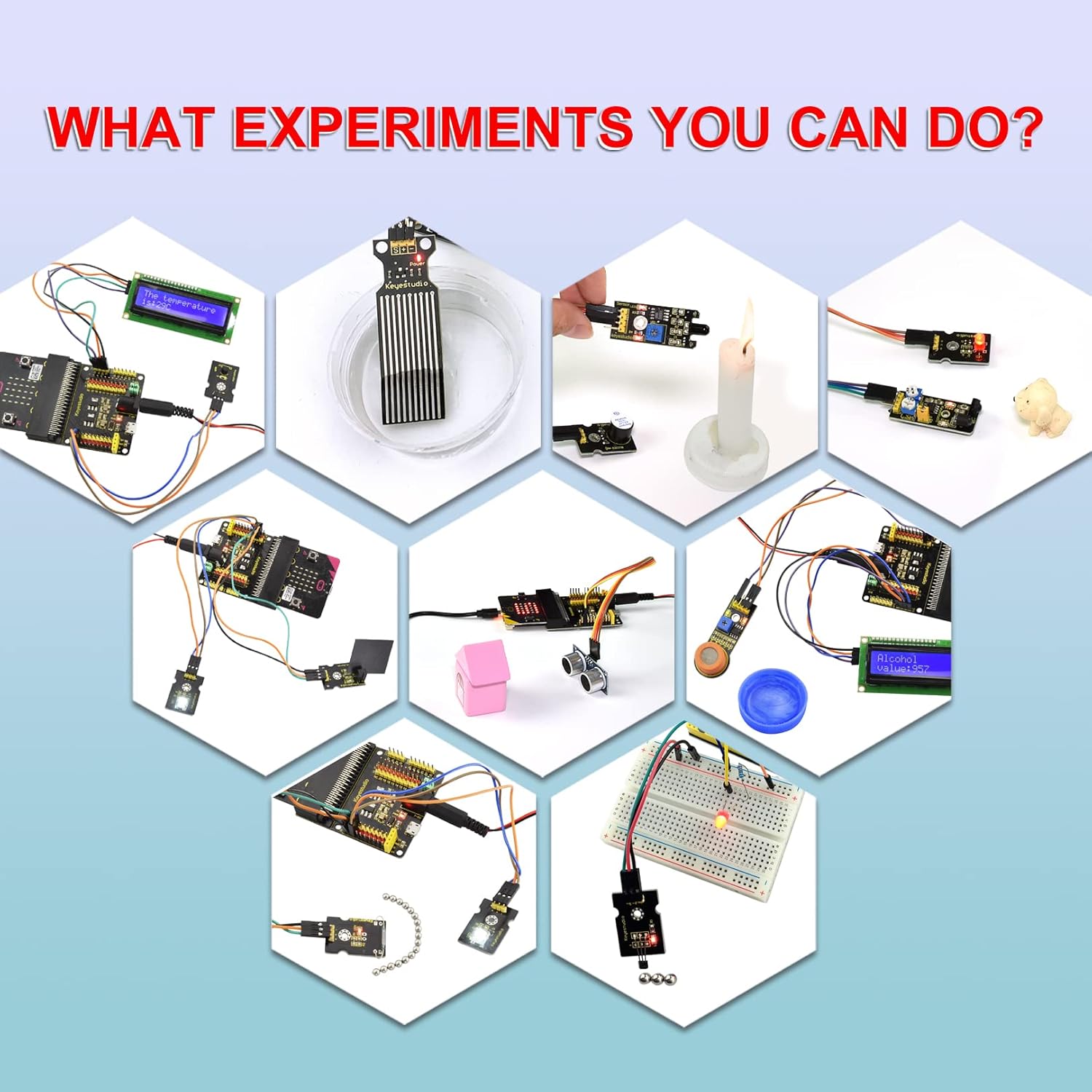
Billede: En collageudstillingasing diverse projects possible with the kit, such as water level detection, flame sensing, and ultrasonic distance measurement, illustrating the versatility of the included sensors.
5. Vedligeholdelse
- Opbevaring: Store all components in their original packaging or a dedicated storage box to prevent loss or damage. Keep sensors and modules away from dust, moisture, and extreme temperatures.
- Håndtering: Handle electronic components with care. Avoid bending pins or applying excessive force. Static electricity can damage sensitive components, so discharge static before handling.
- Rensning: Use a soft, dry cloth to clean modules. Avoid liquid cleaners. For stubborn dust, use compressed air.
- Strømstyring: Disconnect power when not in use or when making changes to wiring. Remove batteries from the battery holder if the kit will not be used for an extended period to prevent leakage.

Image: The various sensor modules and accessories are shown neatly arranged within a green, compartmentalized storage box, highlighting organized storage.
6. Fejlfinding
- Modulet svarer ikke:
- Check all wiring connections for correctness and secure fit.
- Ensure the Micro:bit board is properly seated in the sensor shield.
- Verify that the correct code is uploaded to the Micro:bit.
- Confirm that the module is receiving adequate power. Use an external power supply if experiencing instability.
- Consult the specific module's tutorial on the Keyestudio wiki for common issues and debugging tips.
- LCD Display Issues (e.g., no text, no backlight):
- Ensure the I2C address in your code matches the LCD module's address.
- Check the contrast potentiometer on the back of the LCD module; adjust it with a small screwdriver.
- Verify power connections. The LCD often requires sufficient power, so an external supply is crucial.
- Confirm that the necessary LCD libraries are correctly installed and included in your code.
- Code Upload Failure:
- Ensure the USB cable is securely connected to both the Micro:bit and your computer.
- Verify that the Micro:bit is recognized by your computer (check device manager).
- Prøv en anden USB-port eller et andet kabel.
- Restart your computer and the Micro:bit.
- Unøjagtige sensoraflæsninger:
- Calibrate the sensor if the tutorial specifies a calibration procedure.
- Ensure the sensor is placed in an appropriate environment for accurate readings (e.g., temperature sensor away from heat sources).
- Check for electrical interference from other components or power lines.
7. Specifikationer
| Feature | Detalje |
|---|---|
| Mærke | KEYESTUDIO |
| Modelnavn | 37 Sensors in 1 Starter Kit for BBC Micro bit with Tutorial |
| Varemodelnummer | 1265289 |
| Kompatibilitet | BBC Micro:bit V1.5, V2 (Micro:bit board not included) |
| Antal sensorer | 37 unique sensor modules |
| Forbindelsesteknologi | USB (for Micro:bit programming) |
| Trådløs type | Bluetooth (via Micro:bit) |
| Operativsystem | NEPO RTOS (via Micro:bit) |
| Varens vægt | 1.21 pund (ca. 0.55 kg) |
| Pakkedimensioner | 10.55 x 8.9 x 2.6 tommer (ca. 26.8 x 22.6 x 6.6 cm) |
| Fabrikant | keyes |
8. Support
For comprehensive tutorials, detailed wiring diagrams, example code, and further assistance, please visit the official KEYESTUDIO wiki page. This resource provides step-by-step guidance for each sensor module and project.
KEYESTUDIO is committed to providing quality educational electronics. If you encounter issues not covered in this manual or the online tutorials, please contact KEYESTUDIO customer support through their official webwebstedet eller platformen, hvor produktet blev købt.
Note: Specific warranty information is not provided in the product details. Please refer to the retailer's return policy or contact KEYESTUDIO directly for warranty inquiries.


