1. Introduktion
This manual provides comprehensive instructions for the installation, operation, and maintenance of the DIGI WR11-M400-DE1-XB Cellular Router. This device is designed to provide reliable 4G LTE cellular connectivity and Ethernet networking for various applications. Please read this manual thoroughly before using the product to ensure proper setup and functionality.
2. Sikkerhedsoplysninger
Overhold følgende sikkerhedsforanstaltninger for at forhindre skader på enheden eller personskade:
- Sørg for, at strømforsyningen voltage opfylder enhedens krav.
- Udsæt ikke enheden for vand eller for høj luftfugtighed.
- Undgå at placere enheden i nærheden af varmekilder eller i direkte sollys.
- Åbn ikke enheden casing; overlad al service til kvalificeret personale.
- Use only approved accessories and antennas with the router.
3. Pakkens indhold
Bekræft at alle varer er til stede i pakken:
- DIGI WR11-M400-DE1-XB Cellular Router
- Strømadapter (kan variere afhængigt af region)
- Hurtig startvejledning
- Monteringsudstyr (hvis relevant)
Note: Antennas are not included with this model and must be purchased separately.
4. Produktet er slutview
The DIGI WR11-M400-DE1-XB is a compact and robust cellular router designed for reliable connectivity. Below is an image of the device with key features highlighted.
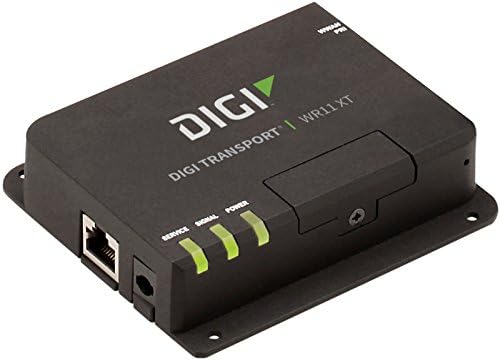
Billede: Forside view of the DIGI WR11-M400-DE1-XB Cellular Router, showing the Ethernet port, power input, and three LED indicators for Service, Signal, and Power. The device is black with the "DIGI TRANSPORT WR11 XT" logo.
Frontpanelindikatorer
- Service LED: Indicates cellular service status. (e.g., Solid Green: Connected, Blinking: Attempting connection, Off: No service)
- Signal LED: Indicates cellular signal strength. (e.g., Green: Strong, Amber: Medium, Red: Weak)
- Power LED: Indicates power status. (e.g., Solid Green: Power on, Off: Power off)
Porte og stik
- Ethernet-port (LAN): One RJ45 port for wired network connection.
- Strømindgang: Connector for the DC power adapter.
- Antennestik: (Not visible in image, but typically present on cellular routers for external antennas, though this model states "NO Antenna" in description, implying internal or separate purchase). Note: This model does not include antennas. External antennas must be connected to the appropriate ports (if available) for cellular connectivity.
5. Opsætning
Indledende opsætning
- Placering: Place the router in a central location, away from obstructions and other electronic devices that may cause interference. Ensure good cellular signal reception.
- SIM-kort installation: If applicable, insert your activated 4G LTE SIM card into the designated SIM card slot. Ensure it is inserted correctly according to the diagram on the device or in the Quick Start Guide.
- Antenneforbindelse: If using external antennas (recommended for optimal performance, and necessary for this model as it ships without antennas), connect them securely to the antenna ports.
- Strømtilslutning: Connect the power adapter to the router's power input port, then plug the adapter into a power outlet. The Power LED should illuminate.
Netværksforbindelse
- Kablet forbindelse: Connect an Ethernet cable from the router's LAN port to your computer or network switch.
- Bekræft forbindelsen: Once powered on, the router will attempt to establish a cellular connection. Monitor the Service and Signal LEDs. The Service LED should turn solid green, and the Signal LED should indicate good signal strength.
6. Betjeningsvejledning
Grundlæggende betjening
Once the router is powered on and has established a cellular connection (indicated by the Service and Signal LEDs), devices connected to its Ethernet port will be able to access the internet via the 4G LTE network.
Adgang til Web Interface
For advanced configuration and monitoring, you can access the router's web-baseret administrationsgrænseflade:
- Ensure your computer is connected to the router via Ethernet.
- Åbn a web browser (f.eks. Chrome, Firefox, Edge).
- In the address bar, type the router's default IP address (commonly
192.168.1.1or192.168.0.1, refer to the Quick Start Guide or device label for the exact address) and press Enter. - Enter the default username and password when prompted (typically
adminfor both, or as specified in the Quick Start Guide). - You can now configure network settings, security, and monitor device status.
7. Vedligeholdelse
Regelmæssig vedligeholdelse er med til at sikre din routers levetid og optimale ydeevne:
- Rensning: Brug en blød, tør klud til at rengøre routerens yderside. Brug ikke flydende rengøringsmidler eller aerosoler.
- Firmwareopdateringer: Kontroller jævnligt producentens website for firmware updates. Keeping the firmware updated can improve performance, add features, and enhance security.
- Ventilation: Ensure the router is placed in a well-ventilated area to prevent overheating. Do not block ventilation openings.
- Power Cycle: If the router experiences issues, try power cycling it by disconnecting the power adapter for 10 seconds and then reconnecting it.
8. Fejlfinding
This section addresses common issues you might encounter with the DIGI WR11-M400-DE1-XB Cellular Router.
| Problem | Mulig årsag | Løsning |
|---|---|---|
| Ingen strøm (strøm-LED slukket) | Strømadapteren er ikke tilsluttet, eller der er en defekt stikkontakt. | Check power connections. Try a different power outlet. Ensure the power adapter is functioning. |
| No Cellular Service (Service LED Off/Blinking) | No SIM card, inactive SIM, poor signal, or network issue. | Ensure SIM card is correctly inserted and activated. Relocate the router for better signal. Contact your cellular provider. |
| Poor Signal Strength (Signal LED Red/Amber) | Router location, external interference, or antenna issue. | Move the router to an area with better cellular reception. Ensure external antennas (if used) are properly connected and positioned. |
| No Internet Access via Ethernet | No cellular connection, incorrect network settings, or faulty Ethernet cable. | Verify cellular connection status (Service LED). Check Ethernet cable connection. Access web interface to verify network settings. |
| Kan ikke få adgang Web Interface | Incorrect IP address, network configuration issue, or router not responding. | Verify the router's IP address. Ensure your computer is set to obtain an IP address automatically (DHCP). Try power cycling the router. |
9. Specifikationer
Key technical specifications for the DIGI WR11-M400-DE1-XB Cellular Router:
| Feature | Detalje |
|---|---|
| Model | WR11-M400-DE1-XB |
| Mærke | Digi |
| Forbindelsesteknologi | Cellular (4G LTE Sprint), Ethernet |
| Antal havne | 1 (Ethernet) |
| Kompatible enheder | Personlig computer |
| Kontrolmetode | Fjern |
| Controller type | Skifte |
| Speciel funktion | WPS |
| UPC | 665752885062 |
| Første ledige dato | 23. juli 2018 |
10. Garanti og support
For information regarding product warranty, technical support, or service, please refer to the warranty card included with your product or visit the official Digi International website. Support resources, including FAQs, documentation, and contact information, are typically available online.
Gem venligst dit købsbevis for garantikrav.


