1. Introduktion
This manual provides detailed instructions for setting up, operating, and troubleshooting the Mcbazel Wireless USB 2.0 Gaming Receiver Adapter. This adapter enables you to connect your Microsoft Xbox 360 wireless controllers and headsets to your Windows PC or laptop, offering a seamless gaming experience.
2. Pakkens indhold
- 1 x Mcbazel Wireless USB 2.0 Gaming Receiver Adapter

Image: The main unit of the Mcbazel Wireless USB 2.0 Gaming Receiver Adapter, featuring a black oval design with a central button and an attached USB cable.
3. Setup and Driver Installation
The Xbox 360 Windows receiver supports Windows 11 and earlier systems. Follow these steps carefully for proper driver installation and device pairing.
3.1. Driver installation
- Connect the Wireless Controller Adapter to an available USB port on your PC.
- Åbn a web browser.
- Scan the QR code provided on the product packaging or refer to the official product page for the driver download link. Download the driver ZIP file.
- After the download is complete, unzip the file to extract the driver folder.
- Inside the unzipped driver folder, locate the file navngivet xusb21.sys.
- Højreklik på xusb21.sys and select "Copy".
- Navigate to your C: drive (System Drive), then go to Windows\System32\drivers.
- Indsæt xusb21.sys file ind i chauffører folder. If prompted, ignore any system warning messages and continue. This process replaces the old driver file med den nye.
- Open Device Manager (Right-click Start button -> Device Manager).
- Locate the "Unknown device" under "Other Devices" or "Universal Serial Bus Controllers".
- Right-click on the "Unknown device" and select "Update driver".
- Choose "Browse my computer for drivers."
- Select "Let me pick from a list of available drivers on my computer."
- Scroll down to "Microsoft" and select "Xbox Controller."
- Click "Next" to install. Ignore any warning messages and proceed.
Video: A tutorial demonstrating the driver installation process for the Mcbazel Wireless USB 2.0 Gaming Receiver Adapter on a Windows PC.
3.2. Parring af controller
- After the driver is successfully installed, press and hold the round button on the receiver for approximately 1 second. The green light on the receiver will blink continuously, indicating it has entered pairing mode.
- Simultaneously press the pairing button on your Xbox 360 wireless controller.
- Wait for the connection to complete. Once paired successfully, the LED on the receiver and controller will stay solid.
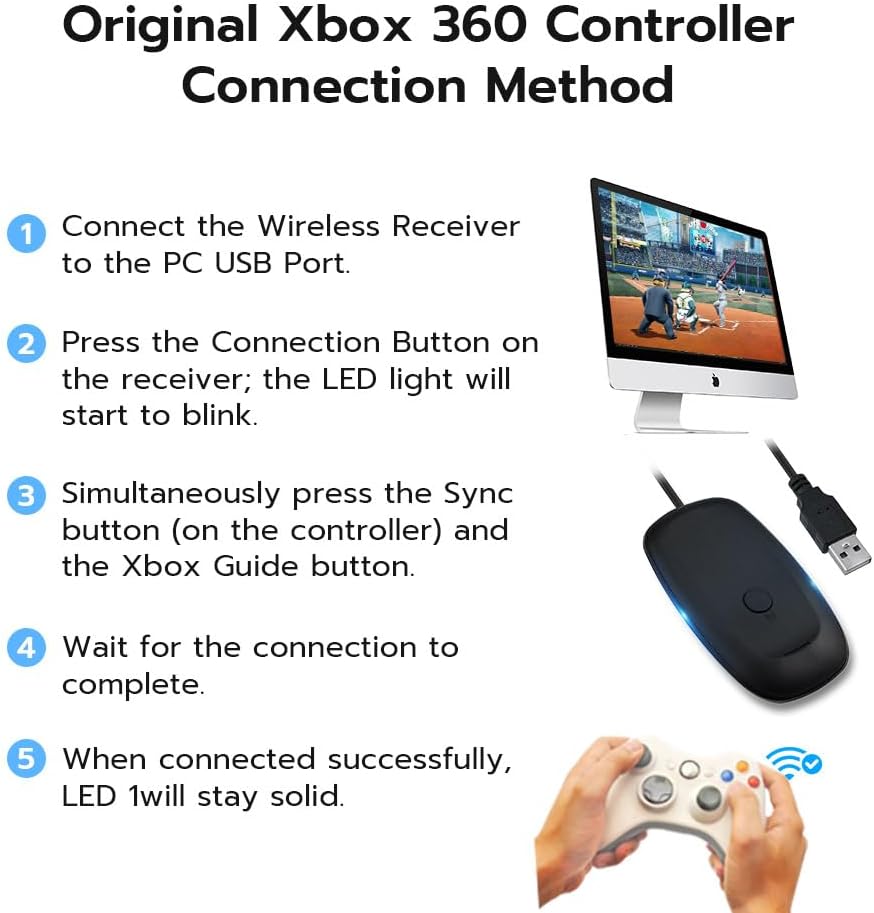
Image: Diagram illustrating the steps to connect an original Xbox 360 controller to the wireless receiver.
4. Betjeningsvejledning
Once successfully paired, your Xbox 360 wireless controller will function as a standard input device for your PC.
- The receiver supports up to four wireless controllers and four wireless headsets simultaneously.
- It provides a wireless range of up to 30 feet, offering complete freedom of movement during gameplay.
- The adapter integrates seamlessly with PC gaming scenarios, utilizing the same binding technology as the Xbox 360 console.

Image: Step-by-step guide for PC connection method, detailing driver installation via Device Manager.
5. Fejlfinding
5.1. Device Not Recognized / Driver Issues
- If the device appears as "Unknown device" in Device Manager, follow the driver installation steps in Section 3.1 precisely. Ensure you manually select the "Xbox 360 Wireless Receiver for Windows" driver from the Microsoft list.
- Verify that you have copied the xusb21.sys file to the correct Windows\System32\drivers vejviser.
- Restart your computer after driver installation to ensure changes take effect.
5.2. Controller Not Pairing
- Ensure the receiver's green light is blinking, indicating it is in pairing mode. If not, press and hold the button on the receiver until it blinks.
- Make sure your Xbox 360 controller is fully charged or has fresh batteries.
- Press the sync button on the controller firmly.
- Note: This receiver is designed for original Xbox 360 controllers. Scuf controllers or controllers designed for other platforms (e.g., Xbox One, PC-specific Bluetooth/2.4G) may not be compatible due to different wireless protocols.
5.3. Limited Range or Disconnections
- Ensure the receiver is not obstructed by large metal objects or other electronic devices that may cause interference.
- Keep the receiver within the recommended 30-foot range from your controllers.
- Avoid placing the receiver near other wireless devices (Wi-Fi routers, cordless phones) that operate on similar frequencies.
6. Specifikationer
| Feature | Detalje |
|---|---|
| Produktdimensioner | 4.53 x 3.54 x 1.1 tommer |
| Varens vægt | 2.39 ounce |
| Modelnummer | 360-recrk |
| Kompatible enheder | Xbox 360 Wireless Controllers, Xbox 360 Wireless Headsets, PC, Laptop |
| Connector Type | USB |
| Farve | Sort |
| Wireless Range | Op til 30 fod |
| Samtidige forbindelser | Up to 4 controllers and 4 headsets |
7. Vedligeholdelse
- Hold modtageren ren og fri for støv. Brug en blød, tør klud til rengøring.
- Undgå at udsætte enheden for ekstreme temperaturer, fugt eller direkte sollys.
- Do not attempt to disassemble or repair the device yourself. This may void any potential warranty.
8. Garanti og support
This product is manufactured by a third party and is not an official Microsoft product. For warranty information and technical support, please refer to the documentation provided with your purchase or contact the seller directly.
Additional protection plans may be available for purchase through your retailer.


