Indledning
This manual provides essential information for the safe and efficient operation of your Philips Momentum 326M6FJSB 32-inch IPS LED Monitor. Please read these instructions carefully before using your monitor and retain them for future reference.
The Philips Momentum 326M6FJSB monitor features a 32-inch (31.5-inch viewable) IPS panel with a 2560 x 1440 resolution, offering a wide viewing experience and vibrant colors. Key features include FreeSync technology for smooth gaming, Low Blue Mode and Flicker-Free technology for eye comfort, and Ambiglow for an immersive viewing experience. It supports multiple inputs including VGA, DisplayPort, and two HDMI ports.
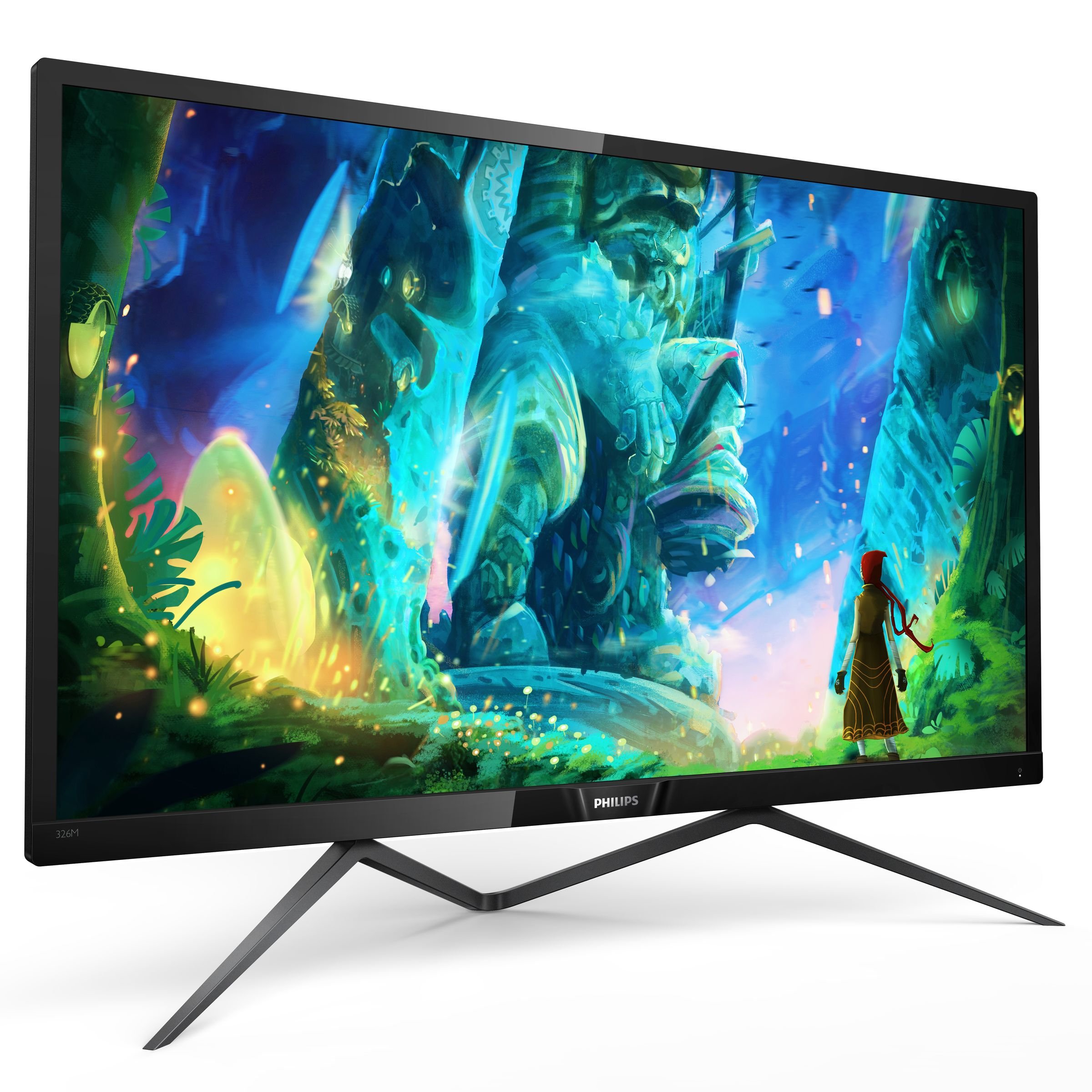
This image displays the Philips Momentum 326M6FJSB monitor from an angled perspective, showcasing its slim bezels and the distinctive stand design. The screen displays a vibrant, futuristic scene.
Opsætning
1. Udpakning af skærmen
Carefully remove all components from the packaging. Ensure all items listed in the 'What's in the Box' section are present and undamaged.
- Philips 326M6FJSB 32-inch Class IPS Slim LED Monitor
- Stå
- Strømkabel
- HDMI kabel
- DisplayPort-kabel
2. Samling af stativet
- Placer skærmen med forsiden nedad på en blød, ren overflade for at forhindre ridser.
- Fastgør stativets hals til skærmpanelet.
- Fastgør basen til stativets hals med de medfølgende skruer.

This image provides a visual guide for attaching the monitor stand to the display panel, showing the connection points and the overall structure of the assembled unit.
3. Tilslutning til en computer
Tilslut skærmen til din computer ved hjælp af en af følgende metoder:
- DisplayPort-forbindelse: Use the provided DisplayPort cable to connect the monitor's DisplayPort input to your computer's DisplayPort output. This connection supports the monitor's maximum resolution of 2560x1440.
- HDMI-forbindelse: Use an HDMI cable to connect the monitor's HDMI input to your computer's HDMI output. The monitor has two HDMI inputs.
- VGA-forbindelse: Use a VGA cable to connect the monitor's VGA input to your computer's VGA output. Note that VGA may not support the monitor's highest resolutions or refresh rates.

This image shows the back panel of the Philips monitor, highlighting the locations of the VGA, DisplayPort, and HDMI input connectors, as well as the audio input/output ports.
4. Strømtilslutning
Tilslut strømkablet til skærmens strømindgang, og sæt derefter den anden ende i en jordet stikkontakt.
5. Tænder
Press the power button (often integrated with the joystick control) located on the back of the monitor to turn it on. The monitor will automatically detect the active input source.
Betjeningsvejledning
1. On-Screen Display (OSD) menu
The monitor's settings are adjusted using a joystick control located on the back of the monitor. Press the joystick to access the OSD menu. Move the joystick up, down, left, or right to navigate through menu options and adjust settings.
2. Billedindstillinger
- Lysstyrke/kontrast: Adjust these settings to optimize the display's luminance and contrast levels.
- Farveindstillinger: Modify color temperature, gamma, and individual RGB levels to achieve desired color accuracy.
- SmartImage: Select from various preset modes (e.g., Game, Movie, Office) for optimized display settings based on content.
3. Øjenplejefunktioner
- Lav blå tilstand: Reduces harmful blue light emissions to minimize eye strain during prolonged use. This monitor offers multiple levels of blue light reduction.
- Flimmerfri teknologi: Regulerer lysstyrken og reducerer flimmer for mere komfort viewing.
4. Ambiglow
The Ambiglow feature projects a halo of light from the bottom of the monitor onto the surrounding wall, matching the on-screen content. This enhances immersion and reduces eye strain in dark environments.
- Ambiglow Modes: Select from various modes, including static colors or dynamic modes that adapt to screen content.
- Justering af lysstyrke: Adjust the intensity of the Ambiglow lighting.

This image illustrates the Philips Momentum 326M6FJSB monitor from a front-on perspective, with the Ambiglow lighting feature active, casting a soft glow beneath the display.
5. FreeSync Technology
This monitor supports AMD FreeSync technology, which synchronizes the monitor's refresh rate with your graphics card's frame rate to eliminate screen tearing and stuttering during gaming. Ensure FreeSync is enabled in both the monitor's OSD and your graphics card settings.
Opretholdelse
1. Rengøring af skærmen
- Skærm: Tør forsigtigt skærmen af med en blød, fnugfri klud. Tør forsigtigt genstridige mærker afampRengør kluden med vand eller en specialiseret skærmrens. Sprøjt ikke væske direkte på skærmen.
- Casing: Brug en blød, tør klud til at rengøre skærmenasing. Undgå at bruge slibende rengøringsmidler eller opløsningsmidler.
2. Almen pleje
- Undgå at placere skærmen i direkte sollys eller i nærheden af varmekilder.
- Sørg for tilstrækkelig ventilation omkring skærmen.
- Bloker ikke ventilationsåbninger.
- Tag stikket til skærmen ud af stikkontakten under tordenvejr eller når den ikke bruges i længere perioder.
Fejlfinding
Hvis du støder på problemer med din skærm, kan du se følgende almindelige problemer og løsninger:
| Problem | Mulig årsag | Løsning |
|---|---|---|
| Intet billede på skærmen | Strømkabel ikke tilsluttet; Videokabel ikke tilsluttet; Forkert indgangskilde valgt. | Sørg for, at strøm- og videokablerne er korrekt tilsluttet. Vælg den korrekte inputkilde via OSD-menuen. |
| Billedet er sløret eller forvrænget | Forkert opløsning; Problem med videokablet. | Set the display resolution to 2560x1440. Check video cable for damage or replace if necessary. |
| "No Input" message loops when computer sleeps (e.g., Mac) | Monitor's automatic input detection behavior. | Manually turn off the monitor by pressing and holding the joystick button for 3 seconds when the computer enters sleep mode. |
| Image shrinks horizontally (Aspect mode) | SmartSize setting automatically changed. | Access the OSD menu, navigate to SmartSize, and select '1:1' or 'Full Screen' to restore the correct aspect ratio. |
| Ambiglow not working or inconsistent | Ambiglow setting incorrect; Delay in auto-color feature. | Check Ambiglow settings in the OSD menu. If using 'Auto' mode, be aware of potential slight delays in color adaptation. |
Specifikationer
| Feature | Specifikation |
|---|---|
| Modelnummer | 326M6FJSB |
| Skærmstørrelse | 32 tommer (31.5") Viewstand) |
| Paneltype | IPS LED'er |
| Opløsning | 2560 x 1440 (QHD bred 1440p) |
| Aspektforhold | 16:9 |
| Svartid | 5 ms |
| Lysstyrke | 250 cd/m² |
| Dynamic Contrast Ratio (DCR) | 50M:1 |
| Forbindelse | 1x VGA, 1x DisplayPort, 2x HDMI, Audio In/Out |
| Særlige funktioner | FreeSync, Low Blue Mode, Flicker-Free, Ambiglow, Ultra Wide Color Gamut, Xbox Ready |
| Montering | Kan monteres på VESA |
| Dimensioner (LxBxH) | 28.7 x 9.6 x 20.4 tommer |
| Varens vægt | 14.52 pund |
Garanti og support
Garantioplysninger
Your Philips Momentum 326M6FJSB monitor is covered by a limited warranty. Please refer to the warranty card included in your product packaging or visit the official Philips webwebstedet for detaljerede garantivilkår og -betingelser, der er specifikke for din region.
Kundesupport
For technical assistance, product registration, or further information, please visit the official Philips support website or contact Philips customer service in your region. Contact details can typically be found on the Philips webwebstedet eller i den dokumentation, der følger med din skærm.


