1. Introduktion og overview
The AT&T Air 4920 Airties Smart Wi-Fi Extender is designed to expand the coverage and improve the signal strength of your existing Wi-Fi network. It creates a seamless mesh network, allowing your devices to automatically connect to the strongest Wi-Fi signal as you move around your home or office. This manual provides detailed instructions for setting up, operating, maintaining, and troubleshooting your Wi-Fi extender.

Figur 1: Forside view of the AT&T Air 4920 Airties Smart Wi-Fi Extender.
2. Pakkens indhold
Kontroller venligst, at alle varer er til stede i din pakke:
- AT&T Air 4920 Airties Smart Wi-Fi Extender Unit
- Strømadapter
- Lynstartguide (denne manual fungerer som en omfattende guide)
3. Produktfunktioner og komponenter
Familiarize yourself with the various ports, buttons, and indicator lights on your Wi-Fi Extender.

Figur 2: Foran og bagpå view of the Wi-Fi Extender with labeled components.
- 5 GHz Wi-Fi-indikator: Viser status for 5 GHz Wi-Fi-båndet.
- 2.4 GHz Wi-Fi-indikator: Viser status for 2.4 GHz Wi-Fi-båndet.
- Power Indicator / On/Off Button: Indicates power status. Can also be used to turn the device on/off.
- WPS knap: Used for Wi-Fi Protected Setup to quickly connect to your router.
- Gigabit Ethernet Ports (1 & 2): Til kablede forbindelser til enheder som computere, spillekonsoller eller smart-tv'er.
- Tænd/sluk-knap: A physical switch to turn the device completely off or on.
- DC-strømindgang (12V): Tilslut den medfølgende strømadapter her.
- Nulstil knap: Used to restore the device to factory default settings. (Requires a paperclip or similar pointed object).
4. Opsætningsvejledning
Follow these steps to set up your AT&T Air 4920 Wi-Fi Extender:
4.1 Indledende placering
For initial setup, place the Wi-Fi Extender near your AT&T gateway (router). Once paired, you can move it to a more central location in your home where Wi-Fi signal is weak.
4.2 Strømtilslutning
- Connect the provided power adapter to the DC Power Input (7) on the back of the extender.
- Sæt strømadapteren i en stikkontakt.
- Ensure the Power On/Off Switch (6) is in the 'On' position. The Power Indicator (3) should light up.
4.3 Pairing with Your AT&T Gateway (Router)
There are two primary methods for pairing:
Method A: Using WPS (Wi-Fi Protected Setup) - Recommended
- Tryk og hold på WPS Button (4) on the front of the Wi-Fi Extender for 2-3 seconds until the indicator lights start blinking.
- Inden to minutter skal du trykke på WPS knap on your AT&T gateway (router). Refer to your gateway's manual for the exact location of its WPS button.
- Wait for the indicator lights on the extender (1, 2, and 3) to turn solid green, indicating a successful connection. This may take a few minutes as the extender updates its firmware and synchronizes with your gateway.
Method B: Using an Ethernet Cable (If WPS fails or is not preferred)
- Connect one end of an Ethernet cable (not included) to one of the Gigabit Ethernet Ports (5) on the back of the extender.
- Connect the other end of the Ethernet cable to an available LAN port on your AT&T gateway (router).
- The extender will automatically detect the connection and begin pairing. Wait for the indicator lights (1, 2, and 3) to turn solid green.
- Once paired, you can disconnect the Ethernet cable if you wish to use the extender wirelessly.
4.4 Optimal placering
After successful pairing, unplug the extender and move it to a location roughly halfway between your AT&T gateway and the area where you need improved Wi-Fi coverage. Ensure the extender is placed in an open area, away from large metal objects, concrete walls, or other electronic devices that might cause interference. Plug it back into a power outlet. The indicator lights should turn solid green again, confirming a good connection.

Figure 3: The Wi-Fi Extender connected to its power adapter.
5. Operating Your Wi-Fi Extender
Once set up, the AT&T Air 4920 operates automatically to extend your Wi-Fi network. Your devices will seamlessly connect to the strongest signal, whether from your gateway or the extender, using your existing Wi-Fi network name (SSID) and password.
Status for indikatorlys:
- Solid grøn: Excellent connection and operation.
- Konstant rav/orange: Fair connection. Consider repositioning the extender closer to your gateway.
- Fast rød: No connection or poor signal. Reposition the extender or check connections.
- Blinker: During WPS pairing or firmware update.
- Slukket: Enheden er slukket eller modtager ikke strøm.
Kablede forbindelser:
You can connect wired devices (e.g., desktop computers, smart TVs, gaming consoles) to the Gigabit Ethernet Ports (5) on the back of the extender for a stable, high-speed connection.
6. Vedligeholdelse
To ensure optimal performance and longevity of your Wi-Fi Extender:
- Rensning: Gently wipe the exterior with a soft, dry cloth. Do not use liquid cleaners or aerosols.
- Ventilation: Ensure the ventilation slots are not blocked to prevent overheating.
- Firmwareopdateringer: The extender typically receives automatic firmware updates from AT&T. Ensure it remains connected to power and your network for these updates to occur.
- Power Cycle: If you experience minor issues, try unplugging the extender from the power outlet for 10 seconds and then plugging it back in.
7. Fejlfinding
If you encounter issues with your Wi-Fi Extender, refer to the following common problems and solutions:
| Problem | Mulig årsag | Løsning |
|---|---|---|
| Extender lights are off. | Ingen strøm. | Ensure the power adapter is securely connected and plugged into a working outlet. Check the Power On/Off Switch (6). |
| Indicator lights are red or amber. | Poor or no connection to the gateway. |
|
| Wi-Fi signal is still weak in extended areas. | Suboptimal placement. | Move the extender to a more central location between your gateway and the weak signal area. Avoid placing it in corners or behind furniture. |
| Devices not connecting to the extender. | Extender not properly paired or network issues. |
|
| Need to reset to factory settings. | Configuration issues or preparing for new setup. | With the extender powered on, use a paperclip or similar pointed object to press and hold the Nulstillingsknap (8) for about 10 seconds until the lights flash. The extender will restart with factory defaults. |
8. Specifikationer
| Feature | Detalje |
|---|---|
| Modelnummer | AIR-4920 |
| Produktmål (H x B x D) | 3.94 x 4.27 x 1.63 tommer (ca.) |
| Varens vægt | 15 ounce |
| Standard for trådløs kommunikation | 802.11ac |
| Dataoverførselshastighed | Op til 1000 megabit pr. sekund |
| Connector Type | RJ45 (Ethernet) |
| Farve | Hvid |
| Fabrikant | AirTies |
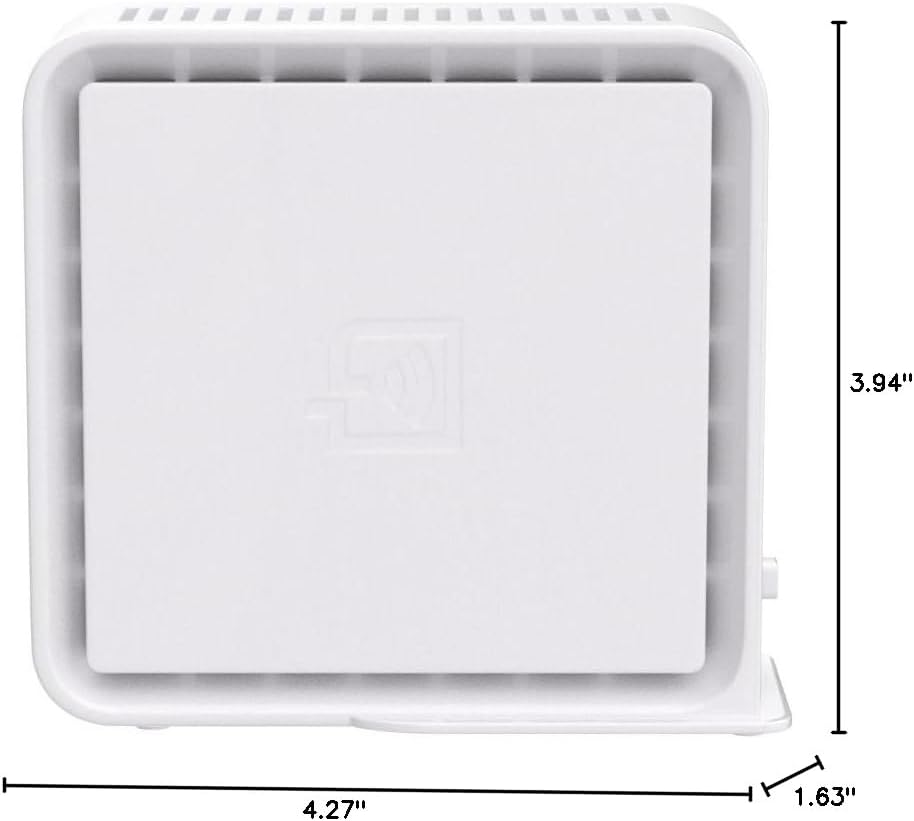
Figure 4: Approximate dimensions of the Wi-Fi Extender.


