1. Introduktion
This manual provides essential information for the installation, operation, and maintenance of your Philips Hue 468942 BR30 Smart Bulb Downlight. This smart flood light offers a wide spectrum of white light and 16 million colors, enhancing your home lighting experience. For full functionality, a Philips Hue Bridge is required.

Image: The Philips Hue BR30 Smart Bulb is shown alongside its retail packaging, highlighting its design and branding.
2. Sikkerhedsoplysninger
Before installing or using your Philips Hue BR30 Smart Bulb, please read and follow these safety instructions:
- Ensure power is turned off at the circuit breaker before installation or removal.
- Denne pære er kun beregnet til indendørs brug.
- Pæren må ikke skilles ad eller ændres.
- Avoid exposure to water or moisture unless specifically rated for wet locations.
- Use only in fixtures designed for BR30 bulbs with E26 medium base sockets.
3. Pakkens indhold
Your Philips Hue 468942 BR30 Smart Bulb package includes:
- 1 x Philips Hue White and Color Ambiance BR30 Light Bulb
4. Opsætning
4.1. Fysisk installation
- Turn off the power to the light fixture at the circuit breaker.
- Carefully remove your existing BR30 bulb from the recessed can fixture.
- Screw the Philips Hue BR30 Smart Bulb into the E26 medium base socket until snug. Do not overtighten.
- Restore power to the light fixture at the circuit breaker.

Image: A visual guide showing the steps for installing the Philips Hue BR30 bulb, including screwing it into a socket and connecting to the Hue Bridge.

Image: A hand is shown screwing a Philips Hue BR30 bulb into a recessed light fixture, demonstrating the ease of installation.
4.2. Connecting to Philips Hue Bridge and App
To unlock the full potential of your Philips Hue bulb, a Philips Hue Bridge (sold separately) and the Philips Hue app are required. The Bridge connects to your home network and communicates with your bulbs.
- Ensure your Philips Hue Bridge is connected to your router and powered on.
- Download the Philips Hue app from your device's app store.
- Open the app and follow the on-screen instructions to connect to your Hue Bridge.
- Once connected, the app will search for new lights. If prompted, you may need to enter the serial number found on the bulb or its packaging.

Image: An illustration showing the Philips Hue Bridge connected to a router, emphasizing the central role of the Bridge in controlling Hue lights.
4.3. Installation and Setup Video Guide
Video: This video demonstrates the installation process of Philips Hue recessed lights in a soffit, providing a visual walkthrough of the steps involved.
Video: En officiel produktvideoasing the features and benefits of Philips Hue White and Color Ambiance smart bulbs, including color changing and app control.
5. Betjening
5.1. Grundlæggende kontrol
Once paired, you can control your Philips Hue BR30 bulb directly from the Philips Hue app. This includes turning the light on/off and adjusting its brightness (dimming).
5.2. Color and White Ambiance
The White & Color Ambiance range offers both warm-to-cool white light and millions of colors. Use the color picker in the app to select your desired shade and intensity.

Image: A graphic illustrating the various possibilities with Philips Hue, such as wake-up light, warm and cool light, relaxation, concentration, 16 million colors, timers, smart control, and voice control.

Image: A user interacting with the Philips Hue app on a smartphone, demonstrating the color wheel interface for selecting light colors.
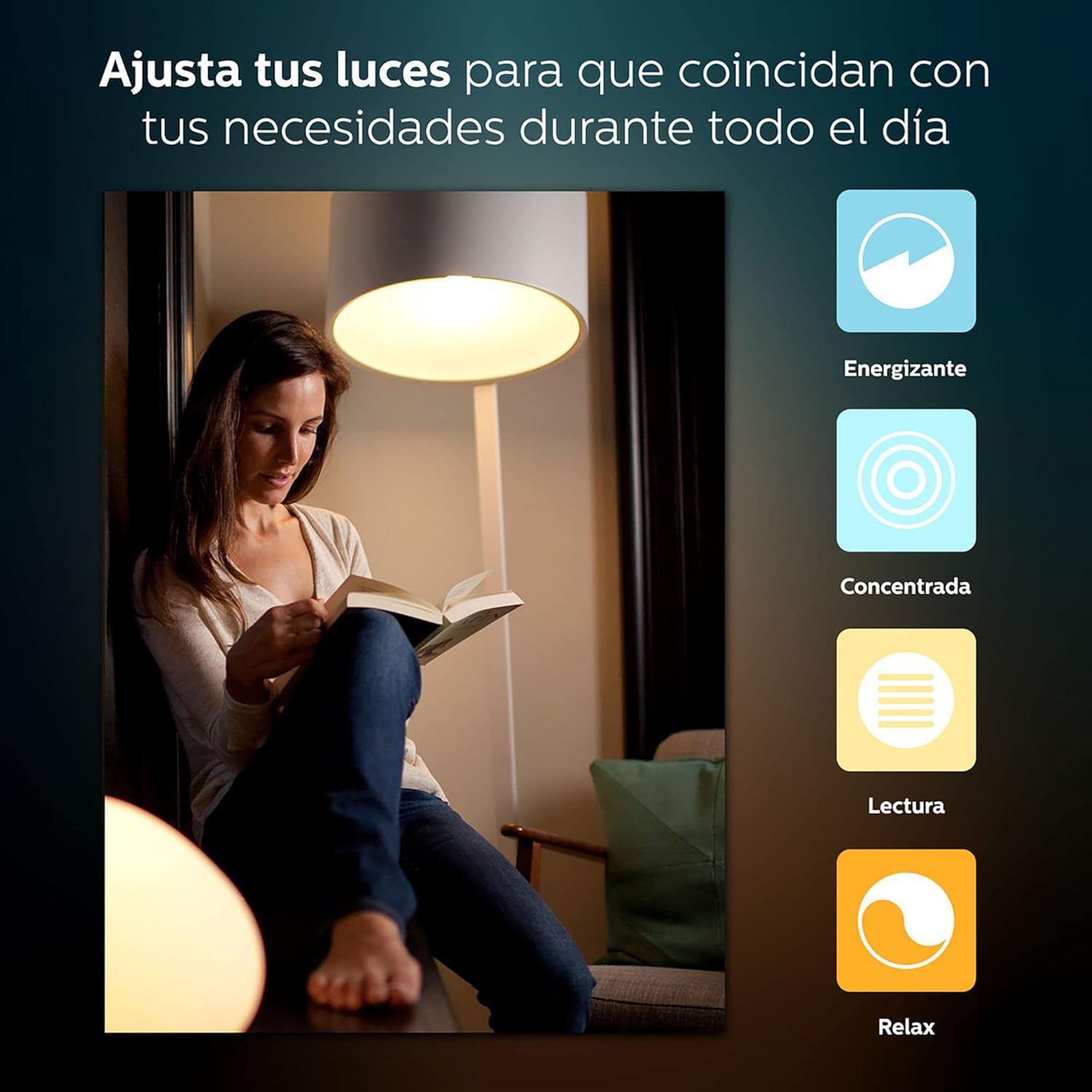
Image: A woman reading under a warm light, with icons for 'Energizing', 'Concentrated', 'Reading', and 'Relax' modes, showcasing the versatility of white light settings.
5.3. Scenes and Effects
Create and save personalized light scenes for different moods or activities. The app also offers dynamic light effects that show subtle changes in brightness and color.

Image: A living room illuminated with purple ambient lighting, controlled via the Philips Hue app on a smartphone, demonstrating scene creation.

Image: A modern home interior with various Philips Hue lights displaying different colors, creating a vibrant and customizable atmosphere.
5.4. Stemmekontrol
Integrate your Philips Hue system with voice assistants like Amazon Alexa or Google Assistant for convenient hands-free control. Set up voice commands within the Hue app.

Image: A couple in a room with smart lighting, accompanied by logos indicating compatibility with Amazon Alexa and Google Assistant for voice control.
5.5. Automations
Set up routines and automations in the Philips Hue app to control your lights based on time, motion (with a Hue motion sensor), or other triggers. This allows for lights to turn on/off automatically at specific times or when motion is detected.
6. Vedligeholdelse
6.1. Rensning
To clean your Philips Hue BR30 Smart Bulb, ensure the power is off. Use a soft, dry cloth to gently wipe the surface. Do not use liquid or abrasive cleaners.
6.2. Firmwareopdateringer
Philips Hue bulbs receive firmware updates periodically to improve performance and add new features. These updates are managed through the Philips Hue app. Ensure your app and Bridge are connected to the internet to receive notifications for available updates.
7. Fejlfinding
7.1. Light Not Responding
- Check if the light fixture switch is in the ON position.
- Kontroller, at pæren er skruet ordentligt fast i fatningen.
- Sørg for, at Philips Hue Bridge er tændt og forbundet til dit netværk.
- Check the Philips Hue app for connectivity status.
7.2. Forbindelsesproblemer
- Restart your Philips Hue Bridge by unplugging it from power for 10 seconds and plugging it back in.
- Ensure your smartphone or tablet is connected to the same Wi-Fi network as your Hue Bridge.
- If issues persist, try moving the bulb closer to the Hue Bridge or adding a Hue smart plug to extend the Zigbee network.
7.3. Resetting the Bulb
If a bulb is unresponsive, you may need to perform a factory reset. This can often be done through the Philips Hue app by selecting the problematic light and choosing the reset option. Alternatively, some bulbs can be reset by cycling power to them a specific number of times (refer to the Philips Hue support website for specific model instructions).
8. Specifikationer
| Feature | Detalje |
|---|---|
| Mærke | Philips |
| Modelnavn | 468942 |
| Lys type | LED |
| Speciel funktion | Dæmpbar, farveskiftende |
| Wattage | 9 watt |
| Glødelignende ækvivalent | 65 watt |
| Pære form størrelse | BR30 |
| Pære base | E26 medium |
| Lysstyrke | 800 lumen |
| Farvetemperatur | 2700 Kelvin (White Ambiance range) |
| Voltage | 120 volt |
| Indendørs/Udendørs brug | Indendørs |
| Materiale | Glas |
| Produktdimensioner | 6.93 cm B x 6.5 cm H |

Image: A diagram showing the dimensions of the Philips Hue BR30 bulb, with a width of 6.93 inches and a height of 6.5 inches.
9. Garanti
This Philips Hue BR30 Smart Bulb is covered by a 2-year limited warranty. For detailed warranty terms and conditions, please refer to the official Philips Hue webwebsted eller kontakt kundesupport.
10. Support
For further assistance, technical support, or to access additional resources, please visit the official Philips Hue support website or contact their customer service team. You can find contact information on the Philips website or within the Philips Hue app.


