Indledning
This manual provides detailed instructions for the ZIDOO V5 Wireless Keyboard Air Mouse. It covers setup, operation, maintenance, and troubleshooting to ensure optimal performance and user experience. The ZIDOO V5 combines a wireless keyboard, air mouse, and voice input functionality, designed for use with various devices including Google Android TV/Box, IPTV, HTPC, Windows, Mac OS, and Xbox.
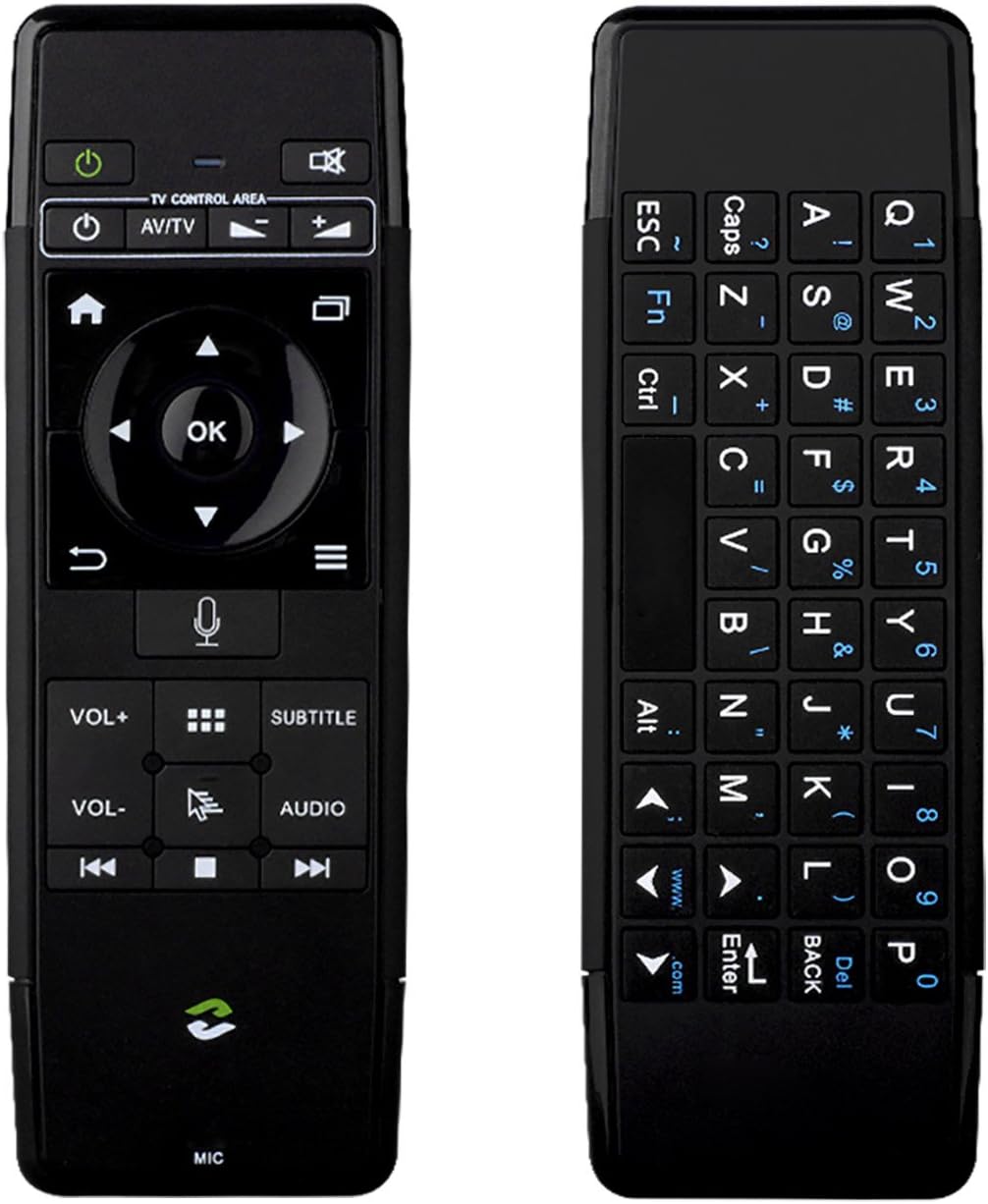
Billede: Forside og bagside view of the ZIDOO V5 Wireless Keyboard Air Mouse, showcasing its dual-sided design with a remote control layout on one side and a QWERTY keyboard on the other.
1. Opsætning
1.1 Pakkens indhold
- ZIDOO V5 Wireless Keyboard Air Mouse
- USB-modtager
- USB opladningskabel
- Brugervejledning (dette dokument)
1.2 Opladning af enheden
The ZIDOO V5 has a built-in rechargeable battery. Before first use, fully charge the device.
- Connect the small end of the USB charging cable to the micro-USB port on the ZIDOO V5.
- Connect the standard USB end of the cable to a USB power adapter (not included) or a powered USB port on your computer or device.
- The indicator light on the device will illuminate during charging and turn off when fully charged.

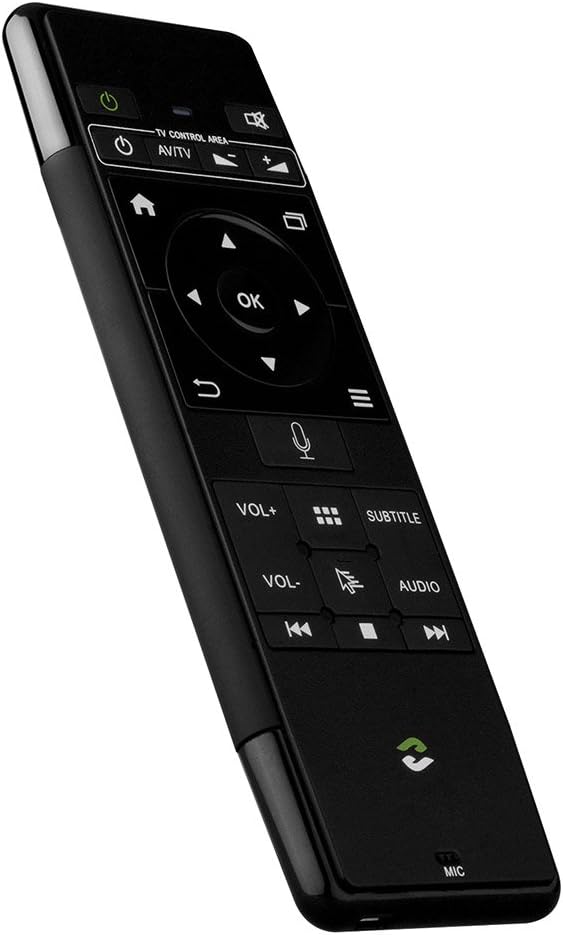
Billede: Side view of the ZIDOO V5 Wireless Keyboard Air Mouse, highlighting the micro-USB charging port located on the top edge.
1.3 Tilslutning af USB-modtageren
The ZIDOO V5 connects wirelessly via a 2.4G USB receiver.
- Locate the USB receiver, typically stored within the battery compartment or a dedicated slot on the device.
- Plug the USB receiver into an available USB port on your target device (e.g., Android TV box, HTPC, computer).
- The device should automatically recognize the receiver and install necessary drivers. No manual pairing is usually required.
2. Betjeningsvejledning
2.1 Tænd/sluk
Tryk på Strømafbryder button (usually located at the top left of the remote side) to turn the device on or off.
2.2 Remote Control Side Functions

Billede: Detaljeret view of the ZIDOO V5 remote control side, with labels for each button's function, including Power Switch, Muting, TV Control Area, Home, APP Switch, Direction Key, OK, Enter, Return, Menu, Voice Input, Volume Up/Down, APP Management, Subtitle, Cursor Switch, Audio Track, Previous, Stop, and Next.
- Afbryderen: Tænder eller slukker for enheden.
- Lydløs: Slår lyden til eller fra.
- TV Control Area: Dedicated buttons for basic TV functions (e.g., input, power for TV).
- Hjem: Returns to the main screen or home interface.
- APP Switch: Switches between applications.
- Direction Key (Up, Down, Left, Right): Navigerer gennem menuer og muligheder.
- OK: Bekræfter valg.
- Indtast: Bekræfter input eller valg.
- Retur: Går tilbage til den forrige skærm eller menu.
- Menu: Åbner kontekstafhængige menuer.
- Stemmeinput: Activates voice command or search (requires compatible software/device).
- VOL+ / VOL-: Justerer lydstyrken op eller ned.
- APP-administration: Accesses application management settings.
- Undertekst: Toggles or selects subtitle options.
- Cursor Switch: Toggles between air mouse mode and D-pad navigation.
- Lydspor: Selects different audio tracks.
- Previous / Stop / Next: Kontrolknapper for medieafspilning.
2.3 Air Mouse-funktion
The ZIDOO V5 features a 3-Gyro + 3-Gsensor for precise air mouse control.
- To activate the air mouse, ensure the cursor switch is enabled.
- Hold the device in your hand and move your wrist to control the on-screen cursor.
- Tryk på OK button to click.
- To recalibrate the air mouse, place the device on a flat surface for a few seconds until the cursor stabilizes.
2.4 Keyboard Side Functions
Billede: Nærbillede view of the ZIDOO V5 keyboard side, displaying a full QWERTY layout with alphanumeric keys, function keys (Fn, Ctrl, Alt), and special characters.
The reverse side of the ZIDOO V5 features a full QWERTY keyboard for easy text input.
- Indtastning: Brug tasterne som du ville bruge et almindeligt tastatur.
- Funktionstast (Fn): Tryk og hold på Fn key to access secondary functions printed in blue on certain keys (e.g., numbers, symbols).
- Caps Lock: Toggles uppercase and lowercase letters.
- Tilbage: Acts as a backspace key.
- Indtast: Confirms text input.
2.5 Voice Input
The ZIDOO V5 supports voice input functionality.
- Ensure your connected device supports voice input and has the necessary applications installed (e.g., Google Assistant, voice search).
- Tryk på Stemmeinput button (microphone icon) on the remote control side.
- Speak clearly into the microphone located at the bottom of the device.
- Slip knappen, når du er færdig med at tale.
3. Vedligeholdelse
3.1 Rengøring
- Brug en blød, tør klud til at rengøre enhedens overflade.
- Brug ikke flydende rengøringsmidler, aerosoler eller slibende materialer, da disse kan beskadige enheden.
3.2 Opbevaring
- Opbevar enheden et køligt, tørt sted væk fra direkte sollys og ekstreme temperaturer.
- Hvis batteriet opbevares i længere tid, skal du sørge for, at det er delvist opladet (ca. 50%) for at forlænge dets levetid.
3.3 Pleje af batterier
- Undgå at aflade batteriet helt ofte.
- Oplad enheden regelmæssigt, selvom den ikke er i konstant brug, for at opretholde batteriets sundhedstilstand.
4. Fejlfinding
| Problem | Mulig årsag | Løsning |
|---|---|---|
| Enheden reagerer ikke | Low battery; USB receiver not connected; Device turned off; Out of range. | Charge the device; Ensure USB receiver is securely plugged in; Turn on the device; Move closer to the receiver (within 10 meters). |
| Air mouse cursor erratic or not moving | Needs calibration; Interference; Air mouse mode disabled. | Place the device on a flat surface for a few seconds to recalibrate; Ensure no strong electromagnetic interference; Press the Cursor Switch button to enable air mouse mode. |
| Voice input not working | Device/application does not support voice input; Microphone blocked; Software issue. | Verify host device/application compatibility; Ensure microphone is clear; Restart the host device. |
| Keyboard input incorrect | Caps Lock enabled; Fn key usage; Language settings. | Check Caps Lock status; Ensure correct use of Fn key for secondary characters; Verify language settings on the host device. |
5. Specifikationer
- Mærke: Zidoo
- Model: V5 (zidooV517420)
- Forbindelse: 2.4G Wireless (Radio Frequency)
- Sensorer: 3-Gyro + 3-Gsensor
- Funktioner: Wireless Keyboard, Air Mouse, Voice Input, Rechargeable Battery
- Kompatible operativsystemer: Android, Mac OS, Windows
- Kompatible enheder: Google Android TV/Box, IPTV, HTPC, Windows PCs, Mac OS devices, Xbox
- Strømkilde: Indbygget genopladeligt batteri
- Dimensioner: Cirka 21.2 x 11.4 x 1.8 cm
- Vægt: Cirka 200 g
6. Garantioplysninger
Specific warranty details for the ZIDOO V5 Wireless Keyboard Air Mouse may vary by region and retailer. Please refer to the warranty card included with your purchase or contact your point of sale for detailed information regarding warranty coverage and terms.
7. Support
For technical support or further assistance, please visit the official Zidoo website or contact their customer service department. Contact information can typically be found on the product packaging or the Zidoo official webwebsted.
Bemærk: Produktspecifikationer og funktioner kan ændres uden forudgående varsel.


