Indledning
This manual provides essential instructions for the proper setup, operation, and maintenance of your Zebra ET55AE-W22E ET55 8.3" Tablet. Please read this manual thoroughly before using the device to ensure optimal performance and longevity.
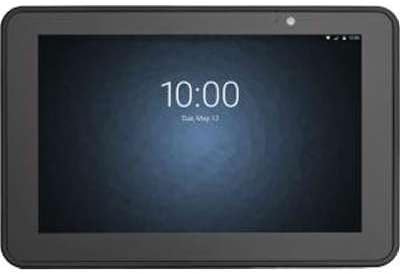
Billede: Forside view of the Zebra ET55AE-W22E ET55 8.3" Tablet. The screen displays the time "10:00" and the date "Tue, May 12". The tablet has a dark gray bezel and a front-facing camera visible at the top center.
Pakkens indhold
Upon unpacking, verify that all items are present and undamaged. The standard package for the Zebra ET55AE-W22E includes:
- Zebra ET55AE-W22E ET55 8.3" Tablet unit
- (Additional accessories such as power adapter, USB cable, and documentation may be sold separately or included depending on region/bundle.)
Opsætning
1. Første opladning
Before first use, fully charge the tablet's battery. Connect the appropriate power adapter (not included with all models) to the tablet's charging port and then to a power outlet. The charging indicator will typically illuminate during this process.
2. Tænd/sluk
- For at tænde: Tryk og hold tænd/sluk-knappen på siden af tabletten nede, indtil skærmen lyser.
- For at slukke: Press and hold the Power button, then select "Shut down" from the options that appear on the screen.
3. Initial Configuration (Windows 8.1)
Upon first power-on, the tablet will guide you through the Windows 8.1 setup process. This includes:
- Valg af sprog og region.
- Accepting the license terms.
- Connecting to a Wi-Fi network (if available).
- Oprettelse eller login med en Microsoft-konto.
- Setting up basic privacy and security settings.
Betjeningsvejledning
Navigating Windows 8.1
The Zebra ET55AE-W22E runs on Windows 8.1, optimized for touch interaction. Key navigation elements include:
- Startskærm: Swipe in from the right edge of the screen or press the Windows button to access the Start screen with live tiles.
- Charms Bar: Swipe in from the right edge of the screen to access the Charms bar (Search, Share, Start, Devices, Settings).
- App-skift: Swipe in from the left edge to switch between open applications.
- Desktop: Tap the Desktop tile on the Start screen to access the traditional Windows desktop environment.
Tilslutning til netværk
- Wi-Fi: Access the Charms bar, select Indstillinger, then click the Wi-Fi icon to view available networks. Select your desired network and enter the password if prompted.
- Bluetooth: Access the Charms bar, select Indstillinger, så Skift pc-indstillinger, og naviger til PC and devices > Bluetooth. Turn Bluetooth on and pair with desired devices.
- WAN (Wireless Area Network): This model supports WAN connectivity. Insert your SIM card (if applicable and provided by your service provider) into the designated slot. Follow on-screen prompts or consult your service provider for configuration details.
Brug af kameraet
The tablet is equipped with a camera. To use it, locate and tap the Camera application icon on the Start screen or Desktop. Follow the on-screen instructions to capture photos or record videos.
Opretholdelse
Rengøring af enheden
- Brug en blød, fnugfri klud til at rengøre skærmen og ydersiden.
- For genstridige mærker, let dampRengør kluden med vand eller en skærmrengøringsopløsning.
- Avoid using harsh chemicals, abrasive cleaners, or aerosol sprays directly on the device.
Batteripleje
- Undgå at udsætte tabletten for ekstreme temperaturer.
- For optimal battery life, avoid frequently discharging the battery completely.
- Hvis enheden ikke skal bruges i en længere periode, skal den oplades til cirka 50% før opbevaring.
Softwareopdateringer
Regularly check for and install Windows 8.1 updates to ensure system stability, security, and performance. Access Settings > Change PC settings > Update and recovery > Windows Update.
Fejlfinding
| Problem | Mulig løsning |
|---|---|
| Enheden tænder ikke. | Ensure the battery is charged. Connect the tablet to a power source and attempt to power on after a few minutes. |
| Kan ikke oprette forbindelse til Wi-Fi. | Verify Wi-Fi is enabled in settings. Check if the network password is correct. Restart the tablet and the Wi-Fi router. |
| Skærmen reagerer ikke. | Perform a soft reset by holding the power button until the device restarts. Ensure the screen is clean and free of debris. |
| Applikationer er langsomme eller går ned. | Close unnecessary applications. Check for and install system updates. Consider uninstalling recently installed applications that may be causing issues. |
Specifikationer
| Feature | Detalje |
|---|---|
| Model | Zebra ET55AE-W22E |
| Skærmstørrelse | 8.3 tommer |
| Skærmopløsning | 1920 x 1080 pixels |
| VÆDDER | 4 GB |
| Hukommelseslagring | 64 GB flash |
| Operativsystem | Windows 8.1 |
| Processor mærke | Intel |
| Trådløs type | Bluetooth, WAN |
| Varens vægt | 2 pund |
| Produktmål (LxBxH) | 1 x 1 x 1 tommer |
Garanti og support
For information regarding warranty coverage, technical support, or service, please refer to the official Zebra webwebstedet eller kontakt deres kundeserviceafdeling. Specifikke garantivilkår kan variere afhængigt af region og købsdato.
Online support: Visit the official Zebra support portal for drivers, FAQs, and additional documentation.
Kontaktoplysninger: Refer to your product packaging or the Zebra website for current contact details for technical assistance.


