1. Introduktion
This manual provides comprehensive instructions for the GAMDIAS ZEUS E1 Optical Gaming Mouse and the accompanying NYX E1 Gaming Mouse Mat. Please read this manual carefully before using your new gaming mouse to ensure optimal performance and longevity.
Pakkeindhold:
- GAMDIAS ZEUS E1 optisk spillemus
- GAMDIAS NYX E1 Gaming Mouse Mat
Nøglefunktioner:
- Double Level Multi-Color Streaming Lighting: Dynamic lighting effects on both sides of the mouse.
- Textured Rubber Design: Provides enhanced grip and comfortable operation.
- 6 Smart Keys: Programmable buttons for macros, profiles, media controls, and Windows functions.
- Justerbar DPI: Up to 3200 DPI for precise cursor control.
- Ergonomisk design: Engineered to prevent wrist strain and promote smoother movement.
2. Opsætning
2.1 Tilslutning af musen
- Unpack the GAMDIAS ZEUS E1 Optical Gaming Mouse and NYX E1 Gaming Mouse Mat from their packaging.
- Place the NYX E1 Gaming Mouse Mat on a flat, stable surface.
- Connect the USB cable of the ZEUS E1 mouse to an available USB port on your computer.
- Your operating system (Windows, macOS, Linux) should automatically detect and install the necessary basic drivers.
2.2 Softwareinstallation (valgfrit)
For advanced customization of buttons, DPI settings, and lighting effects, it is recommended to download and install the GAMDIAS HERA software from the official GAMDIAS website. This software allows for comprehensive configuration of your mouse.
- Visit the official GAMDIAS webwebsted.
- Navigate to the support or downloads section for the ZEUS E1 mouse.
- Download and install the HERA software.
- Følg instruktionerne på skærmen for at fuldføre installationen.

Image: The GAMDIAS ZEUS E1 Optical Gaming Mouse resting on the NYX E1 Gaming Mouse Mat, showcasing dens ergonomiske design og blå LED-belysning.
3. Betjening af musen
3.1 Grundlæggende funktioner
- Venstre klik: Primær handlingsknap.
- Højreklik: Sekundær handlingsknap, typisk til kontekstmenuer.
- Scrollhjul: Rul op eller ned gennem dokumenter og web sider. Kan også trykkes ned for at bruge midterklikfunktionen.

Billede: En top-down view of the GAMDIAS ZEUS E1 mouse on its mat, highlighting the scroll wheel and DPI button.
3.2 DPI-justering
The ZEUS E1 mouse features an adjustable DPI button, allowing you to change the cursor sensitivity on the fly. This is useful for switching between tasks that require different levels of precision, such as general browsing and gaming.
- Tryk på DPI knap (located behind the scroll wheel) to cycle through available DPI settings.
- The maximum DPI supported is 3200.
- Specific DPI levels can be configured and assigned via the HERA software.
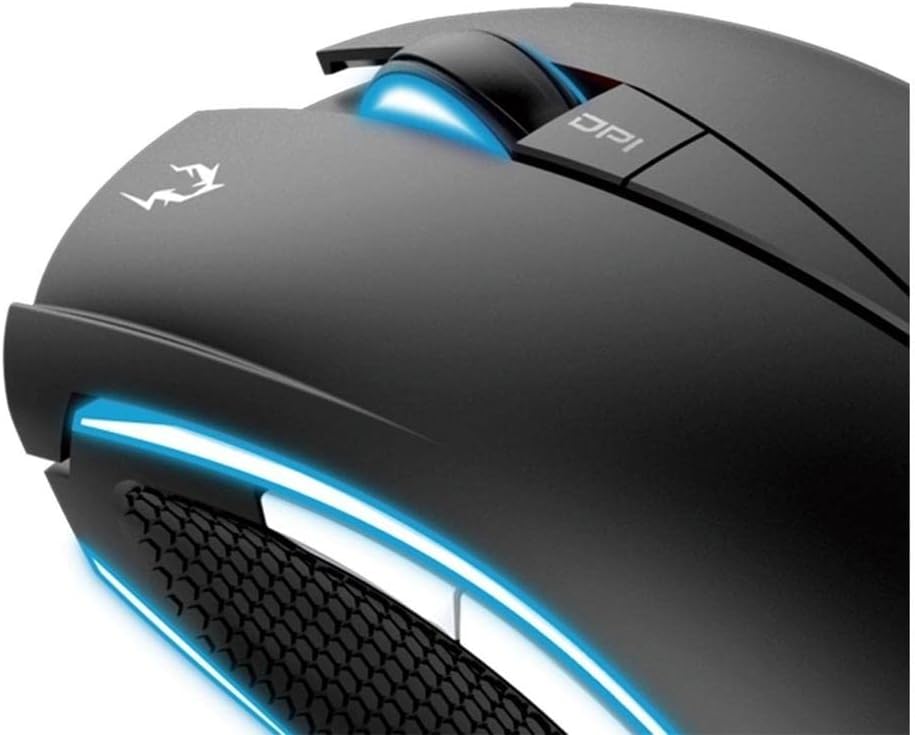
Billede: Et nærbillede view of the DPI button and the illuminated scroll wheel on the GAMDIAS ZEUS E1 mouse.
3.3 Programmable Smart Keys
The ZEUS E1 mouse is equipped with 6 smart keys that can be customized for various functions. These keys provide quick access to macros, profile switching, media controls, and Windows functions, enhancing your efficiency in games and applications.
- Utilize the GAMDIAS HERA software to assign specific functions to each of the 6 smart keys.
- Opret og gem flere profiles til forskellige spil eller applikationer.

Billede: En detaljeret view of the side buttons and the textured rubber grip on the GAMDIAS ZEUS E1 mouse, designed for comfort and control.
3.4 Lyseffekter
The ZEUS E1 features double-level multi-color streaming lighting on both sides. These lighting effects can be customized through the HERA software to match your preferences or gaming setup.
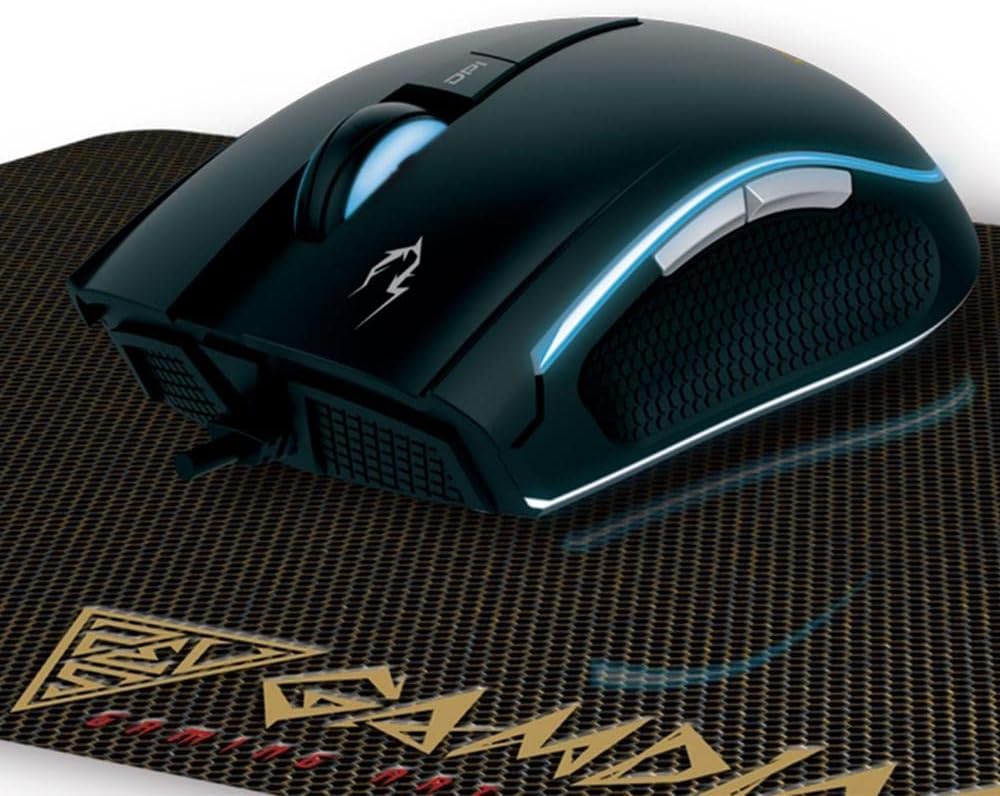
Billede: En vinklet view of the GAMDIAS ZEUS E1 mouse on its mat, showcasing the vibrant blue streaming lighting along its sides.
4. Vedligeholdelse
4.1 Rengøring af musen
To maintain optimal performance and appearance, regularly clean your ZEUS E1 mouse.
- Frakobl musen fra computeren, før du rengør den.
- Brug en blød, tør og fnugfri klud til at tørre musens overflade af.
- Til genstridigt snavs, let dampRengør kluden med vand eller en mild rengøringsopløsning. Undgå skrappe kemikalier.
- Brug en vatpind eller trykluft til at rengøre omkring knapper og den optiske sensor.
4.2 Cleaning the Mouse Mat
The NYX E1 Gaming Mouse Mat can also be cleaned to ensure smooth mouse movement.
- Tør overfladen af med adamp klud og mild sæbe om nødvendigt.
- Allow the mat to air dry completely before use.
5. Fejlfinding
5.1 Musen reagerer ikke
- Sørg for, at USB-kablet er tilsluttet korrekt til din computer.
- Prøv at tilslutte musen til en anden USB-port.
- Genstart din computer.
- Kontrollér, om musen virker på en anden computer for at udelukke et systemspecifikt problem.
5.2 Lighting Not Working or Incorrect
- Verify that the HERA software is installed and configured correctly.
- Check lighting settings within the HERA software.
- Ensure the mouse firmware is up to date. Firmware updates can often resolve unexpected behavior.
5.3 Buttons Not Functioning as Expected
- Open the GAMDIAS HERA software and check the button assignments for the active profile.
- Ensure no conflicting software or drivers are interfering with mouse functions.
- Udfør en firmwareopdatering, hvis tilgængelig.
6. Specifikationer
| Mærke | GAMDIAS |
| Modelnummer | GD-ZEUS E1 |
| Hardware platform | PC |
| Operativsystemkompatibilitet | Windows, macOS, Linux |
| Varens vægt | 6.9 ounce |
| Produktmål (LxBxH) | 1.61 x 1.61 x 2.85 tommer |
| Farve | Sort |
| Strømkilde | Elektrisk ledning (USB) |
| Forbindelsesteknologi | USB |
| Speciel funktion | Ergonomisk design |
| Bevægelsesdetekteringsteknologi | Optisk |
| Maksimal DPI | 3200 |

Billede: En klar top-down view of the GAMDIAS ZEUS E1 Optical Gaming Mouse, showcasing dens elegante design og branding.
7. Garanti og support
For warranty information, technical support, or to download the latest drivers and software, please visit the official GAMDIAS website or contact GAMDIAS customer service. Keep your purchase receipt as proof of purchase for warranty claims.
GAMDIAS Officiel Webwebsted: www.gamdias.com


