Indledning
This manual provides comprehensive instructions for the setup, operation, and maintenance of your MICROWARE VuPoint Solutions ST415 Handheld Magic Wand Portable Scanner. Please read this manual thoroughly before using the device to ensure proper functionality and to maximize your scanning experience.
Nøglefunktioner
- Portable handheld design for on-the-go scanning.
- High-resolution scanning up to 900 DPI.
- Supports JPG and PDF file formater.
- Color and monochrome scanning capabilities.
- Includes OCR (Optical Character Recognition) software for text-editable files (Windows only).
- Direct saving to Micro SD card (up to 32GB supported).
- USB connectivity for easy file overførsel.
Pakkens indhold
Kontroller venligst, at alle varer er til stede i din pakke:
- VuPoint Solutions ST415 Handheld Scanner
- USB kabel
- 8GB Micro SD Card (or similar capacity as included)
- Bæretaske
- Rengøringsklud
- OCR Software CD (Windows compatible)
- Brugermanual
- AA-batterier (2x)
Opsætning
1. Batteriinstallation
The scanner requires two AA batteries for operation. Ensure correct polarity when inserting.
- Find batteridækslet på scanneren.
- Slide or push the cover open.
- Isæt to AA-batterier, og sørg for at de positive (+) og negative (-) poler passer til hinanden som angivet i batterirummet.
- Luk batterirummets dæksel forsvarligt.

Figur 1: Battery installation and other setup steps for the scanner. The image illustrates inserting batteries, connecting the USB cable, and the general scanning motion.
2. Indsættelse af Micro SD-kort
The scanner saves all scanned images to a Micro SD card. An 8GB card is typically included.
- Find Micro SD-kortstikket på siden af scanneren.
- Insert the Micro SD card into the slot until it clicks into place. Ensure the card is oriented correctly.
- For at fjerne det skal du forsigtigt skubbe kortet længere ind, indtil det springer ud.

Figur 2: Detailed diagram highlighting the Micro SD card slot, USB port, DPI button, JPG/PDF switch, and other controls on the scanner.
3. Første opstart
Press and hold the power button (usually labeled "SCAN" or "POWER") for a few seconds until the display screen illuminates.
Betjeningsvejledning
1. Setting Scan Mode and Resolution
Before scanning, you can adjust the scan mode (Color/Mono) and resolution (DPI).
- Color/Mono Switch: Use the dedicated switch (often labeled "JPG/PDF" or similar, but controls color/mono) to toggle between color and monochrome scanning.
- DPI -indstilling: Press the "DPI" button to cycle through available resolutions: 300 DPI, 600 DPI, and 900 DPI. Higher DPI settings result in better image quality but larger file størrelser.
- File Format: Use the "FORMAT" button or switch to select between JPG and PDF output formats.
2. Udførelse af en scanning
To achieve optimal scan quality, maintain a steady and even motion.
- Place the document or image on a flat, stable surface.
- Position the scanner at the top edge of the item to be scanned, ensuring the scanning window is aligned.
- Press the "SCAN" button once to start scanning. The scan indicator light will illuminate.
- Slowly and steadily glide the scanner downwards across the document. Avoid tilting or lifting the scanner.
- Once you reach the end of the document, press the "SCAN" button again to stop scanning. The scan indicator light will turn off.
- The scanned image will be automatically saved to the Micro SD card.
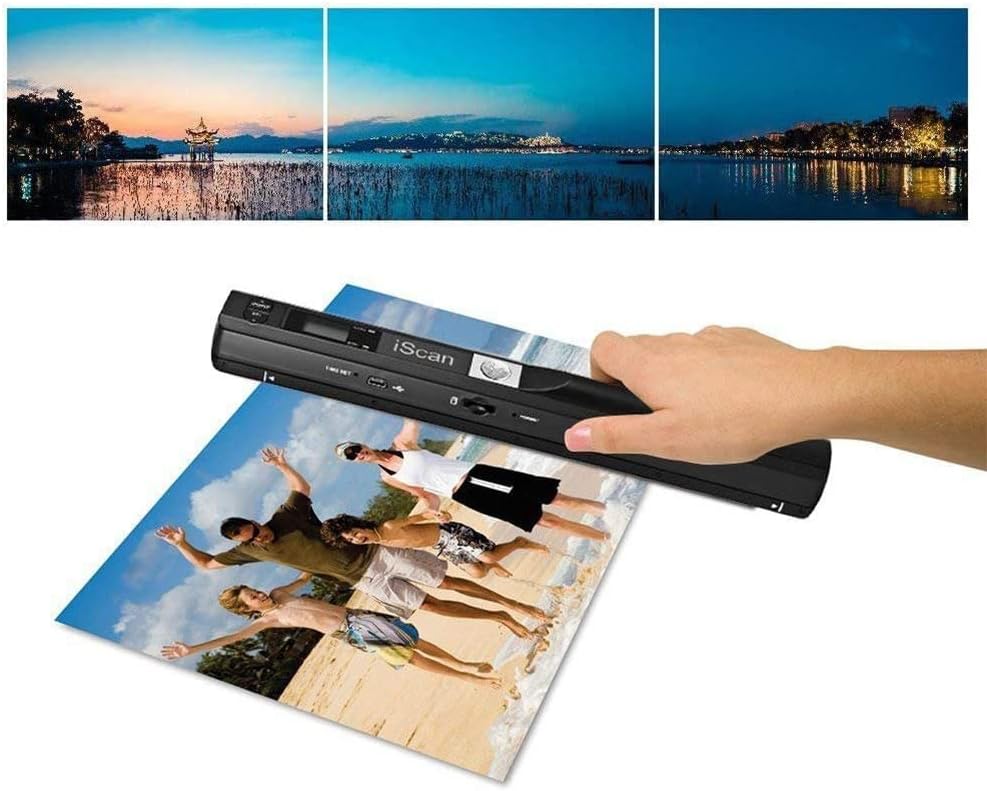
Figur 3: Demonstrates the handheld scanner in action, capturing a large photograph. The top portion of the image shows examples of scanned output.

Figur 4: The scanner positioned over a magazine page, illustrating its use for scanning documents and printed materials.
3. Transferring Scans to Computer
You can transfer your scanned files to a computer using the provided USB cable or by directly inserting the Micro SD card.
- Brug af USB-kabel:
- Connect the smaller end of the USB cable to the scanner's USB port.
- Tilslut den større ende af USB-kablet til en ledig USB-port på din computer.
- The scanner will appear as a removable disk drive. You can then access and copy your scanned files.
- Brug af Micro SD-kort:
- Remove the Micro SD card from the scanner.
- Indsæt Micro SD-kortet i en kompatibel kortlæser, der er tilsluttet din computer.
- Access the card as a removable drive to transfer files.

Figur 5: Illustration of the scanner's connectivity options, including the Micro SD card, USB cable, and a laptop, demonstrating how scanned files can be transferred.
4. Using OCR Software
The included Optical Character Recognition (OCR) software allows you to convert scanned documents into editable text files. Note: This software is Windows-only and not compatible with Mac OS.
- Install the OCR software from the provided CD or download link (if applicable) onto your Windows computer.
- Follow the software's instructions to import your scanned PDF or JPG documents.
- Use the OCR function to convert the images into searchable and editable text formats (e.g., TXT, DOC, XLS).

Figur 6: Visual representation of the OCR software's capability to convert scanned images (JPG, PDF) into editable text formats (TXT, Excel, Word).
Opretholdelse
1. Rengøring af scanneren
Regular cleaning ensures optimal scan quality.
- Use the included cleaning cloth or a soft, lint-free cloth to wipe the exterior of the scanner.
- For the scanning window, gently wipe with a clean, dry, soft cloth. Avoid abrasive materials or harsh chemicals.
- Ensure no dust or debris accumulates on the scanning lens.
2. Batteripleje
- Udskift batterierne, når indikatoren for lavt batteriniveau vises på displayet.
- Fjern batterierne, hvis scanneren ikke skal bruges i længere tid, for at forhindre lækage.
- Use high-quality AA alkaline batteries for best performance.
3. Administration af Micro SD-kort
- Overfør scannede filer regelmæssigt files to your computer to free up space on the Micro SD card.
- Format the Micro SD card occasionally (after backing up files) to maintain optimal performance. This can usually be done via the scanner's menu or a computer.
Fejlfinding
| Problem | Mulig årsag | Løsning |
|---|---|---|
| Scanneren tænder ikke. | Lave eller døde batterier; forkert batteriindsætning. | Replace batteries with fresh ones. Ensure correct polarity (+/-). |
| Scannede billeder er slørede eller forvrængede. | Scanner moved too fast or unevenly; dirty scanning lens; item not flat. | Scan slowly and steadily. Ensure the document is flat. Clean the scanning lens with a soft cloth. Practice maintaining a steady hand. |
| Scanneren genkendes ikke af computeren. | Loose USB connection; faulty USB cable; driver issue (unlikely for plug-and-play). | Ensure USB cable is securely connected. Try a different USB port or cable. Restart computer and scanner. |
| Cannot save scans. | Micro SD card full; card not inserted correctly; card error. | Overførsel files to computer to free space. Reinsert Micro SD card. Try a different Micro SD card. Format the card (after backing up data). |
| OCR software not working. | Incorrect installation; incompatible operating system (Mac OS); corrupted files. | Ensure software is correctly installed on a Windows OS. Reinstall the software. Try scanning the document again. |
| Scan quality settings reset after power off. | This model may not retain certain settings after power cycle. | Re-select desired DPI and color mode before each scanning session. |
Specifikationer
| Feature | Detalje |
|---|---|
| Modelnavn | ST415 |
| Mærke | MIKROVARE |
| Scanner type | Photo, Text, Document |
| Optisk sensorteknologi | CCD |
| Opløsning | 300 DPI, 600 DPI, 900 DPI |
| Forbindelsesteknologi | USB |
| Medietype | Slide, Foto |
| Ark størrelse | Legal (up to 8.27 inches wide and 98 inches long) |
| Varens vægt | 1.2 pund (ca.) |
| Produktdimensioner | 12.38 x 8 x 2 tommer (ca.) |
| Batterier | 2 AA batterier påkrævet |
| Opbevaring | Micro SD card (up to 32GB supported) |
| File Formater | JPG, PDF |
| Minimum systemkrav | Windows 7 (for OCR software) |
Garanti og support
Garantioplysninger
For specific warranty details, please refer to the warranty card included with your product or visit the official MICROWARE webGarantibetingelserne dækker typisk fabrikationsfejl i en bestemt periode fra købsdatoen.
Kundesupport
If you encounter any issues not covered in this manual or require further assistance, please contact MICROWARE customer support. Contact information can usually be found on the product packaging, the manufacturer's webwebstedet eller garantidokumentationen.
When contacting support, please have your product model (ST415) and purchase information ready.


