Indledning
The Imperial DABMAN i200 is a versatile multifunctional stereo radio designed for comprehensive audio entertainment. It supports DAB+, FM, and internet radio reception, offering access to a vast array of stations worldwide. With integrated Wi-Fi and Ethernet connectivity, DLNA/UPnP compatibility, and app remote control, the DABMAN i200 provides a modern and user-friendly listening experience. Key features include a clear TFT color display, powerful stereo speakers, and a convenient weather forecast function.
Vigtige sikkerhedsoplysninger
- Strømkilde: Brug kun den medfølgende strømadapter. Sørg for, at lydstyrkentage matcher kravene specificeret på enheden.
- Ventilation: Bloker ikke ventilationsåbninger. Sørg for tilstrækkelig plads omkring enheden for korrekt luftgennemstrømning og for at forhindre overophedning.
- Vand og fugt: Do not expose the device to rain, moisture, dripping, or splashing. Do not place objects filled with liquids, such as vases, on the apparatus.
- Rensning: Tag stikket ud af enheden før rengøring. Brug en blød, tør klud. Brug ikke flydende rengøringsmidler eller sprayrengøringsmidler.
- Service: Forsøg ikke selv at servicere dette produkt. Overlad al service til kvalificeret servicepersonale.
- Placering: Placer enheden på en stabil, plan overflade. Undgå at placere den i nærheden af varmekilder eller i direkte sollys.
Pakkens indhold
Kontroller venligst, at alle varer er til stede og i god stand:
- Imperial DABMAN i200 Radio Unit
- Fjernbetjening (inklusive batterier)
- Strømadapter
- Lydkabel (AUX)
- Brugervejledning (dette dokument)
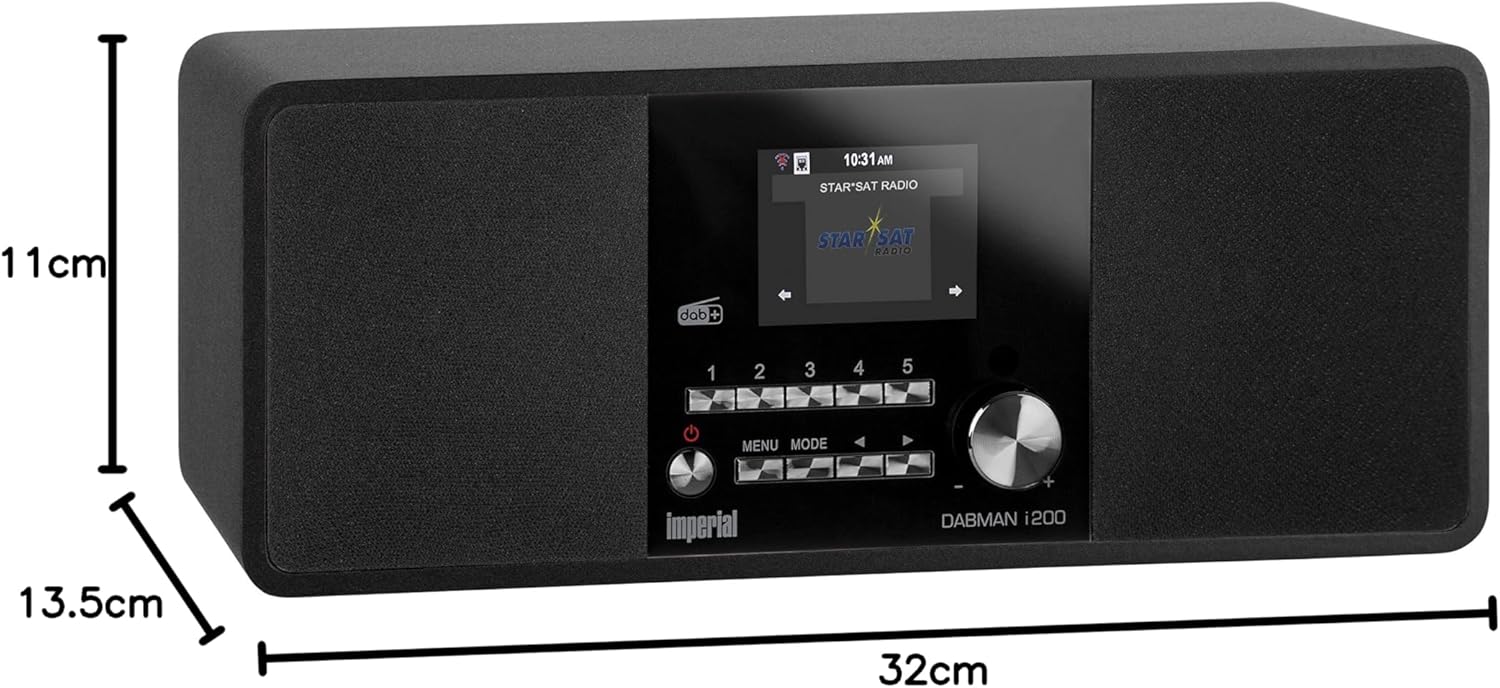
Image: Contents of the Imperial DABMAN i200 package, including the radio, remote, power adapter, and cables.
Produkt overview
Frontpanel

Billede: Forside view of the DABMAN i200, highlighting the central display, five preset buttons, power/volume knob, menu/mode buttons, and navigation controls.
- Vise: 2.8-inch (7.2cm) TFT color display for showing station information, menus, and settings.
- Forudindstillede knapper (1-5): Quickly access your favorite radio stations.
- Strøm-/lydstyrkeknap: Turn the unit on/off and adjust the volume.
- Menu-knap: Få adgang til hovedmenuen.
- Mode knap: Switch between different operating modes (Internet Radio, DAB+, FM, Media Player, AUX).
- Navigation Buttons (Left/Right/Up/Down/OK): Naviger gennem menuer og vælg muligheder.
Bagpanel

Billede: Bagside view of the DABMAN i200, detailing the connectivity ports: DC 12V/3A power input, USB 5V/1A port, LAN (Ethernet) port, AUX IN, Line OUT, and Headphone OUT. Also visible is the ON/OFF switch and the telescopic antenna.
- TÆND/SLUK -kontakt: Hovedafbryder til enheden.
- DC 12V/3A indgang: Tilslut den medfølgende strømadapter her.
- USB 5V/1A Port: Til afspilning af medier fra USB-lagerenheder.
- LAN-port (Ethernet): Til kabelbaseret netværksforbindelse.
- AUX IN: 3.5 mm lydindgang til tilslutning af eksterne lydkilder.
- Line OUT: Lydudgang til tilslutning af eksternt ampløftere eller højttalere.
- Headphone OUT: 3.5 mm stik til tilslutning af hovedtelefoner.
- Teleskopantenne: Til modtagelse af DAB+ og FM-radio.
Opsætning
1. Strømtilslutning
- Connect the power adapter to the DC 12V/3A input on the rear of the DABMAN i200.
- Sæt strømadapteren i en stikkontakt.
- Drej tænd/sluk-knappen på bagpanelet til 'TIL'-positionen.
- Press the Power/Volume knob on the front panel to turn on the unit.
2. Antennetilslutning
For optimal DAB+ and FM radio reception, fully extend the telescopic antenna located on the rear of the unit.
3. Network Connection (Internet Radio & Updates)
The DABMAN i200 supports both Wi-Fi and wired Ethernet connections.
Wi-Fi-forbindelse:
- Upon first power-on, the unit will guide you through the initial setup wizard. Select your preferred language.
- When prompted for network setup, select "Wireless Network".
- Radioen vil søge efter tilgængelige Wi-Fi-netværk. Vælg dit netværk fra listen.
- Enter your Wi-Fi password using the navigation buttons and the 'OK' button.
- Confirm the connection. The radio will display "Connected" once successful.
Ethernet-forbindelse:
- Connect an Ethernet cable from your router to the LAN port on the rear of the DABMAN i200.
- The radio will automatically detect the wired connection and obtain an IP address via DHCP.
4. Initial Setup Wizard
After connecting to power and network for the first time, the DABMAN i200 will guide you through a setup wizard. Follow the on-screen instructions to:
- Vælg sprog
- Set Date and Time (can be synchronized via network)
- Configure Network (as described above)
- Perform a DAB+ scan (optional, can be done later)
Betjeningsvejledning
Grundlæggende navigation
- Tænd/sluk: Press the Power/Volume knob.
- Lydstyrkekontrol: Drej tænd/sluk-/lydstyrkeknappen.
- Skift tilstand: Tryk på MODE button to cycle through Internet Radio, DAB+, FM, Media Player, and AUX.
- Menuadgang: Tryk på MENU button to enter the main menu for the current mode or system settings.
- Navigation: Brug Venstre / højre / op / ned buttons to move through options. Press OK for at bekræfte et valg.
- Tilbage: Brug Venstre navigation button to go back to the previous screen.
Internet radio
Få adgang til tusindvis af radiostationer fra hele verden via din internetforbindelse.
- Trykke MODE until "Internet Radio" is selected.
- Navigate through categories such as "Location", "Genre", "Popular Stations", or "Search".
- Select a station using the navigation buttons and OK.
- Gem forudindstillinger: While a station is playing, press and hold one of the preset buttons (1-5) until "Preset Saved" appears. To recall, simply press the corresponding preset button.
- Spotify Connect: If you have a Spotify Premium account, you can stream music directly to your DABMAN i200. Ensure both your radio and Spotify device are on the same network. Select the DABMAN i200 as the playback device within the Spotify app.
DAB+ radio
Nyd digitale radioudsendelser i høj kvalitet.
- Trykke MODE until "DAB+" is selected.
- If this is the first time, or if you want to rescan, go to Menu > Scan to find available DAB+ stations.
- Use the navigation buttons to browse the list of found stations. Press OK at vælge.
- Gem forudindstillinger: Similar to Internet Radio, press and hold a preset button (1-5) to save the current station.
FM radio
Stil ind på traditionelle analoge FM-udsendelser.
- Trykke MODE until "FM" is selected.
- Use the navigation buttons to manually tune the frequency, or go to Menu > Auto Scan to find stations automatically.
- Gem forudindstillinger: Similar to other modes, press and hold a preset button (1-5) to save the current station.
Media Playback (USB / DLNA/UPnP)
Play your own music files from a USB drive or network-connected devices.
USB-afspilning:
- Sæt et USB-flashdrev i USB-porten på bagpanelet.
- Trykke MODE and select "Media Player".
- Navigate to "USB Playback" and browse your music files.
DLNA/UPnP Playback:
- Ensure your DLNA/UPnP server (e.g., a computer with media sharing enabled, or a NAS) is active on the same network as the DABMAN i200.
- Trykke MODE and select "Media Player".
- Navigate to "DLNA/UPnP" and select your server. Browse and play your media.
Vækkeur og sleeptimer
- Vækkeur: Set up to two independent alarms. Go to Menu > Systemindstillinger > Alarm. Configure alarm time, source (buzzer, Internet Radio, DAB+, FM), volume, and recurrence.
- Sleep timer: Set the radio to turn off automatically after a specified period. Go to Menu > Systemindstillinger > Sleeptimer and select the desired duration.
App Control (AirMusic Control)
Control your DABMAN i200 conveniently from your smartphone or tablet using the free AirMusic Control app (available for iOS and Android).
- Download and install the "AirMusic Control" app from your device's app store.
- Ensure your smartphone/tablet is connected to the same Wi-Fi network as your DABMAN i200.
- Open the app. It should automatically detect your radio.
- You can now control modes, volume, browse stations, and manage settings directly from the app.
Vejrudsigt
The DABMAN i200 can display a 5-day weather forecast for your selected location.
- Access this feature via Menu > Weather.
- You may need to set your location in the system settings for accurate forecasts.
- The weather forecast can also be displayed alternately with the clock in standby mode.
Opretholdelse
- Rensning: Gently wipe the unit with a soft, dry, lint-free cloth. Do not use abrasive cleaners, waxes, or solvents.
- Softwareopdateringer: Periodically check for software updates to ensure optimal performance and access to new features. Go to Menu > System Settings > Software Update. If an update is available, follow the on-screen instructions. Do not power off the unit during an update.
- Opbevaring: Hvis enheden opbevares i længere tid, skal den afbrydes fra strømmen og opbevares et køligt og tørt sted.
Fejlfinding
| Problem | Mulig årsag/løsning |
|---|---|
| Ingen strøm / Enheden tænder ikke. |
|
| Ingen lyd. |
|
| Kan ikke oprette forbindelse til Wi-Fi. |
|
| Poor DAB+ or FM reception. |
|
| Internet radio buffering or disconnecting. |
|
| Fjernbetjening virker ikke. |
|
Specifikationer
| Modelnummer | 22-231-00 |
| Mærke | Kejserlig |
| Tuner-teknologi | Internet radio, DAB+, DAB, FM, FM/AM |
| Forbindelse | Wi-Fi, Ethernet, AUX input, USB 2.0, Headphone Out, Line Out |
| Vise | 2.8-inch (7.2cm) TFT Color Display |
| Lydudgang | 2 x 10W stereohøjttalere |
| Strømkilde | Ledningsbaseret elektrisk (DC 12V/3A) |
| Produktmål (L x B x H) | 32.3 x 11 x 13.6 cm |
| Vægt | 1.9 kg |
| Særlige funktioner | Integrated clock, Spotify Connect, App control (AirMusic Control), DLNA/UPnP compatible, 5-day weather forecast |
| Inkluderede komponenter | Remote Control, Audio Cable, Power Adapter, User Manual |

Image: Dimensions of the Imperial DABMAN i200 radio.
Garanti og support
For warranty information and technical support, please refer to the contact details provided by the manufacturer, IMPERIAL. Typically, products come with a standard manufacturer's warranty. Please retain your proof of purchase for any warranty claims.
Fabrikant: KEJSERLIG
Oprindelsesland: Tyskland
For further assistance, you may visit the official Imperial website or contact their customer service. Specific contact details are usually found in the packaging or on the manufacturer's webwebsted.


