1. Introduktion
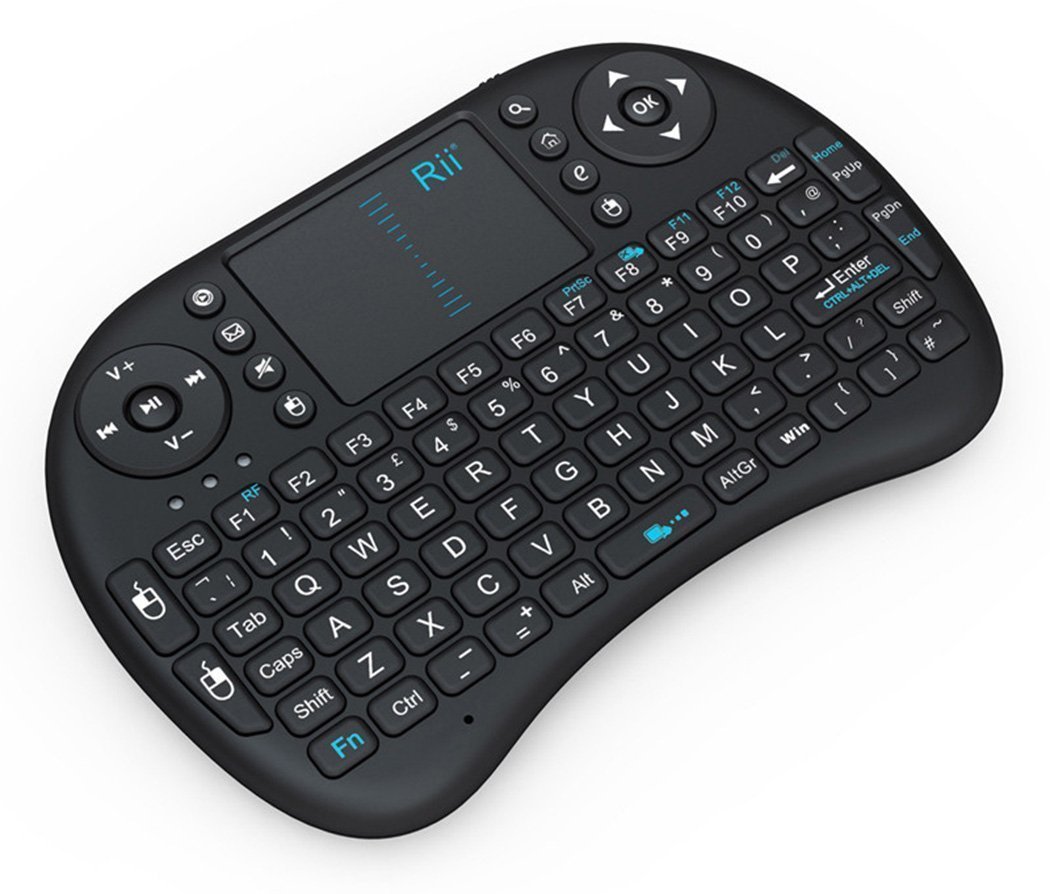
This manual provides detailed instructions for the Rii i8 2.4GHz Wireless Touchpad Keyboard Mouse, model RT-MWK-08. This compact and versatile device integrates a full QWERTY keyboard with a multi-touch touchpad, offering convenient control for various systems including PCs, smart TVs, Android TV boxes, and gaming consoles. Please read this manual thoroughly before use to ensure proper operation and to maximize your experience with the product.
2. Pakkens indhold
Ved udpakning skal du kontrollere, at alle følgende varer er inkluderet:
- 1x Rii i8 Wireless Keyboard
- 1x USB trådløs modtager
- 1x USB Charging Data Cable
- 1x brugermanual
3. Opsætning
3.1. Opladning af enheden
The Rii i8 keyboard comes with a built-in lithium-ion battery. Before initial use, it is recommended to fully charge the device. Connect the provided USB charging cable to the keyboard's charging port and the other end to a standard USB power source (e.g., computer USB port, USB wall adapter). The charging indicator light will illuminate during charging and turn off when fully charged.
3.2. Tilslutning af den trådløse USB-modtager
- Locate the USB wireless receiver, typically stored in a compartment on the back of the keyboard.
- Insert the USB receiver into an available USB port on your target device (PC, Smart TV, Android TV Box, etc.).
- Turn on the Rii i8 keyboard using the power switch (usually located on the side or back).
- The device should automatically connect. No additional drivers are typically required for most operating systems.
The image displays the back of the Rii i8 wireless keyboard, highlighting the slot for the USB receiver and the included USB charging cable. The receiver is a small USB dongle that plugs into your device for wireless connectivity.
4. Betjeningsvejledning
4.1. Tastaturfunktioner
The Rii i8 features a standard QWERTY keyboard layout. All standard alphanumeric keys and symbols function as they would on a full-sized keyboard.
4.2. Touchpad-funktioner
The integrated touchpad supports multi-touch gestures for navigation:
- Tryk med en enkelt finger: Fungerer som venstre museklik.
- To-finger tryk: Functions as a right mouse click.
- Rulning: Slide one finger up or down the right edge of the touchpad to scroll vertically, similar to a mouse scroll wheel.

This diagram shows how to use the touchpad for vertical scrolling by sliding a finger up or down. It also highlights dedicated buttons for volume control (V+, V-), previous/next song, play/pause, and quick access to music player, email, search, and browser functions.
4.3. Special Function (Fn) Keys
The keyboard includes a 'Fn' key which, when pressed in combination with other keys, activates additional functions. Refer to the diagram below for common Fn key combinations:

This image details the functionality of various Fn key combinations. For example, Fn + F1 adjusts mouse sensitivity, Fn + Enter is a Task Manager shortcut, Fn + F8 toggles the touchpad on/off, and Fn + Win activates the Start/Menu bar. It also shows shortcuts for adjusting mouse sensitivity, print screen, maximizing pages, opening development tools, and navigating text.

A user is shown holding the Rii i8 wireless keyboard, illustrating its compact size and ergonomic design for comfortable two-hand operation. The keyboard is being used in front of a television displaying a smart TV interface, indicating its suitability for media center control.
5. Kompatibilitet
The Rii i8 wireless keyboard is compatible with a wide range of operating systems and devices that support a standard USB interface:
- Windows 2000 / XP / 7 / 8 / CE
- Windows Vista
- Linux (Debian 3.1, Red Hat - Fedora, Ubuntu 8.10-8.10 * 9.0)
- Android OS (med standard USB-interface)
- PC, Mac, HTPC, Smart TV, Android TV Box, Projector, Tablet (with USB port), Notebook

This diagram illustrates the broad compatibility of the Rii i8 wireless keyboard, showing it can connect to and control a variety of devices including Home Theater PCs (HTPC), Android TV Boxes, projectors, tablets with USB ports, Smart TVs, and notebooks.
6. Vedligeholdelse
6.1. Rensning
Brug en blød, tør klud til at rengøre tastaturet. Til genstridigt snavs kan du bruge en let tør klud.amp en klud med mild sæbe kan bruges, og sørg for, at der ikke kommer væske ind i enheden. Undgå slibende rengøringsmidler eller opløsningsmidler.
6.2. Batteripleje
The built-in lithium-ion battery is not user-replaceable. To prolong battery life, avoid fully discharging the battery frequently. Charge the device when the low battery indicator appears. Store the device in a cool, dry place when not in use for extended periods.
7. Fejlfinding
- Intet svar fra tastaturet:
- Sørg for, at tastaturet er tændt.
- Kontroller, om USB-modtageren er tilsluttet korrekt til enheden.
- Verify the keyboard battery is charged.
- Prøv at sætte USB-modtageren i en anden USB-port.
- Sørg for, at der ikke er stærke trådløse forstyrrelser i nærheden.
- Touchpad'en fungerer ikke korrekt:
- Ensure the touchpad is not disabled (check Fn+F8 combination).
- Rengør touchpad-overfladen.
- If sensitivity is an issue, adjust it using Fn+F1.
- Low battery can affect touchpad performance; recharge the device.
- Taster reagerer ikke:
- Genoplad tastaturet.
- Tilslut USB-modtageren igen.
- Test on another device to rule out host system issues.
- Kort driftsområde:
- Ensure there are no obstructions between the keyboard and the USB receiver.
- Avoid using the device near other 2.4GHz wireless devices that may cause interference.
8. Specifikationer
| Feature | Detalje |
|---|---|
| Driftsområde | Up to 15 meters (MAX), without signal disturbance and no direction limit |
| Frekvensområde | 2.403 GHz ~ 2.480 GHz |
| Operationel bindtage | 3.3V |
| Charge Voltage | 4.4V ~ 5.25V |
| Modulation | GFSK |
| Kanal | 78 kanaler |
| TX Power | Mindre end +5 dBm |
| Transmissionshastighed | 1M bit/sek |
| Frekvenstolerance | +/-30 ppm |
| Strømforbrug | 55mA (tændt), 1mA (dvale) |
| Batteritype | Indbygget lithium-ion batteri |
| Varestørrelse | 15 x 10 x 2 cm (5.91" L x 3.94" B x 0.79" H) |
| Varens vægt | 107 g (0.016 ounce) |
| Hardware platform | PC; Mac; UNI; Linux |
| Materiale | Plast |
| Farve | Sort |
9. Garanti og support
For garantioplysninger eller teknisk support henvises til den dokumentation, der fulgte med dit køb, eller kontakt forhandleren/producenten direkte. Gem din købsbevis til garantikrav.


