Indledning
This manual provides detailed instructions for the setup, operation, and maintenance of your SecuGen HU20-A Hamster Pro 20 USB Fingerprint Reader. Please read this manual thoroughly before using the device to ensure proper functionality and longevity.
The SecuGen Hamster Pro 20 is an ultra-compact, high-quality USB fingerprint reader designed for authentication, identification, and verification. It features a rugged optical sensor and is FBI Certified for FIPS 201 (PIV) and Mobile ID FAP 20 requirements.
Produktegenskaber
- Supports most major operating systems.
- Rugged, high-performance, maintenance-free optical sensor resistant to scratches, impact, vibration, and electrostatic shock.
- Automatic finger detection technology (when used with SecuGen applications).
- Self-adjusting scanning technology (when used with SecuGen applications).
- Latent print and false fingerprint rejection.
- Ultra-compact, lightweight, and portable design.
- Integrated finger guide for consistent placement.
- Standard USB 2.0 Hi-speed connection.
- IP54 Certified for dust and water resistance.
Pakkens indhold
Bekræft at alle varer er til stede i pakken:
- SecuGen HU20-A Hamster Pro 20 USB Fingerprint Reader
- USB-kabel (integreret)
- Hurtigstartguide (hvis relevant)
- Software/Driver CD or download instructions (if applicable)
Opsætning
1. Systemkrav
- Compatible Operating System (most major OS supported)
- Tilgængelig USB 2.0-port
- Internet connection for driver download (if not provided on CD)
2. Driver installation
- Before connecting the device, visit the official SecuGen website (www.secugen.com) to download the latest drivers and any necessary SDKs or applications for your operating system.
- Run the downloaded installer and follow the on-screen prompts to complete the driver installation.
- Genstart din computer, hvis du bliver bedt om det.
3. Tilslutning af enheden
- Find en ledig USB-port på din computer.
- Insert the USB connector of the Hamster Pro 20 into the USB port.
- The operating system should detect the device and complete the installation using the previously installed drivers.

Figur 1: Forside view of the SecuGen Hamster Pro 20 USB Fingerprint Reader, showing the fingerprint platen and the SecuGen logo.
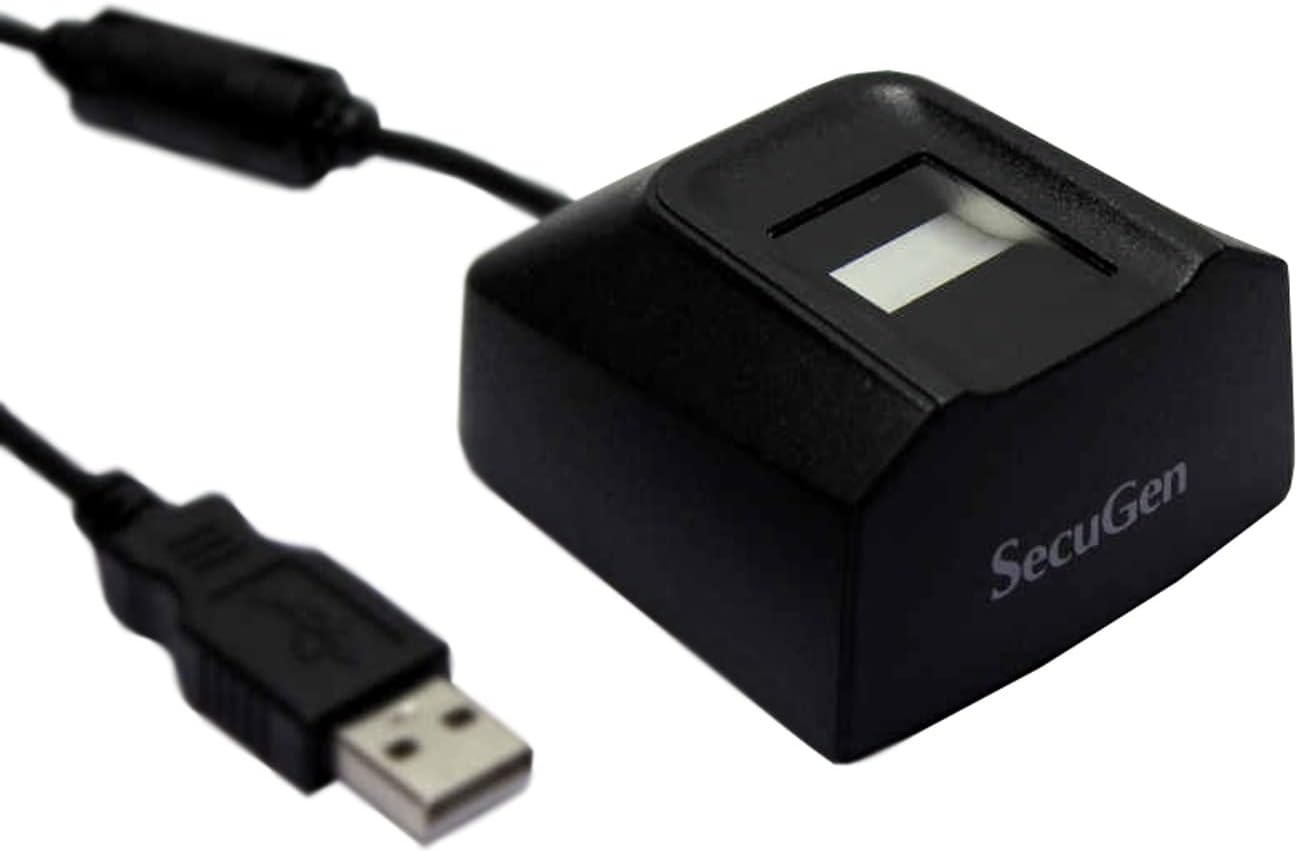
Figure 2: SecuGen Hamster Pro 20 USB Fingerprint Reader connected to its USB cable, illustrating its compact size and connectivity.
Betjeningsvejledning
1. Fingerplacering
For optimal performance, place your finger flat on the sensor platen, ensuring the entire pad of your finger covers the surface. Apply gentle, consistent pressure.
2. Enrollment Process
The enrollment process typically involves registering your fingerprints with a specific software application. Follow the instructions provided by your chosen application (e.g., Windows Hello, third-party biometric software) to enroll your fingerprints. This usually involves scanning the same finger multiple times from different angles.
3. Authentication/Verification
When prompted by an application for fingerprint authentication, place your enrolled finger on the sensor. The device will capture your fingerprint and the software will verify it against the stored template.
Vigtig bemærkning:
The performance of automatic finger detection and self-adjusting scanning technologies is dependent on the application used. These features are fully realized when the device is used with applications built with SecuGen's algorithms.
Opretholdelse
1. Rengøring af sensoren
To maintain optimal performance, keep the sensor platen clean. Use a soft, lint-free cloth lightly dampened with water or a mild, non-abrasive cleaner. Do not use harsh chemicals or abrasive materials, as they can damage the sensor surface.
2. Opbevaring
Store the device in a clean, dry environment away from direct sunlight and extreme temperatures. Avoid placing heavy objects on the device or its cable.
3. Håndtering
While the device is rugged, avoid dropping it or subjecting it to excessive force. Do not attempt to disassemble the device, as this will void the warranty.
Fejlfinding
- Problem: Device not recognized by computer.
- Løsning:
- Sørg for, at USB-kablet er korrekt tilsluttet til både enheden og computeren.
- Prøv at tilslutte enheden til en anden USB-port.
- Verify that the correct drivers are installed. Reinstall drivers if necessary.
- Genstart din computer.
- Check Device Manager (Windows) or System Information (macOS) to see if the device is listed without errors.
- Problem: Fingerprint not recognized or enrollment fails.
- Løsning:
- Sørg for, at din finger er ren og tør.
- Clean the sensor surface as described in the Maintenance section.
- Ensure proper finger placement, covering the entire platen.
- Try enrolling or authenticating with a different finger.
- Ensure the application you are using is compatible with the SecuGen device and its drivers are up to date.
- Problem: Device LED is off or not responding.
- Løsning:
- Kontroller USB-forbindelsen.
- Ensure your computer's USB ports are providing power.
- Hvis du bruger en USB-hub, kan du prøve at tilslutte den direkte til computeren.
Specifikationer
| Feature | Specifikation |
|---|---|
| Dimensioner (L x B x H) | 2.3 x 2.12 x 1.24 tommer |
| Vægt | 4.2 ounce |
| Billedopløsning | 500 DPI |
| Billedstørrelse | 300 x 400 pixel |
| Pladestørrelse | 0.71 x 0.9 tommer |
| Effektivt sensorområde | 0.6 x 0.8 tommer |
| Image Gray Scale | 256 niveauer (8-bit) |
| Lyskilde | Grøn LED |
| Smart Capture Speed | 0.2 til 0.5 sekunder |
| USB interface | 2.0 Hi-speed |
| Forsyning Voltage | 5VDC (via USB) |
| Driftstemperatur | -20 til 65 grader C |
| Støv/vandtæthed | IP54-certificeret |
| Kompatible enheder | Stationær, bærbar |
Garanti og support
Garantioplysninger
SecuGen products typically come with a limited manufacturer's warranty. Please refer to the warranty card included with your product or visit the official SecuGen webwebstedet for detaljerede garantivilkår og -betingelser. Gem din købsbevis til garantikrav.
Teknisk support
For technical assistance, driver updates, or further inquiries, please visit the official SecuGen support website or contact their customer service. Contact information can usually be found on the SecuGen website (www.secugen.com).
When contacting support, please have your product model (HU20-A) and serial number ready.


