1. Introduktion
This manual provides comprehensive instructions for the setup, operation, maintenance, and troubleshooting of your AOC E2270SWDN monitor. Designed for optimal viewing with a 1920x1080 resolution on a 21.5-inch TN panel, this monitor offers both VGA and DVI connectivity for versatile use.
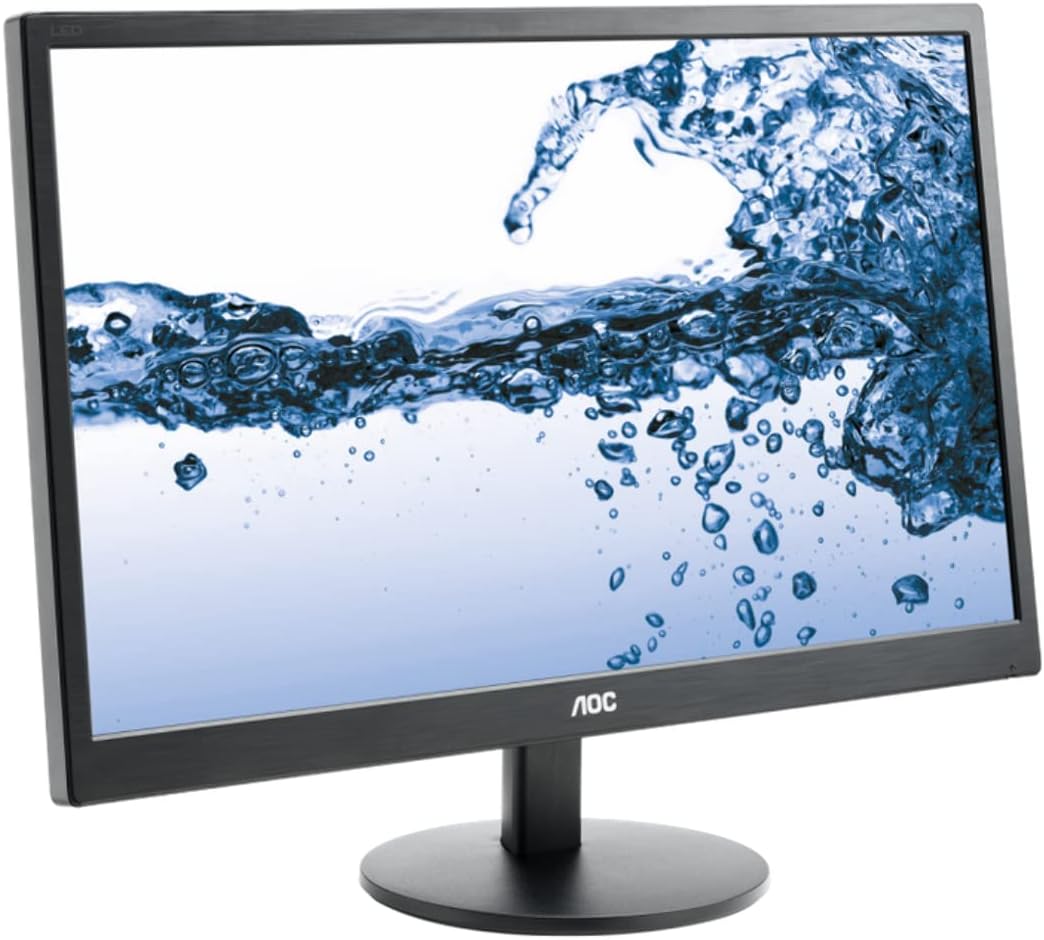
Figur 1: AOC E2270SWDN 21.5-inch monitor. This image shows the AOC E2270SWDN 21.5-inch monitor from a slight angle, highlighting its slim bezel and the stand. The screen displays a vibrant image of water splashing, demonstrating its display capabilities.
2. Opsætningsvejledning
2.1 Udpakning
Fjern forsigtigt alle komponenter fra emballagen. Sørg for, at følgende dele er til stede:
- AOC E2270SWDN Monitor
- Strømledning
- VGA-kabel
- DVI kabel
- Monitorstativ (base og hals)
- Brugervejledning (dette dokument)
2.2 Samling af stativet
- Fastgør stativets hals til skærmpanelet ved at justere tappene og skubbe godt, indtil den klikker på plads.
- Secure the stand base to the neck using the captive screw located on the underside of the base. Tighten clockwise until firm.
- Placer den samlede skærm på en stabil, plan overflade.
2.3 Tilslutning af skærmen
Før du tilslutter, skal du sørge for, at din computer og skærm er slukket.
- Strømtilslutning: Connect one end of the power cord to the monitor's power input and the other end to a grounded electrical outlet.
- Video Connection (Choose One):
- VGA: Connect the VGA cable from the monitor's VGA port to the VGA port on your computer's graphics card. Tighten the screws on the connector.
- DVI: Connect the DVI cable from the monitor's DVI port to the DVI port on your computer's graphics card. Tighten the screws on the connector.
After connecting, power on your computer, then power on the monitor using the power button.
3. Betjeningsvejledning
3.1 Tænd/sluk
Press the power button located on the front or bottom bezel of the monitor to turn it on or off. The power indicator light will illuminate when the monitor is on.
3.2 On-Screen Display (OSD) menu
The OSD menu allows you to adjust various monitor settings. Use the control buttons (usually located on the bottom right bezel) to navigate and select options.
- Menu-knap: Åbner OSD-menuen.
- Arrow Buttons (Up/Down or Left/Right): Naviger gennem menuindstillinger.
- Enter/Vælg-knap: Bekræfter et valg eller åbner en undermenu.
- Afslut-knap: Afslutter den aktuelle menu eller OSD-menuen.
3.3 Justering af skærmindstillinger
Commonly adjusted settings include:
- Lysstyrke/kontrast: Juster den samlede luminans og forskellen mellem lyse og mørke områder.
- Farvetemperatur: Change the color warmth (e.g., Cool, Normal, Warm, User).
- Indgangsvalg: Manually switch between VGA and DVI inputs if auto-detection fails.
- Image Setup (VGA only): Auto Adjust, H. Position, V. Position, Clock, Phase for analog signal optimization.
4. Vedligeholdelse
4.1 Rengøring af monitoren
To ensure a clear display and prolong the life of your monitor, follow these cleaning guidelines:
- Sluk altid skærmen og tag netledningen ud, inden rengøring.
- Brug en blød, fnugfri klud lidt dampened with water or a non-abrasive, ammonia-free, and alcohol-free glass cleaner.
- Sprøjt ikke rengøringsmiddel direkte på skærmen. Påfør det først på kluden.
- Avoid using abrasive cleaners, waxes, or solvents as they can damage the screen surface.
- Tør forsigtigt skærmen af for at fjerne støv og snavs.
- Clean the monitor casinmed en blød, tør klud.
4.2 Opbevaring
If storing the monitor for an extended period, ensure it is kept in a cool, dry place, away from direct sunlight and extreme temperatures. Use the original packaging if available to protect it from dust and physical damage.
5. Fejlfinding
This section addresses common issues you might encounter with your AOC E2270SWDN monitor.
| Problem | Mulig årsag | Løsning |
|---|---|---|
| Intet billede på skærmen | Monitor not powered on; video cable loose or disconnected; incorrect input selected. | Ensure power cord is securely connected and monitor is on. Check video cable connection at both monitor and computer. Use OSD to select correct input (VGA/DVI). |
| Billedet er for mørkt/lyst | Indstillingerne for lysstyrke/kontrast er forkerte. | Adjust Brightness and Contrast settings via the OSD menu. |
| Flimrende eller ustabilt billede | Loose video cable; interference; incorrect resolution/refresh rate. | Check video cable connection. Ensure computer's display resolution and refresh rate are compatible with the monitor (1920x1080). |
| Farverne ser forkerte ud | Color settings are off; faulty video cable. | Adjust color settings in the OSD menu. Try a different video cable if available. |
6. Specifikationer
Detailed technical specifications for the AOC E2270SWDN monitor:
| Feature | Detalje |
|---|---|
| Mærke | AOC |
| Modelnummer | E2270SWDN (also 215LM00041) |
| Skærmstørrelse | 21.5 tommer |
| Paneltype | TN (Twisted Nematic) |
| Max skærmopløsning | 1920 x 1080 (Full HD 1080p) |
| Aspektforhold | 16:9 |
| Lysstyrke | 200 cd/m² (typisk) |
| Forbindelse | VGA, DVI |
| Farve | Sort |
| Varens vægt | 5.95 pund |
| Produktmål (LxBxH) | 0.74 x 7.8 x 4.82 inches (without stand, approximate) |
| Voltage | 240 volt (indgang) |
| Fabrikant | AOC |
| Dato først tilgængelig | 22. april 2014 |
7. Garanti og support
For specific warranty details and the most up-to-date support information, please refer to the warranty card included with your product or visit the official AOC website. You can typically find drivers, FAQs, and contact information for technical support there.
AOC-officielle Webwebsted: https://us.aoc.com/


