Indledning
This manual provides detailed instructions for the proper use and maintenance of your Baseus Golden Code Capacitive Touch Screen Stylus Pen. Designed for precision and comfort, this stylus enhances your interaction with all capacitive touch screen devices, including tablets and smartphones.

Figure 1: The Baseus Golden Code Capacitive Touch Screen Stylus Pen. This image shows the sleek silver design of the stylus, highlighting its ergonomic form factor.
Produkt overview
The Baseus Golden Code Stylus Pen features a dual-purpose design, offering both a precise disk tip for detailed work and a traditional pen tip for general use. Its robust construction ensures durability and a comfortable grip.
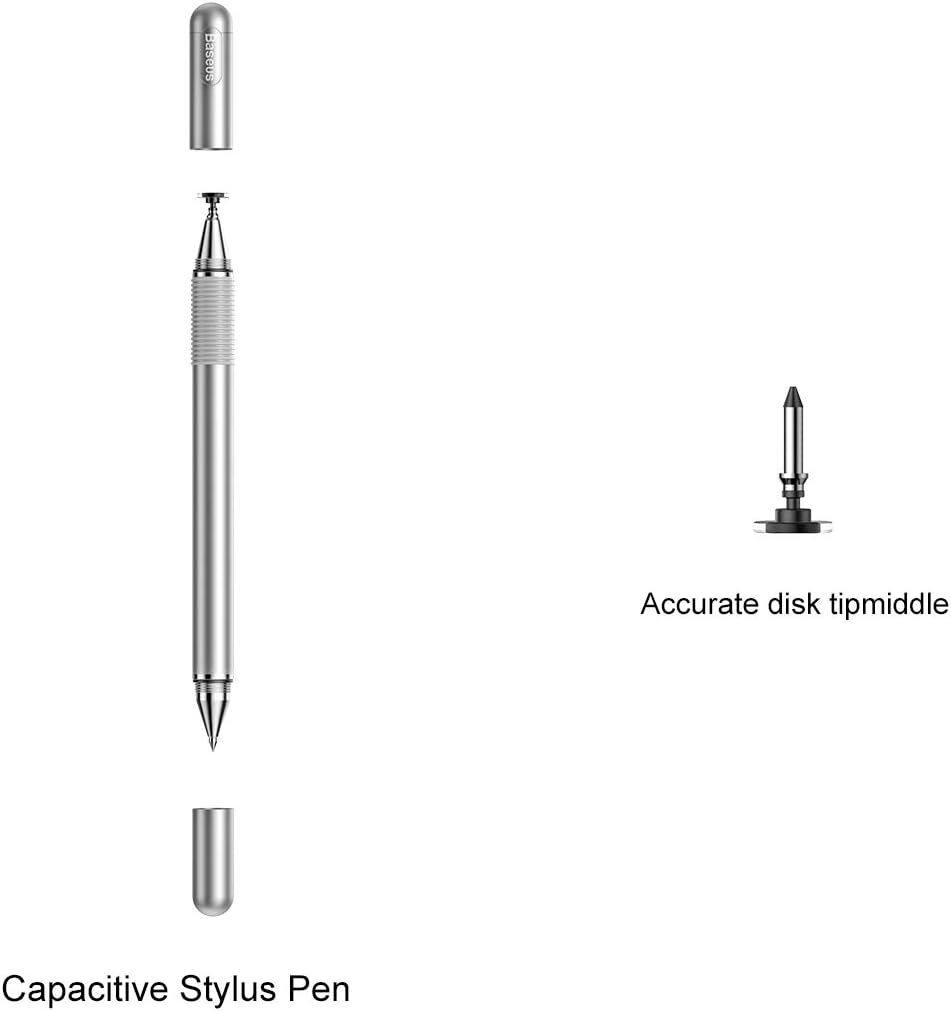
Figure 2: Components of the Baseus Stylus Pen. This diagram illustrates the main body of the stylus, the removable cap, and the accurate disk tip, along with a spare tip, demonstrating its modular design.
Nøglekomponenter:
- Disk Tip: Provides high precision for drawing, writing, and detailed navigation.
- Fiber Tip (under cap): Suitable for general touch screen navigation and quick interactions.
- Pen Body: Ergonomisk designet til komfortabel håndtering.
- Beskyttelseshætte: Covers the fiber tip when not in use.
Opsætning
The Baseus Golden Code Stylus Pen requires no batteries, Bluetooth pairing, or software installation. It is ready to use right out of the box.
- Pakker ud: Carefully remove the stylus pen from its packaging.
- Select Tip:
- For precise tasks like drawing or detailed writing, use the transparent disk tip. Ensure the disk is flat against the screen for optimal contact.
- For general navigation, tapping, or quick notes, remove the protective cap to reveal the fiber tip.
- Klar til brug: The stylus is now ready for immediate use on any capacitive touch screen device.
Betjeningsvejledning
The stylus is designed for intuitive use across various applications.
At skrive og tegne

Figure 3: Using the stylus for handwriting. This image shows a hand holding the Baseus stylus and writing on a notebook, demonstrating its comfortable grip and precision for detailed tasks.
For handwriting or detailed drawing, use the disk tip. Hold the pen naturally, ensuring the transparent disk maintains full contact with the screen. The disk is designed to allow for a 180-degree inclination, providing flexibility in your writing or drawing angle without compromising accuracy.

Figure 4: Stylus tip demonstrating 180-degree inclination. This close-up image highlights the flexible design of the disk tip, allowing for a wide range of angles during use for smooth drawing and drafting.
Følsom berøringskontrol

Figure 5: Stylus used for sensitive touch control. This image shows the stylus being used on a tablet screen, illustrating its responsiveness and ability to produce delicate strokes for precise input.
The stylus offers sensitive touch control, allowing for delicate strokes and precise input, ideal for graphic design, photo editing, or fine-detail work on your device.
Business and Office Work

Figure 6: Stylus in use for business and office tasks. This image depicts the stylus being used on a tablet to interact with a spreadsheet or document, highlighting its convenience and fast performance for professional applications.
Utilize the stylus for efficient navigation through documents, presentations, and spreadsheets. Its precision makes it perfect for signing digital documents, annotating PDFs, or taking quick notes during meetings.
Spiloplevelse
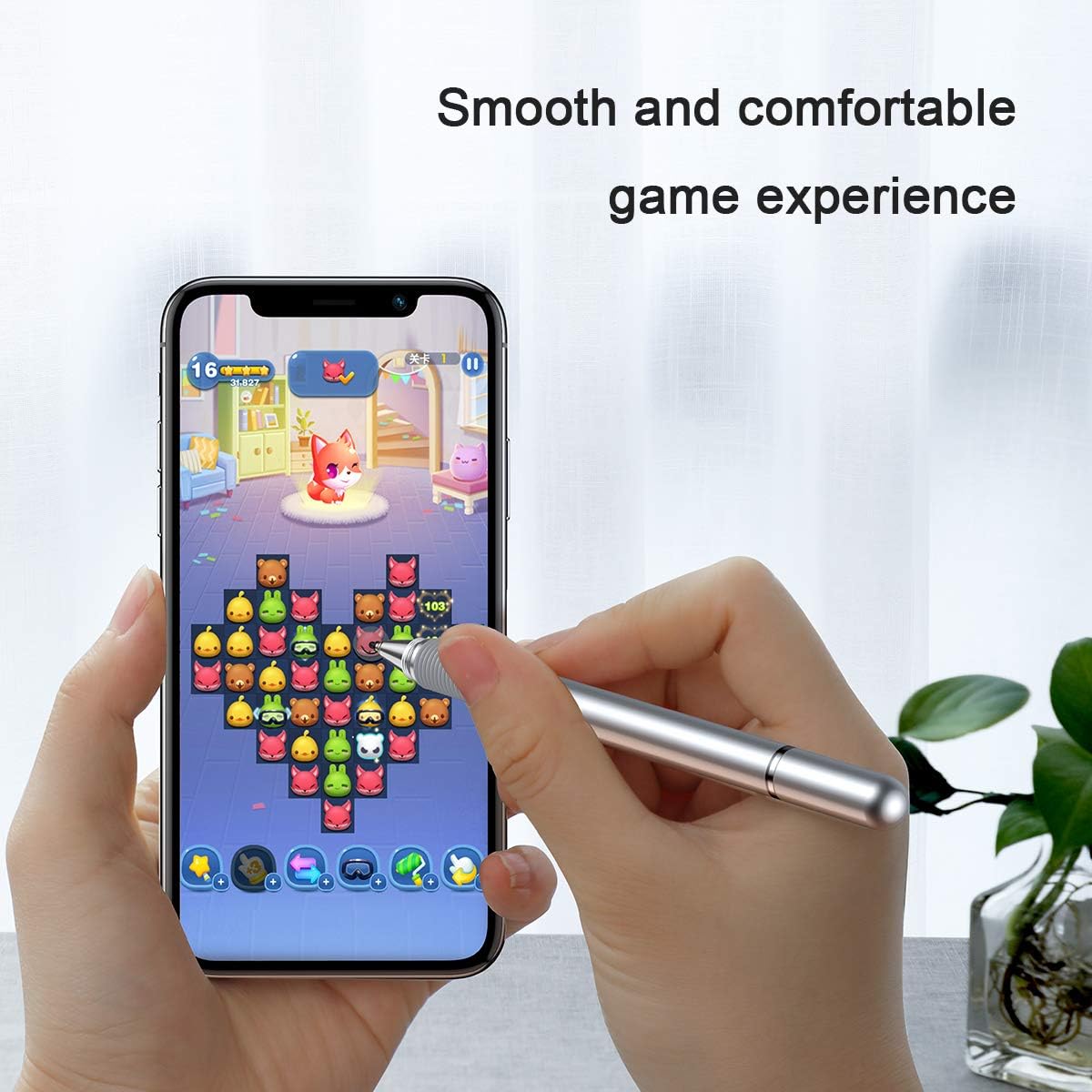
Figure 7: Stylus enhancing the gaming experience. This image shows the stylus being used to play a mobile game on a smartphone, demonstrating how it provides a smooth and comfortable interface for interactive entertainment.
Experience enhanced control and comfort in touch-based games. The smooth glide of the stylus allows for more precise movements and quicker reactions, improving your overall gaming performance.
Opretholdelse
Proper care will extend the life and performance of your stylus pen.
- Rensning: Wipe the stylus body and tips gently with a soft, dry, lint-free cloth. Do not use abrasive cleaners or solvents.
- Pleje af spids: Avoid pressing the disk tip too hard against the screen, as this can damage the tip or the screen. Ensure the disk is clean and free of debris.
- Opbevaring: When not in use, replace the protective cap over the fiber tip. Store the stylus in a clean, dry place, away from extreme temperatures and direct sunlight.
- Udskiftning af spids: If the disk tip becomes worn or damaged, it can be replaced. Refer to Figure 2 for the location of the spare tip. Gently pull the old tip off and push the new one into place.
Fejlfinding
If you encounter issues with your stylus, try the following solutions:
| Problem | Mulig årsag | Løsning |
|---|---|---|
| Stylus not responding or inaccurate | Dirty tip or screen; damaged tip; screen protector interference. | Clean the stylus tip and device screen. Replace the tip if damaged. Ensure your screen protector is compatible with stylus use. |
| Disk tip not gliding smoothly | Dust or debris on the disk or screen. | Clean the disk tip and the device screen thoroughly. |
| Pen feels loose or wobbly | Tip not fully seated. | Ensure the tip is securely pushed into the pen body. |
Specifikationer
| Feature | Detalje |
|---|---|
| Mærke | Baseus |
| Modelnummer | 6953156284418 |
| Kompatible enheder | Tablet (and other capacitive touch screens) |
| Farve | Multicolor (Silver) |
| Materiale | Silver (referring to the finish/material) |
| Varedimensioner (L x B x H) | 12.7 x 5.1 x 5.1 cm |
| Varens vægt | 0.03 g |
| Batterier medfølger | Ingen |
| Batterier påkrævet | Ingen |
| Trådløse funktioner | Trådløs |
Garanti og support
Baseus products are manufactured to high-quality standards. For information regarding warranty coverage and customer support, please refer to the warranty card included with your purchase or visit the official Baseus webwebsted. Gem din købskvittering som købsbevis i tilfælde af garantikrav.
For yderligere assistance, kontakt venligst Baseus kundeservice via deres officielle kanaler.


