1. Introduktion
The Jabra Link 860 is an audio processor designed to enhance sound quality and provide seamless connectivity for professional headsets. It allows users to switch between desk phone and softphone (PC) calls with ease, offering advanced audio technologies for clear communication. This manual provides detailed instructions for setting up, operating, maintaining, and troubleshooting your Jabra Link 860 Audio Processor.
2. Produktet er slutview
Familiarize yourself with the components and controls of your Jabra Link 860 Audio Processor.

Figur 2.1: Top-down view of the Jabra Link 860 Audio Processor, showing the volume slider, PC/phone switch, and microphone mute button.

Figur 2.2: Vinklet view of the Jabra Link 860 Audio Processor, highlighting its compact design and control layout.

Figur 2.3: Bag view of the Jabra Link 860 Audio Processor, displaying the headset port, PC connection port (USB), and desk phone connection port (RJ9).
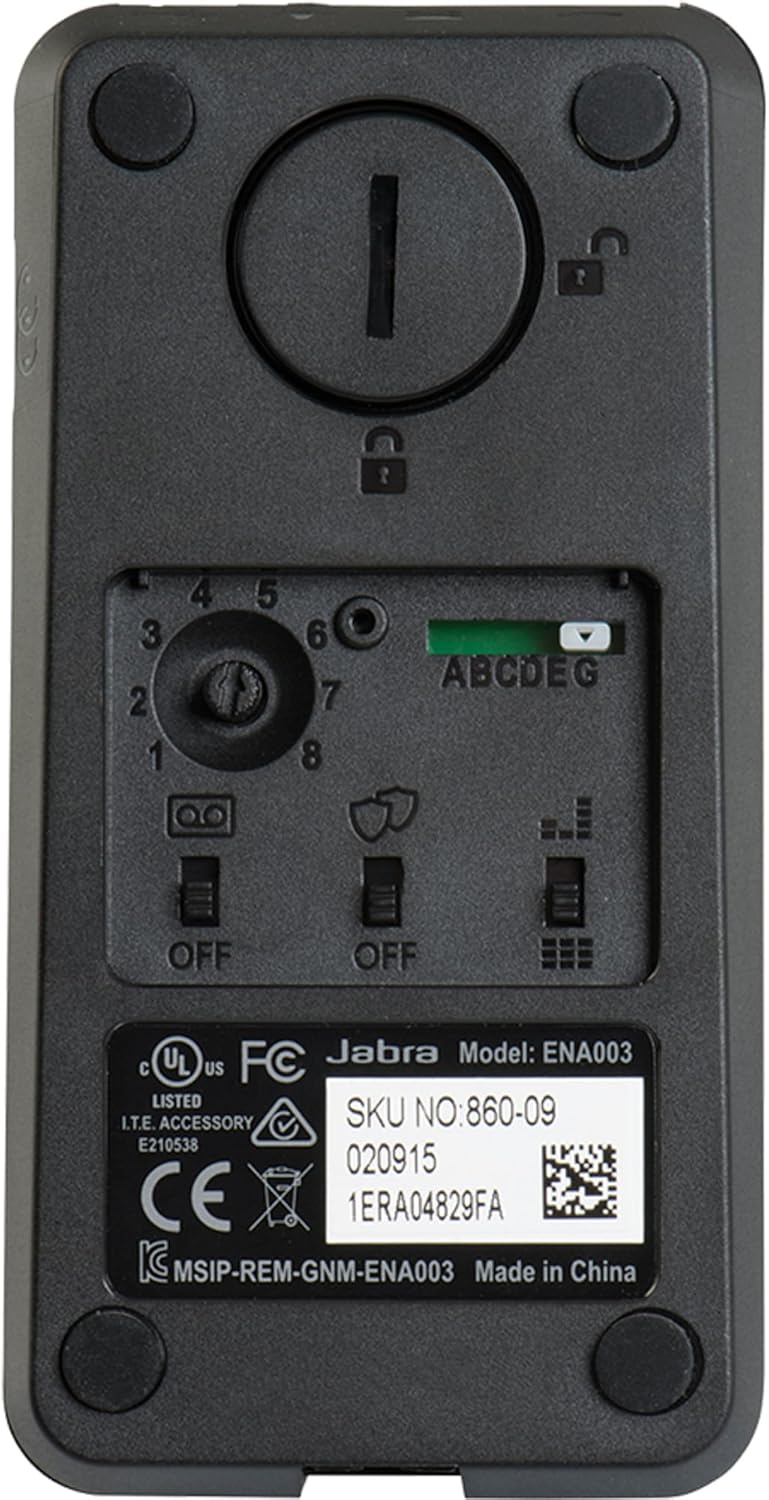
Figur 2.4: Bund view of the Jabra Link 860 Audio Processor, revealing configuration switches for compatibility and audio settings.
2.1. Betjeningselementer og porte
- Volume glider: Adjusts the listening volume of your headset.
- PC/Phone Switch: Toggles between PC (softphone) and desk phone modes.
- Mikrofon mute knap: Mutes or unmutes your headset microphone.
- Headset port: Connects your Jabra headset.
- PC Port (USB): Connects the Link 860 to your computer.
- Desk Phone Port (RJ9): Connects the Link 860 to your desk phone.
- Configuration Switches (Bottom): Used to adjust compatibility and audio settings for specific desk phone models. Refer to the Jabra support website for detailed compatibility guides.
3. Opsætning
3.1. Tilslutning af dit headset
- Connect your Jabra headset's quick disconnect (QD) cable to the headset port on the Jabra Link 860.
3.2. Tilslutning til en pc
- Connect the supplied USB cable from the PC port on the Jabra Link 860 to an available USB port on your computer.
- The Link 860 will be recognized as an audio device by your operating system. You may need to select it as the default audio device in your computer's sound settings or softphone application.

Figur 3.1: Jabra Link 860 Audio Processor connected to a laptop, demonstrating a typical usage scenario.
3.3. Connecting to a Desk Phone
- Connect the supplied RJ9 cable from the desk phone port on the Jabra Link 860 to the headset port on your desk phone.
- If your desk phone does not have a dedicated headset port, consult your phone's manual for alternative connection methods, such as connecting via the handset port.
- Adjust the compatibility switches on the bottom of the Link 860 (refer to Figure 2.4) to match your specific desk phone model. Incorrect settings can result in no audio or poor sound quality. Consult the Jabra compatibility guide for your phone model.
4. Betjeningsvejledning
4.1. Switching Between PC and Desk Phone
- Brug PC/Phone Switch on the top of the Link 860 to select your desired audio source.
- When the PC icon is illuminated, you are connected to your computer.
- When the phone icon is illuminated, you are connected to your desk phone.
4.2. Foretage og modtage opkald
- PC Calls: Ensure the Link 860 is in PC mode. Use your softphone application to make or receive calls.
- Desk Phone Calls: Ensure the Link 860 is in desk phone mode. Use your desk phone's dial pad to make calls. To answer an incoming call, press the headset button on your desk phone (if available) or lift the handset and then switch to headset mode.
4.3. Justering af lydstyrke
- Skub til Volumen skyderen up or down to increase or decrease the listening volume in your headset.
4.4. Slå mikrofonen fra
- Tryk på Mikrofon mute knap to mute your microphone during a call. The button will typically illuminate to indicate that the microphone is muted.
- Press the button again to unmute the microphone.
5. Vedligeholdelse
5.1. Rensning
- Wipe the Jabra Link 860 with a soft, dry cloth.
- Brug ikke flydende rengøringsmidler eller slibende materialer, da disse kan beskadige enheden.
5.2. Opbevaring
- Opbevar enheden et køligt, tørt sted væk fra direkte sollys og ekstreme temperaturer.
6. Fejlfinding
If you experience issues with your Jabra Link 860, try the following solutions:
- No audio in headset:
- Ensure the headset is securely connected to the Link 860.
- Verify the Link 860 is in the correct mode (PC or Phone).
- Check the volume slider on the Link 860 and your computer/desk phone.
- For desk phone connections, confirm the compatibility switches on the bottom of the Link 860 are set correctly for your phone model.
- For PC connections, ensure the Link 860 is selected as the default audio device in your computer's sound settings.
- Mikrofonen virker ikke:
- Check if the microphone mute button on the Link 860 is active (illuminated). Press it to unmute.
- Ensure your headset's microphone is not muted.
- For PC connections, verify the microphone input settings in your computer's sound settings or softphone application.
- Echo or poor sound quality:
- Adjust the compatibility switches on the bottom of the Link 860.
- Reduce the volume on the Link 860 or your phone/PC.
- Enhed ikke genkendt af pc'en:
- Prøv at tilslutte USB-kablet til en anden USB-port på din computer.
- Genstart din computer.
- Sørg for, at USB-kablet ikke er beskadiget.
For further assistance, please visit the official Jabra support webwebsted.
7. Specifikationer
| Feature | Specifikation |
|---|---|
| Mærke | Jabra |
| Modelnavn | FBA_860-09 |
| Forbindelsesteknologi | Dual (PC and Phone) |
| Kompatible enheder | Windows Computers, Desk Phones, PCs |
| Hovedtelefonstik | 3.5 mm Jack (for headset connection) |
| Frekvensrespons | 7000 Hz |
| Kontrolmetode | Tryk (knapper) |
| Materiale | Plast |
| Varens vægt | 0.25 kilo (8.8 ounce) |
| Produktdimensioner | 14.4 x 5 x 11 tommer |
| Farve | Sort |
| Speciel funktion | Letvægts |
| UPC | 706487016144 |
8. Garanti og support
Jabra products are covered by a limited warranty. For specific warranty terms and conditions, please refer to the warranty information included with your product packaging or visit the official Jabra webwebsted.
For technical support, product registration, or to download the latest software and compatibility guides, please visit the Jabra Support webwebsted.


