Indledning
This manual provides detailed instructions for the setup, operation, maintenance, and troubleshooting of your AOC E2261FWH 21.5-inch monitor. Please read this manual thoroughly before using your monitor to ensure proper installation and optimal performance.
The AOC E2261FWH monitor features a 21.5-inch display with a narrow screen border, a 50,000,000:1 Dynamic Contrast Ratio, and Clear Vision technology for enhanced image quality. It is designed for energy efficiency with LED backlighting.
1. Opsætning
1.1 Udpakning
Carefully remove all components from the packaging. Ensure all items listed in the packing list are present. Retain the packaging materials for future transport or storage.
1.2 Samling af stativet
- Placer skærmen med forsiden nedad på en blød, ren overflade for at forhindre ridser.
- Fastgør stativets base til stativets hals, og fastgør den med den medfølgende skrue.
- Align the assembled stand with the mounting slot on the back of the monitor and gently push until it clicks into place.
1.3 Tilslutningskabler
Before connecting any cables, ensure both the monitor and your computer are powered off.
- Strømkabel: Connect one end of the power cable to the monitor's power input and the other end to a grounded electrical outlet.
- HDMI-kabel: For digital video and audio, connect an HDMI cable from your computer's HDMI output to the monitor's HDMI input.
- VGA kabel: For analog video, connect a VGA cable from your computer's VGA output to the monitor's VGA input.

Figur 1: Forside view of the AOC E2261FWH monitor, showing the display and stand.
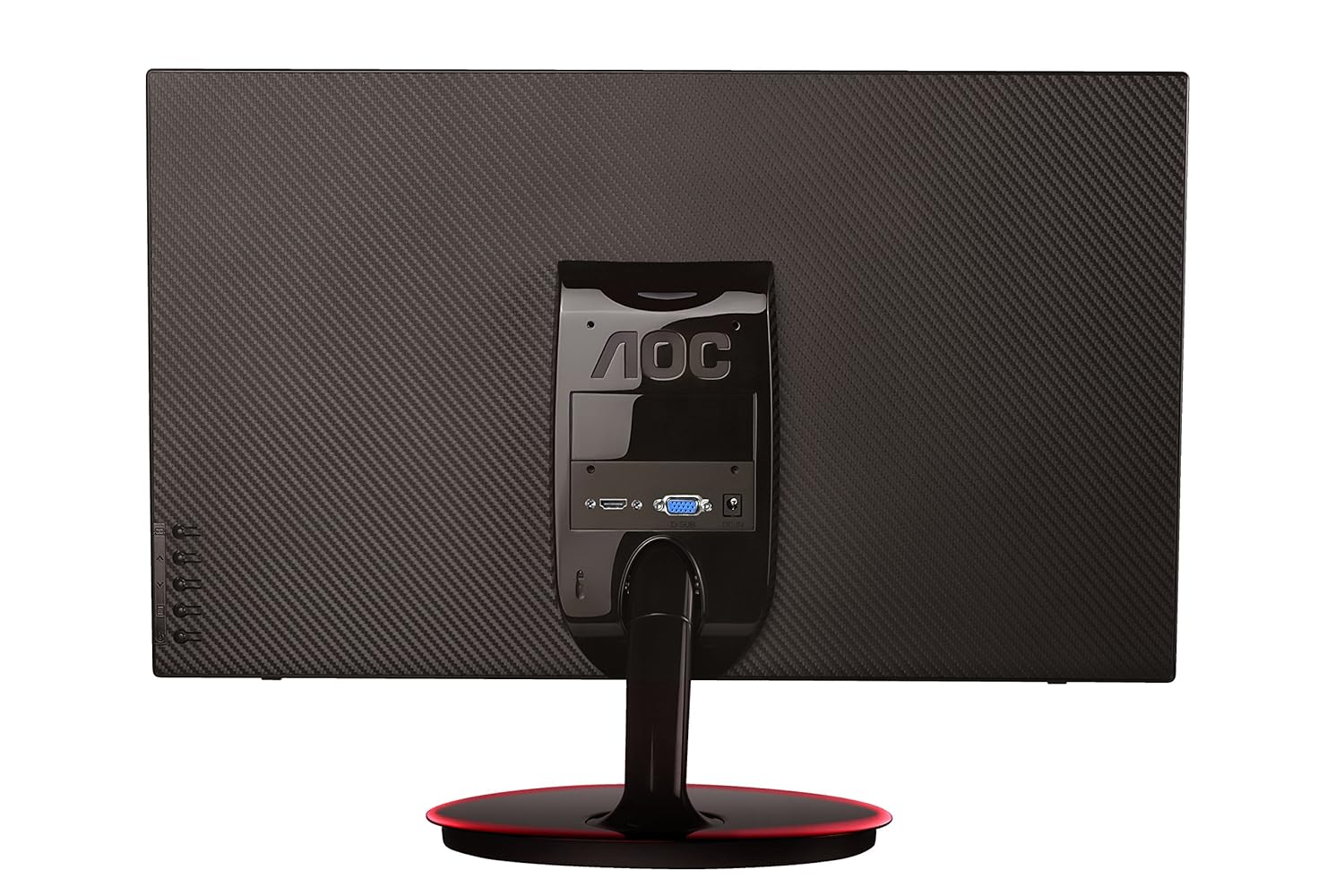
Figur 2: Bagside view of the AOC E2261FWH monitor, highlighting the power, HDMI, and VGA input ports.
1.4 Indledende tænding
After connecting all necessary cables, power on your computer, then press the power button on the monitor. The monitor should automatically detect the input signal. If not, you may need to manually select the input source using the OSD menu.
2. Betjening af monitoren
2.1 Tænd/sluk
Press the power button located on the monitor's bezel to turn the monitor on or off. The power indicator light will illuminate when the monitor is on.
2.2 On-Screen Display (OSD) menu
The OSD menu allows you to adjust various monitor settings. Use the control buttons (usually located on the bottom right or rear of the monitor) to navigate the menu.
- Menu-knap: Åbner OSD-menuen.
- Pileknapper: Naviger gennem menuindstillinger.
- Enter/Vælg-knap: Bekræfter et valg eller åbner en undermenu.
- Afslut-knap: Afslutter den aktuelle menu eller OSD.
2.3 Justering af indstillinger
Common adjustable settings include:
- Lysstyrke/kontrast: Juster den samlede luminans og forskellen mellem lyse og mørke områder.
- Farveindstillinger: Rediger farvetemperatur, gamma og individuelle RGB-niveauer.
- Indgangsvalg: Manually switch between HDMI and VGA input sources.
- Klart syn: Enable or disable Clear Vision technology to enhance image clarity for standard definition content.
- Billedtilstand: Select from preset display modes (e.g., Standard, Text, Internet, Game, Movie, Sports).
3. Vedligeholdelse
3.1 Rengøring af monitoren
- Sluk altid skærmen og tag netledningen ud, inden rengøring.
- Brug let en blød, fnugfri klud damprengøres med vand eller et mildt, ikke-slibende skærmrensemiddel.
- Sprøjt ikke rengøringsmiddel direkte på skærmen. Påfør det først på kluden.
- Avoid using benzene, thinner, ammonia-based cleaners, or abrasive materials, as these can damage the screen or casing.
3.2 Generel pleje
- Undgå at placere skærmen i direkte sollys eller i nærheden af varmekilder.
- Sørg for tilstrækkelig ventilation omkring skærmen.
- Placer ikke tunge genstande på skærmen eller dens kabler.
- Beskyt skærmen mod for meget støv og fugt.
4. Fejlfinding
Hvis du støder på problemer med din skærm, kan du se følgende almindelige problemer og løsninger:
| Problem | Mulig årsag | Løsning |
|---|---|---|
| Ingen strøm | Power cable not connected; Power outlet faulty; Monitor off. | Check power cable connections; Try a different outlet; Press the monitor's power button. |
| Intet signal | Videokabel ikke tilsluttet; Forkert inputkilde valgt; Computeren er ikke tændt. | Ensure video cable (HDMI/VGA) is securely connected; Select the correct input source via OSD; Power on your computer. |
| Image is Blurry/Distorted | Incorrect resolution; Loose video cable; Monitor settings. | Set your computer's display resolution to 1920 x 1080; Reconnect the video cable; Adjust OSD settings like phase, clock, brightness, and contrast. |
| Colors are Incorrect | Farveindstillinger i OSD; Defekt videokabel. | Adjust color settings in the OSD menu; Try a different video cable. |
If the problem persists after trying these solutions, please contact AOC customer support.
5. Specifikationer
| Feature | Detalje |
|---|---|
| Mærke | AOC |
| Model | E2261FWH |
| Skærmstørrelse | 21.5 tommer |
| Skærmopløsning | 1920 x 1080 |
| Aspektforhold | 16:9 |
| Svartid | 5 millisekunder |
| Dynamisk kontrastforhold | 50,000,000: 1 (typisk) |
| Indgangsporte | 1 x HDMI, 1 x VGA |
| Frequency Range (H) | 30-83 KHz |
| Frequency Range (V) | 55-76 Hz |
| Strømforbrug | 22 watt (typisk) |
| Varens vægt | 3.51 kg (ca.) |
6. Garanti og support
6.1 Garantioplysninger
AOC monitors are covered by a limited warranty. For specific warranty terms and conditions applicable to your region, please refer to the warranty card included with your product or visit the official AOC webwebsted. Behold din købskvittering som købsbevis i tilfælde af garantikrav.
6.2 Kundesupport
For technical assistance, product inquiries, or service requests, please contact AOC customer support. You can typically find contact information (phone numbers, email, or support portals) on the official AOC webwebstedet eller i den dokumentation, der følger med din skærm.
AOC Official Webwebsted: www.aoc.com


