1. Introduktion
The PreSonus AudioBox iTwo is a versatile 2x2 USB/iPad audio interface designed for musicians, guitarists, sound designers, and podcasters. This device is bus-powered via USB 2.0, ensuring portability and ease of use without requiring an external power supply. It is compatible with Apple iPad, Mac, and Windows operating systems, supporting a wide range of recording software.
This manual provides essential information for setting up, operating, and maintaining your AudioBox iTwo, along with troubleshooting tips and detailed specifications.
2. Nøglefunktioner
- Bus-Powered Operation: USB 2.0 bus-powered for both Mac/Windows and iPad, eliminating the need for an external power adapter.
- High-Quality Inputs: Two combo microphone/instrument/line inputs featuring low-noise, high-headroom Class A preamplifiers. Includes +48V phantom power for condenser microphones.
- Professional Audio Resolution: Supports up to 24-bit/96 kHz recording and playback for studio-grade audio quality.
- Alsidige udgange: Two balanced ¼” TRS main line-level outputs and a stereo headphone output with independent level control.
- Nul-latensovervågning: An internal analog mixer (direct button) enables real-time, zero-latency monitoring of your inputs.
- MIDI-forbindelse: 1x1 MIDI In/Out for connecting MIDI controllers and instruments.
- Robust konstruktion: Features a durable metal chassis designed for travel and reliability.
- Software Bundle: Includes Studio One Artist DAW software for Mac/Windows and Capture Duo for iPad recording software, with wireless transfer capabilities to Studio One. Also compatible with Ableton Live Lite and the Studio Magic Plug-in Suite.
3. Opsætningsvejledning
3.1 Udpakning og første inspektion
Carefully remove the AudioBox iTwo from its packaging. Verify that all components are present and inspect the unit for any signs of damage. If any items are missing or damaged, contact PreSonus support immediately.
3.2 Softwareinstallation
Before connecting your AudioBox iTwo, it is recommended to install the necessary drivers and software. Visit the official PreSonus website to download the latest drivers for your operating system (Mac or Windows). The included Studio One Artist and Capture Duo software can also be downloaded and registered via your PreSonus account.

Image: The PreSonus AudioBox iTwo interface shown alongside a computer screen displaying the Studio One Artist DAW software, highlighting the included recording software.
3.3 Hardwareforbindelser
- USB-forbindelse: Connect the AudioBox iTwo to your computer (Mac/Windows) or iPad using the provided USB cable. The device is bus-powered, so no external power adapter is needed for most setups.
- iPad Specific Connection: For iPad Pro models with USB-C, use an Apple USB-C Digital AV Multiport Adapter or similar adapter. Connect the USB PC/Mac Power cable from the AudioBox iTwo to your iPad adapter. Ensure the "DEVICE" USB port on the back of the AudioBox iTwo remains empty when connecting to an iPad for proper recognition.
- Microphone/Instrument Inputs: Connect microphones, guitars, or line-level instruments to the combo inputs on the front panel.
- Hovedudgange: Connect your studio monitors or speakers to the balanced ¼” TRS main outputs on the rear panel.
- Hovedtelefonudgang: Plug your headphones into the ¼” stereo headphone jack on the front panel.
- MIDI I/O: Connect MIDI devices (e.g., keyboards, controllers) to the MIDI In and Out ports on the rear panel.
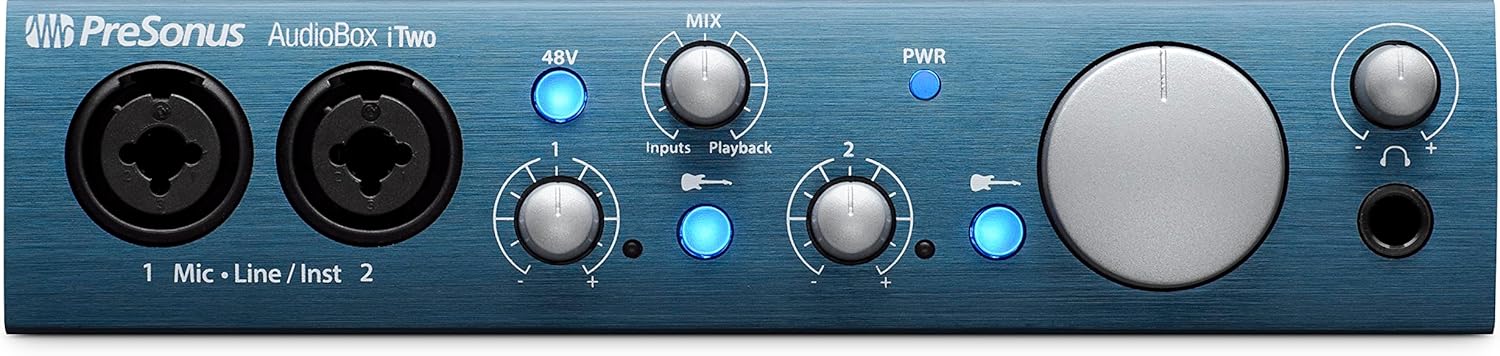
Image: The front panel of the PreSonus AudioBox iTwo, showing the two combo inputs, gain knobs, 48V phantom power button, mix knob, main volume knob, and headphone output.

Image: The rear panel of the PreSonus AudioBox iTwo, displaying MIDI In/Out ports, USB 2.0 PC/MAC POWER port, DEVICE (MFi) port, and Main R/L outputs.
4. Betjeningsvejledning
4.1 Tænd
Once connected via USB, the AudioBox iTwo will power on automatically. The PWR indicator light on the front panel will illuminate.
4.2 Input Gain Adjustment
Use the "Input 1" and "Input 2" gain knobs on the front panel to adjust the input level for your connected microphones or instruments. Monitor the corresponding signal LEDs to ensure levels are strong but not clipping (peaking).
4.3 Fantomstrøm (+48V)
Press the "48V" button to engage phantom power for condenser microphones connected to either input. Ensure phantom power is only used with microphones that require it and is disengaged when not needed or when using dynamic microphones.
4.4 Direct Monitoring (Mix Knob)
The "MIX" knob allows you to blend between the direct input signal ("Inputs") and the playback signal from your computer/iPad ("Playback"). This feature provides zero-latency monitoring, allowing you to hear your input signal without any delay while recording.
4.5 Main Output and Headphone Volume
- The large "MAIN" knob controls the overall output volume to your studio monitors connected to the main outputs.
- The "PHONES" knob controls the volume of the headphone output independently.

Image: The PreSonus AudioBox iTwo interface positioned on a desk, with a person playing a guitar in the background, demonstrating a typical recording setup.

Image: The PreSonus AudioBox iTwo connected to an iPad, with a person playing a ukulele, illustrating mobile recording capabilities.
5. Vedligeholdelse
- Rensning: Use a soft, dry cloth to clean the exterior of the AudioBox iTwo. Avoid using abrasive cleaners or solvents.
- Opbevaring: When not in use, store the device in a cool, dry place, away from direct sunlight and extreme temperatures.
- Kabelstyring: Ensure all cables are connected securely and are not under undue strain. Avoid sharp bends in cables.
- Softwareopdateringer: Tjek PreSonus regelmæssigt website for driver and firmware updates to ensure optimal performance and compatibility.
6. Fejlfinding
| Problem | Mulig årsag | Løsning |
|---|---|---|
| No power/PWR LED off | USB cable not connected or faulty; insufficient USB power. | Ensure USB cable is securely connected to a powered USB port. Try a different USB port or cable. If using a USB hub, ensure it is powered. |
| No sound from outputs | Volume knobs turned down; incorrect audio device selected in software; faulty cables. | Check MAIN and PHONES volume knobs. Verify "PreSonus AudioBox iTwo" is selected as the audio output device in your operating system and DAW. Test with different cables. |
| Intet indgangssignal | Input gain too low; incorrect input selected in software; phantom power not engaged for condenser mics; faulty microphone/instrument. | Increase input gain. Ensure the correct input is selected in your DAW. Activate 48V phantom power if using a condenser microphone. Test with a different microphone or instrument. |
| iPad not recognizing device | Incorrect USB connection for iPad; adapter issues. | For iPad, connect the USB PC/Mac Power cable to your iPad's adapter. Leave the "DEVICE" USB port on the AudioBox iTwo empty. Ensure your iPad adapter is functioning correctly and provides sufficient power. |
| Latency during monitoring | Direct monitoring not engaged; high buffer size in DAW. | Use the "MIX" knob to blend towards "Inputs" for zero-latency direct monitoring. Reduce the buffer size in your DAW's audio settings. |
7. Specifikationer
- Varens vægt: 1.04 pund
- Produktdimensioner: 17.88 x 8.38 x 8.88 tommer
- Varemodelnummer: AudioBox iTwo
- Hardwaregrænseflade: USB 2.0
- Understøttet software: Studio One Artist, Ableton Live Lite, and Studio Magic plug-in suite
- Operativsystemkompatibilitet: Windows, Mac, iOS
- Forbindelse teknologi: USB
- Antal kanaler: 2
- Preamplivsstil: 2 Class A microphone preamplifiers with +48V phantom power
- omformere: 24-bit/96 kHz
- MIDI: 1x1 MIDI In/Out

Image: The PreSonus AudioBox iTwo held in a hand, illustrating its compact and portable size.
8. Garanti og support
For warranty information, technical support, and additional resources, please visit the official PreSonus website. You can find drivers, software updates, and detailed FAQs there.


