1. Introduktion
This user manual provides essential information for the proper setup, operation, and maintenance of your AOC i2269vw 22-Inch Class IPS Frameless/Extra Slim LED Monitor. Please read this manual thoroughly before using the product to ensure optimal performance and safety.

This image shows the front of the AOC i2269vw monitor, highlighting its slim bezel design and the AOC logo at the bottom center. The screen displays a vibrant green leaf.
2. Sikkerhedsoplysninger
To prevent damage and ensure safe operation, observe the following precautions:
- Udsæt ikke skærmen for regn eller fugt.
- Åbn ikke skærmen casing; der er ingen dele indeni, som brugeren kan servicere. Overlad al service til kvalificeret servicepersonale.
- Placer skærmen på en stabil, plan overflade for at forhindre den i at falde.
- Sørg for tilstrækkelig ventilation omkring skærmen. Bloker ikke ventilationsåbningerne.
- Brug kun den netledning og adapter, der følger med skærmen.
- Tag stikket ud af stikkontakten, hvis skærmen ikke skal bruges i længere tid.
3. Pakkens indhold
Bekræft at alle varer er til stede i pakken:
- AOC i2269vw 22-Inch Class IPS Frameless/Extra Slim LED Monitor
- Monitor Stand Base
- Hals til monitorstativ
- Strømledning
- VGA-kabel
- DVI-D kabel
- Brugervejledning (dette dokument)
4. Opsætning
4.1 Samling af stativet
- Placer forsigtigt skærmen med forsiden nedad på en blød, ren klud for at undgå ridser.
- Attach the stand neck to the back of the monitor, aligning the mounting points.
- Fastgør stativets hals til skærmen med de medfølgende skruer.
- Attach the stand base to the bottom of the stand neck and tighten the thumb screw or screw from the bottom.
4.2 Tilslutning af skærmen
The AOC i2269vw monitor supports VGA and DVI-D connections.

The back of the AOC i2269vw monitor is shown, detailing the power input, DVI-D port, and VGA port. The monitor stand is also visible.

En detaljeret view of the monitor's rear connectivity, specifically highlighting the DVI-D and VGA input ports, essential for connecting the monitor to a computer.
- Connect one end of the VGA or DVI-D cable to the corresponding port on your computer's graphics card.
- Connect the other end of the cable to the VGA or DVI-D input port on the back of the AOC i2269vw monitor.
- Tilslut netledningen til skærmens strømindgang, og sæt derefter den anden ende i en jordet stikkontakt.
4.3 VESA Wall Mounting
The AOC i2269vw monitor is VESA 75mm compliant, allowing for wall mounting or use with compatible monitor arms. Ensure you use a VESA-compatible mounting bracket (not included) and follow its installation instructions.

This diagram provides a visual representation of the AOC i2269vw monitor's dimensions (21.0 inches or 53 cm wide) in context, showing it on a table next to a seated person for scale.
5. Betjening af monitoren
5.1 Tænd/sluk
Press the power button located on the front bottom bezel of the monitor to turn it on or off.

This image focuses on the control buttons situated on the lower right bezel of the monitor, including the power button and navigation controls for accessing the On-Screen Display (OSD) menu.
5.2 On-Screen Display (OSD) menu
Use the control buttons on the front bezel to navigate and adjust settings within the OSD menu. Common adjustments include:
- Lysstyrke/kontrast: Juster den overordnede luminans og skelnen mellem lyse og mørke områder.
- Indgangsvalg: Manually switch between VGA and DVI-D input sources.
- Farveindstillinger: Finjuster farvetemperatur, gamma og individuelle RGB-niveauer.
- Billedopsætning: Auto-adjust for analog (VGA) input, or manually adjust clock, phase, and H/V position.
- OSD-opsætning: Change OSD language, position, and timeout.
5.3 IPS Panel Benefits
The AOC i2269vw features an IPS (In-Plane Switching) panel, which provides consistent image appearance and accurate colors from all viewing positions. This is particularly beneficial for tasks requiring color accuracy or when multiple people are viewpå skærmen.
6. Vedligeholdelse
6.1 Rengøring af monitoren
- Tag altid stikket ud af skærmen før rengøring.
- Til skærmen skal du bruge en blød, fnugfri klud, der er let tørret.ampened with a non-abrasive, ammonia-free, and alcohol-free glass cleaner. Spray the cleaner onto the cloth, not directly onto the screen.
- For casing, use a soft, dry cloth. Avoid using harsh chemicals or abrasive materials.
6.2 Opbevaring
When storing the monitor, keep it in a cool, dry place away from direct sunlight and extreme temperatures. If possible, use the original packaging for protection.
7. Fejlfinding
Hvis du støder på problemer med din skærm, kan du se følgende almindelige problemer og løsninger:
| Problem | Mulig årsag | Løsning |
|---|---|---|
| Intet billede på skærmen | Skærmen er ikke tændt; Forkert indgang valgt; Løst videokabel. | Press the power button; Check OSD for correct input; Ensure video cable is securely connected. |
| Billedet er sløret eller forvrænget | Incorrect resolution; Analog signal interference (VGA). | Set display resolution to 1920x1080; Use OSD to auto-adjust or manually adjust clock/phase for VGA. |
| Ingen lyd (hvis eksterne højttalere er tilsluttet) | No audio output from monitor; Speakers not connected or powered. | This monitor does not have built-in speakers. Ensure external speakers are properly connected to your computer and powered on. |
| Power LED er slukket | Ingen strømforsyning. | Check if the power cord is securely connected to the monitor and the electrical outlet. Try a different outlet. |
Hvis problemet fortsætter efter at have prøvet disse løsninger, bedes du kontakte AOCs kundesupport.
8. Specifikationer
Detailed technical specifications for the AOC i2269vw monitor:
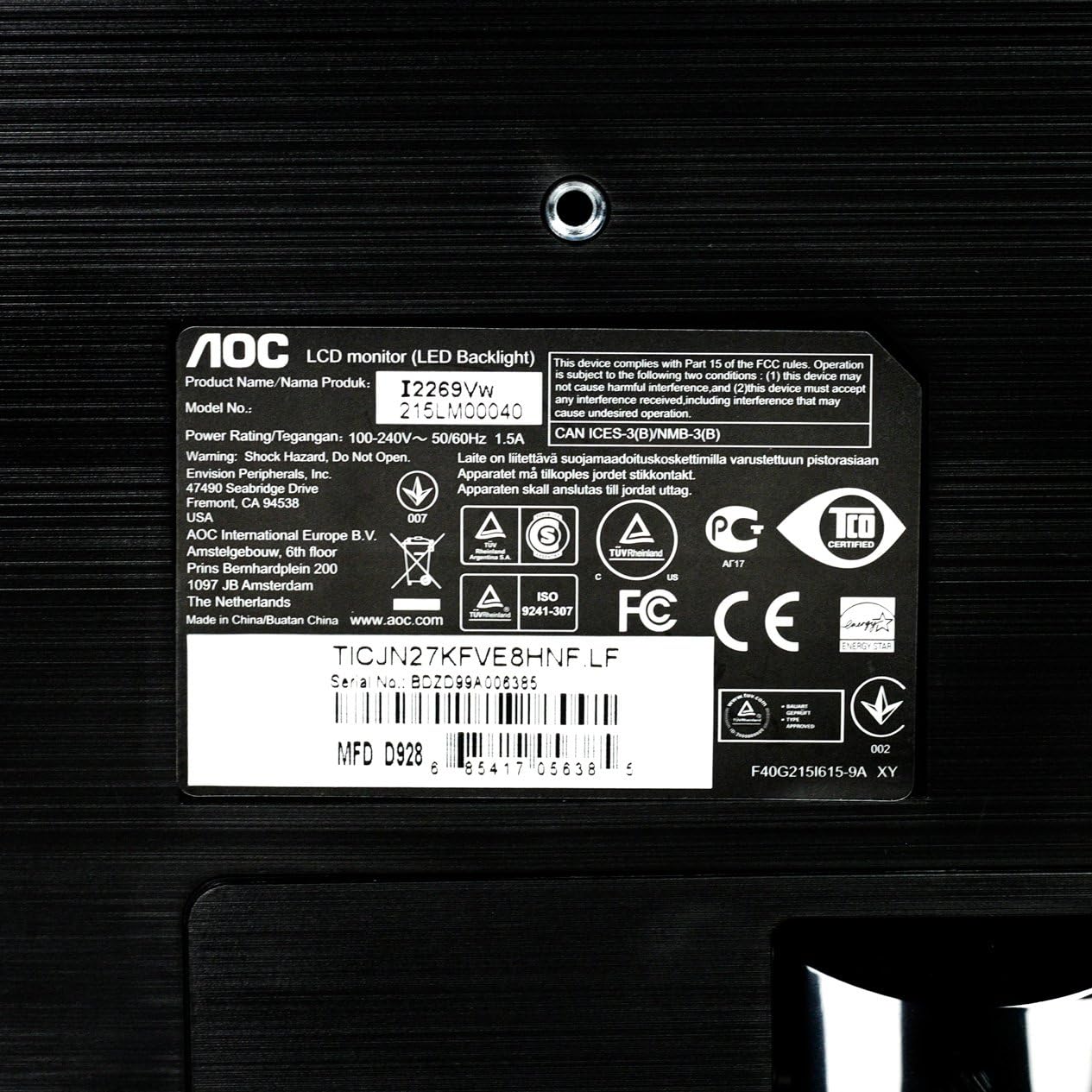
En forstørret view of the product label on the monitor's back, displaying important details such as the model number (i2269Vw), power rating, serial number, and various regulatory compliance logos.
| Feature | Detalje |
|---|---|
| Modelnavn | i2269Vw |
| Skærmstørrelse | 22 tommer (21.5") viewstand) |
| Paneltype | IPS |
| Opløsning | 1920 x 1080 (Fuld HD) |
| Aspektforhold | 16:9 |
| Lysstyrke | 250 cd/m² |
| Svartid | 5 ms |
| Dynamisk kontrastforhold | 50,000,000:1 (DCR) |
| Indgangsporte | VGA, DVI-D with HDCP |
| VESA Mount Kompatibilitet | 75 mm |
| Farve | Sort |
| Varens vægt | 7.7 pund |
| Produktmål (LxBxH) | 19.6 x 7.4 x 14.9 tommer |
9. Garanti og support
For warranty information and technical support, please refer to the warranty card included with your product or visit the official AOC website. You can also contact AOC customer service for assistance with product inquiries, troubleshooting, or service requests.


