Indledning
Thank you for choosing the A4Tech V-Track N-500F-1 Glossy Grey USB Mouse. This manual provides essential information for setting up, operating, and maintaining your new mouse. The contoured design ensures maximum comfort and support during extended use, and the sturdy scroll wheel with a rubberized surface prevents slippage for precise control.
Opsætning
Follow these steps to set up your A4Tech V-Track N-500F-1 mouse:
- Tilslut musen: Locate an available USB port on your computer. Insert the USB connector of the mouse firmly into the USB port.
- Driver installation: Your operating system (Windows XP, Windows 7, Linux, etc.) should automatically detect and install the necessary drivers for the mouse. No additional software installation is typically required for basic functionality.
- Bekræft funktionalitet: Once connected, move the mouse to check if the cursor responds on your screen. Test the left and right click buttons, and the scroll wheel.
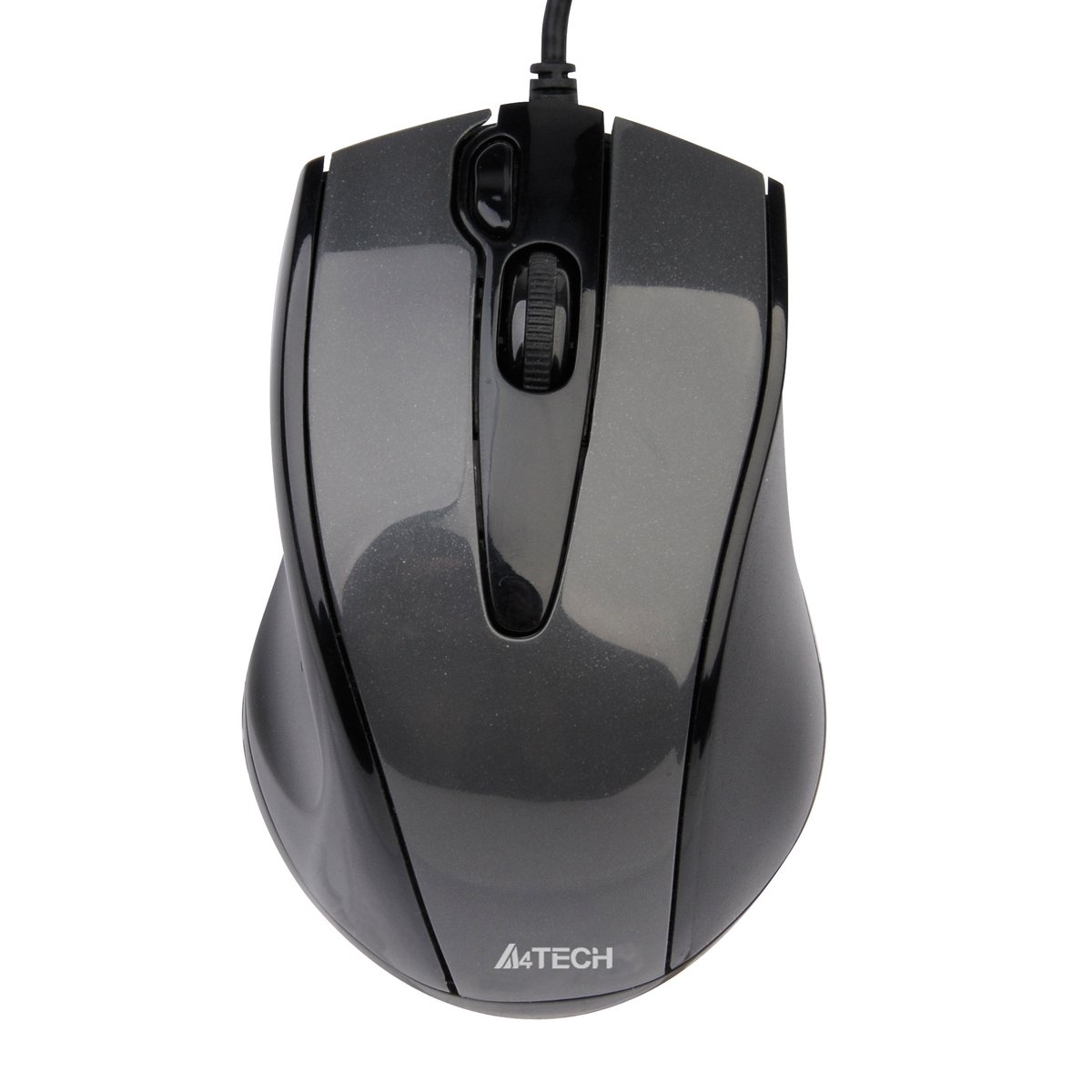
This image displays the A4Tech V-Track N-500F-1 mouse from a top-down perspective. It features a glossy grey finish, a central scroll wheel, and standard left and right click buttons. A USB cable extends from the front of the mouse.
Betjening af musen
The A4Tech V-Track N-500F-1 mouse is designed for intuitive use with standard computer functions.
- Venstre klik: Use the left button for selecting items, opening files, og aktivering af links.
- Højreklik: Use the right button to access context menus, offering additional options for selected items.
- Scrollhjul: Rul hjulet op eller ned for at navigere gennem dokumenter og web pages. The scroll wheel can also be pressed down for a middle-click function, often used for opening links in new tabs or auto-scrolling.
- Yderligere knap: This mouse features an additional button, typically located near the scroll wheel or on the side. This button can often be customized through your operating system's mouse settings or A4Tech's proprietary software (if available) to perform various functions, such as screen capture, quick access to applications, or specific commands. Refer to your computer's settings for customization options.
Vedligeholdelse og pleje
For at sikre din mus lang levetid og optimal ydeevne, skal du følge disse retningslinjer for vedligeholdelse:
- Rensning: Brug en blød, tør klud til at tørre musens overflade af. Ved genstridigt snavs, tør let afampRengør kluden med vand eller et mildt, ikke-slibende rengøringsmiddel. Undgå at bruge skrappe kemikalier eller slibende materialer.
- Sensorrensning: Der kan lejlighedsvis samle sig støv eller snavs omkring den optiske sensor på undersiden af musen. Brug en vatpind eller trykluft til forsigtigt at rengøre sensorområdet.
- Undgå væsker: Do not immerse the mouse in water or expose it to excessive moisture.
- Opbevaring: Når musen ikke er i brug, skal den opbevares et rent, tørt sted væk fra ekstreme temperaturer.
Fejlfinding
If you encounter issues with your A4Tech V-Track N-500F-1 mouse, refer to the table below for common problems and solutions:
| Problem | Mulig årsag | Løsning |
|---|---|---|
| Musemarkøren bevæger sig ikke. | Loose USB connection, faulty USB port, dirty sensor. | Ensure USB cable is securely plugged in. Try a different USB port. Clean the optical sensor. Restart your computer. |
| Buttons or scroll wheel are unresponsive. | Software conflict, debris under buttons. | Restart your computer. Check for any conflicting software. Gently clean around the buttons. |
| Markørbevægelsen er uregelmæssig eller hoppende. | Beskidt sensor, uegnet overflade på musemåtten. | Rengør den optiske sensor. Brug en ren, ensartet musemåtte eller overflade. |
| Mouse is not detected by the computer. | Driver issue, hardware malfunction. | Try connecting to another computer to rule out mouse malfunction. Check Device Manager for driver status. |
Tekniske specifikationer
Below are the technical specifications for the A4Tech V-Track N-500F-1 mouse:
| Feature | Detalje |
|---|---|
| Mærke | A4tech |
| Model | N-500F |
| Forbindelsesteknologi | USB |
| Hardware-interface | USB 2.0 |
| Antal knapper | 4 |
| Håndorientering | Højre |
| Farve | Grå |
| Kompatibel OS | Linux, Windows XP, Windows 7 |
| Produktdimensioner | 23.01 x 5.99 x 8.99 cm |
| Varens vægt | 158.76 g |
| Strømkildetype | Elektrisk med ledning |
Garanti og support
A4Tech products are manufactured to high-quality standards. For information regarding warranty coverage, technical support, or service, please refer to the warranty card included with your product or visit the official A4Tech webwebsted. Behold din købskvittering som købsbevis i tilfælde af garantikrav.


