Produkt overview
This manual provides comprehensive instructions for the installation, operation, and maintenance of your Gateway 6001231 AGP Video Card. This component is designed to enhance the graphical capabilities of compatible desktop computer systems.
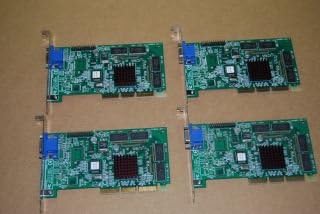
Figure 1: Multiple Gateway Riva TNT-2 M64 VGA 32MB AGP Video Cards. These cards are internal computer components designed to process and output video to a display.
Opsætning og installation
Proper installation is crucial for the optimal performance of your video card. Please follow these steps carefully.
1. Tjekliste før installation
- Sørg for, at din computer er slukket, og at stikket er taget ud af stikkontakten.
- Ground yourself to discharge any static electricity before handling components.
- Confirm your motherboard has an available AGP (Accelerated Graphics Port) slot.
- Saml de nødvendige værktøjer: en stjerneskruetrækker.
2. Fysisk installation
- Open your computer case by removing the side panel.
- Locate the AGP slot on your motherboard. It is typically a brown slot, distinct from PCI slots.
- Remove the metal bracket cover from the corresponding expansion slot at the back of your computer case.
- Carefully align the video card with the AGP slot and press down firmly until it is fully seated. Ensure the card's gold contacts are completely inserted into the slot.
- Secure the video card to the computer case using a screw through the bracket.
- Luk computerkabinettet og tilslut alle kabler igen.

Figure 2: Close-up of a Gateway Riva TNT-2 M64 VGA 32MB AGP Video Card. This image highlights the card's components, including the heatsink for the graphics processor and the VGA output port.
3. Driver installation
After physical installation, you must install the appropriate drivers for the video card to function correctly.
- Power on your computer. The system may boot into a basic VGA mode.
- Insert the driver CD (if included) into your optical drive and follow the on-screen instructions.
- Alternatively, visit the official Gateway support website or the NVIDIA legacy driver archive to download the latest drivers for the Riva TNT-2 M64. Søg efter drivers compatible with your operating system.
- Run the downloaded driver installer and restart your computer when prompted.
Betjeningsvejledning
Once the video card and drivers are installed, you can configure your display settings.
Tilslutning af en skærm
- Connect your monitor's VGA cable to the VGA port on the Gateway 6001231 video card.
- Sørg for, at skærmen er tændt.
Justering af skærmindstillinger
- Right-click on your desktop and select "Display settings" or "Screen resolution" (exact wording varies by operating system).
- From this menu, you can adjust the screen resolution, refresh rate, and color depth to suit your preferences and monitor capabilities.
- For optimal performance, select the native resolution of your monitor.
Opretholdelse
Regular maintenance helps ensure the longevity and stable performance of your video card.
Rensning
- Periodically clean dust from inside your computer case, especially around the video card's heatsink and fan (if present).
- Use compressed air to gently blow away dust. Ensure the computer is powered off and unplugged before cleaning.
- Avoid touching the circuit board directly with your hands.
Driver opdateringer
- Check the NVIDIA legacy driver support page periodically for any updated drivers for the Riva TNT-2 M64, although updates for older hardware are infrequent.
- Keeping drivers updated can resolve compatibility issues and improve performance.
Miljøhensyn
- Sørg for tilstrækkelig luftgennemstrømning i computerens kabinet for at forhindre overophedning.
- Operate the computer in a cool, dry environment, away from direct sunlight and excessive humidity.
Fejlfinding
If you encounter issues with your video card, refer to the following common problems and solutions.
| Problem | Mulig årsag | Løsning |
|---|---|---|
| Ingen visning på skærmen. | Card not seated correctly, monitor not connected, incorrect input selected on monitor. |
|
| Distorted or garbled image. | Incorrect drivers, faulty cable, card not fully seated. |
|
| Computer boots but no display after driver installation. | Driver conflict or incorrect driver version. |
|
Specifikationer
Key technical specifications for the Gateway 6001231 AGP Video Card.
- Fabrikant: Gateway
- Modelnummer: 6001231
- Grafikprocessor: Riva TNT-2 M64 (Note: Product data indicates AMD as manufacturer, but Riva TNT-2 is an NVIDIA chipset. Please refer to the card's physical markings for confirmation.)
- Videohukommelse: 32 MB
- Interface: AGP (Accelerated Graphics Port)
- Video output: VGA
- Kompatible enheder: Stationære computere
Garanti og support
For warranty information and technical support, please refer to the official Gateway resources.
Garantioplysninger
Warranty coverage for the Gateway 6001231 AGP Video Card is provided by the original manufacturer, Gateway. Please consult the documentation that came with your computer system or visit the official Gateway website for specific warranty terms and conditions applicable to your region and purchase date. Protection plans may also be available from third-party providers at the point of sale.
Teknisk support
If you require further assistance or encounter issues not covered in this manual, please contact Gateway's customer support. You can typically find support contact information, driver downloads, and FAQs on the official Gateway support webwebsted:
Visit Gateway Support Webwebsted
When contacting support, please have your product model number (6001231) and any relevant system information ready.


