Indledning
This manual provides instructions for the setup, operation, and maintenance of your Microsoft Wireless Comfort Desktop 5000. This product combines a wireless keyboard and a wireless mouse designed for comfortable and efficient computer interaction.
The Microsoft Wireless Comfort Desktop 5000 features an ergonomically designed Comfort Curve keyboard and a mouse utilizing BlueTrack Technology for versatile surface tracking. It operates on a 2.4 GHz wireless connection, offering a reliable connection with a range of up to 30 feet.
Opsætningsvejledning
Hvad er der i æsken
- Microsoft Wireless Comfort Desktop 5000 Keyboard
- Microsoft Wireless Comfort Desktop 5000 Mouse
- USB Mini-Transceiver
- 2 AA Alkaline Batteries (for keyboard)
- 1 AA Alkaline Battery (for mouse)
Systemkrav
- Operativsystem: Windows 8, Windows 7, Windows Vista, Windows XP (excluding Windows XP 64-bit)
- Harddisk: 100 MB free space
- Havn: USB-port
Installation af batteri
The keyboard requires two AA alkaline batteries, and the mouse requires one AA alkaline battery. Batteries are included with the product.
- Find batterirummet på undersiden af tastaturet og musen.
- Åbn batterirummets dæksel.
- Isæt AA-batterierne, og sørg for at polariteten (+/-) vender korrekt.
- Luk batterirummets dæksel forsvarligt.
Connecting the Wireless Transceiver
The wireless desktop set connects to your computer via a USB mini-transceiver.
- Locate the USB mini-transceiver. It may be stored in the mouse's battery compartment for transport.
- Insert the USB mini-transceiver into an available USB port on your computer.
- Din computer burde automatisk registrere og installere de nødvendige drivere. Denne proces kan tage et par øjeblikke.
- Once drivers are installed, the keyboard and mouse should be ready for use.

Figure 1: The compact USB mini-transceiver for wireless connection.

Figure 2: The underside of the mouse showing the storage slot for the USB mini-transceiver.
Betjeningsvejledning
Tastaturfunktioner

Figur 3: Top-down view of the Comfort Curve keyboard layout.
- Comfort Curve Design: The keyboard features an ergonomist-approved Comfort Curve design that encourages a natural wrist posture, reducing strain during extended use.
- Stille berøringsknapper: Experience comfortable typing with low-profile, quiet-touch keys.
- Håndledsstøtte: A soft-touch palm rest is integrated to provide additional comfort and support for your wrists.
- Removable Feet: Adjustable feet on the underside allow you to set the keyboard at a preferred angle for a more comfortable wrist posture.
- Taskbar Favorites for Windows 7: Easily access programs pinned to the Windows Taskbar using dedicated shortcut keys. The keys automatically adapt if you rearrange icons in the Taskbar.
- Mediecenter-kontroller: Control media playback directly from your keyboard using dedicated media keys (e.g., play/pause, volume up/down, mute).

Figur 4: Vinklet view highlighting the integrated palm rest and Comfort Curve design.
Musfunktioner

Figur 5: Vinklet view of the wireless mouse.
- BlueTrack-teknologi: The mouse utilizes Microsoft's BlueTrack Technology, combining the power of optical with the precision of laser for remarkable tracking on virtually any surface, including granite, carpet, and wood.
- Fire-vejs rulning: The tilt wheel allows for four-way scrolling (up, down, left, and right), enhancing efficiency and comfort when navigating documents or web sider.
- Knapper, der kan tilpasses: The mouse buttons can be customized for quick access to programs, files, media, and webpages you use most often. Refer to your operating system's mouse settings for customization options.
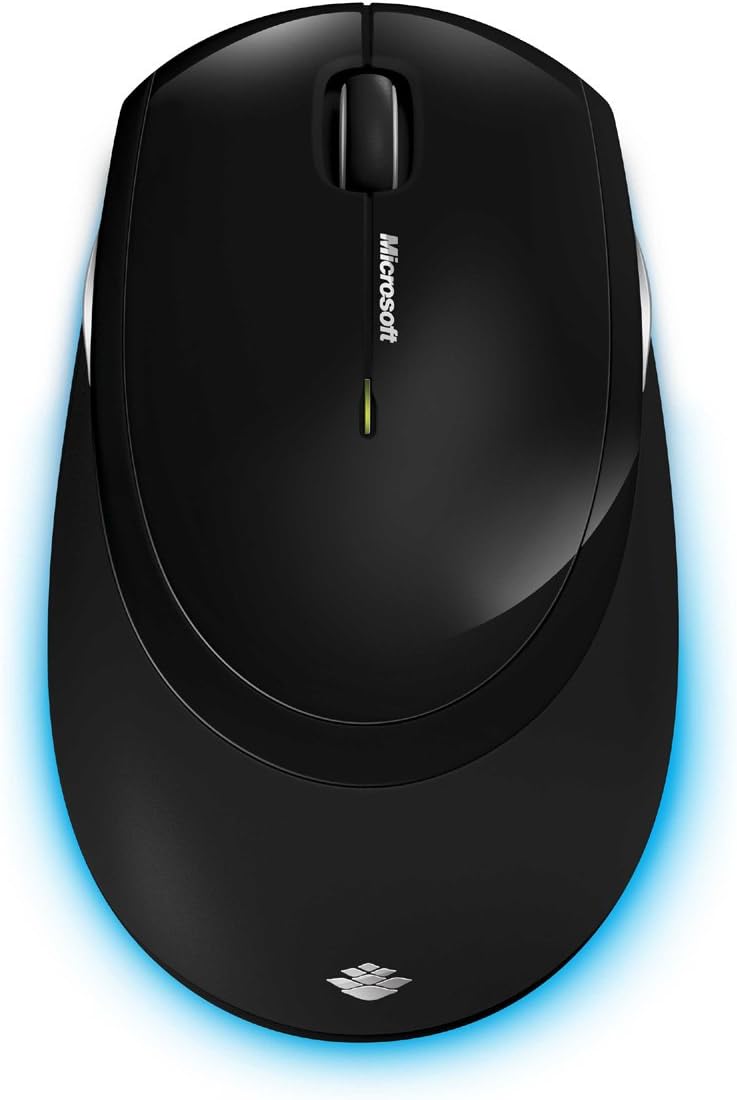
Figur 6: Top-down view of the wireless mouse.
Opretholdelse
Rensning
To maintain the performance and appearance of your Microsoft Wireless Comfort Desktop 5000, follow these cleaning guidelines:
- Disconnect the USB transceiver from your computer before cleaning.
- Brug en blød, fnugfri klud lidt dampafsluttes med vand eller en mild rengøringsopløsning.
- Undgå at bruge skrappe kemikalier, slibende rengøringsmidler eller opløsningsmidler, da disse kan beskadige overfladerne.
- Til tastaturet kan du bruge trykluft til at fjerne støv og snavs mellem tasterne.
- For the mouse, gently wipe the optical sensor area on the bottom to ensure optimal tracking performance.
Udskiftning af batteri
When the batteries are low, the indicator light on the keyboard or mouse may flash. Replace the batteries as described in the "Battery Installation" section under Setup Guide.
- Always use new, high-quality AA alkaline batteries.
- Bortskaf brugte batterier i henhold til lokale regler.
Fejlfinding
Forbindelsesproblemer
- No response from keyboard/mouse:
- Ensure the USB mini-transceiver is securely plugged into a working USB port on your computer.
- Check if the batteries in the keyboard and mouse are correctly installed and have sufficient charge. Replace if necessary.
- Prøv at tilslutte transceiveren til en anden USB-port.
- Genstart din computer.
- Interferens:
- The 2.4 GHz wireless technology can be affected by other wireless devices. Move the transceiver closer to the keyboard and mouse, or move other wireless devices away.
- Avoid placing the transceiver near large metal objects, which can block the wireless signal.
Problemer med musesporing
- Erratic or no tracking:
- Ensure the BlueTrack sensor on the bottom of the mouse is clean and free of debris.
- Try using the mouse on a different surface. While BlueTrack is versatile, highly reflective or transparent surfaces (like clear glass) may still cause issues.
Specifikationer
| Feature | Detalje |
|---|---|
| Mærke | Microsoft |
| Modelnummer | CSD-00001 |
| Forbindelsesteknologi | Wireless (USB Transceiver) |
| Trådløs type | 2.4 GHz radiofrekvens |
| Kompatible enheder | Personlig computer |
| Operativsystemkompatibilitet | Windows 8, Windows 7, Windows Vista, Windows XP (excluding Windows XP 64-bit) |
| Farve | Sort |
| Varens vægt | 2.9 pund |
| Produktmål (LxBxH) | 8.7 x 2.9 x 18.54 tommer |
| Strømkilde | Batteridrevet |
| Batterier påkrævet | 3 AA batteries (2 for keyboard, 1 for mouse) |
| Første ledige dato | 29. juli 2009 |
Garantioplysninger
Specific warranty details for the Microsoft Wireless Comfort Desktop 5000 are not provided within this manual. For comprehensive warranty information, including terms, conditions, and duration, please refer to the official Microsoft webwebstedet eller garantikortet, der følger med din produktemballage.
Støtte
For further assistance, technical support, or to download the latest drivers and software for your Microsoft Wireless Comfort Desktop 5000, please visit the official Microsoft support webwebsted:
You can also visit the Microsoft Store on Amazon for product information and related accessories:
Vigtig information
Juridisk ansvarsfraskrivelse
Please note that the "Legal Disclaimer" provided with the product pertains to sales terms and conditions, such as return policies and shipping details, and is separate from the operational instructions in this user manual. For specific product usage and safety guidelines, please refer to the relevant sections of this manual.


