1. Introduktion
This user manual provides comprehensive instructions for the setup, operation, and maintenance of your new Microsoft Wired Keyboard, Model ANB-00021Læs venligst denne manual grundigt, inden produktet tages i brug, for at sikre optimal ydeevne og levetid.

Figure 1: Microsoft Wired Keyboard (Model ANB-00021)
This image displays the Microsoft Wired Keyboard from an angled perspective, showcasing its full layout, including the numeric keypad and special function keys. The keyboard is black with a standard QWERTY layout and a wired USB connection.
2. Produktfunktioner
The Microsoft Wired Keyboard is designed for efficiency and durability, offering a comfortable typing experience. Key features include:
- Black, English/International Layout: Standard QWERTY layout suitable for various regions.
- USB-forbindelse: Simple and reliable wired connection.
- Ultra-Flat Design: Slank profile for a modern aesthetic and comfortable wrist position.
- Short Key Travel: Responsive keys with a short actuation distance for efficient typing.
- Stænkafvisende: Designed to withstand minor spills, protecting internal components.
- Dedikerede genvejstaster: Includes 5 special keys for quick access to common functions.
- Lommeregnernøgle: Instant access to the calculator application.
- Gently Inclined Key Block: Ergonomic design for reduced strain during extended use.
- Classic Keyboard Layout: Familiar and intuitive key arrangement.
- Plug and Play: No software installation required; simply connect and use.
3. Opsætning
Setting up your Microsoft Wired Keyboard is a straightforward process due to its Plug and Play functionality.
- Pak tastaturet ud: Tag forsigtigt tastaturet ud af emballagen.
- Tilslut til en USB-port: Locate an available USB port on your computer (desktop PC, laptop, or compatible device). Insert the USB connector of the keyboard firmly into the USB port.
- Systemgenkendelse: Your operating system (Windows, macOS, Linux, etc.) will automatically detect and install the necessary drivers. This process usually takes a few seconds.
- Klar til brug: Once the drivers are installed, the keyboard is ready for immediate use. No additional software or configuration is typically required.
For optimal performance, ensure the USB cable is not kinked or strained.
4. Betjeningsvejledning
The Microsoft Wired Keyboard operates like any standard QWERTY keyboard, with additional convenience features.
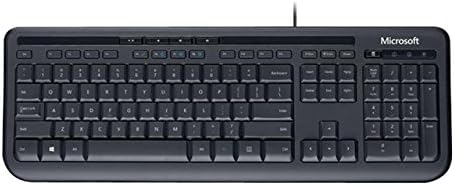
Figur 2: Top-down view of the keyboard layout
Dette billede giver et tydeligt billede ovenfra og ned view of the Microsoft Wired Keyboard, highlighting the full QWERTY key layout, function keys, numeric keypad, and the row of special hotkeys located above the function keys.
Standard Key Functions
- Alphanumeric Keys: Used for typing letters, numbers, and symbols.
- Funktionstaster (F1-F12): Perform various tasks depending on the active application or operating system.
- Numerisk tastatur: Located on the right, for efficient data entry.
- Navigationstaster: Arrow keys, Home, End, Page Up, Page Down for cursor movement and scrolling.
- Ændringstaster: Shift, Ctrl, Alt, Windows key for combination shortcuts.
Special Keys (Hotkeys)
The keyboard features a row of dedicated hotkeys above the function keys for quick access to multimedia and system functions:
- Mediekontrolknapper: Afspil/pause, Stop, Forrige nummer, Næste nummer.
- Volume Control Keys: Lydløs, lydstyrke ned, lydstyrke op.
- Lommeregnernøgle: Instantly launches the system's calculator application.
- Other Programmable Keys: Some models may include additional keys that can be customized through operating system settings or Microsoft keyboard software (if available).
Familiarize yourself with these keys to enhance your productivity.
5. Vedligeholdelse
Proper care and maintenance will extend the life of your Microsoft Wired Keyboard.
- Rensning:
- Frakobl tastaturet fra computeren, før du rengør det.
- Brug let en blød, fnugfri klud damprengøres med vand eller en mild, ikke-slibende rengøringsopløsning.
- Wipe the surface of the keys and the keyboard casing.
- Brug trykluft til støv og snavs mellem tasterne.
- Gør ikke immerse the keyboard in water or use harsh chemicals.
- Splash Resistance: While the keyboard is splash-resistant, it is not waterproof. Avoid exposing it to excessive liquids. In case of a spill, disconnect immediately, wipe dry, and allow to air dry completely before reconnecting.
- Opbevaring: When not in use for extended periods, store the keyboard in a clean, dry environment away from extreme temperatures.
- Kabelpleje: Undgå skarpe bøjninger eller knæk på USB-kablet for at forhindre skader.
6. Fejlfinding
Hvis du støder på problemer med dit tastatur, kan du se følgende almindelige problemer og løsninger:
| Problem | Mulig årsag | Løsning |
|---|---|---|
| Tastaturet reagerer ikke | Løs USB-forbindelse, forkert USB-port, driverproblem. | Ensure the USB cable is securely plugged into a working USB port. Try a different USB port. Restart your computer. |
| Specifikke taster virker ikke | Debris under the key, key mechanism damage. | Use compressed air to clear debris. If the key is physically damaged, contact support. |
| Hotkeys not functioning | Software conflict, operating system settings. | Ensure your operating system is up to date. Check keyboard settings in your OS control panel. |
| Unexpected behavior after liquid exposure | Internal components affected by liquid. | Immediately disconnect the keyboard. Allow it to dry completely for at least 24-48 hours in a well-ventilated area before attempting to reconnect. If issues persist, the keyboard may be damaged. |
Hvis problemet fortsætter efter at have prøvet disse løsninger, henvises der til supportafsnittet.
7. Specifikationer
Detailed technical specifications for the Microsoft Wired Keyboard (Model ANB-00021):
| Attribut | Detalje |
|---|---|
| Modelnummer | ANB-00021 |
| Mærke | Microsoft |
| Forbindelsesteknologi | USB (kablet) |
| Tastaturbeskrivelse | Standard QWERTY, USB |
| Speciel funktion | Stænkafvisende |
| Farve | Sort |
| Antal nøgler | 600 (Note: This number is as per product specifications and may refer to total keypresses lifespan or a specific internal metric, not physical keys.) |
| Tastatur baggrundsbelysning | None (Single Color support listed, but typically implies no backlighting for this model) |
| Stil | Moderne |
| Materiale | Plast |
| Produktmål (L x B x H) | 8.66 x 3.15 x 1.18 tommer (ca. 22 x 8 x 3 cm) |
| Varens vægt | 1.31 pund (ca. 0.59 kg) |
| Kompatible enheder | Laptop, PC, Tablet, Smartphone (via appropriate adapters if needed) |
| Fabrikant | Microsoft |
| Dato først tilgængelig | 9. marts 2011 |
8. Garanti og support
For warranty information and technical support regarding your Microsoft Wired Keyboard, please refer to the official Microsoft support channels.
- Online support: Besøg den officielle Microsoft Support webwebsted med ofte stillede spørgsmål, fejlfindingsvejledninger og driverdownloads.
- Kontakt support: For direct assistance, contact Microsoft customer service through their provided contact methods (phone, chat, email).
- Købsbevis: Gem altid din købsbevis i tilfælde af garantikrav.
Specific warranty terms and conditions may vary by region and purchase date. Please consult the documentation included with your product or the Microsoft website for the most accurate and up-to-date warranty details.


