Indledning
This manual provides comprehensive instructions for the safe and effective use of your Canon PowerShot SD1200IS Digital ELPH Camera. Please read this manual thoroughly before using the camera to ensure optimal performance and to prevent damage.
The Canon PowerShot SD1200IS is a 10.0-megapixel digital camera featuring a 3x optical zoom lens, a 2.5-inch LCD display, and Canon's DIGIC 4 Image Processor. It is designed for ease of use while delivering high-quality images.
Opsætning
1. Udpakning og indledende inspektion
Pak forsigtigt alle dele ud af kassen. Sørg for, at følgende komponenter er til stede:
- Canon PowerShot SD1200IS Digital ELPH Camera body
- Lithium-ion battery pack (NB-6L)
- Battery charger (CB-2LY)
- Wrist strap (WS-DC7)
- Digital Camera Solution CD-ROM
- USB interface cable (IFC-400PCU)
- AV cable (AVC-DC400)
Undersøg kameraet og tilbehøret for tegn på skader. Kontakt din forhandler, hvis der mangler eller er beskadigede dele.
2. Opladning af batteriet
- Insert the battery pack (NB-6L) into the battery charger (CB-2LY).
- Sæt opladeren i en stikkontakt. Opladningsindikatorlampen lyser.
- Once charging is complete, the indicator light will change or turn off (refer to charger specific instructions for exact behavior). Remove the battery.
Note: A fully charged battery is essential for optimal camera performance.
3. Isætning af batteri og hukommelseskort
The Canon PowerShot SD1200IS uses SD/SDHC, MMC/MMC Plus/HC MMC Plus memory cards (not included). Ensure you have a compatible memory card before proceeding.
- Åbn dækslet til batteri-/kortrummet, der er placeret i bunden af kameraet.
- Insert the charged battery pack into the compartment, ensuring the correct orientation.
- Insert a compatible memory card into the card slot until it clicks into place.
- Luk dækslet forsvarligt.

Billede: Bund view of the camera showing the open battery and memory card compartment. This illustrates where to insert the battery and memory card.
Betjeningsvejledning
1. Tænd/sluk
Tryk på ON/OFF button located on the top of the camera to power it on or off. The lens will extend when powered on.

Billede: Top view of the camera, highlighting the ON/OFF button and shutter release.
2. Grundlæggende fotografering
- Vælg en optagelsestilstand: Use the mode dial or slider (if present) to select your desired shooting mode. For general use, select Smart AUTO.
- Indram dit billede: Brug det 2.5-tommer LCD-display til at komponere dit billede.
- Fokus: Press the shutter button halfway down. The camera will automatically focus, and the focus frame will turn green when focus is achieved.
- Fange: Tryk udløserknappen helt ned for at tage billedet.

Billede: Bagside view af kameraet, der viser LCD-skærmen og forskellige kontrolknapper til navigation og indstillinger.
3. Smart AUTO Mode
In Smart AUTO mode, the camera intelligently analyzes the scene and shooting conditions, then automatically selects the most appropriate settings from 18 predefined options. This allows you to focus on your subject without worrying about technical adjustments.
4. Zoomfunktion
The camera features a 3x optical zoom. Use the zoom lever (typically around the shutter button) to zoom in or out. Optical zoom maintains image quality, while digital zoom (up to 4x) can be used for further magnification but may reduce image clarity.
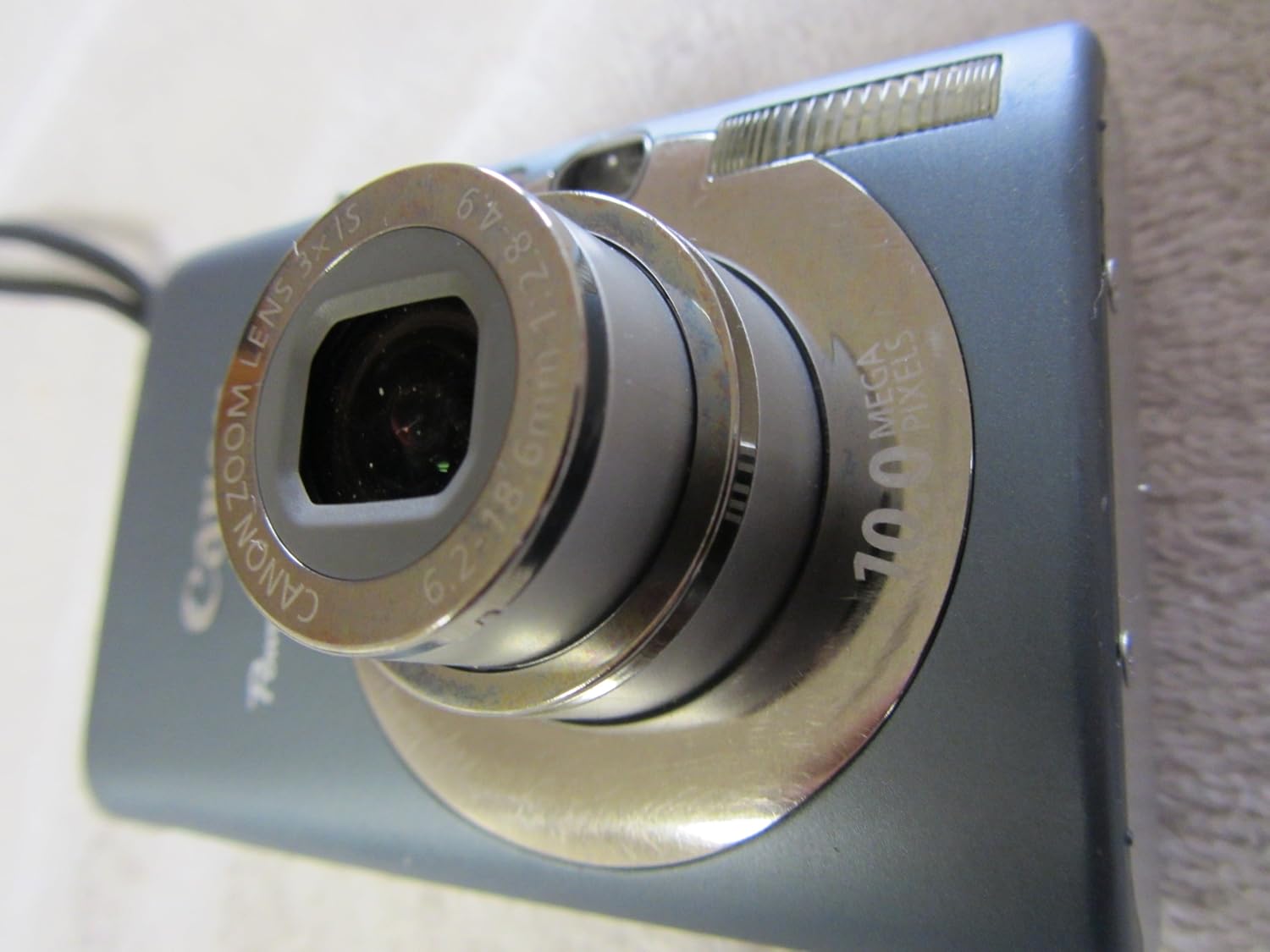
Billede: Vinklet front view of the camera with its lens extended, demonstrating the optical zoom capability.
5. Særlige funktioner
- Ansigtsgenkendelsesteknologi: The DIGIC 4 Image Processor includes evolved Face Detection Technology that tracks moving subjects' faces and optimizes focus, exposure, flash, and white balance for natural skin tones.
- Face Detection Self-Timer: This feature automatically detects an increase in the number of faces in the frame (e.g., when the photographer joins a group shot) and delays the shutter release until all faces are detected.
- Optisk billedstabilisator: Automatically detects and corrects camera shake, reducing blur in photos, especially when zoomed in or in low light.
- i-Contrast (Intelligent Contrast Correction): Brightens dark areas of an image while preserving bright areas, resulting in more balanced exposures. This can be applied during shooting or playback.
- Red-eye Correction: Offers options to correct red-eye during shooting, automatically during playback, or manually during playback.
- ISO 1600/3200: High ISO settings (up to 1600, expandable to 3200 in Special Scene mode) reduce the effects of camera shake and improve performance in low-light conditions.
6. Afspilningstilstand
Til review your captured images and videos, press the Afspilning button (often indicated by a triangle icon). Use the directional buttons to navigate through your media.
Opretholdelse
1. Rengøring af kameraet
- Kamerahus: Brug en blød, tør klud til at tørre kamerahuset af. Tør let genstridigt snavs afampen the cloth with water and then wipe dry. Avoid using organic solvents.
- Linse: Gently remove dust with a blower brush. For smudges, use a lens cleaning cloth specifically designed for optical surfaces. Do not touch the lens with your fingers.
- LCD skærm: Use a soft, dry cloth to clean the LCD. Avoid pressing hard on the screen.
2. Batteripleje
- Opbevar batterierne på et køligt, tørt sted, når de ikke er i brug.
- Undgå at aflade batteriet helt ofte for at forlænge dets levetid.
- Udsæt ikke batterier for ekstreme temperaturer.
3. Opbevaring
When storing the camera for extended periods, remove the battery and memory card. Store the camera in a dry, well-ventilated area, away from direct sunlight and extreme temperatures.
Fejlfinding
This section addresses common issues you might encounter with your Canon PowerShot SD1200IS camera.
Kameraet tænder ikke
- Sørg for, at batteriet er fuldt opladet og korrekt isat.
- Kontroller om batteriets kontakter er rene.
- Prøv at bruge et andet, fuldt opladet batteri, hvis det er muligt.
"No Memory Card" Error
- Ensure a compatible memory card is inserted correctly and fully clicked into place.
- Check if the memory card is damaged or corrupted. Try a different card.
- Format the memory card (this will erase all data, so back up first).
Slørede billeder
- Sørg for, at linsen er ren og fri for pletter eller støv.
- Hold the camera steady during shooting. Utilize the Optical Image Stabilizer feature.
- Check lighting conditions; low light can lead to slower shutter speeds and blur. Increase ISO if necessary.
- Ensure the camera has focused correctly before taking the shot (half-press the shutter button).
Auto Focus Assist Beam Remains On/Flashes
- If you wish to disable the AF assist beam, ensure that the Røde øjne Lamp option is also turned off in the Flash menu settings, in addition to the AF assist beam setting itself.
Difficulty Transferring Photos to Computer
- Sørg for, at USB-kablet er korrekt tilsluttet til både kameraet og computeren.
- Verify that the camera is powered on and in the correct connection mode (if applicable).
- For Windows XP users, the camera should be recognized as a removable drive without needing Canon software. For other operating systems, ensure the Canon Digital Camera Solution CD-ROM software is installed.
- Try using a memory card reader to transfer files directly from the card to the computer.
Specifikationer
| Feature | Detalje |
|---|---|
| Modelnavn | Canon PowerShot SD1200IS |
| Fotosensor opløsning | 10 MP |
| Fotosensor størrelse | 1/2.3 tommer |
| Optisk zoom | 3x |
| Digital Zoom | 4x |
| Billedstabilisering | Optisk |
| Skærmstørrelse | 2.5 tommer |
| Display Type | LCD (PureColor LCD II) |
| Understøttet File Format | JPEG |
| Video opløsning | 480p (640x480 at 30 fps) |
| Flash-hukommelsestype | SD/SDHC/MMC/MMCplus/HC MMCplus |
| ISO rækkevidde | Auto, 80, 100, 200, 400, 800, 1600 (expandable to 3200) |
| Minimum lukkerhastighed | 15 sekunder |
| Maksimal lukkerhastighed | 1/1500 sekunder |
| Forbindelsesteknologi | USB |
| Strømkilde | Lithium-ion battery pack (NB-6L) |
| Vægt | 5.6 ounce (ca. 159 gram) |
| Dimensioner (ca.) | Kompakt formfaktor |
Garantioplysninger
Please note that this product is sold "AS-IS" and does not include any warranty. There are no provisions for returns. For specific details regarding your purchase, please refer to the terms and conditions provided by your retailer at the time of sale.
Støtte
For further assistance, technical support, or to download the full user manual and software updates, please visit the official Canon website. You can typically find support resources by searching for "Canon Support" and your camera model (PowerShot SD1200IS).
Online ressourcer kan omfatte:
- Canon USA-support Webwebsted (Eksamp(linket, det faktiske link kan variere fra region til region)
- Ofte stillede spørgsmål (ofte stillede spørgsmål)
- Driver and Software Downloads
- Contact Information for Customer Service


