1. Introduktion
This manual provides comprehensive instructions for the installation, operation, and maintenance of your Linksys WRT300N Wireless-N Broadband Router. The WRT300N integrates a Wireless Access Point, a 4-port 10/100 Switch, and a Router function, enabling wireless connectivity, wired device networking, and shared high-speed internet access. Utilizing Wireless-N technology, it offers enhanced speed and range, compatible with Wireless-G and -B equipment. This technology multiplies the effective data rate by overlaying signals from multiple radios, improving range and reducing 'dead spots' in wireless coverage.
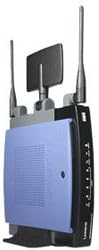
Figur 1: Front view of the Linksys WRT300N Wireless-N Broadband Router, showcasing its compact design with two external antennas and indicator lights.
2. Opsætningsvejledning
Follow these steps to set up your Linksys WRT300N Wireless-N Broadband Router.
2.1 Pakkens indhold
- Linksys WRT300N trådløs-N bredbåndsrouter
- Strømadapter
- Ethernet kabel
- Installations-cd-rom (hvis medfølger)
- Hurtig installationsvejledning
2.2 Hardwareinstallation
- Placering af routeren: Placer routeren centralt for at maksimere den trådløse dækning. Undgå at placere den i nærheden af store metalgenstande, betonvægge eller andre elektroniske enheder, der kan forårsage interferens.
- Tilslut antennerne: Securely attach the two external antennas to the connectors on the back of the router.
- Opret forbindelse til internettet:
- Connect one end of an Ethernet cable to your cable or DSL modem's Ethernet port.
- Tilslut den anden ende af dette Ethernet-kabel til Internet (WAN) port on the back of the WRT300N router.
- Opret forbindelse til din computer:
- Connect one end of the provided Ethernet cable to one of the numbered Ethernet (LAN) ports on the back of the WRT300N router.
- Connect the other end of this Ethernet cable to the Ethernet port on your computer.
- Tænd: Connect the power adapter to the router's power port and then plug it into an electrical outlet. The power LED on the front of the router should illuminate.
2.3 Software Configuration (Web-Based Setup)
- Access the Setup Page: Åbn a web browser (e.g., Chrome, Firefox, Edge) on the computer connected to the router. In the address bar, type http://192.168.1.1 og tryk på Enter.
- Login: A login prompt will appear.
- Brugernavn: admin
- Adgangskode: admin (misligholdelse)
It is highly recommended to change the default password for security reasons after initial setup.
- Kør opsætningsguiden: Routerens web-based setup utility will appear. Follow the on-screen instructions to configure your Internet connection type (e.g., DHCP, Static IP, PPPoE) and wireless network settings (SSID, security mode, password).
- Gem indstillinger: After configuring, save your settings. The router may restart.
3. Betjeningsvejledning
3.1 Forbindelse til det trådløse netværk
- On your wireless device (laptop, smartphone, etc.), scan for available wireless networks.
- Vælg det netværksnavn (SSID), du konfigurerede under opsætningen.
- Enter the Wireless Security Key (password) when prompted.
- Din enhed skulle nu være forbundet til det trådløse netværk.
3.2 Forståelse af LED-indikatorer
| LED-indikator | Status | Beskrivelse |
|---|---|---|
| Magt | Solid grøn | Router is powered on and functioning correctly. |
| Internettet | Solid grøn | Successful connection to the Internet. |
| Internettet | Blinkende grønt | Activity on the Internet connection. |
| Trådløs | Solid grøn | Trådløs funktion er aktiveret. |
| Trådløs | Blinkende grønt | Wireless data transmission. |
| LAN (1-4) | Solid grøn | A device is connected to the corresponding LAN port. |
| LAN (1-4) | Blinkende grønt | Activity on the corresponding LAN port. |
4. Vedligeholdelse
- Firmwareopdateringer: Tjek jævnligt Linksys support website for firmware updates. Updating firmware can improve performance, add features, and fix bugs. Follow the instructions provided with the firmware update carefully.
- Regelmæssig genstart: Rebooting the router every few weeks can help clear its memory and resolve minor performance issues. Simply unplug the power adapter for 10 seconds and then plug it back in.
- Sikkerhed: Regularly change your router's administrative password and wireless network password. Use strong, unique passwords.
- Fysisk rengøring: Keep the router free from dust. Use a soft, dry cloth to clean the exterior. Ensure ventilation openings are not blocked.
5. Fejlfinding
5.1 Ingen internetforbindelse
- Tjek kabler: Sørg for, at alle Ethernet-kabler er korrekt tilsluttet til routeren og modemmet.
- Genstart enheder: Power cycle your modem, then the router, and then your computer. Wait for each device to fully boot before powering on the next.
- Tjek internet-LED: If the Internet LED on the router is off or red, there might be an issue with your modem or ISP connection. Contact your Internet Service Provider.
- Router konfiguration: Få adgang til routerens web-based setup page (http://192.168.1.1) and verify your Internet connection settings.
5.2 Cannot Connect to Wireless Network
- Check Wireless LED: Ensure the Wireless LED on the router is solid green or flashing. If not, enable wireless in the router's settings.
- Bekræft SSID og adgangskode: Confirm you are selecting the correct wireless network name (SSID) and entering the correct security key (password). Passwords are case-sensitive.
- Signalstyrke: Gå tættere på routeren for at kontrollere, om signalstyrken er et problem.
- Interferens: Other wireless devices or appliances (e.g., cordless phones, microwaves) can cause interference. Try changing the wireless channel in the router's settings.
5.3 Langsom trådløs hastighed
- Wireless-N Compatibility: Ensure your wireless client devices support Wireless-N for optimal speeds.
- Interferens: As mentioned above, interference can degrade performance. Adjusting the wireless channel may help.
- Placering af router: Optimize router placement for better signal coverage.
- Firmware: Ensure your router has the latest firmware installed.
5.4 Fabriksindstilling
If you encounter persistent issues, a factory reset can restore the router to its default settings.
- With the router powered on, locate the Nulstil button on the back panel (usually a small, recessed button).
- Use a paperclip or a similar pointed object to press and hold the Reset button for approximately 10-15 seconds.
- Release the button. The router will reboot with factory default settings. You will need to reconfigure it from scratch.
6. Specifikationer
| Feature | Detalje |
|---|---|
| Modelnavn | Linksys WRT300N |
| Mærke | Linksys |
| Trådløs Standard | 802.11n (Draft), compatible with 802.11g/b |
| Frekvensbånd | Dual-Band (operates primarily on 2.4 GHz for N/G/B compatibility) |
| LAN-porte | 4 x 10/100 Mbps Ethernet-porte |
| WAN Port | 1 x 10/100 Mbps Ethernet Port (for Internet connection) |
| Sikkerhedsfunktioner | 256-bit Encryption, SPI Firewall, VPN Pass-through |
| Dimensioner (L x B x H) | 6.93 x 7.4 x 1.57 tommer |
| Varens vægt | 1.16 pund |
| Operativsystem | Cisco IOS (router firmware) |
| Speciel funktion | Adgangspunkttilstand |
7. Support og garanti
7.1 Teknisk support
For yderligere hjælp, besøg venligst den officielle Linksys-support. website. You can find FAQs, updated drivers, firmware, and contact information for technical support.
7.2 Garantioplysninger
Warranty terms and conditions for the Linksys WRT300N Wireless-N Broadband Router are typically provided with the product packaging or available on the Linksys website. Please refer to these resources for detailed information regarding your product's warranty coverage.


