1. Introduktion
The VSON WP9529 Portable Mini Label Printer is a compact and versatile thermal label printer designed for efficient organization in various environments, including home, school, and kitchen. This manual provides detailed instructions to help you set up, operate, and maintain your label printer for optimal performance.
2. Sikkerhedsoplysninger
- Udsæt ikke printeren for vand eller for høj luftfugtighed.
- Undgå at tabe printeren eller udsætte den for kraftige stød.
- Brug kun det specificerede opladningskabel og strømadapter.
- Keep the printer away from extreme temperatures.
- Forsøg ikke selv at skille printeren ad eller reparere den. Kontakt support, hvis der opstår problemer.
- Opbevares utilgængeligt for børn.
3. Pakkens indhold
Markér venligst feltet for følgende elementer:
- VSON WP9529 Mini Label Printer
- Quick Start Guide (Ver 1.0)
- USB opladningskabel
- 1 Roll of Label Paper

4. Produktet er slutview
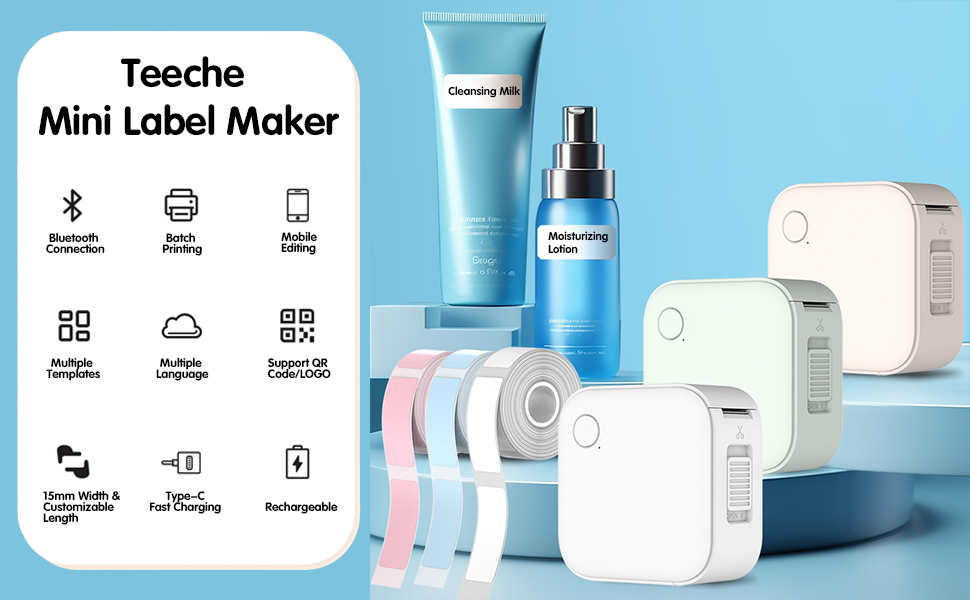
The VSON WP9529 is a sleek, white, square-shaped label printer featuring a single power/function button on the top surface and a paper output slot with a cutter on the side. It is designed for portability and ease of use.

Nøglefunktioner:
- Bluetooth-forbindelse: Seamless wireless connectivity to your mobile device.
- Batchudskrivning: Udskriv flere etiketter effektivt.
- Mobile Editing: Design and customize labels directly from your smartphone.
- Flere skabeloner: Access a wide range of pre-designed label templates.
- Support til flere sprog: Print in various languages.
- QR Code/LOGO Support: Integrate QR codes and custom logos into your labels.
- 15mm Width & Customizable Length: Accommodates labels up to 15mm wide with adjustable length.
- Type-C hurtigopladning: Moderne og effektiv opladning.
- Genopladeligt: Indbygget batteri til bærbar brug.
5. Opsætning
5.1 Opladning af printeren
Before first use, fully charge the printer using the provided USB Type-C cable. Connect the cable to the printer's charging port and a compatible USB power source. The indicator light will show charging status (refer to the Quick Start Guide for specific light indicators).
5.2 Ilægning af etiketpapir
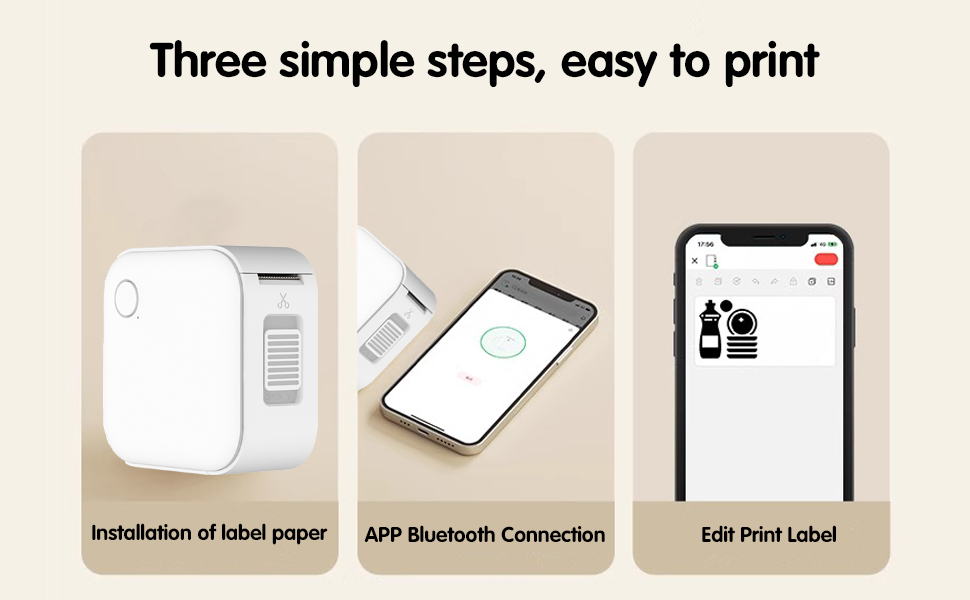
- One-click Cover Opening: Locate the 'OPEN' slider on the side of the printer and slide it to open the cover.
- Quickly Load Paper: Insert the label roll into the compartment with the printing surface facing upwards. Ensure the roll is seated correctly and a small portion of the label paper extends out of the printer's slot.
- Luk dækslet godt, indtil det klikker på plads.
5.3 Appinstallation
To use the printer, you need to download the dedicated mobile application. Scan the QR code provided in the Quick Start Guide or on the product packaging to download the app. The app is compatible with Android 8.0 or above and iOS 12.0 or above.

6. Betjeningsvejledning
6.1 Tilslutning via Bluetooth
- Sørg for, at printeren er tændt.
- Aktiver Bluetooth på din smartphone.
- Open the label printer application.
- Within the app, search for and select your printer from the list of available Bluetooth devices to establish a connection.
6.2 Oprettelse og redigering af etiketter
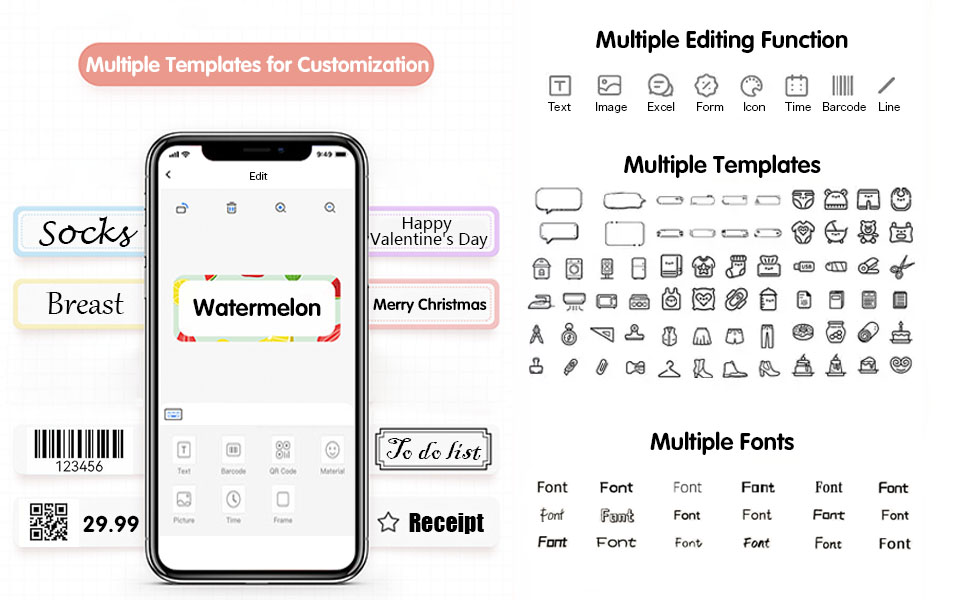
The mobile application offers extensive customization options:
- Tekst: Add and format text with various fonts (10+ fancy fonts available).
- Billeder/ikoner: Insert images or choose from over 1500 funny icons.
- Stregkoder/QR-koder: Generer og udskriv stregkoder eller QR-koder.
- Skabeloner: Utilize over 1000 label templates and 100+ border materials for quick design.
- Rammer: Apply decorative frames to your labels.
- Billeder: Embed pictures into your label designs.
6.3 Udskrivning af etiketter
Once your label design is complete in the app, select the 'Print' option. You can adjust the number of copies and other print settings before confirming. The printer will then produce your labels.
Video 6.1: Demonstration of label creation and printing process.
7. Vedligeholdelse
7.1 Rengøring af printhovedet
To ensure clear print quality, periodically clean the thermal print head. Use a soft, lint-free cloth lightly dampmed isopropylalkohol. Tør forsigtigt printhovedets overflade af. Lad det tørre helt før brug.
7.2 Opbevaring af etiketruller
Store unused label rolls in a cool, dry place away from direct sunlight to prevent degradation of the thermal paper.
7.3 Pleje af batterier
For optimal battery life, avoid fully discharging the printer frequently. If storing for an extended period, charge the battery to about 50% and recharge every few months.
8. Fejlfinding
- Printeren opretter ikke forbindelse via Bluetooth: Ensure the printer is powered on and within range. Check that Bluetooth is enabled on your mobile device and the app has permission to use Bluetooth. Try restarting both the printer and your device.
- Dårlig udskriftskvalitet: Check if the label roll is inserted correctly. Clean the print head as described in Section 7.1. Ensure the printer battery is sufficiently charged.
- Papir i klemme: Open the printer cover and carefully remove any jammed paper. Ensure the label roll is properly aligned when reloading.
- Printeren tænder ikke: Connect the printer to a power source using the USB Type-C cable and allow it to charge for at least 30 minutes before attempting to turn it on again.
9. Specifikationer
| Feature | Specifikation |
|---|---|
| Mærkenavn | GOOJPRT (VSON) |
| Model | WP9529 |
| Type | Termisk printer |
| Anvendelse | For Commercial (and personal use) |
| Forbrugsstof type | Termisk papir |
| Maks. Opløsning | 203 dpi |
| Udskrivningshastighed | 20 ppm |
| Maksimal etiketbredde | 15mm (Customizable Length) |
| Interface Type | Bluetooth |
| Understøtter netværksudskrivning | Kablet/trådløst |
| Dobbeltsidet udskrivning | Ingen |
| Papirindføringstilstand | Automatisk og manuel |
| Batteri inkluderet | Ja |
| Voltage | 100-240V |
| Dimensioner (L x B x H) | 11 cm x 11 cm x 5 cm |
| Vægt | 0.129 kg |
| Certificering | CE, FCC |
10. Brugertips
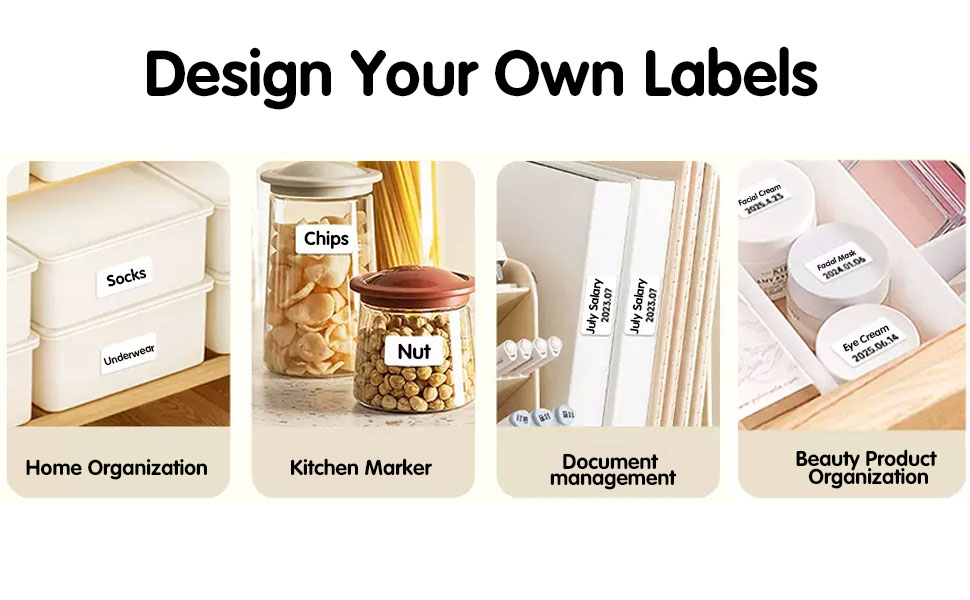
Maximize the utility of your VSON WP9529 label printer with these practical tips:
- Hjemmeorganisation: Use labels for classifying storage bins, drawers, and shelves for clothes, toys, or documents.
- Kitchen Marker: Label food containers with dates (e.g., expiration, preparation) to prevent spoilage and keep your pantry organized.
- Beauty Product Organization: Clearly identify cosmetics and skincare products with their names and effective dates.
- Holdbare etiketter: The labels are designed to be waterproof, scratch & wear resistant, BPA-free, and leave no residue, making them suitable for various surfaces and conditions.
- Kreativ tilpasning: Experiment with the app's wide range of fonts, icons, and templates to create unique and personalized labels for any purpose.

11. Garanti og support
Your VSON WP9529 Mini Label Printer comes with a manufacturer's warranty. For detailed warranty information, technical support, or service inquiries, please refer to the contact information provided in your Quick Start Guide or visit the official VSON support webwebsted.