
Indledning
This manual provides instructions for the J36 Ultra Handheld Video Game Console. The J36 Ultra is a compact, portable gaming device designed for playing a variety of retro games across multiple simulator platforms. It features a 3.5-inch display, responsive controls, and a built-in 64GB memory card with a large game library.
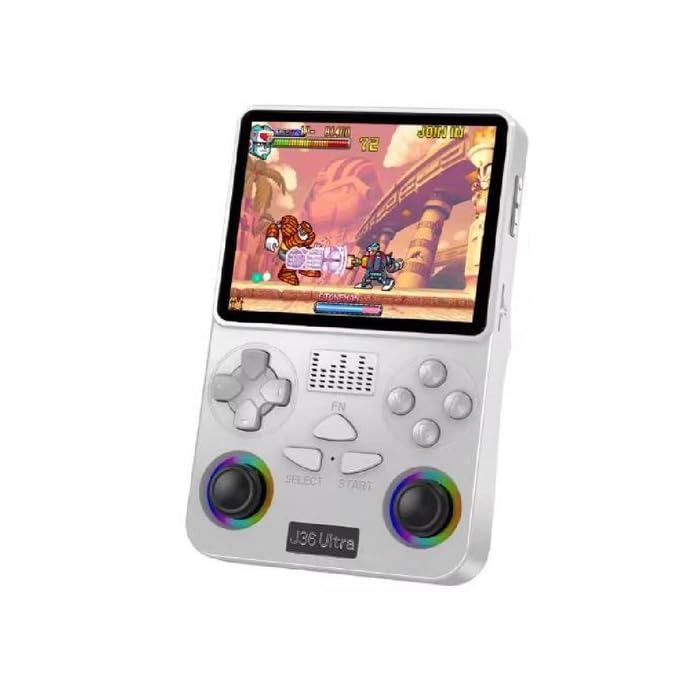
Billede: Forside og bagside view of the J36 Ultra Game Console, showcasing dens kompakte design og knaplayout.
Sikkerhedsoplysninger
ADVARSEL: All packaging materials (tape, labels, plastic sheets, binding wires) and small internal machine accessories are choking risks. Keep away from children under 3 years of age. Use only with adult supervision.
Pakkens indhold
Bekræft at alle varer er til stede i pakken:
- J36 Ultra Handheld Game Console
- TYPE-C ladekabel
- Opbevaringsboks
- Skærmfilm
- Brugervejledning (dette dokument)
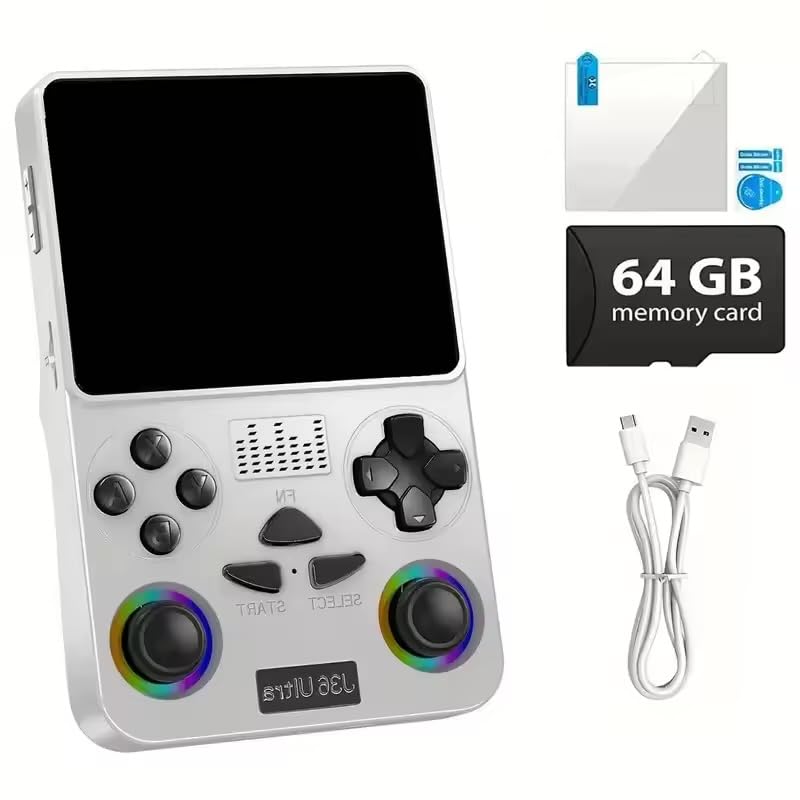
Image: The J36 Ultra Game Console displayed with its accessories, including the charging cable, screen film, and 64GB memory card.
Opsætning
1. Opladning af konsollen
Before first use, fully charge the console.
- Connect the provided TYPE-C charging cable to the console's charging port.
- Tilslut den anden ende af kablet til en kompatibel USB-strømadapter (medfølger ikke) eller en computers USB-port.
- Opladningsindikatorlampen lyser. Når den er fuldt opladet, kan lampen skifte farve eller slukke.
The console features a 3000mAh rechargeable battery, providing approximately 6 hours of continuous gameplay on a full charge.

Billede: Bagside view of the J36 Ultra Game Console, illustrating its internal components and emphasizing the battery.
2. Applying the Screen Film
To protect the display, carefully apply the included screen film according to the instructions provided with the film.
3. Hukommelseskort
The console comes with a 64GB memory card pre-installed, containing over 20,000 games. Ensure the memory card is securely inserted into its slot before powering on the device.
Betjeningsvejledning
1. Tænd/sluk
- Sådan tænder du: Tryk på tænd/sluk-knappen, og hold den nede, indtil skærmen lyser.
- To power off: Press and hold the Power button, then follow the on-screen prompts to shut down the system.
2. Grundlæggende kontroller
The J36 Ultra features a classic button layout with dual joysticks for precise control.
- D-Pad / Left Joystick: Navigation in menus and directional control in games.
- Højre joystick: Secondary directional control, often used for camera or specific game actions.
- A, B, X, Y knapper: Handlingsknapper til gameplay.
- SELECT -knap: Typically used for menu selections or in-game functions.
- START-knap: Bruges til at starte spil, sætte dem på pause eller bekræfte valg.
- L1, L2, R1, R2 knapper: Skulderknapper til yderligere handlinger i spillet.

Billede: Nærbillede view of the J36 Ultra Game Console's front, highlighting the dual joysticks and button layout for precise control.

Billede: Side view of the J36 Ultra Game Console, illustrating its ergonomic curved grip design for comfortable handling during extended gameplay.
3. Navigating the Game Library
The console supports over 20 simulator platforms and includes a library of more than 20,000 games.
- From the main menu, use the D-Pad or left joystick to navigate through the available simulator platforms.
- Select a platform to view the list of games.
- Choose a game from the list and press the A button (or equivalent) to start playing.
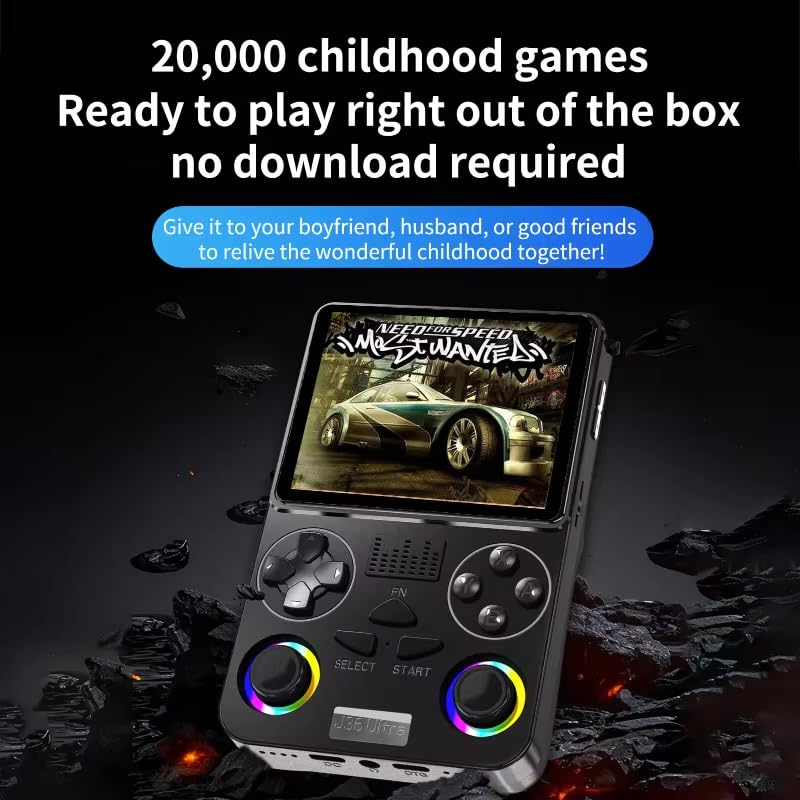
Image: The J36 Ultra Game Console displaying a game on its screen, demonstrating the extensive library of pre-installed games.
4. Lydstyrkekontrol
Locate the volume buttons on the side or back of the console to adjust the audio level.
Opretholdelse
1. Rengøring af konsollen
- Brug en blød, tør og fnugfri klud til at rengøre konsollens yderside.
- For genstridige mærker, let dampRengør kluden med vand. Undgå at bruge skrappe kemikalier eller slibende rengøringsmidler.
- Do not spray cleaning solutions directly onto the console.
2. Batteripleje
- For at forlænge batteriets levetid bør du undgå at aflade batteriet helt ofte.
- Store the console in a cool, dry place when not in use for extended periods.
- Hvis batteriet opbevares i længere tid, skal det oplades til cirka 50% hver par måneder.
Fejlfinding
Console Does Not Power On
- Ensure the battery is sufficiently charged. Connect the console to a power source and allow it to charge for at least 30 minutes before attempting to power it on again.
- Kontroller, at tænd/sluk-knappen trykkes korrekt ned og holdes nede.
Games Are Not Loading or Displaying Correctly
- Check if the memory card is properly inserted. Remove and re-insert it firmly.
- Genstart konsollen.
- Sørg for spillet file er ikke beskadiget.
Screen Issues (No Display, Flickering)
- Genstart konsollen.
- Ensure the console has sufficient power.
- Kontakt kundesupport, hvis problemet fortsætter.
Specifikationer
| Model | J36 Ultra |
| Vise | 3.5-inch LCD, 640x480 pixels, Full OCA Technology |
| Processor | RK3326 1.5 GHz 64-bit processor |
| Hukommelseslagring | 64 GB (pre-installed memory card) |
| Batteri | 3000mAh Lithium-Ion, approx. 6 hours average life |
| Understøttede platforme | 20+ simulator platforms (e.g., puzzle, arcade, shooting, racing, fighting, adventure) |
| Controller type | Button Control, Dual Joysticks |
| Dimensioner (L x B x H) | 7.6 x 2.5 x 12.7 centimeter (ca. 3 x 1 x 5 tomme) |
| Vægt | 200 gram |
| Materiale | Plast |
| Aldersinterval | 3 år og opefter (med opsyn af voksne) |

Image: Diagram illustrating the RK3326 professional gaming chip, a 1.5 GHz 64-bit processor, responsible for smooth game performance.

Image: Visual representation of the console's screen, highlighting its display quality and features.


