
1. Vigtige sikkerhedsoplysninger
Please read all safety instructions before using the printer to ensure safe and proper operation. Keep this manual for future reference.
- Udsæt ikke printeren for vand eller overdreven fugt.
- Undgå ekstreme temperaturer. Brug og opbevar printeren et køligt og tørt sted.
- Use only the provided charging cable and approved power adapters.
- Forsøg ikke selv at skille printeren ad eller reparere den. Kontakt kundesupport for at få hjælp.
- Hold printeren væk fra børn.
2. Produktet er slutview
The Bewinner Portable Pocket Printer is a compact and lightweight thermal label printer designed for on-the-go printing needs. It connects wirelessly to smartphones and tablets via an app, offering a variety of templates for labels, lists, and messages.

The Bewinner Portable Pocket Printer, a compact thermal label printer.
Nøglefunktioner:
- Bærbart design: Kompakt og let for nem transport.
- Trådløs forbindelse: Seamless connection to iOS and Android smartphones via app.
- Rich Functions: One-click printing with various templates for labels, lists, and messages.
- Multifunktionel brug: Ideal for clothing and jewelry labels, price tags, address labels, QR codes, and study aids.
- Safe Printing: Inkless thermal printing technology for clear prints without odors.
3. Pakkens indhold
Sørg for at alle varer er til stede i pakken:
- 1 x Portable Thermal Printer
- 1 x ladekabel
- 1 x brugermanual
4. Opsætning
4.1 Opladning af printeren
Before initial use, fully charge the printer. Connect the provided Type-C charging cable to the printer's charging port and plug the other end into a compatible USB power adapter (not included).
- Opladningsindikatorlampen viser opladningsstatussen.
- En fuld opladning tager typisk cirka 2-3 timer.
4.2 Installation af termisk papir
The printer uses thermal paper rolls with a size of approximately 57x50mm (2.2x2.0 inches).
- Open the printer's cover by gently pressing the release button or lifting the designated area.
- Insert the thermal paper roll into the compartment, ensuring the printing side of the paper faces the print head.
- Pull a small portion of the paper out of the printer's exit slot.
- Luk printerdækslet godt, indtil det klikker på plads.

View of the printer with its cover open, demonstrating the correct way to install the thermal paper roll.
4.3 Appinstallation
The Bewinner Portable Pocket Printer operates via the 'Eleph-label' mobile application.
- Søg efter the 'Eleph-label' app on your device's app store (e.g., Apple App Store for iOS, Google Play Store for Android).
- Download og installer applikationen.
- Follow the on-screen instructions within the app to complete the setup.
For more information or support regarding the app, you may visit: http://gzhztz.com/en/?case/105.html
5. Betjeningsvejledning
5.1 Tænd/sluk
- For at tænde: Tryk på tænd/sluk-knappen, og hold den nede, indtil indikatorlampen lyser.
- For at slukke: Tryk på tænd/sluk-knappen igen, og hold den nede, indtil indikatorlampen slukker.
5.2 Tilslutning til din enhed
The printer connects to your smartphone or tablet via Bluetooth through the 'Eleph-label' app.
- Sørg for, at printeren er tændt og inden for rækkevidde af din mobile enhed.
- Open the 'Eleph-label' app on your smartphone or tablet.
- Within the app, navigate to the device connection settings.
- Select the Bewinner printer from the list of available Bluetooth devices to establish a connection.

The printer's wireless connectivity with both smartphones and tablets for convenient operation.

The printer connected wirelessly to a smartphone, demonstrating the mobile printing function.
5.3 Udskrivning af etiketter
Once connected, you can begin creating and printing labels using the 'Eleph-label' app.
- Open the 'Eleph-label' app and select a template or create a new label design.
- Customize the text, images, and layout as desired. The app offers various material themes and options for different label types.
- Confirm the label content and settings.
- Initiate printing with the one-click print function within the app.
- The printer will automatically print the label. Tear off the printed label along the serrated edge.
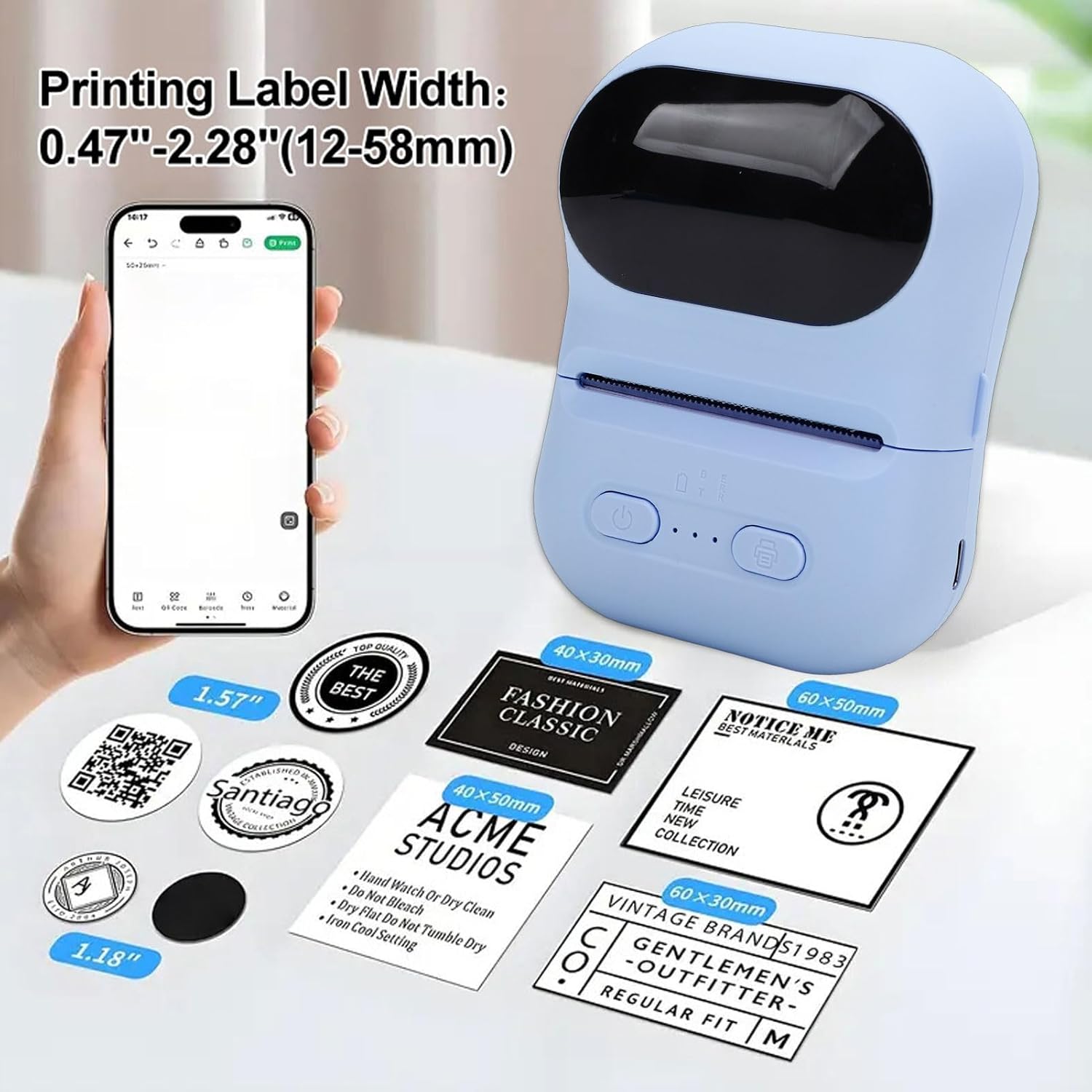
Examples of labels printed by the device, illustrating different widths and designs.

Illustrations of the printer's versatility for small business applications, including price tags, clothing labels, address labels, and QR codes.
6. Vedligeholdelse
6.1 Rengøring af printhovedet
To maintain print quality, periodically clean the print head.
- Sørg for, at printeren er slukket.
- Åbn printerdækslet.
- Tør forsigtigt printhovedet af med en vatpind.ampafsluttet med isopropylalkohol.
- Lad printhovedet tørre helt, før du lukker dækslet og tænder printeren.
6.2 Storing the Printer and Thermal Paper
- Opbevar printeren et køligt og tørt sted, væk fra direkte sollys og ekstreme temperaturer.
- Keep thermal paper rolls in their original packaging or in a dark, dry place to prevent premature fading or damage.
7. Fejlfinding
Hvis du støder på problemer med din printer, kan du se følgende almindelige problemer og løsninger:
| Problem | Mulig årsag | Løsning |
|---|---|---|
| Printeren tænder ikke. | Lavt batteri; Tænd/sluk-knappen er ikke trykket korrekt ind. | Oplad printeren; Tryk på tænd/sluk-knappen og hold den nede i et par sekunder. |
| Kan ikke oprette forbindelse til appen. | Bluetooth is off; Printer is out of range; App issue. | Ensure Bluetooth is enabled on your device; Move printer closer; Restart the app and printer. |
| Poor print quality or blank prints. | Thermal paper installed incorrectly; Print head dirty; Low battery. | Reinstall paper with printing side facing up; Clean the print head; Charge the printer. |
| Papirstop. | Paper not aligned; Foreign object in paper path. | Open cover, remove jammed paper carefully, and reinstall correctly; Check for obstructions. |
8. Specifikationer
| Feature | Specifikation |
|---|---|
| Mærke | Bewinner |
| Modelnavn | Bewinnerwxo0u51g32-13 |
| Udskrivningsmetode | Termisk tryk |
| Udskrivningsparameter | 200 DPI |
| Batteritype | Lithium Ion batteri |
| Batterikapacitet | 1100mAh |
| Opladningsgrænseflade | Type C |
| Tilslutningsmetode | Bluetooth (via Eleph-label APP) |
| Papirstørrelse | Approx. 57x50mm (2.2x2.0 inches) |
| Produktdimensioner | 5.51" D x 3.94" B x 2.76" H |
9. Garantioplysninger
This product is covered by a manufacturer warranty for 90 days from the date of purchase. Please retain your proof of purchase for warranty claims. The warranty covers defects in materials and workmanship under normal use.
Garantien dækker ikke:
- Skader forårsaget af ulykke, misbrug, misbrug, oversvømmelse, brand, jordskælv eller andre eksterne årsager.
- Damage caused by operating the product outside the permitted or intended uses described by Bewinner.
- Damage caused by service performed by anyone who is not a representative of Bewinner.
10. Kundesupport
For further assistance, technical support, or warranty inquiries, please contact Bewinner customer service through the retailer where the product was purchased or refer to the official Bewinner webwebsted for kontaktoplysninger.
Please have your model number (Bewinnerwxo0u51g32-13) and proof of purchase ready when contacting support.