
1. Introduktion
Thank you for choosing the ASHATA 15.6" Smart Digital Calendar Planner. This device is designed to streamline family scheduling, task management, and meal planning through an intuitive full HD touchscreen interface. It also functions as a digital photo frame, enhancing your home decor. This manual provides essential information for setup, operation, and maintenance to ensure optimal performance and longevity of your device.
2. Sikkerhedsoplysninger
- Læs alle instruktioner omhyggeligt, før du bruger enheden.
- Brug kun den medfølgende strømadapter. Brug af en uautoriseret adapter kan beskadige enheden og ugyldiggøre garantien.
- Udsæt ikke enheden for vand, fugt eller ekstreme temperaturer.
- Undgå at tabe eller udsætte enheden for kraftige stød.
- Forsøg ikke selv at adskille eller reparere enheden. Kontakt kundesupport for at få hjælp.
- Hold enheden væk fra direkte sollys og varmekilder.
- Sørg for tilstrækkelig ventilation, når apparatet er i brug.
3. Pakkens indhold
Bekræft at alle varer er til stede i pakken:
- 1 x ASHATA 15.6 Inch Smart Digital Calendar
- 1 x stativ
- 1 x strømadapter (US-stik)
- 1 x brugsanvisning
4. Produktet er slutview
The ASHATA Smart Digital Calendar features a 15.6-inch IPS touchscreen display with a 1920x1080 resolution, providing a clear and interactive experience for managing your family's activities.

Figur 4.1: Front view of the ASHATA 15.6 Inch Smart Family Calendar, highlighting its multi-functional display.
4.1. Enhedskomponenter
Familiarize yourself with the various ports and components of your device:

Figur 4.2: Rear ports of the device, including DC power, USB 2.0, SD/MMC slot, Audio, and Type-C.
- DC-port: Til tilslutning af strømadapteren.
- USB 2.0-port: Til tilslutning af USB-enheder.
- SD/MMC slot: For inserting SD or MMC memory cards (card not included).
- Lydport: Til tilslutning af eksterne lydenheder.
- Type-C port: For additional connectivity options.
5. Opsætning
5.1. Samling af stativet
- Carefully unpack the Smart Digital Calendar and its stand.
- Attach the stand to the back of the device according to the stand's design. Ensure it is securely fastened for stability.
5.2. Tænd for enheden
- Connect the provided power adapter to the DC port on the back of the device.
- Sæt strømadapteren i en almindelig stikkontakt.
- The device will automatically power on or prompt you to press the power button (if available).
- Følg instruktionerne på skærmen for indledende opsætning.
5.3. Wi-Fi-forbindelse
- During the initial setup or via the settings menu, navigate to the Wi-Fi settings.
- Vælg dit ønskede Wi-Fi-netværk fra listen over tilgængelige netværk.
- Indtast Wi-Fi-adgangskoden, hvis du bliver bedt om det.
- Once connected, the device will be able to sync with online calendars and access app features.
5.4. Calendar Sync
The Digital Calendar syncs effortlessly with iOS and other compatible calendars via Wi-Fi.
- After establishing a Wi-Fi connection, access the calendar synchronization settings on the device.
- Follow the on-screen prompts to link your preferred calendar accounts (e.g., Google Calendar, Apple Calendar).
- Once linked, the device will consolidate multiple schedules into a single view. Authorized devices can then access and update events remotely.
6. Betjeningsvejledning
The 15.6-inch full HD touchscreen allows for seamless interaction with the device's features.
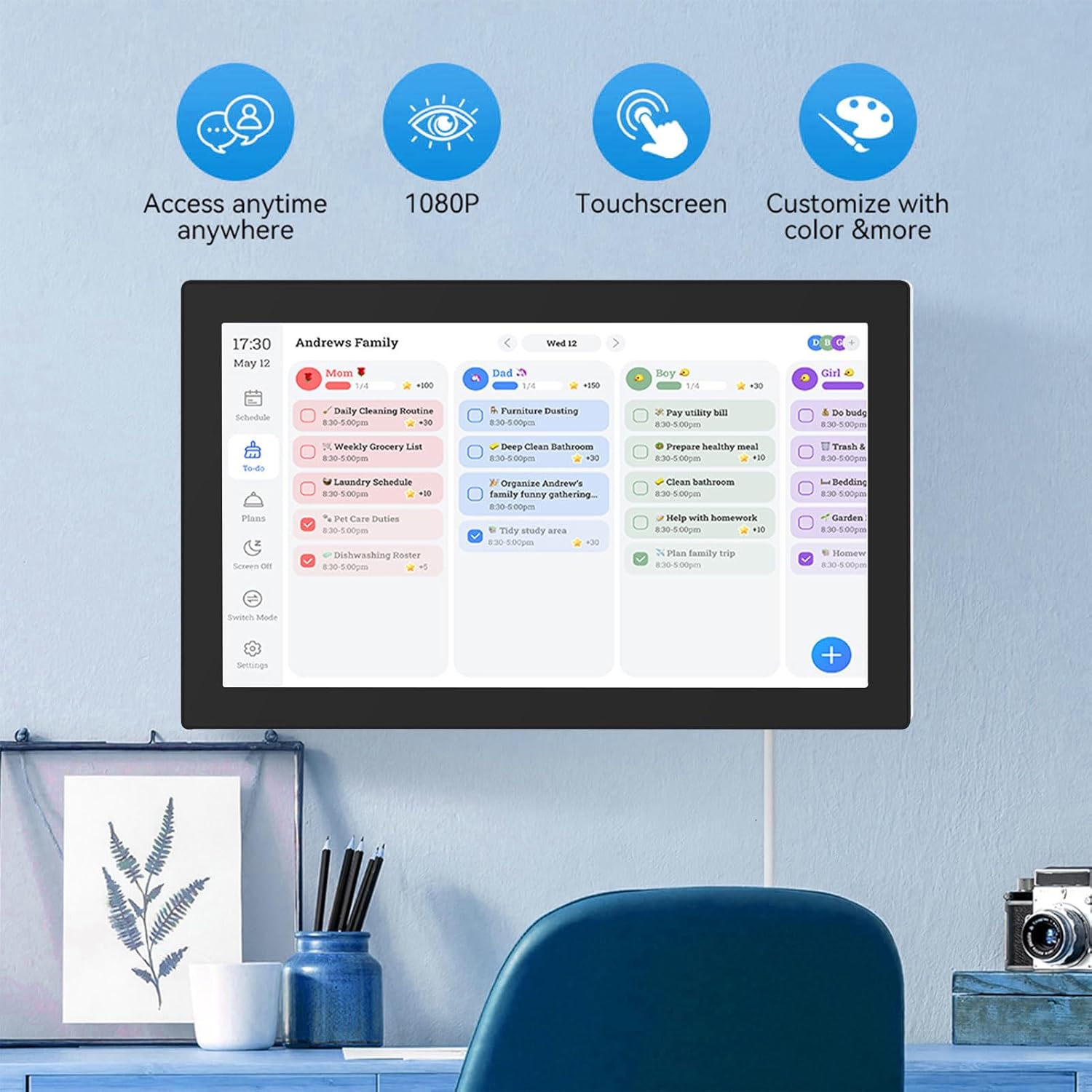
Figur 6.1: The interactive display showing family scheduling and task management.
6.1. Smart Family Planner
The Smart Family Planner allows you to manage schedules and tasks for each family member.
- Assigning Tasks: Tap on the 'Schedule' or 'To-Do' section. You can create new tasks and assign them to specific family members.
- Farvekodning: Assign different colors to family members or task categories for easy visual identification.
- Sporing af fremskridt: Mark tasks as complete directly on the touchscreen.
6.2. Interactive Chore Chart
Motivate children and manage household responsibilities with the interactive chore chart.

Figur 6.2: Family members engaging with the customizable chore chart.

Figur 6.3: Interactive chore chart in use, showing task selection.

Figur 6.4: Chore chart with visual rewards to encourage task completion.
- Oprettelse af opgave: Add daily, weekly, or one-time chores.
- Belønningssystem: Utilize the built-in reward system to make tasks engaging for children.
- Collaborative Planning: Involve family members in planning chores and responsibilities.
6.3. Meal Planning
Plan your weekly meals directly on the device to simplify dinner decisions.

Figur 6.5: Weekly meal planning interface.
- Add Meals: Input breakfast, lunch, and dinner plans for each day of the week.
- Recipe Integration: (If available) Link to recipes or add notes for meal preparation.
6.4. Digital Photo Frame Mode
When not actively using the calendar features, transform your device into a digital photo frame.
- Accessing Photos: Navigate to the 'Photos' or 'Digital Frame' section.
- Uploader billeder: Upload family photos via a connected USB drive, SD card, or through the companion app.
- Indstillinger for slideshow: Customize slideshow intervals, transitions, and display order.
6.5. Companion App
Manage schedules and access additional features from anywhere using the Smart Digital Calendar Planner app.
- Download: Download the official app from your device's app store (iOS/Android).
- Fjernstyring: Update schedules, tasks, and meal plans remotely.
- Free Features: Access shopping lists and meal plans.
- Premium funktioner: Consider upgrading for advanced tools like automated event imports (subscription may be required).
7. Vedligeholdelse
- Rengøring af skærmen: Use a soft, lint-free cloth to gently wipe the touchscreen. Do not use abrasive cleaners or sprays directly on the screen.
- Rengøring af enhedens krop: Wipe the device body with a dry or slightly damp klæde.
- Softwareopdateringer: Søg regelmæssigt efter og installer softwareopdateringer for at sikre optimal ydeevne og adgang til nye funktioner.
- Opbevaring: Når enheden ikke er i brug i længere perioder, skal den opbevares et køligt og tørt sted.
8. Fejlfinding
| Problem | Mulig årsag | Løsning |
|---|---|---|
| Enheden tænder ikke. | Strømadapteren er ikke tilsluttet eller defekt. | Sørg for, at strømadapteren er korrekt tilsluttet enheden og en fungerende stikkontakt. Prøv en anden stikkontakt. |
| Kan ikke oprette forbindelse til Wi-Fi. | Forkert adgangskode, uden for rækkevidde eller netværksproblem. | Verify the Wi-Fi password. Move closer to the router. Restart your router and the device. |
| Berøringsskærmen reagerer ikke. | Midlertidig softwarefejl eller skærmblokering. | Genstart enheden. Sørg for, at skærmen er ren og fri for snavs. |
| Kalenderen synkroniseres ikke. | No internet connection or incorrect account settings. | Check Wi-Fi connection. Re-verify your linked calendar account settings in the device's settings. |
| Images not displaying in photo frame mode. | No images loaded or incorrect file format. | Ensure images are loaded onto the device or connected storage. Check that images are in supported formats (e.g., JPEG/JPG). |
9. Specifikationer

Figur 9.1: Device dimensions.
| Feature | Detalje |
|---|---|
| Chipsæt | RK3326 |
| VÆDDER | 2 GB |
| ROM | 32 GB |
| Materiale | ABS |
| Vise | 15.6 tommer IPS berøringsskærm |
| Skærmopløsning | 1920x1080 pixels |
| Skærmforhold | 16:9 |
| WiFi-forbindelse | 802.11a/b/g/n |
| Berøringsskærm | Support (Dual Touch) |
| Interface | DC, USB 2.0, SD/MMC, Audio, Type-C |
| Videoformat | MPEG1/2/4, AVI, VOB, MOV, MP4 |
| Lydformat | MP3/WMA/AAC osv. |
| Billedformat | JPEG/JPG |
| Certificeringer | CE, ROHS, FCC |
| Modelnummer | ASHATAh7k1fms24y-14 |
10. Garanti og support
This ASHATA product comes with a standard manufacturer's warranty. Please refer to the warranty card included in your package or visit the official ASHATA webhjemmeside for detaljerede garantivilkår.
For technical support, troubleshooting assistance, or any inquiries regarding your device, please contact ASHATA customer service through the contact information provided on the official webwebstedet eller din købsdokumentation.