
Indledning
Tak for købetasing the Ewin Wireless Foldable Bluetooth Keyboard. This compact and versatile keyboard is designed for enhanced productivity across multiple devices, featuring a JIS Japanese layout, an integrated touchpad, and multi-device pairing capabilities. This manual will guide you through its setup, operation, and maintenance to ensure optimal performance.
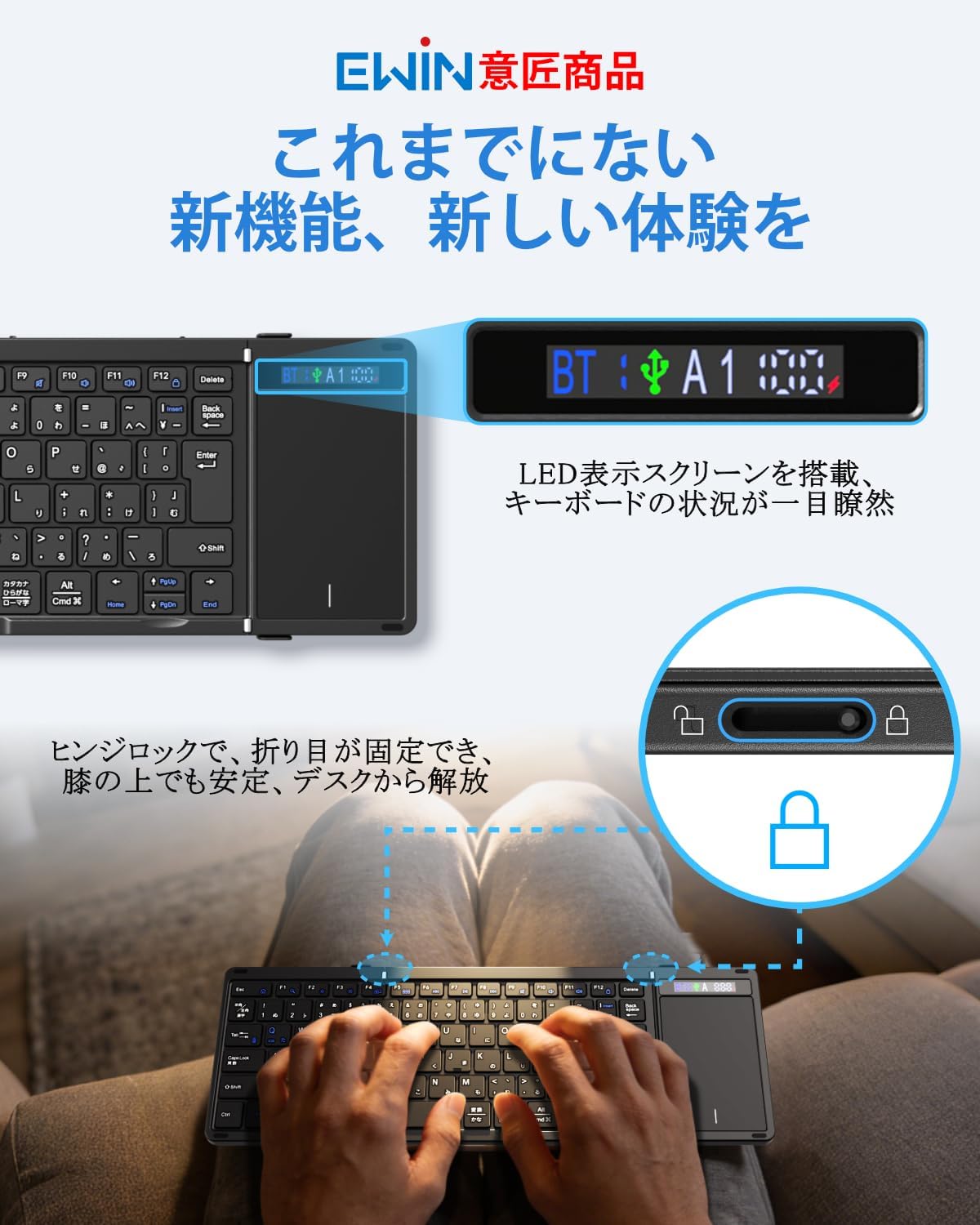
Image: The Ewin Wireless Foldable Bluetooth Keyboard, showcasing its compact, folded form and its full-size, unfolded layout with an integrated touchpad.
1. Opsætning
1.1 Pakkens indhold
Sørg for at alle varer er til stede i pakken:
- Ewin Wireless Foldable Bluetooth Keyboard
- USB-C ladekabel
- Instruktionsmanual

Image: The Ewin keyboard, USB-C cable, and instruction manual as typically found in the product package.
1.2 Opladning af tastaturet
Before first use, fully charge the keyboard. Connect the supplied USB-C cable to the keyboard's charging port and the other end to a USB power source (e.g., computer, USB wall adapter). The display screen will indicate charging status.

Image: A close-up of the keyboard's USB-C port with a charging cable connected, illustrating the charging process.
1.3 Tænd/sluk
Unfold the keyboard to automatically power it on. Fold the keyboard to power it off and protect the keys. The hinge lock mechanism ensures stability when unfolded.

Image: The Ewin keyboard in its unfolded state, highlighting the display screen for connection and battery status, and a detail of the hinge lock for stable typing.
1.4 Bluetooth -parring
The keyboard supports multi-device pairing (up to 3 devices via Bluetooth). To pair:
- Fold tastaturet ud for at tænde det.
- Trykke fn + A (for enhed 1), Fn + S (for enhed 2), eller Fn + D (for Device 3) to select a pairing channel. The corresponding indicator on the display screen will flash.
- On your device (smartphone, tablet, PC), enable Bluetooth and search for "Ewin Keyboard".
- Select "Ewin Keyboard" from the list of available devices to connect. The indicator on the keyboard's display will stop flashing once connected.
- For at skifte mellem parrede enheder skal du trykke på Fn + A/S/D for den ønskede enhed.

Image: The Ewin keyboard demonstrating multi-device pairing with a tablet, smartphone, and laptop, showing seamless switching capability.

Image: A diagram illustrating how to switch between three paired Bluetooth devices using Fn+A, Fn+S, and Fn+D keys.
1.5 Kabelforbindelse
The keyboard also supports a wired connection. Connect the USB-C cable from the keyboard to your computer's USB port. This allows for typing while charging.
Image: The Ewin keyboard connected to a desktop computer via a USB-C cable, demonstrating wired usage.
1.6 Skift af operativsystem
To optimize key functions for your operating system, press the following combinations:
- Fn + Q for iOS/iPadOS
- Fn + W til Windows
- Fn + E til Android
- Fn + R til macOS
2. Betjening af tastaturet
2.1 Tastaturlayout og funktionstaster
The keyboard features a JIS standard Japanese layout with a large inverted L-shaped Enter key and symmetrical Shift keys for comfortable typing. It includes 13 dedicated function keys for various shortcuts.

Billede: En detaljeret view of the Ewin keyboard's JIS Japanese layout, showing the placement of the large Enter key, symmetrical Shift keys, and 13 function keys. The scissor-switch mechanism is also illustrated.
The keys utilize a scissor-switch mechanism, similar to laptop keyboards, providing a responsive and quiet typing experience with a 19mm key pitch.
2.2 Betjening af touchpad
The integrated high-precision touchpad supports multi-touch gestures, eliminating the need for an external mouse. Refer to the following gestures:
- Tryk med én finger: Venstre klik
- One-finger slide: Markørens bevægelse
- Two-finger slide (up/down): Rul
- Two-finger slide (left/right): Vandret rulle
- Knib ind/ud: Zoom (OS dependent)

Image: The keyboard's touchpad with visual guides for common gestures: single-finger tap for left-click, single-finger slide for cursor movement, two-finger vertical slide for scrolling, and two-finger horizontal slide for side-to-side navigation.
To temporarily disable the touchpad and prevent accidental input, press Fn + Mellemrum. Press again to re-enable.
2.3 Skærm
The integrated display screen provides real-time information on the keyboard's status, including:
- Bluetooth connection status (BT)
- Active device channel (A1, A2, A3)
- Batteriniveauindikator
This allows for quick confirmation of your connection and power status.
3. Vedligeholdelse
3.1 Rengøring
To clean the keyboard, gently wipe the surface with a soft, dry cloth. For stubborn dirt, a slightly damp en klud kan bruges, efterfulgt af øjeblikkelig tørring. Undgå at bruge skrappe kemikalier eller slibende materialer.
The back of the keyboard is equipped with high-grade PU leather, which is dirt-resistant and protects against scratches and slips.

Image: The reverse side of the Ewin keyboard, highlighting its premium PU leather finish designed for durability and protection against dirt and scratches.
3.2 Pleje af batterier
The keyboard has a built-in 500mAh large-capacity battery, providing up to 70 hours of continuous use. It supports Type-C fast charging.
- For at kontrollere batteriniveauet skal du trykke på Fn + Tab. The display screen will show the current battery status.
- The keyboard features an automatic sleep function. If inactive for 20 minutes, it will enter sleep mode to conserve power. Press any key to wake it up.
Image: An illustration detailing the keyboard's 500mAh battery, 70-hour continuous use, Type-C charging, and the Fn+Tab shortcut to check battery status, along with the 20-minute auto-sleep function.
4. Fejlfinding
| Problem | Mulig årsag | Løsning |
|---|---|---|
| Tastaturet tænder ikke. | Low battery or not unfolded correctly. | Charge the keyboard fully. Ensure the keyboard is fully unfolded. |
| Kan ikke oprette forbindelse via Bluetooth. | Keyboard not in pairing mode, device Bluetooth off, or interference. | Ensure keyboard is in pairing mode (indicator flashing). Check device Bluetooth settings. Move closer to the device. Try re-pairing. |
| Tasterne reagerer ikke eller skriver forkert. | Incorrect OS mode selected or temporary software glitch. | Switch to the correct OS mode (Fn + Q/W/E/R). Restart the keyboard and device. |
| Touchpad is not working. | Touchpad disabled or OS incompatibility. | Trykke Fn + Mellemrum to enable the touchpad. Some advanced gestures may be OS-dependent. |
| Tastaturet afbrydes ofte. | Lavt batteri, for langt fra enheden eller interferens. | Charge the keyboard. Ensure it is within 10 meters of the device. Minimize interference from other wireless devices. |
5. Specifikationer
| Feature | Detalje |
|---|---|
| Mærke | Ewin |
| Modelnummer | EW-TKB304 |
| Forbindelsesteknologi | Bluetooth 5.2, USB-C (Wired) |
| Tastaturbeskrivelse | Foldable, Bluetooth & Wired, Display Screen, Hinge Lock, JIS Japanese Layout, Multi-pairing, Touchpad, Compact, Lightweight, Silent |
| Kompatible enheder | Smartphones, Tablets, Laptops, PCs (iOS, Windows, Android, macOS) |
| Særlige funktioner | Trackpad, Rechargeable, Foldable, Lightweight, Silent |
| Farve | Sort |
| Stil | Foldable, Compact, Thin, Lightweight, Portable |
| Produktmål (L x B x H) | 34.3 x 11.9 x 1 cm (udfoldet) |
| Materiale | ABS (Exterior), Polycarbonate (Keyplate) |
| Antal nøgler | 90 |
| Tastaturlayout | QWERTY (JIS Japanese) |
| Switch Type | Sakse-afbryder |
| Batterikapacitet | 500mAh |
| Kontinuerlig brugstid | Op til 70 timer |
| Vægt | 314 gram |
6. Garanti og support
6.1 Garantioplysninger
This product comes with a 1-year manufacturer's warranty from the date of purchase. Please retain your proof of purchase for warranty claims. The warranty covers defects in materials and workmanship under normal use.
6.2 Kundesupport
For any questions, technical assistance, or warranty inquiries, please contact Ewin customer support through the retailer where you purchased the product or refer to the contact information provided on the official Ewin webwebsted.