
1. Opsætning
This section guides you through the initial setup of your CHUWI CoreBook X laptop.
1.1 Udpakning og første opstart
- Tag forsigtigt den bærbare computer og alt tilbehør ud af emballagen.
- Connect the provided USB-C power adapter to the laptop's USB-C port (PD Charging/USB 2.0) and then to a power outlet.
- Åbn låget på den bærbare computer. Den bærbare computer tænder muligvis automatisk, eller du skal muligvis trykke på tænd/sluk-knappen på tastaturet.
- Følg instruktionerne på skærmen for at fuldføre den indledende opsætning af Windows 11 Pro, herunder valg af sprog, netværksforbindelse og oprettelse af brugerkonto.
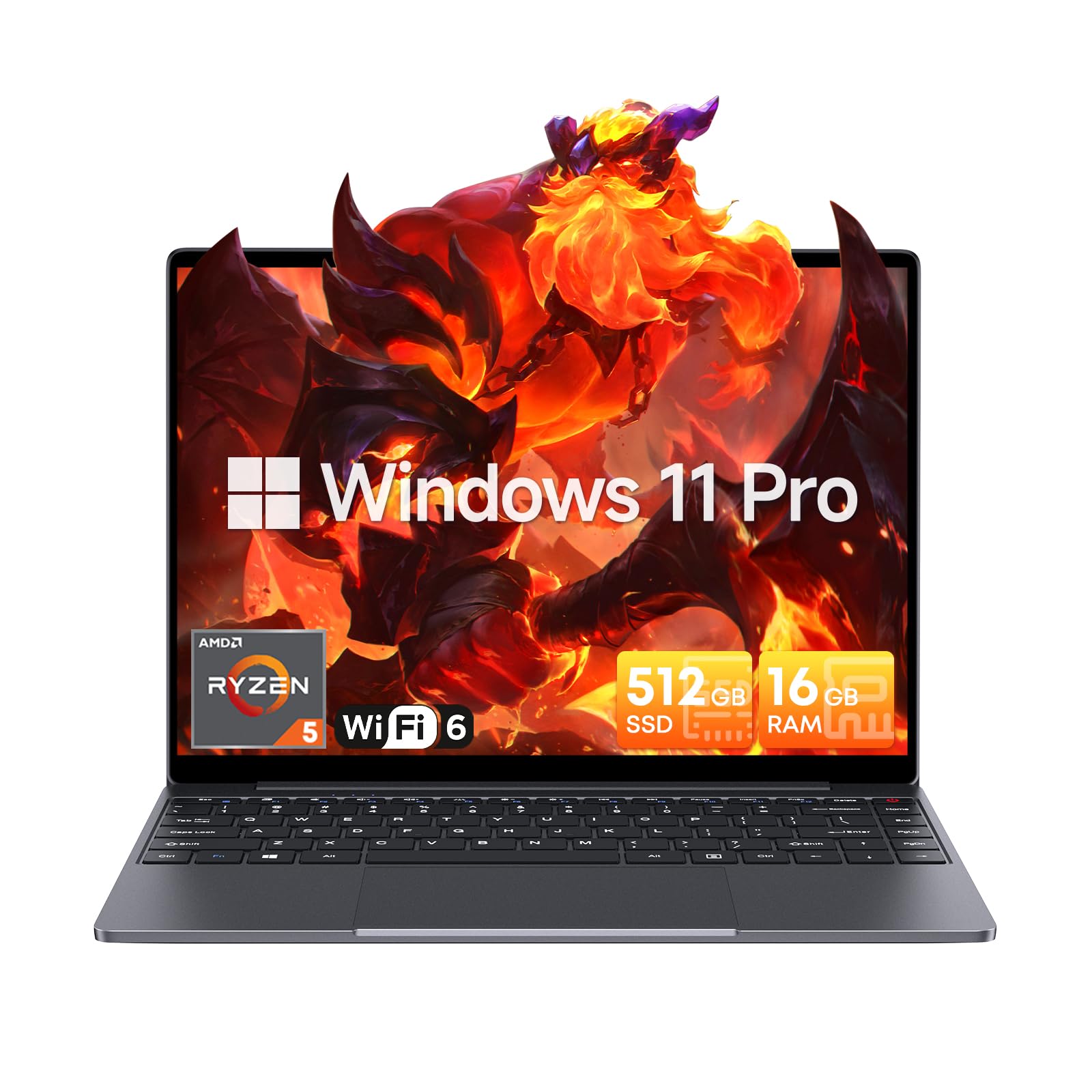
Image: The CHUWI CoreBook X laptop open on a desk, ready for use.
1.2 Tilslutning af eksterne enheder
- USB-enheder: Connect USB mice, keyboards, or external storage devices to the available USB 3.0 ports.
- Eksternt display: Use the HDMI 1.4 port or the full-featured USB Type-C port to connect an external monitor.
- Lydenheder: Tilslut hovedtelefoner eller eksterne højttalere til 3.5 mm lydstikket.
- TF-kort: Insert a TF card into the TF card slot for additional storage.

Billede: Detaljeret view of the laptop's ports, including TF Card Slot, 3.5mm Headphone Jack, USB 3.0 Port, Lock Slot, USB Type-C (PD Charging/USB 2.0), HDMI 1.4, and Full-featured USB Type-C Port.
1.3 Network and Bluetooth Connection
- Wi-Fi 6: For at oprette forbindelse til et trådløst netværk skal du klikke på Wi-Fi-ikonet på proceslinjen, vælge dit netværk og indtaste adgangskoden.
- Bluetooth 5.2: To pair Bluetooth devices, go to Windows Settings > Bluetooth & devices, turn on Bluetooth, and select your device to pair.
2. Betjening
This section covers the basic operation of your CHUWI CoreBook X laptop.
2.1 Strømstyring
- Tænd: Tryk på tænd/sluk-knappen.
- Sove mode: Luk låget, eller vælg "Søvn" i startmenuen.
- Luk ned: Select "Shut down" from the Start menu.
- Genstart: Select "Restart" from the Start menu.
2.2 Tastatur og touchpad
- The laptop features a full-sized backlit keyboard with white illumination. Use the function keys (Fn) in combination with other keys for shortcuts like adjusting brightness, volume, or toggling the backlight.
- The large touchpad supports multi-touch gestures for navigation. Refer to Windows settings for customizing touchpad gestures.

Billede: Et nærbillede view of the laptop's backlit keyboard and large touchpad, highlighting its navigation features.
2.3 Skærm og lyd
- The 14-inch IPS display offers a 2160*1440 resolution. Adjust display settings (brightness, resolution, scaling) through Windows Display Settings.
- The laptop is equipped with stereo speakers. Volume can be controlled via the keyboard function keys or the Windows sound settings.
- An HD webcam is integrated for video conferencing.

Image: The laptop's 14-inch 2K IPS display showcasing vibrant colors and a comparison of 3:2 and 16:9 aspect ratios.
2.4 Videoovergangview
Video: An official product video demonstrating various features and usage scenarios of the CHUWI CoreBook X laptop, including its performance, display, and connectivity options.
3. Vedligeholdelse
Korrekt vedligeholdelse sikrer din bærbare computers levetid og optimale ydeevne.
3.1 Rengøring
- Brug en blød, fnugfri klud til at rengøre skærmen. Ved genstridige mærker, dampRengør kluden let med vand eller et skærmsikkert rengøringsmiddel.
- Wipe the chassis and keyboard with a soft, dry cloth. Avoid using harsh chemicals or abrasive materials.
- Periodically use compressed air to clear dust from the vents to maintain efficient cooling.
3.2 Pleje af batterier
- Avoid fully discharging the battery frequently. Charge the laptop when the battery level is low.
- Store the laptop in a cool, dry place if not used for extended periods, with the battery charged to around 50-70%.
- Use only the original or certified compatible USB-C PD charger.
3.3 Lagerplads og hukommelsesopgraderinger
The laptop supports RAM and SSD upgrades.
- The 16GB DDR4 RAM can be expanded up to 64GB via 2 SODIMM slots.
- The 512GB PCIe SSD can be expanded up to 2TB using the M.2 2280 PCIe slot.
- A convenient detachable bottom cover allows for easier access to upgrade components without removing the entire back panel.

Image: The underside of the laptop with the detachable cover removed, revealing the dual-channel SO-DIMM slot for RAM upgrades.
4. Fejlfinding
Dette afsnit indeholder løsninger på almindelige problemer, du kan støde på.
4.1 Almindelige problemer og løsninger
- Den bærbare computer tænder ikke:
- Sørg for, at strømadapteren er korrekt tilsluttet både den bærbare computer og en fungerende stikkontakt.
- Kontroller, at stikkontakten fungerer.
- Prøv at holde tænd/sluk-knappen nede i 10-15 sekunder for at udføre en hård nulstilling.
- Problemer med skærmen (intet billede, flimmer):
- Juster skærmens lysstyrke ved hjælp af funktionstasterne.
- Hvis en ekstern skærm er tilsluttet, kan du prøve at frakoble den.
- Genstart den bærbare computer.
- Problemer med Wi-Fi- eller Bluetooth-forbindelse:
- Sørg for, at Wi-Fi/Bluetooth er aktiveret i Windows-indstillingerne.
- Genstart din router/modem ved Wi-Fi-problemer.
- Remove and re-pair Bluetooth devices.
- Update network and Bluetooth drivers through Device Manager.
- Langsom ydeevne:
- Luk unødvendige programmer, der kører i baggrunden.
- Søg efter Windows-opdateringer og driveropdateringer.
- Sørg for tilstrækkelig ledig plads på SSD'en.
- Kør en malware-scanning.
If you encounter issues not covered here or require further assistance, please refer to the Support section.
5. Specifikationer
Detailed technical specifications for the CHUWI CoreBook X laptop.

Image: An illustration of the AMD Ryzen 5 processor, highlighting its core count, threads, and clock speed.
| Feature | Specifikation |
|---|---|
| Modelnavn | Corebook X |
| Processor | AMD Ryzen 5 (6 Cores, 12 Threads, up to 4.3 GHz) |
| Grafik | AMD Radeon Graphics (1800MHz, Max 2GB Memory) |
| VÆDDER | 16GB DDR4 (Expandable up to 64GB via 2 SODIMM slots) |
| Opbevaring | 512GB PCIe SSD (Expandable up to 2TB via M.2 2280 PCIe slot) |
| Vise | 14-inch IPS, 2160*1440 Resolution, 100% sRGB Color Gamut |
| Operativsystem | Windows 11 Pro |
| Forbindelse | Wi-Fi 6 (802.11ax), Bluetooth 5.2 |
| Havne | USB Type-C (PD Charging/USB 2.0), USB 3.0, HDMI 1.4, Full-featured USB Type-C, 3.5mm Audio Jack, TF Card Slot, Lock Slot |
| Batteri | 46.2Wh Lithium-Ion Battery, 65W USB-C PD Fast Charging |
| Tastatur | Full-sized Backlit Keyboard with White Illumination |
| Touchpad | Large Touchpad, Multi-touch |
| Webcam | HD Webcam |
| Dimensioner | 12.2"L x 9"W x 0.67"Th (17mm thin) |
| Vægt | 2.2 pund (1.4 kg) |
6. Garanti
The CHUWI CoreBook X laptop comes with a 1 års producentgaranti.
This warranty covers defects in materials and workmanship under normal use. It does not cover damage caused by accidents, misuse, unauthorized repairs, or modifications. Please retain your proof of purchase for warranty claims.
7. Support
For technical assistance, warranty claims, or further inquiries, please contact CHUWI customer support.
- Producentsupport: Visit the official CHUWI webwebsted for supportressourcer, ofte stillede spørgsmål og kontaktoplysninger.
- Sælgersupport: If purchased through a retailer, you may also contact the seller for assistance.