
1. Produktet er slutview
The Teamgee 14-inch Dual Screen Extender (Model KX2) is a portable monitor designed to expand your laptop's display capabilities. It features a 14-inch FHD 1080p screen, 16:9 aspect ratio, 1000:1 contrast ratio, 300 nits brightness, and a 60 Hz refresh rate. This device is compatible with laptops ranging from 13 to 17.3 inches and supports various operating systems including Windows, Mac, Android, Switch, and PS5.
Nøglefunktioner omfatter:
- Ultra-bærbart design: Weighing approximately 1.9 lbs, it is designed for mobility.
- Justerbart stativ: Built-in stand with 226° rotation for flexible viewing vinkler.
- Flere visningstilstande: Supports mirroring, extended, and portrait display modes.
- Alsidig tilslutning: Equipped with Mini HDMI and full-function Type-C ports for plug-and-play setup.
- Uafhængige kontroller: Adjust brightness, sound, and contrast directly on the monitor.
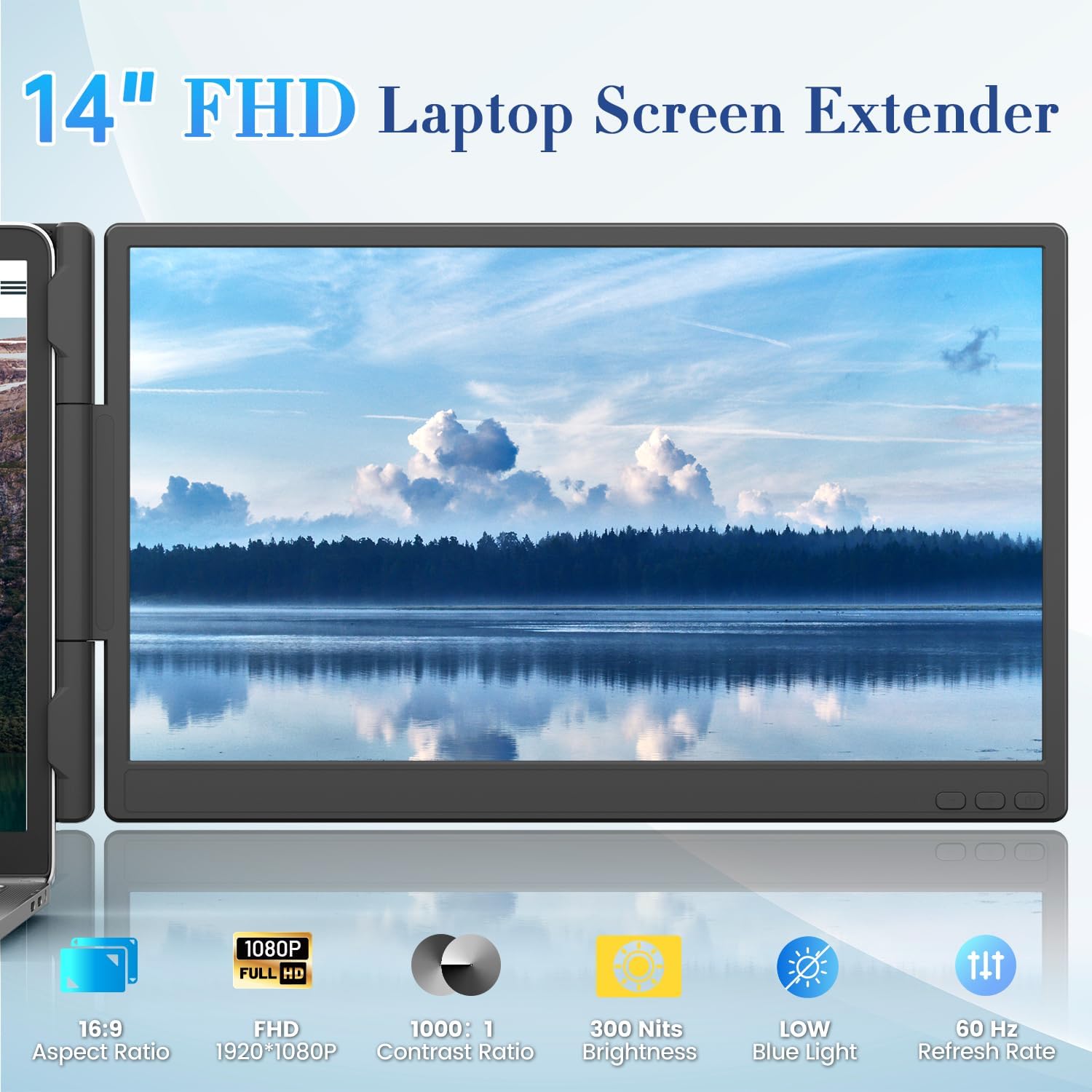
Image 1.1: The Teamgee 14-inch Dual Screen Extender highlighting its 14-inch FHD 1080p display, 16:9 aspect ratio, 1000:1 contrast ratio, 300 nits brightness, and 60 Hz refresh rate.
2. Opsætningsvejledning
2.1 Attaching the Extender to Your Laptop
The screen extender is designed to attach to laptops between 13 and 17.3 inches. It features a built-in adjustable stand and non-slip top clamps for secure mounting.
- Gently pull the sliding outrigger arms to extend the mounting system.
- Position the extender on top of your laptop screen, ensuring the non-slip clamps securely grip the top edge of your laptop.
- Adjust the built-in kickstand to provide additional support and achieve your desired viewing angle. The stand allows for 226° rotation.

Image 2.1: Illustration of the mounting system, including sliding outrigger arms, dual top hooks, and the 90° adjustable bracket for stability.
2.2 Tilslutning til din enhed
The Teamgee KX2 offers flexible connectivity options. Ensure your laptop has the necessary ports.
Option 1: Full-Function Type-C Connection (Single Cable)
If your laptop has a full-function USB-C port (supporting data, video transfer, and power delivery), you only need one USB-C to USB-C cable for both video and power.
- Connect one end of the USB-C to USB-C cable to the full-function USB-C port on your laptop.
- Connect the other end of the cable to one of the full-function USB-C ports on the screen extender.

Image 2.2: Connection diagrams for Type-C (single cable) and USB-A + HDMI (two cables) setups.
Option 2: USB-A + HDMI Connection (Two Cables)
If your laptop does not have a full-function USB-C port, you will need a USB-A cable for power and an HDMI cable for video signal.
- Connect the USB-A end of the USB-A to USB-C cable to a USB-A port on your laptop. Connect the USB-C end to a USB-C port on the screen extender for power.
- Connect one end of the Mini HDMI to HDMI cable to the HDMI port on your laptop.
- Connect the other end of the Mini HDMI to HDMI cable to the Mini HDMI port on the screen extender for video.
Note: Ensure your laptop's USB-C port supports video output (DisplayPort Alt Mode) for single-cable functionality. Refer to your laptop's specifications.

Image 2.3: Visual guide to identify full-featured USB-C ports (Thunderbolt 3, Data + Displayport alt, Support Data Video Transfer) versus non-full-featured ports (Only Data Transfer, Only Charging).
3. Betjeningsvejledning
3.1 Skærmtilstande
The Teamgee KX2 supports three primary display modes:
- Duplication Mode (Mirror Mode): The extender displays the same content as your laptop screen.
- Udvidet tilstand: The extender acts as a separate display, extending your desktop space. This is ideal for multitasking.
- Portrættilstand: The extender can be rotated to a vertical orientation, useful for viewing documents, code, or long web sider.
These modes can typically be configured through your operating system's display settings (e.g., Windows Display Settings, macOS System Preferences > Displays).

Image 3.1: Visual representation of Duplication Mode, Extended Mode, and Portrait Mode for the screen extender.
3.2 Independent Control Buttons
The screen extender features independent control buttons for adjusting display settings.

Image 3.2: Diagram showing the location of the Full-function USB-C Ports, Mini HDMI to HDMI port, Minus Button, Plus Button, and Menu/Power Button on the device.
Use these buttons to customize settings such as:
- Lysstyrke
- Kontrast
- Volume (if built-in speakers are present)
- Farvetemperatur
Tryk på Menu/afbryderknap to access the On-Screen Display (OSD) menu. Use the Plus-knap og Minus knap to navigate and adjust settings.
4. Vedligeholdelse
To ensure the longevity and optimal performance of your Teamgee 14-inch Dual Screen Extender, follow these maintenance guidelines:
- Rensning: Use a soft, lint-free cloth to gently wipe the screen and exterior surfaces. Avoid abrasive cleaners, solvents, or aerosol sprays. For stubborn marks, slightly dampen klud med vand.
- Opbevaring: When not in use, store the extender in its protective case or a safe place to prevent scratches and damage. Ensure the small flap closes properly before storing to protect the display.
- Håndtering: Undgå at tabe enheden eller udsætte den for kraftige stød. Placer ikke tunge genstande oven på den.
- Temperatur og luftfugtighed: Operate and store the device in a dry environment within recommended temperature ranges. Avoid extreme heat, cold, or high humidity.
5. Fejlfinding
If you encounter issues with your Teamgee 14-inch Dual Screen Extender, refer to the following common troubleshooting steps:
5.1 No Signal or No Power
- Tjek kabler: Ensure all cables (USB-C, HDMI, USB-A) are securely connected to both the laptop and the extender.
- Strømkilde: Verify that the extender is receiving adequate power. If using a single USB-C cable, confirm your laptop's USB-C port supports power delivery. If using USB-A, ensure the USB-A port on your laptop is functional.
- Bærbar kompatibilitet: Confirm your laptop's USB-C port supports video output (DisplayPort Alt Mode) if using a single USB-C cable for video.
- Genstart enheder: Disconnect and reconnect the extender, then restart your laptop.
- Try Different Ports/Cables: If possible, test with different USB-C or HDMI ports on your laptop, or try alternative cables to rule out faulty connections.
- Driver installation: While often plug-and-play, some systems may require specific drivers. Check your laptop manufacturer's website or Teamgee support for any necessary driver updates.
5.2 Display Issues (e.g., Flickering, Incorrect Resolution)
- Adjust Resolution: Go to your operating system's display settings and ensure the resolution is set to 1920x1080 (FHD 1080p) for the external display.
- Opdateringshastighed: Confirm the refresh rate is set to 60 Hz in your display settings.
- Kabelkvalitet: Ensure you are using high-quality cables. Damaged or low-quality cables can cause display issues.
- Grafikdrivere: Update your laptop's graphics drivers to the latest version.
5.3 Screen Not Bright Enough
- Use the independent control buttons on the extender to increase the brightness.
- Check your laptop's power settings; some power-saving modes may limit external display brightness.
Video 5.1: An official product video demonstrating the features and setup of the Teamgee screen extender. This video provides a visual guide to common operations and troubleshooting.
6. Specifikationer
| Feature | Specifikation |
|---|---|
| Modelnummer | KX2 |
| Skærmstørrelse | 14 tommer |
| Opløsning | 1920 x 1080 pixels (FHD 1080p) |
| Aspektforhold | 16:9 |
| Kontrastforhold | 1000:1 |
| Lysstyrke | 300 nits |
| Opdateringshastighed | 60 Hz |
| Varens vægt | 1.94 pund |
| Produktdimensioner | 15.49 x 2.54 x 10.41 tommer |
| Samlet USB-porte | 2 (Type-C) |
| Forbindelse | Mini HDMI, Full-function USB-C |
| Beskrivelse af skærmoverfladen | Blank |
7. Garanti og support
The Teamgee 14-inch Dual Screen Extender (Model KX2) comes with a 1 års produktgaranti. For any product-related inquiries, technical assistance, or warranty claims, Teamgee offers 24/7 kundeservice.
When contacting support, please provide your order number and laptop model for efficient service. Official Teamgee contact information can be found on the Seller Profile page where you purchased the product or on the product packaging.