
Indledning
Thank you for choosing the MEETION C9990 Wireless Bluetooth Keyboard and Mouse combo. This product offers versatile connectivity options (2.4GHz USB and dual Bluetooth channels), an ergonomic design for comfort, and rechargeable batteries for extended use. This manual will guide you through the setup, operation, and maintenance of your new device.
Pakkens indhold
- MEETION C9990 Wireless Keyboard
- MEETION Wireless Mouse
- USB-modtager (opbevares i musens batterirum)
- USB-C ladekabel
- Brugermanual
Produkt overview
Tastaturfunktioner
- Layout i fuld størrelse: Includes a numeric pad for comprehensive data entry.
- Low-Noise Scissor-Switch Keys: Giver en stille og behagelig skriveoplevelse.
- Multimedienøgler: Dedicated function keys for quick access to media controls and system functions.
- Fixed Anti-Slip Stand: Ensures stability and an ergonomic typing angle.
- Ultra-slankt design: Æstetisk venligasing and space-efficient.

Image: Close-up of the keyboard keys, illustrating the low-noise scissor-switch design for quiet and comfortable typing.

Image: The keyboard features a fixed-angle anti-slip stand for enhanced stability and typing comfort.
Musfunktioner
- Ergonomisk skulptureret design: Contoured shape supports natural wrist and hand posture.
- Justerbar DPI: Four DPI settings (800-2400) for precise cursor control.
- Tilt-Scroll Wheel: Allows for horizontal and vertical scrolling.
- Mode Switch: Easily switch between 2.4GHz and Bluetooth modes.

Image: The mouse features an ergonomic sculpted design to provide comfort during extended use.

Image: Detailed diagram of the mouse highlighting its various components and functions, including buttons, scroll wheel, and switches.
Opsætningsinstruktioner
1. Opladning af enhederne
Both the keyboard and mouse are equipped with built-in rechargeable batteries. Before first use, or when the battery indicator shows low power, charge both devices using the provided USB-C cable.
- Connect the USB-C end of the charging cable to the charging port on the keyboard and mouse.
- Tilslut USB-A-enden af opladningskablet til en USB-strømkilde (f.eks. en computers USB-port eller en USB-vægadapter).
- Opladningsindikatorlampen lyser under opladning og slukker, når den er fuldt opladet.
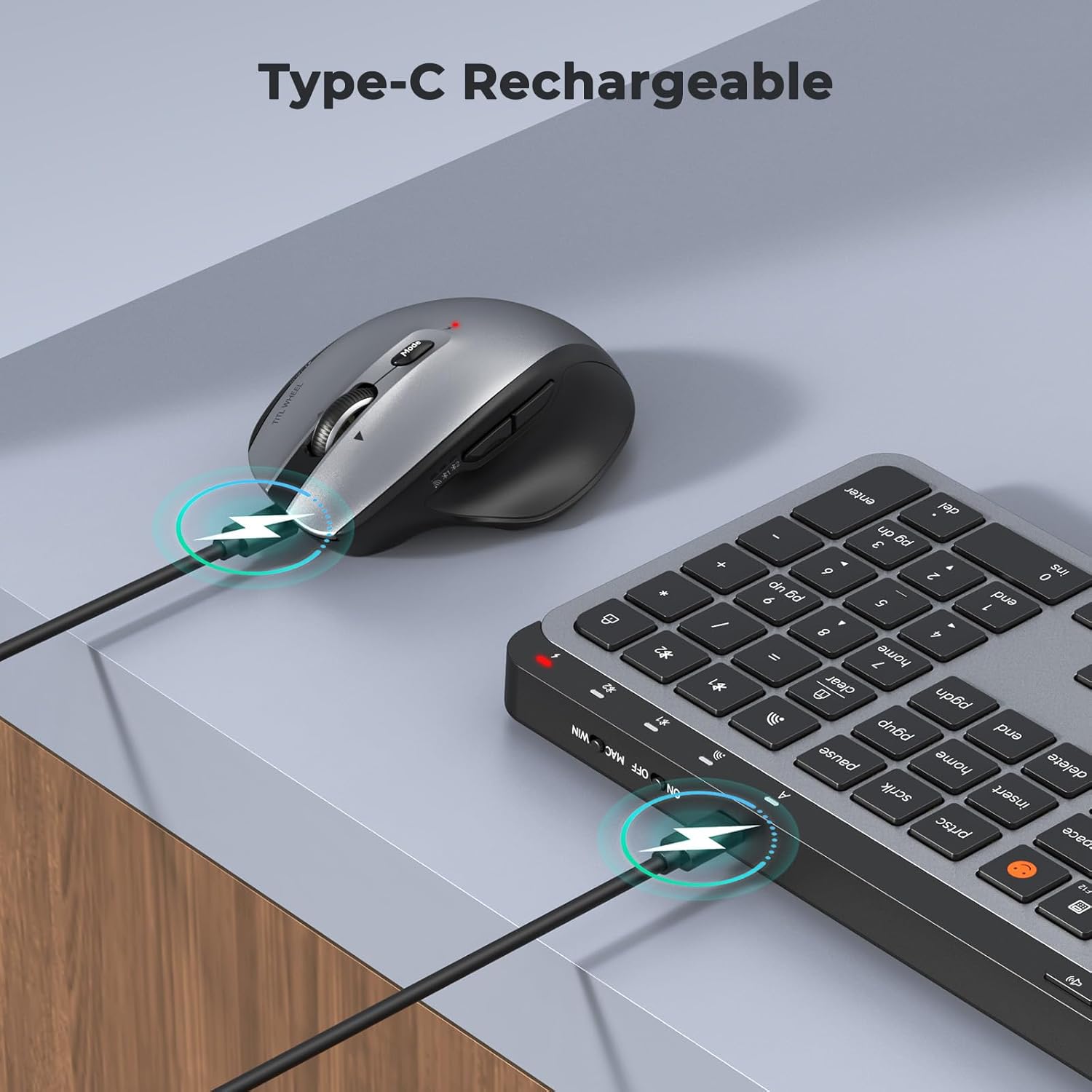
Image: Both the keyboard and mouse are rechargeable via USB-C, ensuring convenience and eliminating the need for disposable batteries.
2. Tilslutning til enheder
The C9990 combo supports three connection modes: 2.4GHz wireless (via USB receiver) and two Bluetooth channels (BT1, BT2).
2.1. 2.4 GHz trådløs forbindelse
- Find USB-modtageren, som typisk opbevares i musens batterirum.
- Sæt USB-modtageren i en ledig USB-port på din computer.
- Tænd tastaturet og musen ved hjælp af deres respektive tænd/sluk-knapper.
- For the keyboard, press the 2.4G button (usually indicated by a USB icon) to switch to 2.4GHz mode.
- For the mouse, switch the mode selector to the 2.4G position.
- Enhederne skal oprette forbindelse automatisk.
2.2. Bluetooth-forbindelse (BT1 / BT2)
- Tænd for tastaturet og musen.
- Til tastatur: Tryk og hold på BT1 or BT2 button for 3-5 seconds until the indicator light flashes rapidly, indicating pairing mode.
- Til mus: Switch the mode selector to the BT1 or BT2 position, then press and hold the Bluetooth pairing button (often located on the underside) until the indicator light flashes.
- Gå til Bluetooth-indstillingerne på din enhed (bærbar computer, tablet, smartphone) og søg efter nye enheder.
- Select "MEETION Keyboard" and "MEETION Mouse" from the list to pair.
- Repeat for the second Bluetooth channel (BT2) if connecting to another device.
3. Skift mellem enheder
The C9990 allows seamless switching between up to three connected devices (one 2.4GHz and two Bluetooth).
- Til tastatur: Tryk på den dedikerede 2.4G, BT1, eller BT2 button to switch to the desired connected device.
- Til mus: Use the mode switch on the underside of the mouse to select 2.4G, BT1, eller BT2.

Image: The keyboard and mouse can switch between three devices (PC, tablet, phone) with a single click, indicated by the Bluetooth and 2.4G icons.
Betjeningsvejledning
Tastatur funktioner
- Multimedietaster (F1-F12): These keys provide quick access to functions like brightness control, display window, home, dictation, sleep, app switcher, screen mirroring, screen capture, music player, email, and calculator. Functions may vary slightly depending on the operating system.
- Emoji-nøgle: The dedicated emoji key supports Windows, macOS, iPad (iPadOS), and Android Samsung devices. It does not support iPhone (iOS).

Image: The keyboard features a row of multimedia keys (F1-F12) for quick access to various system functions.
Musefunktioner
- DPI-justering: Press the DPI switch button (usually located near the scroll wheel) to cycle through the available DPI settings (800, 1200, 1600, 2400). Adjust to your preference for cursor speed and precision.
- Tilt-Scroll Wheel: In addition to vertical scrolling, tilt the scroll wheel left or right for horizontal scrolling in applications that support it (e.g., spreadsheets).
- Frem/Tilbage-knapper: Brug sideknapperne til hurtig navigation i web browsere og file opdagelsesrejsende.
Opretholdelse
- Rensning: Brug en blød, tør klud til at rengøre overfladerne på tastaturet og musen. For genstridigt snavs, tør letampRengør kluden med vand eller en mild rengøringsopløsning. Undgå skrappe kemikalier eller slibende materialer.
- Batteripleje: To prolong battery life, avoid fully discharging the devices frequently. Charge them when the low battery indicator appears. If storing for an extended period, charge them to about 50% and recharge every few months.
- Opbevaring: Opbevar enhederne et køligt, tørt sted væk fra direkte sollys og ekstreme temperaturer.
Fejlfinding
Forbindelsesproblemer
- Enheden opretter ikke forbindelse: Ensure both the keyboard and mouse are powered on and fully charged. Check that the correct connection mode (2.4G, BT1, or BT2) is selected on both devices. For Bluetooth, ensure your host device's Bluetooth is enabled and the devices are in pairing mode.
- Intermitterende forbindelse: Move the devices closer to your computer. Avoid using them near strong electromagnetic interference sources (e.g., Wi-Fi routers, other wireless devices).
- 2.4GHz receiver not recognized: Try plugging the USB receiver into a different USB port. Ensure the receiver is fully inserted.
Funktionsproblemer
- Keys or mouse unresponsive: Recharge the devices. Restart your computer or device. Re-pair the devices if using Bluetooth or re-insert the USB receiver for 2.4GHz.
- Musemarkøren er ustabil: Clean the mouse sensor. Ensure you are using the mouse on a suitable surface (not highly reflective or transparent). Adjust DPI settings.
Specifikationer
| Modelnummer | C9990 |
| Forbindelsesteknologi | Bluetooth, USB (2.4GHz Wireless) |
| Tastaturlayout | QWERTY, Full Size |
| Detektion af musebevægelse | Optisk |
| Mus DPI-indstillinger | 800, 1200, 1600, 2400 |
| Strømkilde | Batteridrevet (genopladelig via USB-C) |
| Kompatible operativsystemer | Windows, macOS, Linux, Chrome OS, Android |
| Varens vægt | 1.16 Kilograms (combined) |
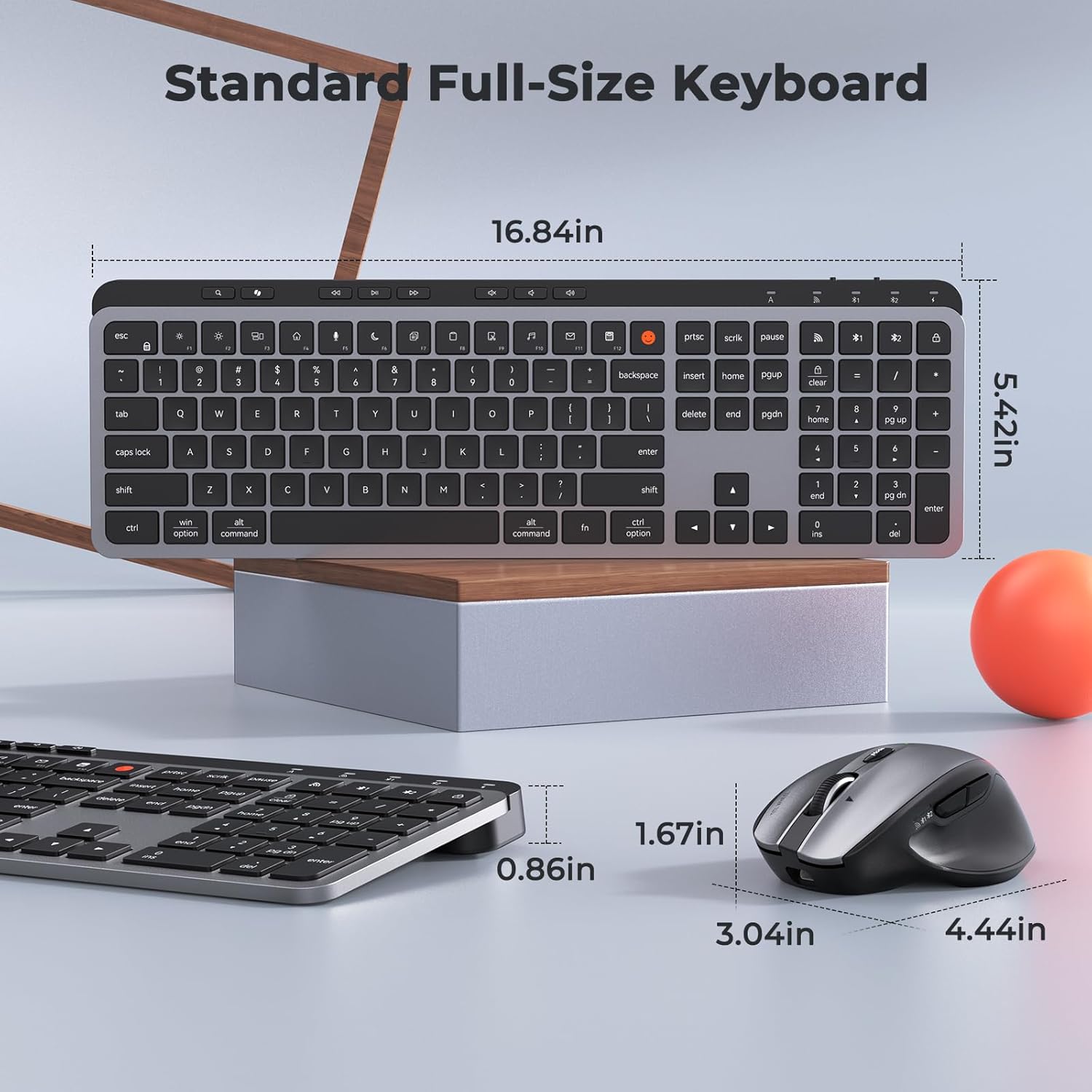
Image: Dimensions of the MEETION C9990 keyboard and mouse for reference.
Garanti og support
The MEETION C9990 Wireless Bluetooth Keyboard and Mouse comes with a 1-års garanti fra købsdatoen. Denne garanti dækker fabrikationsfejl ved normal brug.
For technical support, troubleshooting assistance, or warranty claims, please contact MEETION customer service through the retailer where you purchased the product or visit the official MEETION webwebsted for kontaktoplysninger.
Sikkerhedsoplysninger
- Udsæt ikke enhederne for vand, fugt eller ekstreme temperaturer.
- Undgå at tabe enhederne eller udsætte dem for kraftige stød.
- Do not attempt to disassemble or repair the devices yourself. Refer to qualified service personnel.
- Opbevares utilgængeligt for børn.
- Bortskaf batterier og elektroniske komponenter ansvarligt i henhold til lokale regler.