
Indledning
Thank you for choosing the RedThunder K75 Wireless Mechanical Keyboard. This manual provides detailed instructions for setting up, operating, and maintaining your keyboard. Please read this manual thoroughly to ensure proper use and to maximize your experience with the K75 keyboard.

Billede: Overview of the RedThunder K75 Mechanical Keyboard highlighting its main features.
Hvad er der i æsken
Bekræft at alle varer er til stede i pakken:
- K75 tastatur
- USB kabel
- Reserveafbrydere (4 stk.)
- Brugermanual
- Keycap aftrækker
- 2.4G dongle

Image: All components included in the RedThunder K75 package.
Opsætning
Tilslutningstilstande
The RedThunder K75 supports three connection modes: USB-C Wired, 2.4GHz Wireless, and Bluetooth (BT). Ensure the system switch (Win/Mac) and connection mode switch are in the correct positions before use.
- USB-C-kablet: Connect the keyboard to your device using the provided USB-C data cable.
- 2.4 GHz trådløs: Insert the 2.4G dongle into your device's USB port. The keyboard will connect automatically.
- Bluetooth (BT): Trykke FN+Q/W/E to switch between BT1, BT2, or BT3 devices.

Image: Illustration of the three multi-device connection modes available on the K75 keyboard.
Driverinstallation (kun Windows)
To access comprehensive programmability and customization options, download and install the K75-US driver. This software is compatible with Windows operating systems and functions when the keyboard is connected via 2.4G wireless or wired mode.
Steps for Driver Download:
- Ensure the system switch on the keyboard is set to "Win".
- Connect the keyboard to your Windows PC using the original USB-C data cable.
- Visit the official RedThunder website or use the provided short link (if available in your product documentation) to download the K75-US driver.
- Følg instruktionerne på skærmen for at fuldføre installationen.
Video: Instructions on how to download and install the K75 driver for Windows.
Betjeningsvejledning
Multi-function CNC Knob
The CNC knob provides versatile control for both gaming and office modes:
- Skift tilstande: Tryk længe på knappen i cirka 5 sekunder for at skifte mellem spiltilstand og kontortilstand.
- Spiltilstand: Drej knappen for at justere baggrundsbelysningens lysstyrke. Klik på knappen for at skifte mellem lyseffekterne.
- Kontortilstand: Rotate the knob to adjust system volume. Click the knob to play or pause media.

Image: Detailed functions of the CNC knob and indicator lights.
RGB-baggrundsbelysningskontrol
The K75 keyboard features full RGB backlighting with 1.68 million colors. Adjust lighting effects using FN key combinations or the dedicated software.
- Juster baggrundsbelysningens lysstyrke: Trykke FN + ↑ / ↓.
- Juster baggrundsbelysningens hastighed: Trykke FN + ← / →.
- Switch Side Lighting Modes: Trykke FN + TAB.
- Skift baggrundslystilstand: Trykke FN + \|.
- Skift baggrundsbelysningsfarve: Trykke FN + PU.
- Self-set Game Lighting: Trykke FN + PD once to activate, press twice to start customized game lighting.
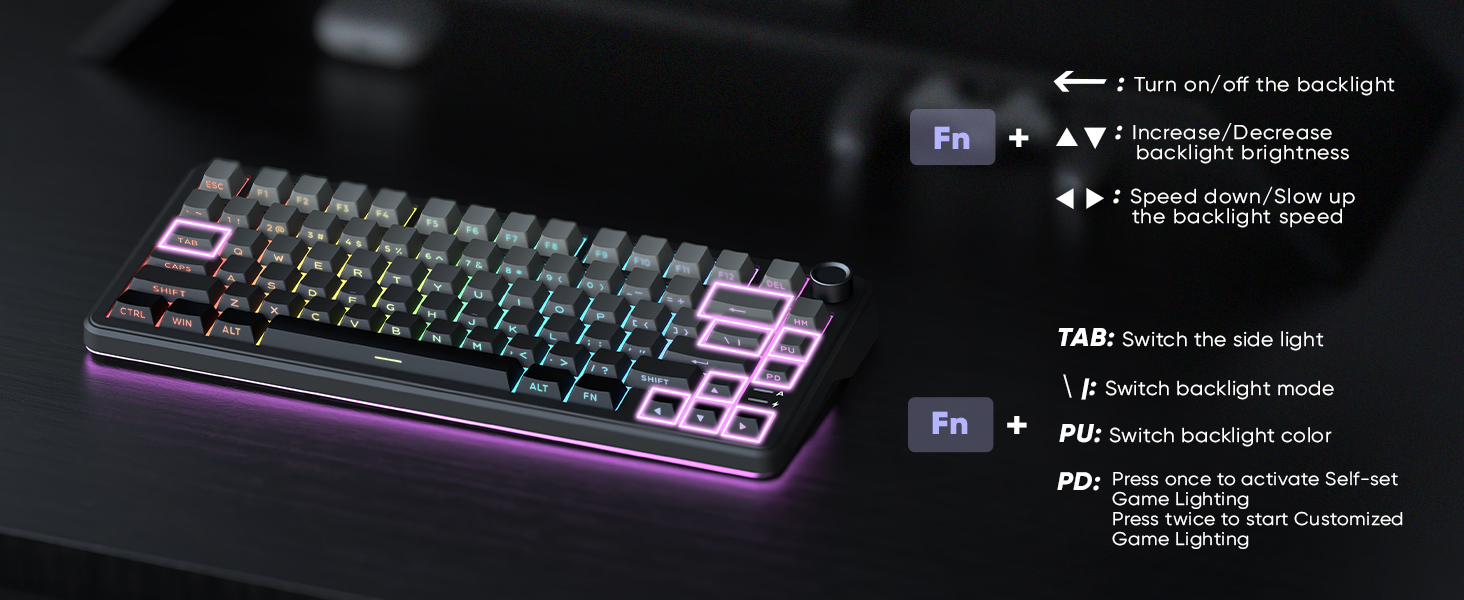
Image: The K75 keyboard displaying its vibrant RGB lighting.
Hot-swap-switche
The K75 features a hot-swappable PCB, allowing you to easily replace 3-pin or 5-pin mechanical switches without soldering. This enables customization of your typing feel.
- Use the included keycap puller to remove keycaps.
- Use the included switch puller to carefully remove the switch.
- Juster benene på den nye kontakt med fatningerne på printkortet, og tryk godt fast, indtil den klikker på plads.
- Udskift tastaturdækslet.

Image: Hot-swappable switches and components of the K75 keyboard.
Batterioplysninger
The keyboard is equipped with a rechargeable 4000mAh lithium-ion battery. A charging indicator light shows the power status:
- Lavt batteri: Blinker rødt.
- Opladning: Stays red.
- Fuldt opladet: Green/Off.
For optimal charging, use the original charging cable or a qualified data-capable cable connected to a computer's USB port (DC: 5V).

Image: Battery capacity and estimated usage times for the K75 keyboard.
Programmerbar software
The K75-US driver software (Windows only, 2.4G wireless or wired mode) allows for extensive customization:
- Nøglekortlægning: Reassign keys to suit your workflow.
- Makrodefinition: Create complex sequences of commands.
- Baggrundslyseffekter: Adjust RGB lighting, including music rhythm backlights.
- Sensitivity & Debounce: Fine-tune keyboard response.
- Sengetid: Konfigurer strømbesparende indstillinger.

Image: The K75 programmable software interface for customization.
Video: Demonstration of the RedThunder K75 Gaming Keyboard's features and lighting.
Opretholdelse
Rensning
Regular cleaning helps maintain keyboard performance and appearance:
- Frakobl tastaturet fra alle strømkilder før rengøring.
- Brug en blød, fnugfri klud lidt damprengøres med vand eller en mild rengøringsopløsning til at tørre tastaturerne og kabinettet af.
- Brug trykluft eller en lille børste til at fjerne støv og snavs mellem tasterne.
- Undgå at bruge skrappe kemikalier eller slibende materialer.
Udskiftning af kontakt
As the K75 is hot-swappable, switches can be replaced if they become faulty or if you wish to change the typing feel. Refer to the "Hot-Swappable Switches" section for detailed instructions.
Fejlfinding
If you encounter issues with your RedThunder K75 keyboard, please refer to the following common solutions:
- Forbindelsesproblemer: Ensure the keyboard is fully charged. Check that the system switch (Win/Mac) and connection mode switch (Wired/2.4G/BT) are correctly set. For Bluetooth, ensure your device's Bluetooth is enabled and the keyboard is paired.
- Taster reagerer ikke: Try reconnecting the keyboard. If using wireless, ensure the dongle is properly inserted or Bluetooth is paired. If a specific key is not working, consider replacing the switch as the keyboard is hot-swappable.
- Problemer med baggrundsbelysning: Kontroller indstillingerne for baggrundsbelysningens lysstyrke ved hjælp af FN + ↑. Ensure the keyboard is not in a mode where backlighting is disabled. If using the software, verify settings there.
- Software registrerer ikke tastatur: Ensure the keyboard is connected via USB-C wired or 2.4G wireless mode and the system switch is set to "Win". Restart the software and/or your computer.
- Batteri oplades ikke: Use the original USB-C cable and connect to a reliable power source, preferably a computer's USB port. Check the charging indicator light.
If problems persist, please contact RedThunder customer support for further assistance.
Specifikationer
| Modelnummer | K75 |
| Mærke | Rød Torden |
| Dimensioner | 14 x 7 x 1.9 tommer (35.56 x 17.78 x 4.83 cm) |
| Varens vægt | 1.98 pund (0.9 kg) |
| Forbindelse | 2.4G trådløs, Bluetooth, USB-C |
| Batteri | 4000mAh litium-ion (inkluderet) |
| Afbrydere | Hot-swap (kompatibel med 3-bens/5-bens) |
| Baggrundsbelysning | Fuld RGB |
| tasterne | Dual-color PBT |
| Særlige funktioner | CNC Knob, Programmable Keys, Gasket Structure, Two-stage Fodstøtte |
Garanti og support
For warranty information or technical support, please refer to the documentation included with your product or visit the official RedThunder website. You may also contact RedThunder customer service directly for assistance with product issues or inquiries.