
Indledning
This manual provides essential information for setting up, operating, and maintaining your Fusion5 A7 N6 23.8-inch All-in-One PC. Please read these instructions carefully before use and retain them for future reference.
The Fusion5 A7 N6 is a 23.8-inch Full HD All-in-One PC designed for home offices, students, and everyday users. It features a 1920x1080 FHD IPS display, an Intel N150 processor, 16GB DDR4 RAM, and a 512GB SATA SSD, running on Windows 11 Home.
Hvad er der i æsken
- Fusion5 A7 N6 23.8" All-in-One PC
- Trådløst tastatur
- Trådløs mus
- Certified Power Adapter (12V/5A)
- Brugervejledning (dette dokument)
Opsætning
- Udpakning: Fjern forsigtigt alle komponenter fra emballagen. Sørg for, at alle de varer, der er angivet i "Hvad er der i æsken", er til stede.
- Placering: Place the All-in-One PC on a stable, flat surface. Ensure adequate ventilation around the device.
- Strømtilslutning: Connect the certified power adapter to the DC-in port on the back of the PC, then plug the adapter into a power outlet.
- Wireless Keyboard and Mouse Setup:
- Insert batteries (not included) into the wireless keyboard and mouse.
- Locate the USB receiver for the wireless keyboard and mouse. Plug it into an available USB port on the PC.
- The keyboard and mouse should automatically connect.
- Første gang tændt: Tryk på tænd/sluk-knappen, som normalt er placeret på siden eller bagsiden af skærmen.
- Windows 11-opsætning: Følg instruktionerne på skærmen for at fuldføre den indledende Windows 11 Home-opsætning, herunder sprog, region, netværksforbindelse og oprettelse af brugerkonto.
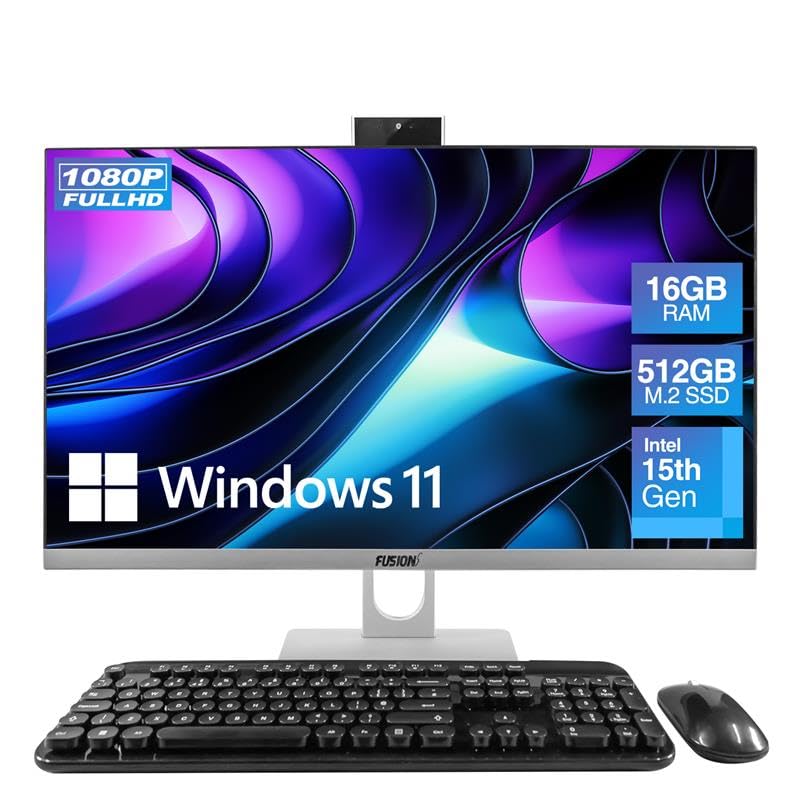
Image: The Fusion5 A7 N6 All-in-One PC with its included wireless keyboard and mouse, ready for setup.
Betjening af din pc
Displayfunktioner
The 23.8-inch Full HD (1920x1080) IPS display offers crisp visuals and wide viewing angles. The screen is designed with a micro-edge display for an immersive viewing experience and can be tilted for optimal viewkomfort.
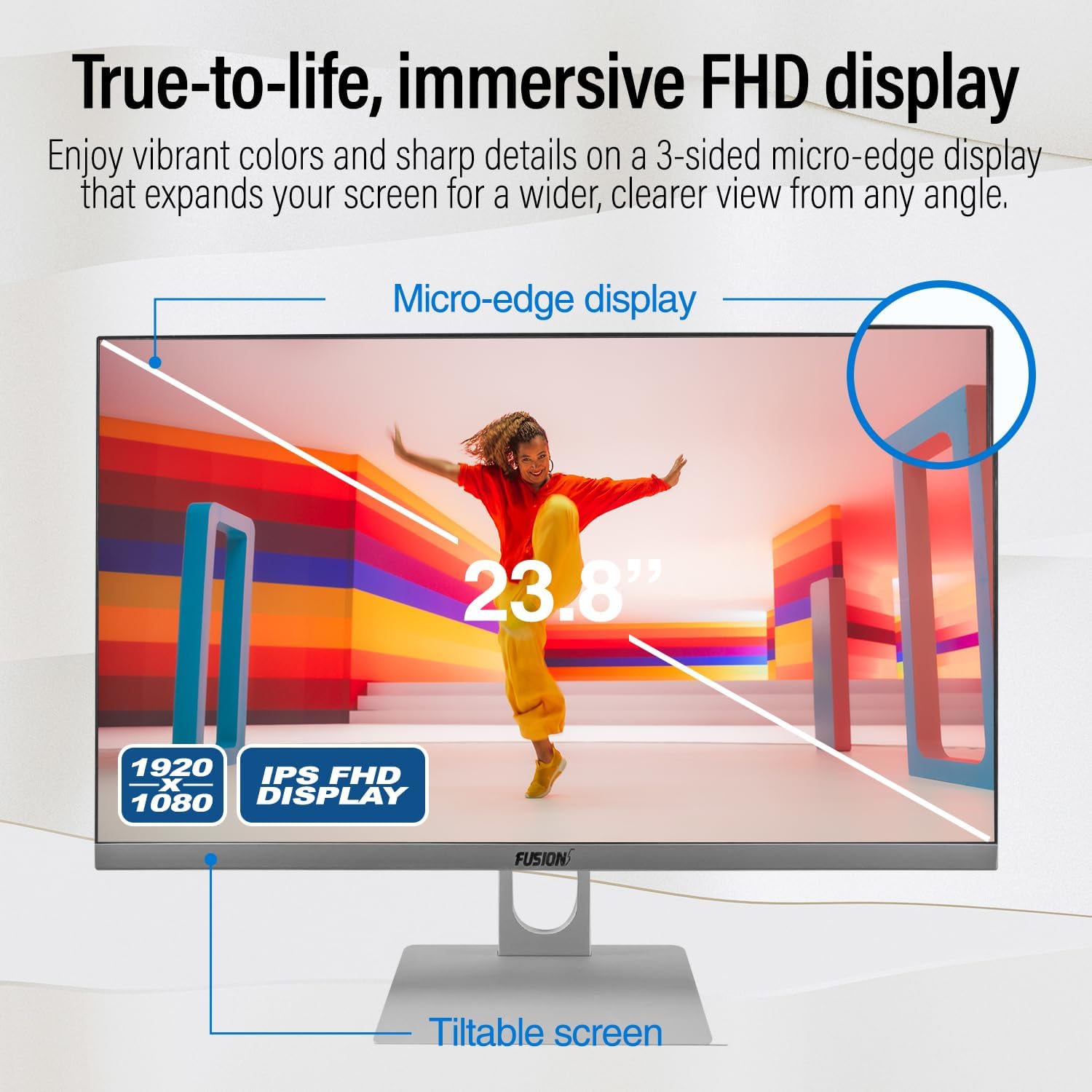
Image: Diagram highlighting the 23.8-inch FHD IPS display, micro-edge design, and tiltable screen functionality.
Præstation
Your PC is equipped with an Intel N150 processor (up to 3.60 GHz), 16GB LPDDR4 RAM, and a 512GB SATA SSD. This configuration ensures fast boot-ups, responsive multitasking, and efficient handling of daily tasks and applications.
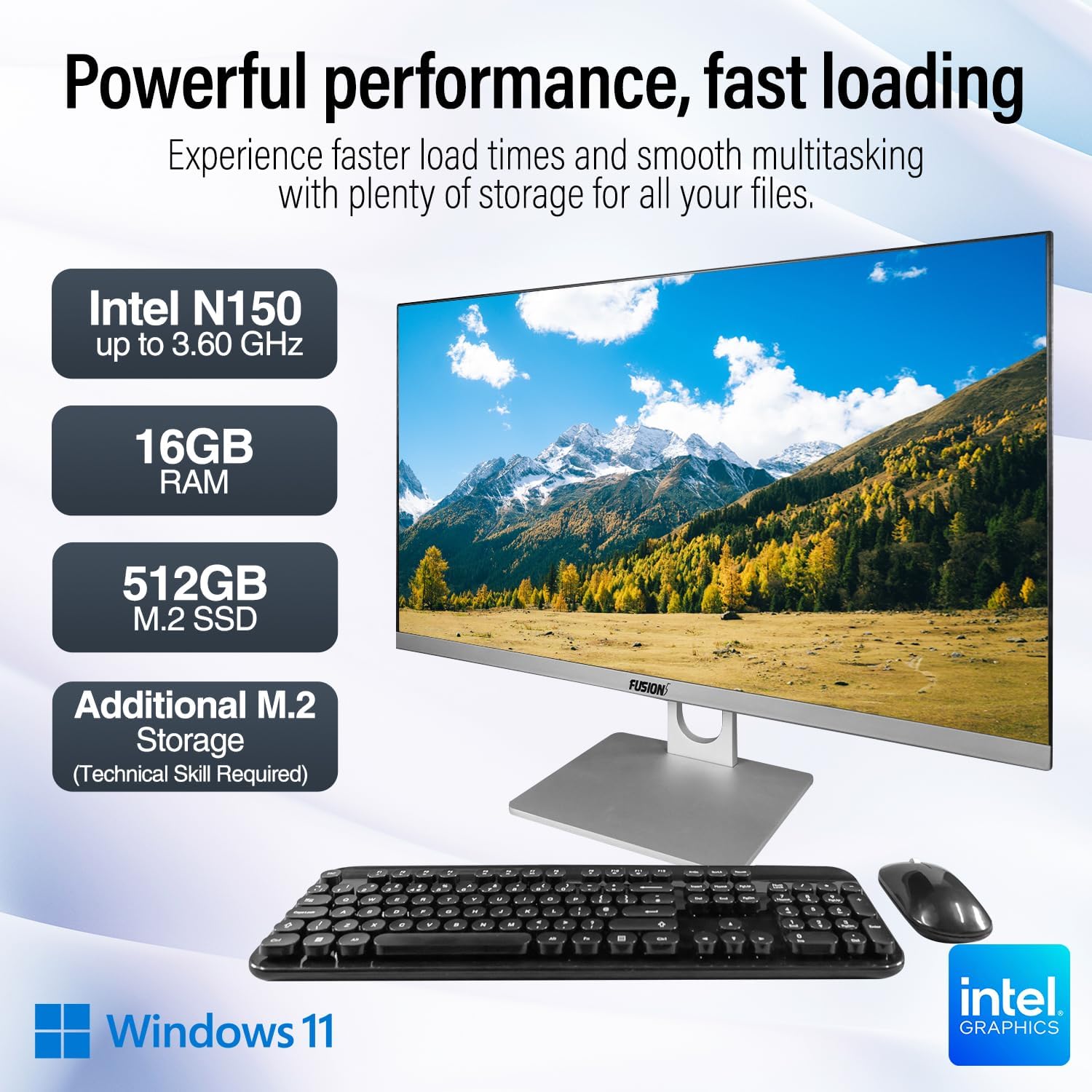
Image: Visual representation of the PC's core components: Intel N150 processor, 16GB RAM, 512GB M.2 SSD, and Windows 11 operating system.
Forbindelse
The PC offers various ports for connecting peripherals and external displays, along with wireless connectivity options. The rear view of the PC illustrates the physical layout of these ports.

Billede: Bagside view of the Fusion5 A7 N6 All-in-One PC, displaying the arrangement of its various ports.
- USB-porte: 2x USB 3.0, 4x USB 2.0 for connecting external devices like flash drives, printers, and other peripherals.
- HDMI-port: 1x HDMI for connecting an external monitor or TV.
- VGA port: 1x VGA for connecting older external monitors.
- Ethernet-port: Til kabelbaseret netværksforbindelse.
- Headphone + Microphone Combo Jack: Til lydindgang/udgang.
- Trådløs: Built-in AC Wi-Fi for internet access and Bluetooth 5.0 for connecting wireless accessories.
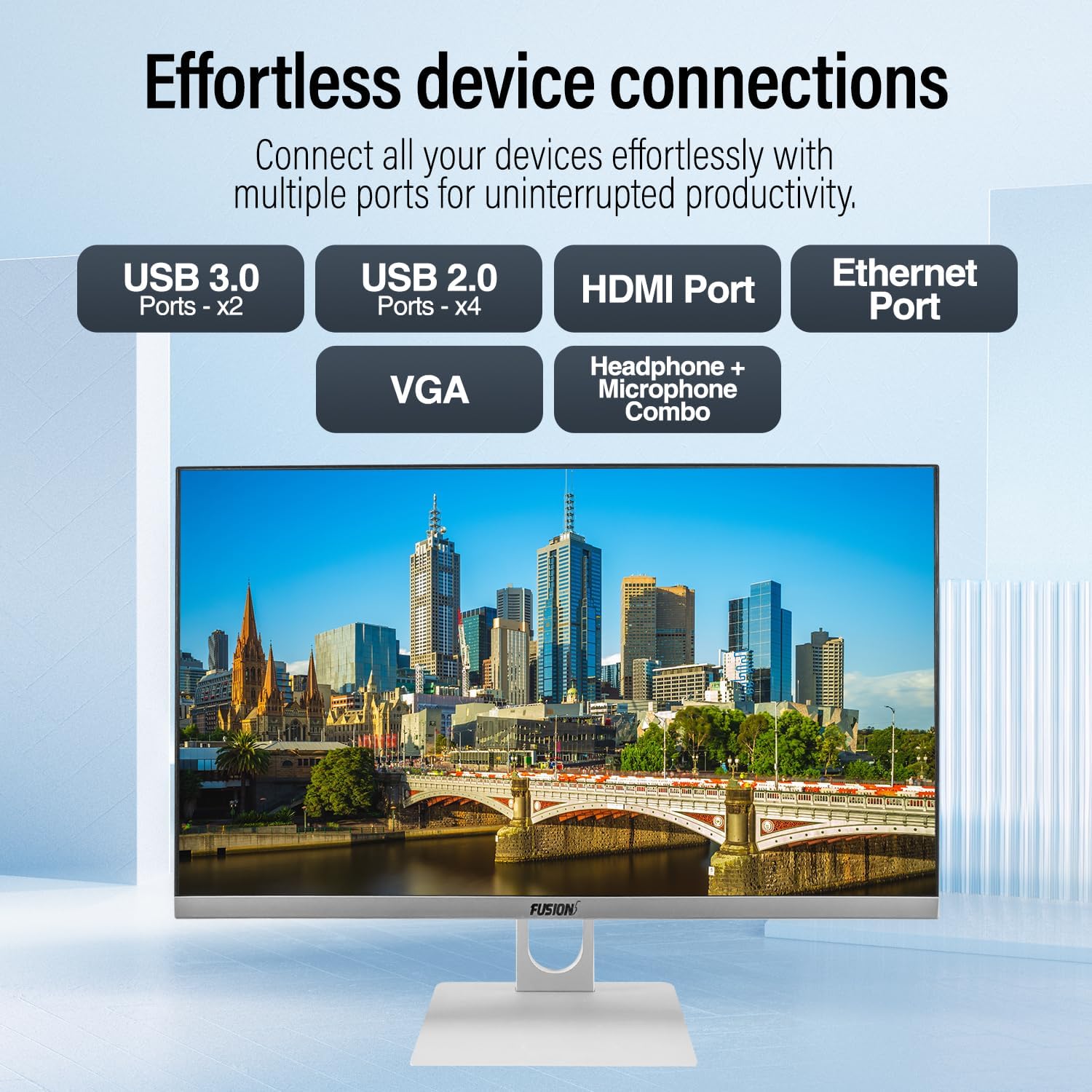
Billede: Nærbillede view of the PC's rear ports, including USB 3.0, USB 2.0, HDMI, Ethernet, VGA, and the audio combo jack.
Webkamera og lyd
The PC includes an integrated 3MP pop-up webcam, built-in microphones, and speakers, making it suitable for video conferencing and online communication.

Image: Illustration of the PC's integrated 3MP pop-up webcam, built-in microphones, and speakers, demonstrating its use for video calls.
Sikkerhed
A Kensington Security Slot is provided for physical security, allowing you to secure your PC with a compatible lock (sold separately).
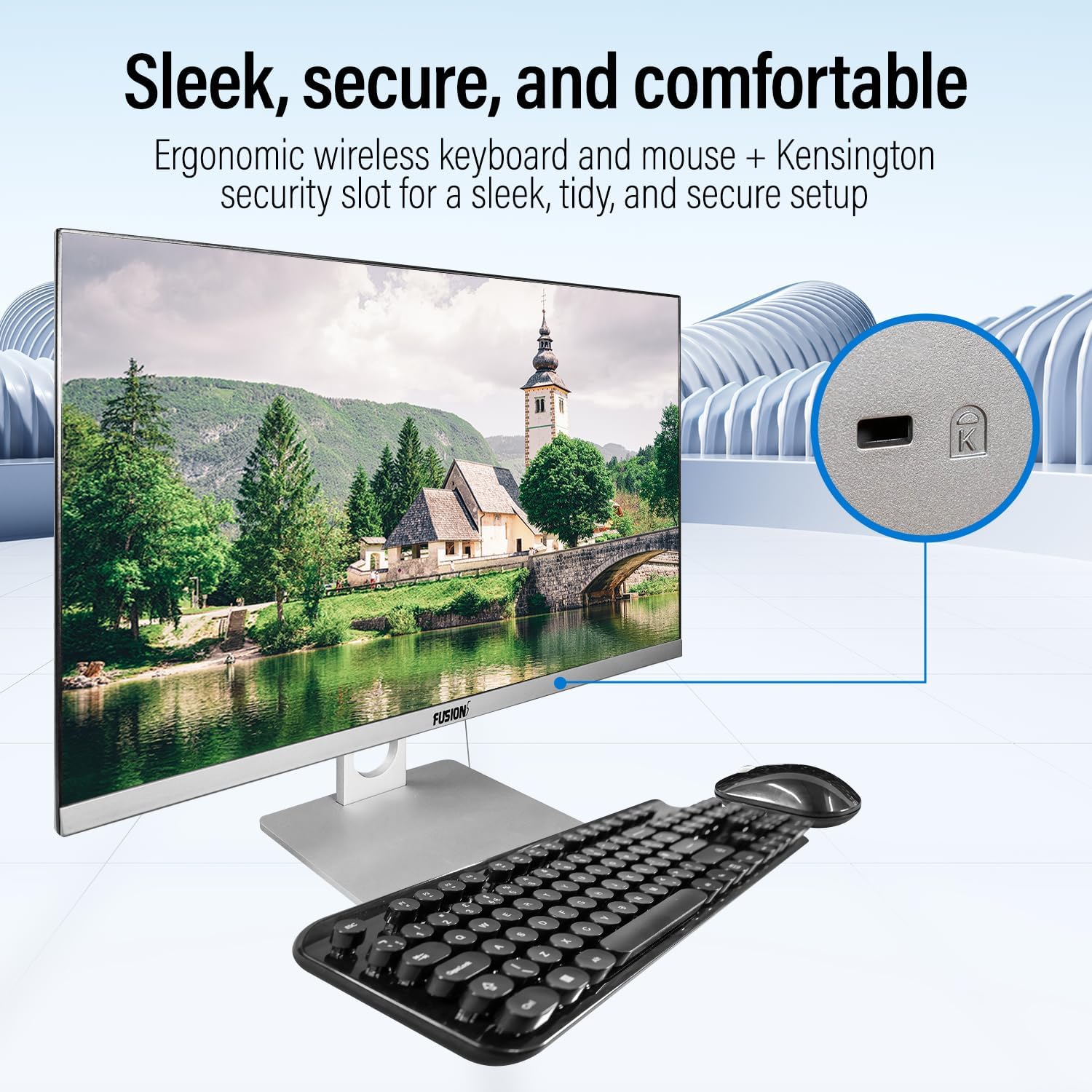
Image: Detail of the Kensington Security Slot located on the PC, designed for physical security.
Opretholdelse
- Rengøring af skærmen: Brug en blød, fnugfri klud, der er specielt designet til elektronik.ampen the cloth slightly with water or a screen cleaner solution (do not spray directly onto the screen).
- Rengøring af chassiset: Tør de udvendige overflader af med en blød, tør klud. Undgå slibende rengøringsmidler eller opløsningsmidler.
- Ventilation: Sørg for, at ventilationsåbningerne er fri for støv og forhindringer for at forhindre overophedning.
- Softwareopdateringer: Opdater dit Windows-operativsystem og dine drivere regelmæssigt for at sikre optimal ydeevne og sikkerhed.
Opgradering af lager
The Fusion5 A7 N6 supports M.2 SSD upgrades and the addition of a 2.5-inch SATA SSD/HDD. This procedure requires technical skill. If you are not comfortable performing this, seek professional assistance.
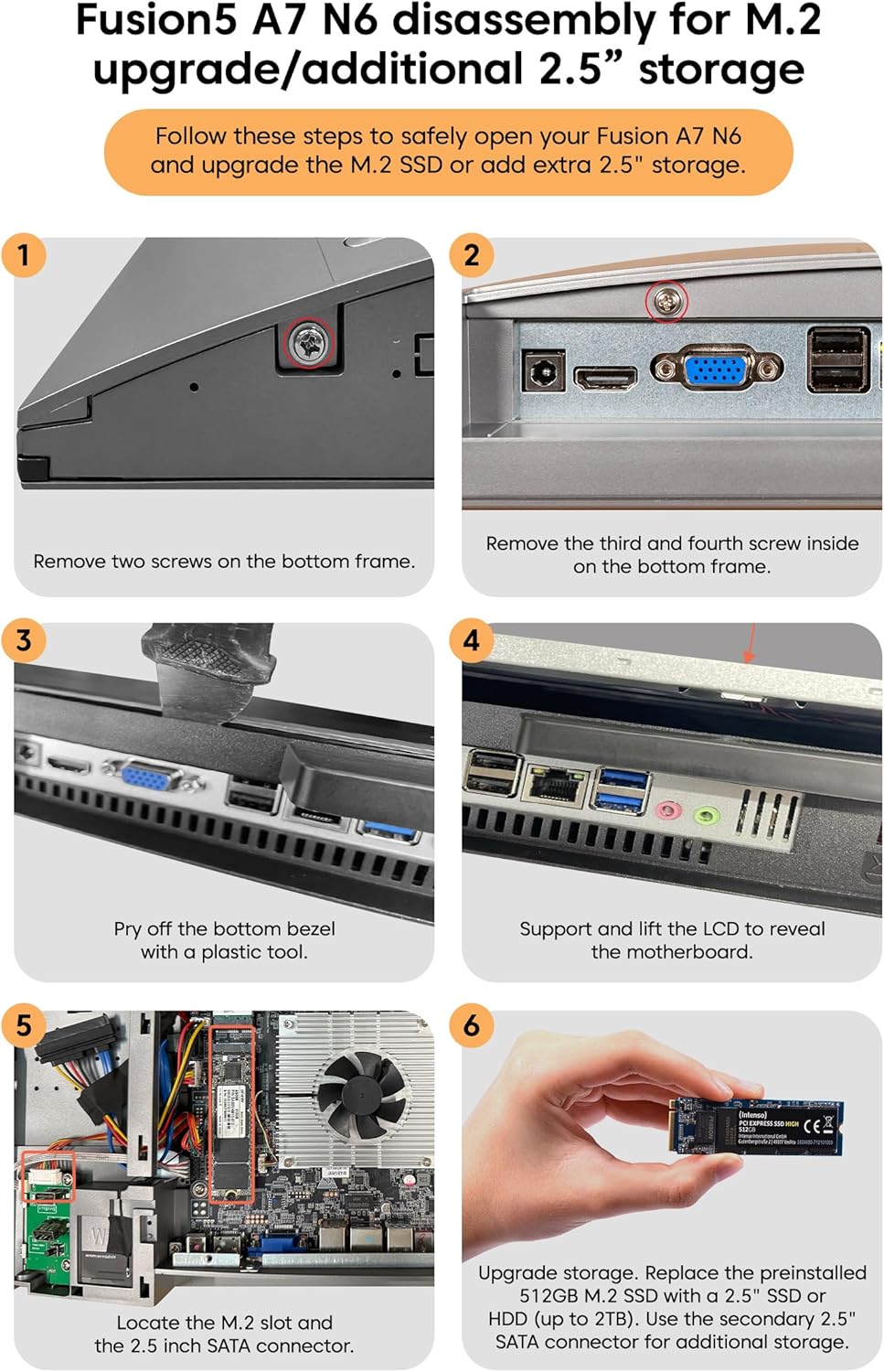
Image: Detailed visual instructions for disassembling the Fusion5 A7 N6 to upgrade the M.2 SSD or add a 2.5-inch storage drive.
- Sluk og afbryd: Ensure the PC is completely powered off and disconnected from the power adapter and all peripherals.
- Fjern skruer: Remove the two screws on the bottom frame of the PC.
- Remove Additional Screws: Remove the third and fourth screws located inside the bottom frame.
- Pry Off Bezel: Carefully pry off the bottom bezel using a plastic tool to avoid scratching the casing.
- Lift LCD: Gently support and lift the LCD panel to reveal the motherboard and internal components.
- Find pladser: Identify the M.2 slot for SSD upgrades and the 2.5-inch SATA connector for additional storage.
- Install/Replace Storage:
- For M.2 SSD: Replace the preinstalled 512GB M.2 SSD with a new one if desired.
- For 2.5" Storage: Connect a 2.5-inch SSD or HDD (up to 2TB) to the SATA connector.
- Genmontering: Carefully reverse the steps to reassemble the PC, ensuring all connections are secure and screws are tightened.
Fejlfinding
| Problem | Mulig årsag | Løsning |
|---|---|---|
| PC'en tænder ikke. | Power cable not connected; power adapter faulty; power outlet issue. | Ensure power cable is securely connected. Test power adapter with another device or try a different outlet. |
| Ingen visning på skærmen. | PC is off; display settings issue; hardware fault. | Ensure PC is powered on. Try connecting an external monitor to check if the PC is functioning. Restart the PC. |
| Wireless keyboard/mouse not working. | Low batteries; USB receiver disconnected; driver issue. | Replace batteries. Ensure USB receiver is plugged into a working USB port. Reinstall drivers if necessary. |
| Ingen internetforbindelse (Wi-Fi). | Wi-Fi deaktiveret; forkert adgangskode; routerproblem. | Check Wi-Fi settings in Windows. Verify password. Restart your router. |
| Langsom ydeevne. | Too many applications running; low storage space; outdated drivers. | Luk unødvendige programmer. Frigør diskplads. Opdater Windows og drivere. |
Specifikationer
| Feature | Detalje |
|---|---|
| Mærke | Fusion 5 |
| Modelnummer | A7 N6 16GB 512GB |
| Skærmstørrelse | 23.8 tommer |
| Skærmopløsning | 1920 x 1080 (Fuld HD) |
| Processor | Intel N150 (op til 3.6 GHz) |
| VÆDDER | 16 GB DDR4 SDRAM |
| Opbevaring | 512 GB SSD (SATA) |
| Grafik | Integreret Intel UHD-grafik |
| Operativsystem | Windows 11 Home |
| USB 3.0 porte | 2 |
| USB 2.0 porte | 4 |
| HDMI porte | 1 |
| Trådløs forbindelse | Wi-Fi (AC), Bluetooth 5.0 |
| Webcam | 3MP Pop-up Web Kamera |
| Lyd | Built-in Microphones, Built-in Speakers |
| Sikkerhedsslot | Kensington Security Slot |
| Dimensioner (pakke) | 61 x 46.5 x 20.5 cm |
| Vægt (pakke) | 4.2 kg |
Garanti og support
Your Fusion5 A7 N6 All-in-One PC comes with a standard manufacturer's warranty. Please refer to the warranty card included with your product for specific terms and conditions.
For technical support, troubleshooting assistance, or warranty claims, please contact Fusion5 customer service through their official website or the contact information provided in your product documentation. When contacting support, please have your model number (A7 N6 16GB 512GB) and purchase details ready.