
GNCC GP6
GNCC GP6 2K Indoor Pan/Tilt Security Camera User Manual
Model: GP6 | Brand: GNCC
Indledning
Thank you for choosing the GNCC GP6 2K Indoor Pan/Tilt Security Camera. This manual provides essential information for setting up, operating, and maintaining your camera. Please read it thoroughly before use to ensure proper functionality and safety. This camera is designed for indoor use, offering advanced monitoring capabilities for your home, children, or pets.
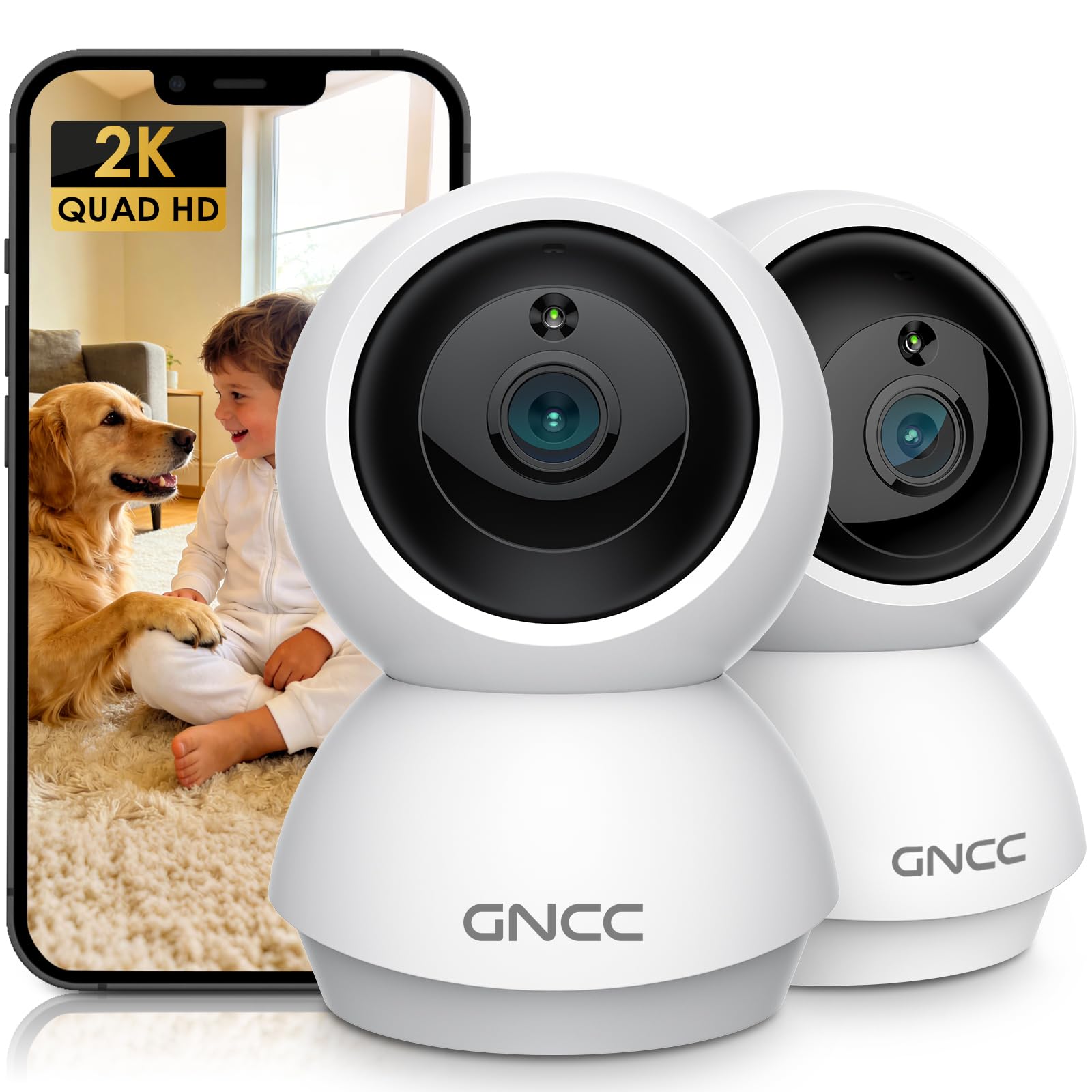
Image: GNCC GP6 2K Indoor Pan/Tilt Security Camera
Hvad er der i æsken
Please check the package contents carefully. If any items are missing or damaged, contact GNCC support.
- GNCC Indoor Camera (x2)
- Strømadapter
- Ladekabel
- Monteringsskrue
- Instruktionsmanual

Image: GNCC GP6 2K Indoor Pan/Tilt Security Camera box contents
Nøglefunktioner
2K Ultra HD & 10m Night Vision
Equipped with 2K Full HD resolution, this indoor security camera delivers sharp, detailed live video for baby/pet monitoring and home security. It features 10-meter clear night vision, allowing you to monitor what matters most anytime, anywhere, even in low light conditions.

Image: 2K Quality Video
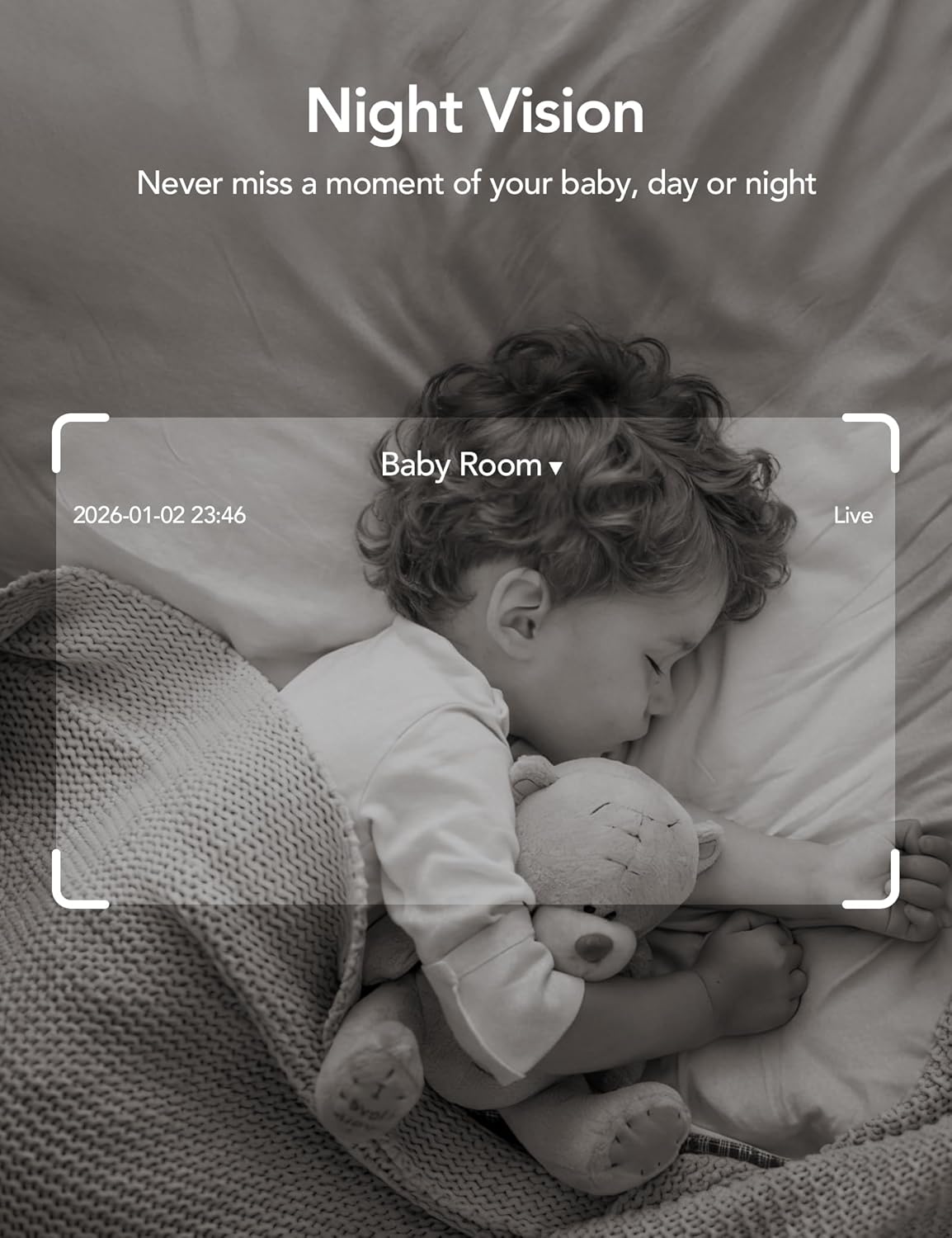
Image: Night Vision
Dual-Band 2.4G/5GHz WiFi & Bluetooth Pairing
Effortlessly connect based on dual WiFi signals (2.4GHz and 5GHz) for more stable signals and smooth live viewing. Setup takes just minutes with Bluetooth pairing, requiring no complicated configurations.

Image: Dual-Band 2.4GHz/5GHz Wi-Fi
AI Motion Tracking & Wide-Angle View
With 340° horizontal and 80° vertical pan/tilt rotation, the indoor camera features advanced AI motion tracking. It covers every corner of your room, monitoring your home security comprehensively and capturing all key moments.

Image: 360° Coverage

Image: Smart AI Motion Tracking
Smart Motion Detection & Customizable Zones
This security camera can detect motion or sounds. On the Osaio app, you can customize monitoring zones to target key areas, ensuring you receive alerts about what matters most, providing reliable peace of mind.
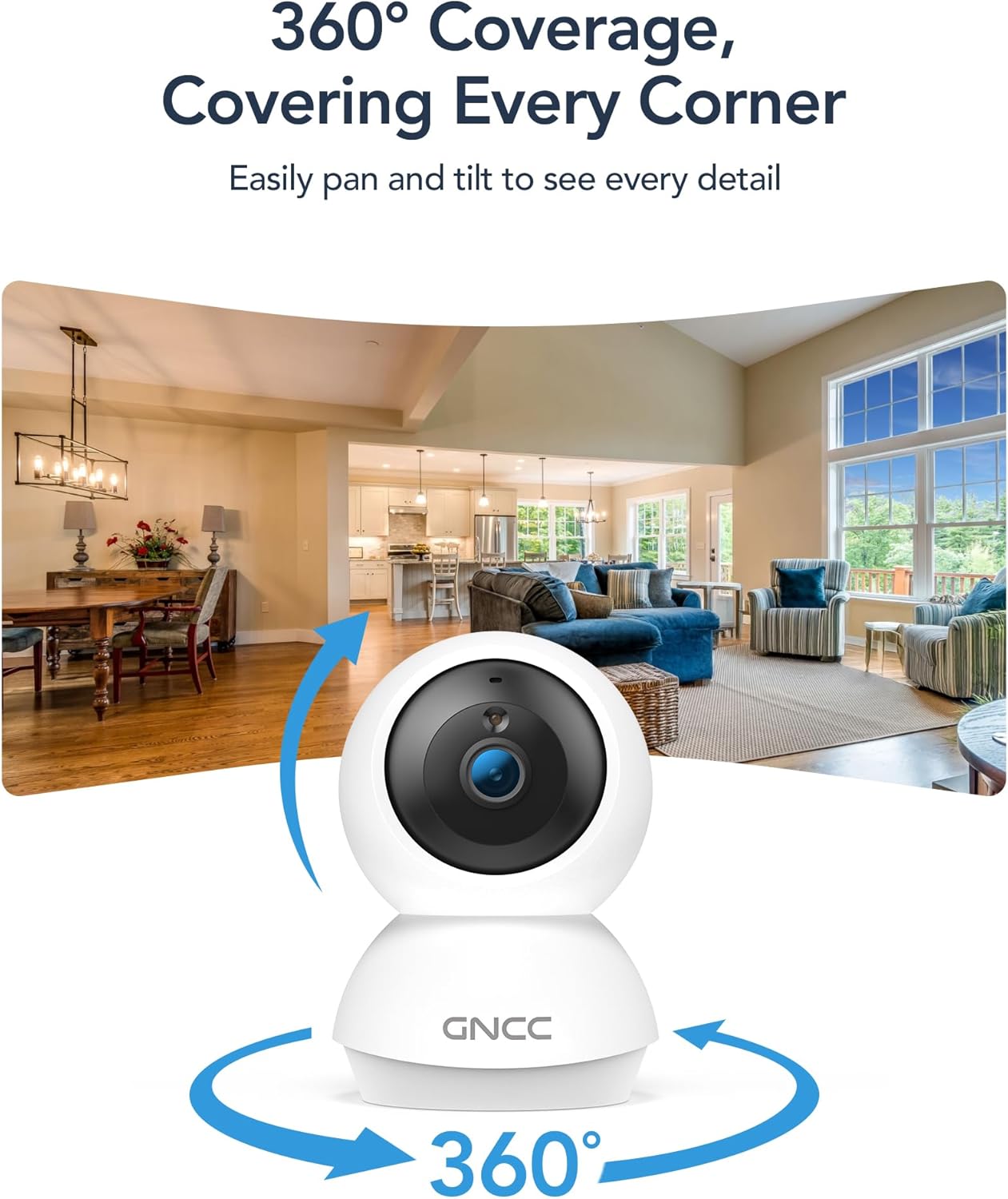
Image: Smart Detection & Instant Alerts
Two-Way Audio & Alexa Compatibility
A built-in high-fidelity microphone and speaker enable real-time communication. Comfort your crying baby, soothe your pet, or greet family members from anywhere. The camera works with Alexa/Google Assistant to view live feeds with voice control.

Image: Two-Way Audio

Image: Alexa/Google Assistant Compatibility
Flexible Options for Cloud/SD Card Storage
The GNCC indoor camera supports both Cloud storage (with a 14-day free trial) and Local storage (SD card not included, up to 128GB) to keep your footage safe. It supports 24/7 continuous recording on an SD card, while Cloud storage offers convenient access to footage hvor som helst fra.

Image: Flexible Optional Storage
All-in-Osaio App & One-Tap Simplicity
Designed with universal compatibility, the Osaio app works seamlessly with all GNCC home camera models, building a home security ecosystem for you. Packed with integrated functions, it offers easy setup, control, and monitoring of your home security in minutes.
Opsætningsvejledning
Follow these steps to set up your GNCC GP6 camera:
- Pak kameraet ud: Carefully remove all components from the packaging. Ensure you have both cameras, power adapters, charging cables, mounting screws, and the user manual.
- Tænd: Connect the camera to a power source using the provided power adapter and charging cable. The camera will power on and indicate readiness for pairing.
- Download the Osaio App: Scan the QR code in the manual or search for "Osaio" in your smartphone's app store (iOS or Android). Download and install the app.
- Registrer en konto: Open the Osaio app and follow the on-screen instructions to register a new account or log in if you already have one.
- Tilføj enhed: In the Osaio app, tap the "+" icon to add a new device. Select your camera model (GP6) and follow the in-app instructions for Bluetooth pairing. Ensure your phone's Bluetooth is enabled and close to the camera.
- Opret forbindelse til Wi-Fi: During the pairing process, you will be prompted to connect the camera to your home Wi-Fi network. The camera supports both 2.4GHz and 5GHz bands for a stable connection.
- Navngiv din enhed: Assign a recognizable name to your camera (e.g., "Living Room Camera," "Baby's Room").
- Monter kameraet (valgfrit): Use the included mounting screws to securely attach the camera to a wall or ceiling if desired. The camera can also be placed on a flat surface.

Image: Osaio App Setup Steps
Opsætningsvideo
Video: Unboxing and Easy Setup Guide for GNCC Indoor Cameras (3:40)
Betjeningsvejledning
Levende View og panorering/tilt-kontrol
Access the live feed of your camera through the Osaio app. Use the on-screen joystick or swipe gestures to remotely control the camera's pan (340° horizontal) and tilt (80° vertical) functions to view forskellige områder af dit værelse.
To-vejs lyd
Tap the microphone icon in the app to speak through the camera's built-in speaker. Tap the speaker icon to listen to audio from the camera's environment. This allows for real-time communication.
Bevægelsesdetektering og sporing
The camera automatically detects motion and sounds. Enable AI Motion Tracking in the app settings to have the camera automatically follow detected movement. You will receive instant notifications on your phone when motion or sound is detected.
Aktivitetszoner, der kan tilpasses
In the Osaio app settings, you can define specific areas within the camera's view as activity zones. This helps reduce unnecessary alerts by focusing detection on critical areas.
Optagelse og opbevaring
The camera supports continuous recording to a local Micro SD card (up to 128GB, not included) or event-based recording to optional cloud storage. Access recorded footage via the Osaio app.
Nattesyn
Kameraet skifter automatisk til nattesynstilstand under svagt lys og giver klar sort-hvid video op til 10 meter.
Privatlivstilstand
Activate Privacy Mode via the Osaio app to temporarily disable monitoring and recording, ensuring your privacy when needed.
Opretholdelse
- Rensning: Use a soft, dry cloth to clean the camera lens and body. Avoid harsh chemicals or abrasive materials.
- Firmwareopdateringer: Regularly check the Osaio app for firmware updates. Keeping your camera's firmware up-to-date ensures optimal performance and security.
- Placering: Sørg for, at kameraet er placeret et stabilt sted, væk fra direkte sollys, varmekilder og fugt.
- SD-kortadministration: If using an SD card, periodically check its status in the app and consider formatting it every few months to maintain performance.
Fejlfinding
- Kamera offline: Check your Wi-Fi connection and ensure the camera is powered on. Restart the camera and your router if necessary. Verify Wi-Fi signal strength in the camera's location.
- Kan ikke oprette forbindelse til appen: Ensure Bluetooth is enabled on your phone during initial setup. Confirm you are connecting to the correct Wi-Fi network. Try resetting the camera and repeating the setup process.
- Dårlig videokvalitet: Check your internet speed. A stable and fast internet connection is crucial for 2K streaming. Ensure the camera lens is clean.
- Bevægelsesdetektion virker ikke: Verify that motion detection is enabled in the Osaio app settings. Adjust sensitivity levels and check activity zone configurations.
- Ingen lyd/Problemer med tovejslyd: Check the volume settings on your phone and in the Osaio app. Ensure the camera's microphone and speaker are not obstructed.
- SD-kort optager ikke: Ensure the SD card is inserted correctly and is not full. Format the SD card via the app if issues persist. Use a compatible SD card (Class 10 or higher, up to 128GB).
Specifikationer
| Feature | Detalje |
|---|---|
| Modelnavn | Indoor Camera (GP6) |
| Videooptagelsesopløsning | 2K (1920p) |
| Forbindelsesteknologi | Wireless (Bluetooth, Wi-Fi 2.4G/5GHz) |
| Særlige funktioner | 2-Way Audio, HD Resolution, Image Sensor, Night Vision, PTZ Technology, AI Motion Tracking, Customizable Zones |
| Indendørs udendørs brug | Indendørs |
| Kompatible enheder | Smartphone (Osaio App), Amazon Alexa, Apple HomeKit |
| Monteringstype | Vægmontering, fritstående |
| Alert Type | Lyd og bevægelse |
| Viewi vinkel | 340 grader (panorering), 80 grader (hældning) |
| Night Vision Range | 10 meter |
| Flash-hukommelse Understøttet Størrelse Maksimum | 128 GB (Micro SD-kort) |
| Strømkilde | Elektrisk med ledning |
| Emnedimensioner | 2.95 x 2.95 x 4.77 tommer |
Garanti og support
Garantioplysninger
Your GNCC GP6 camera comes with a 12 måneders garanti fra købsdatoen. Denne garanti dækker fabrikationsfejl og sikrer, at dit produkt fungerer som tilsigtet ved normal brug. Gem venligst din købsbevis til garantikrav.
Kundesupport
For technical assistance, troubleshooting, or warranty inquiries, please contact GNCC customer support:
- E-mail: support@gncchome.com
- Online support: Visit the official GNCC webwebsted for ofte stillede spørgsmål og yderligere ressourcer.
Vores supportteam er dedikeret til at yde hurtig og hjælpsom assistance.
Ask a question about this manual
Ask about setup, troubleshooting, compatibility, parts, safety, or missing instructions. Manuals+ will review the question and use this page’s manual context to help answer it.