
GeekShare GC1201A
GeekShare Hall Effect Switch Controller (GC1201A) User Manual
Model: GC1201A
1. Introduktion
The GeekShare Hall Effect Switch Controller is a versatile gaming controller designed for multi-platform compatibility, including Nintendo Switch (OLED/NS2/1/Lite), PC (Steam, Windows), and mobile devices (Android, iOS). It features dual-mode connectivity (Bluetooth and 2.4G wireless), a 1000mAh battery, 6-axis gyroscope, dual vibration motors, and customizable RGB lighting for an immersive gaming experience.
Pakkens indhold
- 1 x GeekShare Hall Effect Wireless Controller
- 1 x USB-C opladningskabel
- 1 x 2.4G trådløs modtager
- 1 x brugermanual
2. Nøglefunktioner
- Hall-effekt joysticks: Provides precise control and prevents stick drift.
- Dual Connectivity Modes: Seamlessly switch between Bluetooth 5.0 for mobile and consoles, and 2.4G wireless with the included dongle for PC.
- Multi-platform kompatibilitet: Supports Nintendo Switch (OLED/NS2/1/Lite), PC (Steam, Windows), Android, and iOS devices.
- Fordybende feedback: Features a 6-axis gyroscope for motion control and dual vibration motors with 5-level adjustment for realistic haptic feedback.
- Langtidsholdbart batteri: Integrated 1000mAh rechargeable battery offers up to 15 hours of continuous gameplay.
- RGB-belysning, der kan tilpasses: Enhance your gaming setup with personalized RGB light effects.
- Programmerbare knapper: Two back buttons (M1, M2) can be mapped to complex commands for quick execution.
- Turbofunktion: Auto and manual turbo settings for rapid-fire actions.
Tilslutningsmuligheder
The controller supports three connection methods: Bluetooth, 2.4G wireless (with dongle), and wired USB-C.

Programmerbare knapper
The M1 and M2 buttons on the back can be programmed to perform specific actions, allowing for quick execution of complex in-game commands.

Feedback om vibrationer
Equipped with dual motors, the controller provides adjustable vibration feedback to enhance immersion. There are 5 levels of vibration intensity.

Batterilevetid
The built-in 1000mAh battery provides extended gameplay. A full charge takes approximately 2.5 hours and offers up to 20 hours of continuous use.

Turbofunktion
The controller supports both automatic and manual turbo functions, allowing for rapid, repeated input of a button press. This is typically activated by pressing the 'M' button along with a desired action key.

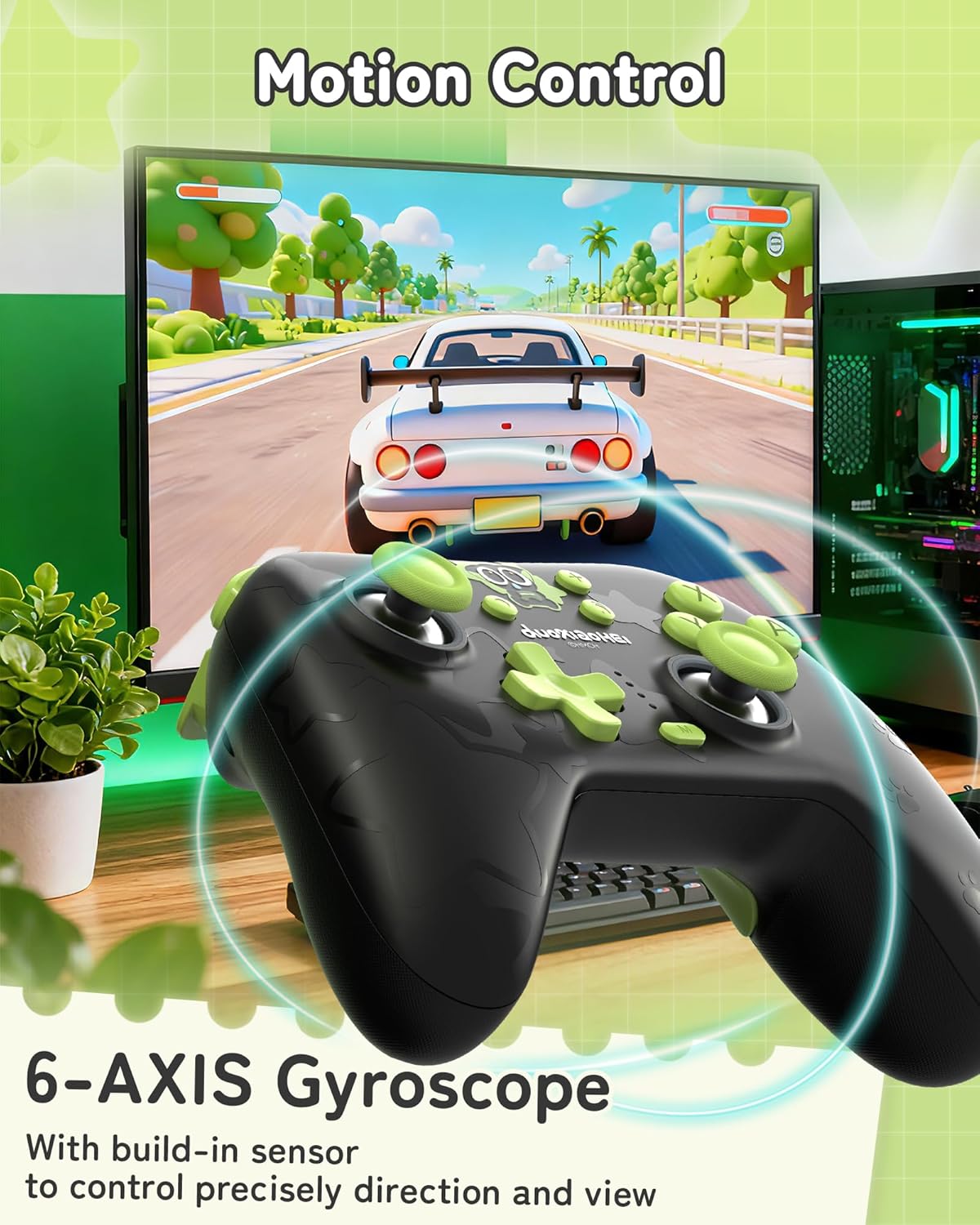
Bevægelseskontrol
A built-in 6-axis gyroscope enables precise motion control, allowing for intuitive direction and view justeringer i kompatible spil.
3. Opsætning og tilslutning
3.1 Opladning af controlleren
Before first use, fully charge the controller. Connect the included USB-C cable to the controller's charging port and the other end to a USB power source (e.g., console, PC, or USB wall adapter). The indicator lights will show charging status and turn off when fully charged.
3.2 Tilslutning til Nintendo Switch (Bluetooth)
- Gå til HOME-menuen på din Nintendo Switch.
- Vælg "Controllere" > "Skift greb/rækkefølge".
- Press and hold the Pairing button on the top of the GeekShare controller until the indicator lights begin to flash rapidly.
- The Switch will detect the controller. Once paired, the indicator light(s) on the controller will remain solid.
- Note: This controller may not support waking up the Switch console from sleep mode. You may need to manually wake the console before connecting.
3.3 Connecting to PC (2.4G Wireless)
- Sæt den trådløse 2.4G-modtager i en ledig USB-port på din pc.
- Turn on the GeekShare controller.
- The controller should automatically connect to the receiver. The indicator light(s) on the controller will remain solid once connected.
- If connection fails, press the pairing button on the controller and the button on the 2.4G receiver simultaneously to initiate pairing.
3.4 Connecting to Mobile Devices (Bluetooth)
- Sørg for, at Bluetooth er aktiveret på din Android- eller iOS-enhed.
- On your device, go to Bluetooth settings and scan for new devices.
- Press and hold the Pairing button on the top of the GeekShare controller until the indicator lights begin to flash rapidly.
- Select "GeekShare Controller" (or similar name) from the list of available devices.
- Når de er parret, vil indikatorlampen(erne) på controlleren forblive lyse konstant.
3.5 Kabelforbindelse
Connect the controller directly to your device (Switch dock, PC) using the USB-C cable. The controller will function as a wired controller and will also charge simultaneously.
4. Betjeningsvejledning
4.1 Grundlæggende kontroller
The controller features standard button layouts including A/B/X/Y buttons, D-pad, Left/Right joysticks, L/R/ZL/ZR shoulder buttons, and Home/Capture/Plus/Minus buttons. Refer to in-game prompts for specific button functions.
4.2 Programming M1/M2 Buttons
The M1 and M2 buttons on the back can be assigned to replicate other button presses or sequences. Consult the full user manual (included in the box) for detailed programming instructions, as the process may vary based on desired complexity.
4.3 Turbo Function Activation
To activate the Turbo function for a specific button:
- Tryk på 'M'-knappen og hold den nede.
- While holding 'M', press the desired action button (e.g., A, B, X, Y, L, R, ZL, ZR).
- Release both buttons. The selected button will now have the Turbo function enabled.
To adjust between manual and auto turbo, or to clear the turbo setting, refer to the detailed instructions in the included user manual.
4.4 Justering af vibrationsintensitet
The controller offers 5 levels of vibration intensity. Specific button combinations (e.g., 'M' button + D-pad Up/Down) are typically used to cycle through these levels. Refer to the included user manual for the exact key combinations.
4.5 RGB-lysstyring
The RGB lighting can be customized. This usually involves pressing a dedicated button or a combination of buttons to change colors, patterns, or turn the lighting on/off. Consult the included user manual for specific instructions.
5. Vedligeholdelse og pleje
- Hold controlleren tør og væk fra ekstreme temperaturer.
- Rengør controlleren med en blød, tør klud. Brug ikke skrappe kemikalier eller slibende materialer.
- Undgå at tabe controlleren eller udsætte den for kraftige stød.
- Opbevar controlleren et rent og støvfrit miljø, når den ikke er i brug.
- Charge the controller regularly, even if not used frequently, to maintain battery health.
6. Fejlfinding
6.1 Controlleren opretter ikke forbindelse
- Sørg for, at controlleren er tilstrækkeligt opladet.
- Verify that the correct connection mode (Bluetooth, 2.4G, Wired) is selected or attempted for your device.
- For Bluetooth, ensure your device's Bluetooth is on and the controller is in pairing mode (flashing lights).
- For 2.4G, ensure the receiver is properly inserted into the PC and try re-pairing if necessary.
- Prøv at genstarte både controlleren og den enhed, du forsøger at oprette forbindelse til.
- If connecting to Switch, ensure you are in the "Change Grip/Order" menu.
6.2 Inputforsinkelse eller afbrydelser
- Sørg for, at der ikke er stærke elektromagnetiske forstyrrelser i nærheden.
- Move closer to the connected device (for wireless connections).
- For PC, ensure the 2.4G receiver is in a clear line of sight and not obstructed.
- Prøv en kablet forbindelse for at udelukke trådløs interferens.
6.3 Knapper eller joysticks reagerer ikke
- Kontroller, om controlleren er korrekt tilsluttet og tændt.
- Genstart controlleren og spilleenheden.
- Sørg for, at der ikke sidder snavs omkring knapperne eller joystickene.
- If the issue persists, a factory reset (if available, consult the included manual) might be necessary.
6.4 Controlleren oplader ikke
- Sørg for, at USB-C-kablet er korrekt tilsluttet til både controlleren og strømkilden.
- Prøv et andet USB-C-kabel eller en anden strømkilde.
- Verify the power source is active and providing sufficient power.
7. Specifikationer
| Modelnummer | GC1201A |
| Forbindelse | Bluetooth 5.0, 2.4G Wireless (with receiver), USB-C Wired |
| Kompatibilitet | Nintendo Switch (OLED/NS2/1/Lite), PC (Windows), Android, iOS |
| Batterikapacitet | 1000mAh |
| Spilletid | Up to 15-20 hours (approx.) |
| Opladningstid | Ca. 2.5 timer |
| Bevægelsessensor | 6-akse Gyroskop |
| Vibration | Dual Motors with 5-level adjustment |
| Særlige funktioner | Hall Effect Joysticks, Programmable M1/M2 buttons, Turbo function, RGB Lighting |
8. Garanti og support
For warranty information and technical support, please refer to the official GeekShare website or contact their customer service directly. Details can typically be found on the product packaging or the included user manual.
GeekShare Official Webwebsted: Visit GeekShare Store on Amazon
Ask a question about this manual
Ask about setup, troubleshooting, compatibility, parts, safety, or missing instructions. Manuals+ will review the question and use this page’s manual context to help answer it.