
Indledning
This manual provides essential information for the safe and efficient operation of your GooDee 4K UHD Smart Projector. Please read it thoroughly before using the device and retain it for future reference. This projector integrates Google TV, AI voice control, advanced connectivity, and automatic image adjustments for a premium viewoplevelse.
Hvad er der i æsken
Bekræft at alle varer er til stede ved udpakning:
- Strømledning
- HDMI kabel
- Projektor linsedæksel
- Fjernbetjening
- Brugermanual
Produkt overview
Familiarize yourself with the physical components and features of your projector.
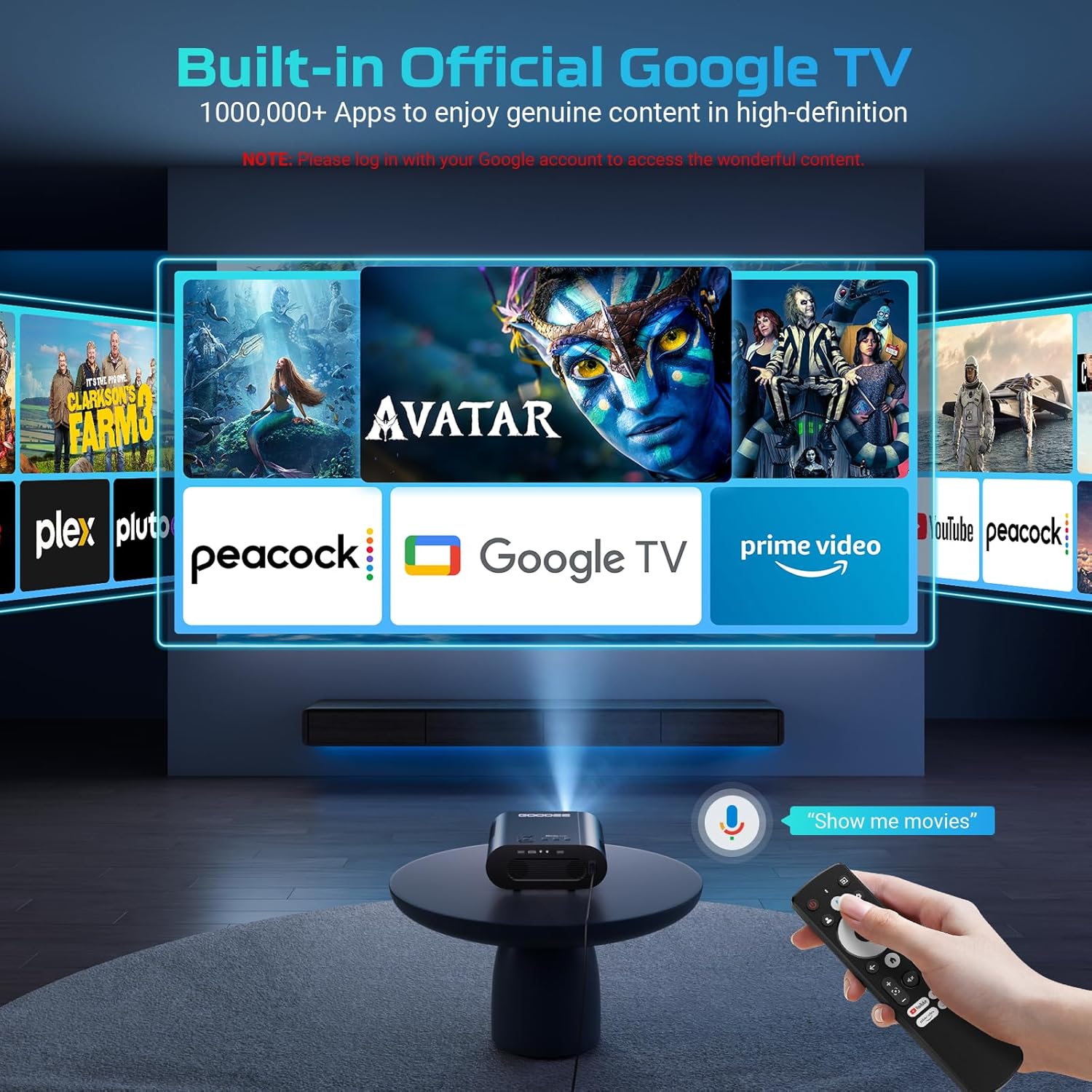
Billede: The GooDee 4K UHD Smart Projector, showcasing its compact design and the Google TV interface projected onto a large screen, with the remote control visible in the foreground.
Porte og forbindelser

Billede: En detaljeret view of the projector's rear panel, highlighting the HDMI, USB, and audio output ports for connecting external devices.
- HDMI -indgang: Supports 4K resolution for connecting external media players, gaming consoles, or laptops.
- USB-porte (x2): For connecting USB flash drives to play media directly.
- Lydudgang (3.5 mm): Til tilslutning af eksterne hovedtelefoner eller højttalere.
- AV-indgang: Til tilslutning af ældre enheder ved hjælp af et AV-kabel.
- Strømindgang: Standard AC 100-240V, 50/60Hz.
Kontroller og justeringer
- Manual Focus/Keystone Dials: Located on the top of the projector for fine-tuning image clarity and shape.
- Fjernbetjening: Full-function remote with dedicated buttons for popular streaming apps (Netflix, YouTube, Prime Video) and Google Assistant voice control.
- Monteringsgevind: A 1/4-inch thread on the bottom allows for tripod or ceiling mounting. An adjustable bolt is also present for desktop angle adjustment.
Opsætningsvejledning
Follow these steps for initial setup and configuration.
1. Første opstart
- Tilslut netledningen til projektoren og en stikkontakt.
- Tryk på tænd/sluk-knappen på projektoren eller fjernbetjeningen for at tænde for enheden.
- The projector will boot up and display the initial setup screen.
2. Tilslutning til Wi-Fi
- On the setup screen, select your preferred language.
- Navigate to the Wi-Fi settings and select your home network.
- Enter your Wi-Fi password using the on-screen keyboard and remote control.
- Once connected, the projector will guide you through Google TV setup, including signing in with your Google account.

Billede: The projector displaying the Google TV home screen, showing popular streaming applications like YouTube, Prime Video, and Hulu, indicating successful Wi-Fi and Google TV setup.
3. Image Adjustment (Auto Focus & Keystone)
The projector features Smart AI Setup for automatic image correction.
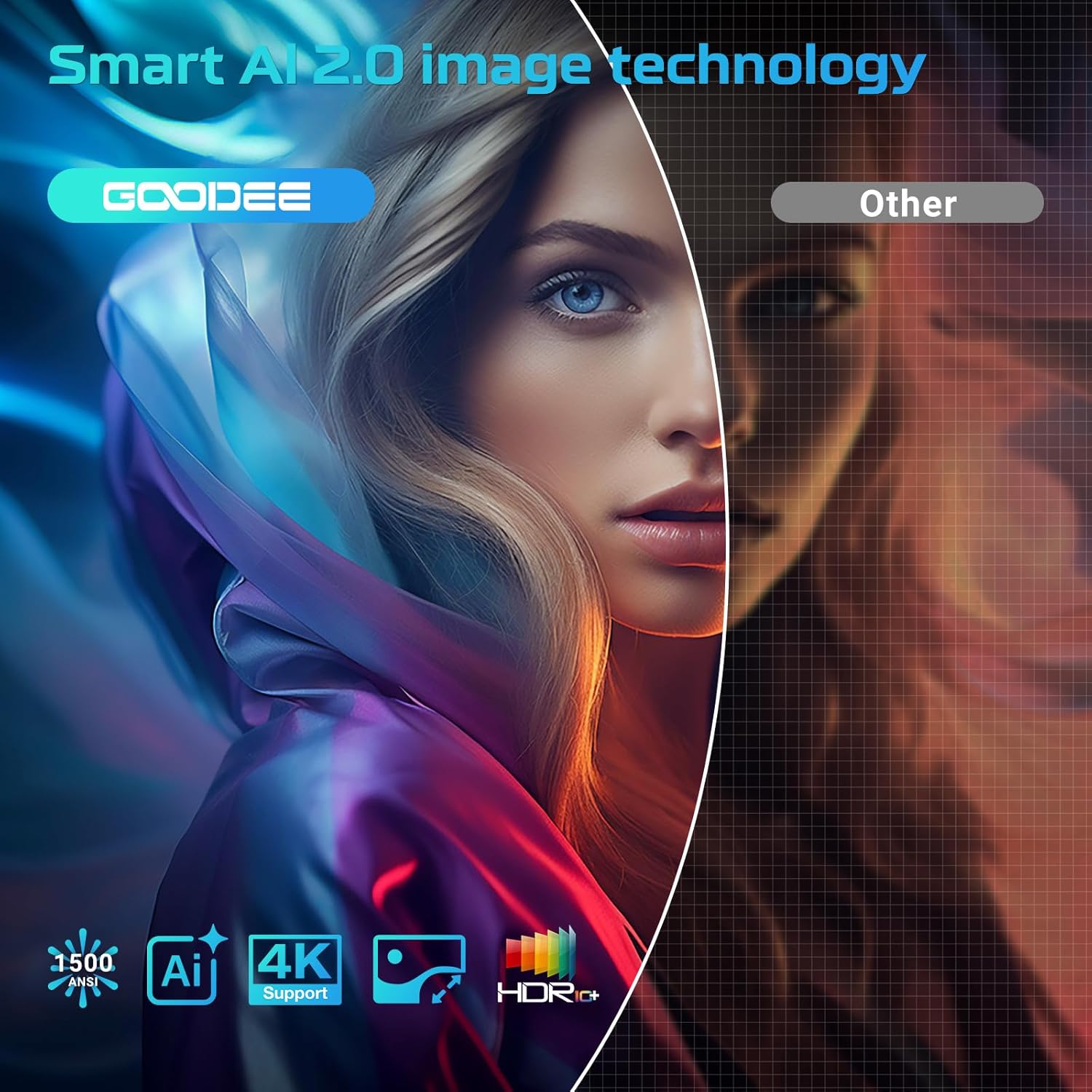
Billede: The projector demonstrating its AI Auto Focus and Auto Keystone Correction features, ensuring a clear and perfectly shaped image on the screen.
- The projector will automatically detect and correct image distortion and focus upon startup or movement.
- For manual adjustments, use the focus and keystone dials on the projector or the corresponding buttons on the remote control.
- Zoom & Shift: Adjust the screen size from 50% to 100% and reposition the image using the remote control settings.
4. Tilslutning af eksterne enheder
- HDMI: Connect your device to the HDMI port. The projector will automatically switch to the HDMI input.
- USB: Insert a USB flash drive into a USB port. The media player app will usually launch automatically.
- Bluetooth: Navigate to the Bluetooth settings in the Google TV menu to pair with external Bluetooth speakers or headphones.
Betjeningsvejledning
Maksimer din viewing experience with the projector's smart features.
Google TV-grænseflade
The projector comes with officially authorized Google TV, providing access to over 1,000,000 applications.
Video: An official GooDee video demonstrating the Google TV interface and its seamless navigation, highlighting the integration of various streaming services and apps.
- The home screen displays recommended content and your installed apps.
- Navigate using the directional pad on the remote control.
- Access the App Store to download additional applications.
AI Smart Voice Assistant
Use your voice to control the projector and access content quickly.

Billede: A user holding the remote control and speaking into it, demonstrating the AI Smart Voice Assistant feature to control the projector and search for content.
- Press and hold the voice control button (microphone icon) on your remote.
- Speak your command clearly, such as "Open Netflix," "Søg efter movies," or "Adjust volume."
- The projector will execute the command or display relevant search results.
Streamingapplikationer
Enjoy a wide range of entertainment directly from your projector.
- Popular apps like YouTube, Prime Video, Hulu, and Disney+ are readily available.
- Ensure you are logged into your respective accounts for full access to content.
Image & Sound Settings
Tilpas din viewlyd- og lytteoplevelse.
Billedindstillinger
- Access picture settings via the Google TV menu.
- Choose from preset modes: Standard, Vivid, Movie, or Game.
- Utilize the Custom mode to manually adjust Contrast, Saturation, Sharpness, Color Temperature, and Gamma.
Lydindstillinger

Billede: The projector highlighting its Bluetooth 5.2 and Dolby Audio capabilities, showing a cinematic setup with external speakers for an immersive sound experience.
- The projector features dual 15W speakers with Dolby Audio for 360° surround sound.
- Select from sound modes: Standard, Movie, Music, or Sport.
- Adjust advanced sound controls, including surround sound and expert settings.
Opretholdelse
Korrekt vedligeholdelse sikrer projektorens levetid og optimale ydeevne.
- Rengøring af linser: Use the provided lens cloth to gently wipe the projector lens. Avoid abrasive materials or harsh chemicals.
- Fjernelse af støv: Regularly clean the air inlet and outlet vents to prevent dust buildup, which can affect performance and lead to overheating.
- Opbevaring: When not in use, cover the lens with the provided lens cap and store the projector in a cool, dry place.
Fejlfinding
Se dette afsnit for løsninger på almindelige problemer.
| Spørgsmål | Mulig løsning |
|---|---|
| Sløret billede | Adjust the focus manually using the dial or remote. Ensure the projector is placed at an optimal distance from the screen. |
| Distorted Image (Trapezoid) | Use the auto keystone correction feature or manually adjust keystone via the remote control settings. |
| Ingen Wi-Fi-forbindelse | Check your Wi-Fi password and ensure the projector is within range of your router. Restart the projector and router if necessary. |
| Ingen lyd | Check volume levels on the projector and any connected external audio devices. Ensure correct audio output settings are selected. |
| Fjernbetjeningen reagerer ikke | Ensure batteries are correctly inserted and charged. Re-pair the remote control if necessary (refer to remote's specific instructions). |
Specifikationer
| Feature | Detalje |
|---|---|
| Produktdimensioner | 16.9 x 31.6 x 12.7 tommer |
| Varens vægt | 4.24 pund |
| Skærmopløsning | 1920 x 1080 (Native 1080P, 4K support) |
| Forbindelsesteknologi | Dual-Band Wi-Fi 6, Bluetooth 5.2, HDMI, USB, AV |
| Særlige funktioner | Built-in Google TV, AI Smart Voice Assistant, Auto Focus, Auto Keystone Correction, Dolby Audio, 50%-100% Zoom |
| Anbefalede anvendelser | Home Cinema, Indoor/Outdoor Entertainment |
Garanti og support
For warranty information, technical support, or service inquiries, please refer to the contact details provided in your product packaging or visit the official GooDee webwebsted.