
1. Introduktion
The OTTOCAST Mini 3.0 (Pot) is a 2-in-1 wireless adapter designed to convert your car's existing wired CarPlay or Android Auto system into a wireless experience. Enjoy seamless smartphone connectivity, navigation, music, and communication without the need for cables.

Image: The OTTOCAST MINI Pot adapter shown in a car interior, illustrating its wireless connectivity for Apple CarPlay and Android Auto.
2. Hvad er der i æsken
Your OTTOCAST Mini 3.0 package includes the following items:
- Wireless CarPlay/Android Auto Adapter (OTTOCAST Mini Pot)
- USB Plug Adapter (Type-A to Type-C)
- Brugermanual
- Produkt emballage
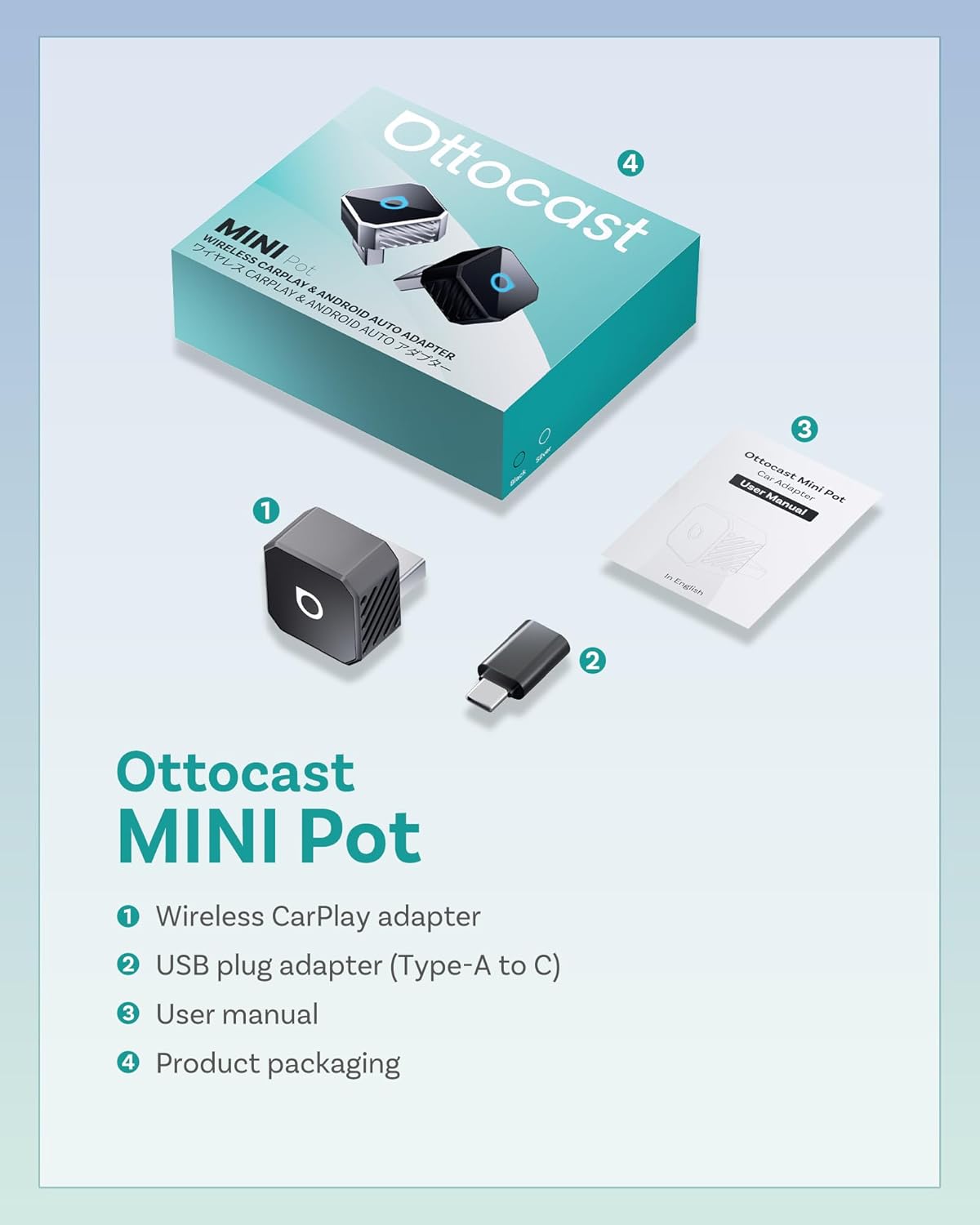
Image: The OTTOCAST Mini Pot, a USB-A to USB-C adapter, and the user manual, laid out next to the product box.
3. Opsætningsvejledning
Follow these steps to set up your OTTOCAST Mini 3.0 adapter for the first time:
- Sæt adapteren i: Connect the OTTOCAST Mini 3.0 adapter into your car's USB port. If your car has a USB-C port, use the provided USB-A to USB-C adapter. The adapter's LED light will illuminate.
- Aktivér Bluetooth og Wi-Fi: Sørg for, at både Bluetooth og Wi-Fi er aktiveret på din smartphone.
- Par med Bluetooth: On your phone's Bluetooth settings, search for available devices and select the one named "AUTO2-XXX" (where XXX is a unique identifier for your device). Confirm the pairing request on your phone and car's infotainment screen if prompted.
- Tillad tilladelser: Grant necessary permissions for contacts and favorites sync if requested.
- Connect to CarPlay/Android Auto: Når den er parret, burde din bils infotainmentsystem automatisk starte Apple CarPlay eller Android Auto trådløst.

Image: Visual guide showing the three simple steps to set up the OTTOCAST Mini Pot: plugging it in, pairing via Bluetooth, and starting wireless CarPlay/Android Auto.
Konfigurationsvideoguide:
Video: An official seller video demonstrating the quick and easy plug-and-play setup process for the OTTOCAST Mini 3.0 adapter, highlighting wireless freedom.
4. Betjeningsvejledning
Once the adapter is set up, it will automatically connect to your paired smartphone every time you start your car. The adapter maintains your original car controls for a familiar user experience.
- Automatisk genforbindelse: The adapter will reconnect in seconds once the engine is on, without any extra steps.
- Originale bilkontroller: Continue to use your car's touchscreen, steering wheel buttons, and rotary knob controls as you normally would for navigation, music, and calls.
- Stemmeassistent: Activate your smartphone's voice assistant (Siri or Google Assistant) for hands-free control.
- Dobbelt enhedshukommelse: The adapter can store pairing information for two devices, automatically connecting to the most recently used phone. To switch between phones, ensure the currently connected phone's Bluetooth/Wi-Fi is off, then connect the other phone.

Stemmeassistent

Touchscreen-kontrol

Knop kontrol

Ratkontrol
Image: Icons illustrating various control methods supported by the adapter, including voice, touchscreen, knob, and steering wheel controls.
5. Kompatibilitet
The OTTOCAST Mini 3.0 adapter is designed for broad compatibility with various vehicles and smartphones:
- Køretøjskompatibilitet: Works with most cars manufactured in 2016 or later that come with factory-wired Apple CarPlay or Android Auto.
- Smartphone -kompatibilitet:
- iPhone: Supports iOS 10 or later (iPhone 5 and all newer models).
- Android-telefoner: Requires Android 11 or later with 5GHz Wi-Fi support (common in 2020+ models).
- Note: This adapter is not compatible with BMW or Tesla vehicles.

Image: A visual representation of the adapter's broad compatibility with over 800 car models, excluding BMW and Tesla.
For a detailed compatibility list, please visit: https://check.adaptermanual.com/AMZ/
6. Vedligeholdelse
To ensure optimal performance and longevity of your OTTOCAST Mini 3.0 adapter:
- Hold enheden ren og fri for støv og snavs.
- Undgå at udsætte adapteren for ekstreme temperaturer eller fugt.
- Handle the adapter gently to prevent physical damage.
- The metal frame is designed for fast heat dissipation, ensuring consistent performance.
7. Fejlfinding
If you encounter issues with your OTTOCAST Mini 3.0 adapter, try the following solutions:
- Ingen forbindelse:
- Ensure the adapter is securely plugged into the correct USB port (data-enabled, not just charging).
- Verify that Bluetooth and Wi-Fi are enabled on your smartphone.
- Check your phone's Bluetooth settings to confirm it's paired with "AUTO2-XXX".
- Genstart din bils infotainmentsystem og din smartphone.
- Periodiske afbrydelser:
- Ensure the adapter is firmly seated in the USB port. The tapered design helps maintain a strong connection.
- Minimize interference from other wireless devices in the car.
- Update the adapter's firmware (see "Online Update" section).
- Screen Goes Black Occasionally:
- This can be a rare wireless quirk. Ensure firmware is up to date.
- If persistent, try resetting the adapter (long press the button for 15 seconds to clear data).
- Delay in Audio/Video:
- While designed for low latency, some minor delays can occur. Ensure your phone's software and the adapter's firmware are updated.
Online opdatering:
To update the adapter's firmware:
- Plug the product into the car's USB port.
- Connect your iPhone/Android phone to the product's Wi-Fi network.
- Enter "192.168.1.101" in your mobile browser.
- Go to the backend interface and click "Update" if a new version is available.

Image: Visual guide detailing the steps for performing an online firmware update for the OTTOCAST Mini Pot.
For further support, scan the QR code or visit: http://otto-cast.com/app/QRCode/download.html
8. Specifikationer
| Modelnavn | CP88-T3 |
| Speciel funktion | Lav latens |
| Forbindelsesteknologi | Bluetooth, 5GHz Wi-Fi (802.11ac) |
| Strømkilde | Elektrisk ledning (USB) |
| Materiale | Metal, Plast |
| Farve | Sort |
| Installationstype | Trådløs |
| Kontrolmetode | App |
| Kompatible enheder | iPhone (iOS 10+), Android (Android 11+ with 5GHz WiFi) |
| Understøttede applikationer | Spotify, YouTube, MP3, AAC, etc. |
| Varedimensioner (L x B x H) | 0.82 cm L x 0.82 cm B x 0.93 cm H |
9. Garanti og support
The OTTOCAST Mini 3.0 adapter comes with a 2 års producentgaranti for your peace of mind. This covers any defects in materials or workmanship under normal use.
- Garantivarighed: 24 måneder fra købsdatoen.
- Kravproces: Proof of purchase is required for all warranty claims. Please contact OTTOCAST customer support for assistance.

Image: A graphic illustrating the 2-year protection plan offered with the OTTOCAST Mini Pot, emphasizing extended coverage.
For further support, troubleshooting, or warranty inquiries, please refer to the contact information provided in your user manual or visit the official OTTOCAST webwebsted.