
Leadfan US02-QYY-SW340-1
Leadfan 9-inch Car Radio Stereo User Manual
For Subaru Forester (2008-2012) and Impreza WRX (2007-2011)
Model: US02-QYY-SW340-1
1. Introduktion
This manual provides detailed instructions for the installation, operation, and maintenance of your Leadfan 9-inch Car Radio Stereo. This unit is designed to enhance your driving experience with features such as wireless Apple CarPlay, Android Auto, GPS navigation, Bluetooth connectivity, and more. Please read this manual thoroughly before installation and use to ensure proper function and safety.
2. Køretøjskompatibilitet
This car radio stereo is compatible with the following vehicle models:
- Subaru Forester: 2008, 2009, 2010, 2011, 2012
- Subaru Impreza WRX: 2007, 2008, 2009, 2010, 2011
Vigtig bemærkning:
This unit is designed for vehicles without a factory large screen or amplivligere. Please verify your vehicle's dashboard configuration before installation. Refer to the image below for visual guidance on compatible and incompatible dashboard types.
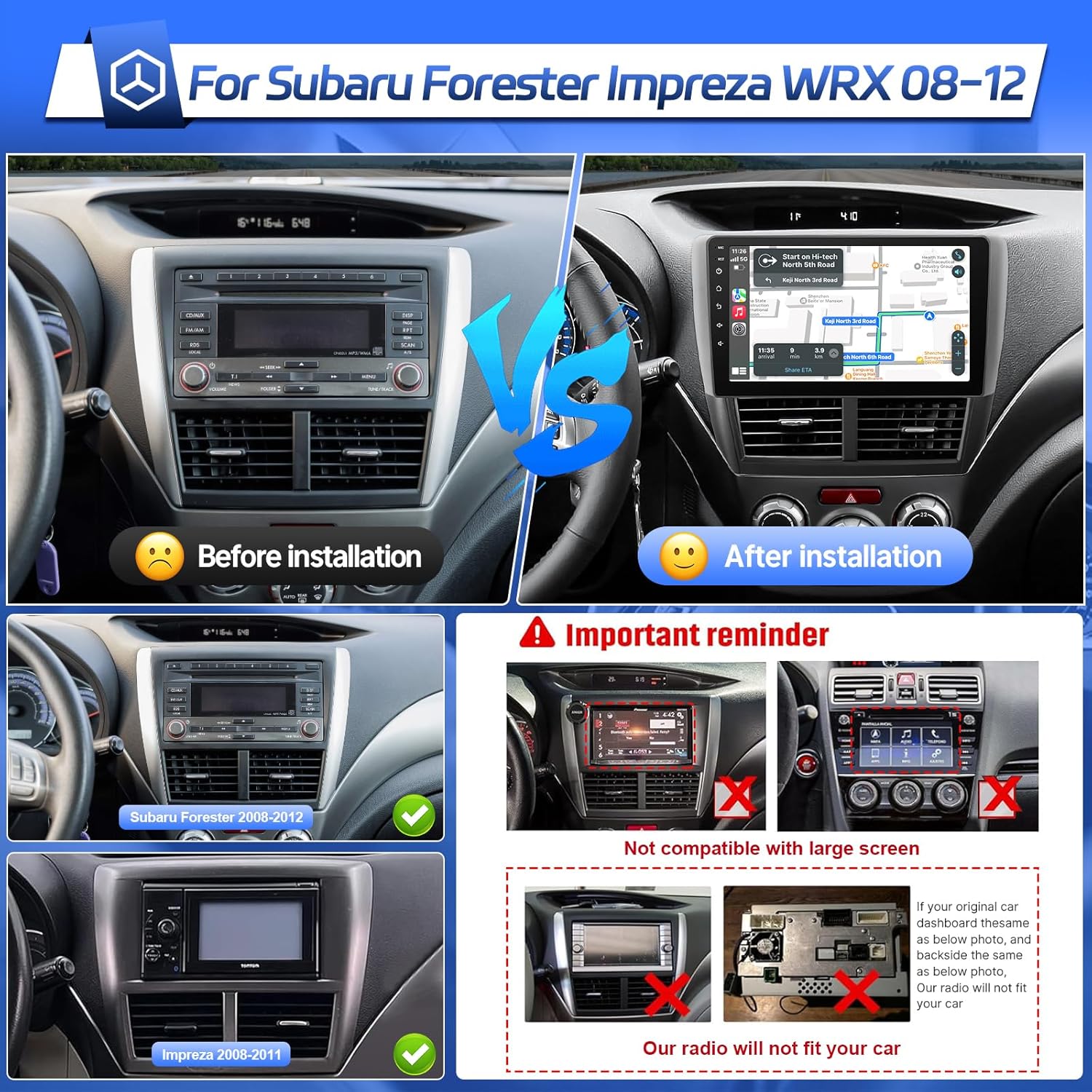
Image: Comparison of a Subaru Forester dashboard before and after the Leadfan car radio installation. It also illustrates compatible dashboards for Subaru Forester (2008-2012) and Impreza (2008-2011), and highlights incompatible dashboards with existing large screens or specific factory radio designs.
3. Pakkens indhold
Tjek venligst pakken for følgende varer:
- Leadfan 9-inch Car Radio Stereo Unit
- Strømkabel
- RCA kabler
- USB-kabler (x2)
- GPS antenne
- Backup kamera
- Mikrofon (MIC)
- Køretøjsmontering
- Brugermanual
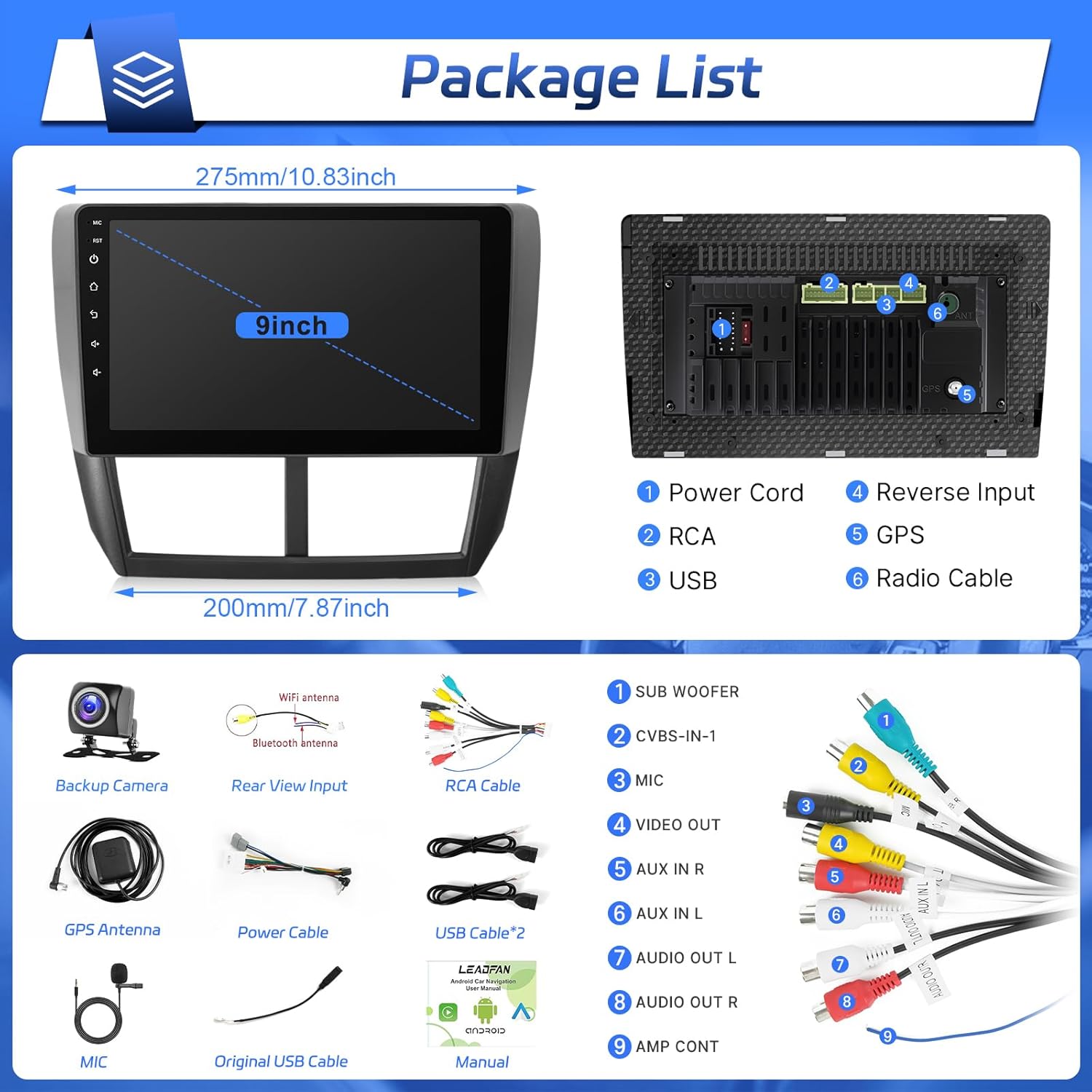
Image: A visual representation of the car radio unit's dimensions and its rear connection ports, alongside all accessories included in the package, such as various cables, antennas, and the backup camera.
4. Opsætning og installation
Installation of this unit is designed to be plug-and-play for compatible Subaru models. However, professional installation is recommended if you are unfamiliar with car audio wiring.
4.1 Tjekliste før installation
- Ensure the vehicle's ignition is off and the battery's negative terminal is disconnected.
- Bekræft at alt indhold i pakken er til stede.
- Review your vehicle's existing dashboard and wiring to ensure compatibility.
4.2 Installationstrin
- Fjern fabriksradio: Carefully remove the trim panels and screws securing your existing factory radio.
- Tilslut ledningsnet: Connect the provided power cable and RCA cables to the corresponding ports on the new Leadfan unit and your vehicle's wiring harness. Ensure all connections are secure. Refer to the wiring diagram in the 'Package Contents' section for port identification.
- Installer GPS-antenne: Mount the GPS antenna on the dashboard or another location with a clear view of the sky. Route the cable to the unit and connect it to the 'GPS' port.
- Installer WiFi-antenne: Connect the WiFi antenna to the designated port on the unit.
- Tilslut USB-kabler: Før USB-kablerne til et praktisk sted (f.eks. handskerummet), og tilslut dem til enheden.
- Tilslut mikrofon: Plug in the external microphone for improved call quality and voice commands. Position it near the driver for optimal performance.
- Installer bakkamera (valgfrit): If installing the included backup camera, route the video cable from the rear of the vehicle to the unit and connect it to the 'Reverse Input' port. Connect the camera's power to the vehicle's reverse light circuit.
- Monter enheden: Secure the Leadfan unit into the dashboard opening using the provided vehicle mount and screws.
- Gentilslut batteri: Tilslut køretøjets negative batteripol igen.
- Test funktionalitet: Turn on the ignition and test all functions of the new car radio stereo.
5. Betjeningsvejledning
This section details the primary functions and how to operate your Leadfan car radio stereo.
5.1 Trådløs Apple CarPlay og Android Auto
Connect your smartphone wirelessly to access navigation, music, calls, and messages directly on the car's display.
- Sørg for, at Bluetooth og Wi-Fi er aktiveret på din smartphone.
- Naviger til CarPlay- eller Android Auto-appen på bilstereoen.
- Follow the on-screen prompts to pair your phone. For Apple CarPlay, select your device from the list. For Android Auto, ensure the Android Auto app is installed on your phone.
- Once connected, your phone's compatible apps will appear on the stereo screen.

Image: The user interface of the car radio displaying both Apple CarPlay and Android Auto. CarPlay shows a grid of applications including Phone, Music, Waze, and Messages. Android Auto shows a similar layout with navigation and media controls.
5.2 Bluetooth-forbindelse
Par din telefon via Bluetooth for håndfri opkald og trådløs lydstreaming.
- On the car stereo, go to the Bluetooth settings.
- Aktiver Bluetooth på din smartphone, og søg efter tilgængelige enheder.
- Select the car stereo's Bluetooth name (e.g., "Leadfan Car BT") from your phone's list and confirm pairing.
- Når den er tilsluttet, kan du foretage/modtage opkald og afspille musik via bilens højttalere.

Image: A driver interacting with the car radio's Bluetooth interface for hands-free calling. The screen displays a dial pad and call options, while a smartphone shows an active call, demonstrating the integrated Bluetooth functionality.
5.3 GPS Navigation & Wi-Fi Function
Utilize built-in GPS for navigation and connect to Wi-Fi for online features.
- GPS-navigation: The unit comes with a built-in GPS module. You can use pre-installed offline maps or download online navigation apps via the Play Store.
- Wi-Fi-forbindelse: Go to Settings > Wi-Fi. Turn on Wi-Fi and connect to an available hotspot (e.g., from your smartphone) to access online features, download apps, and get live traffic updates.

Image: The car radio screen showing a GPS navigation map with route information and various application shortcuts. Another inset image demonstrates the unit connected to Wi-Fi, displaying a web browser with YouTube content.
5.4 FM radio
Access your favorite radio stations with the integrated FM tuner.
- Select the 'FM Radio' application from the main menu.
- Use the scan function to automatically find and save available stations, or manually tune to a specific frequency.
- Save your preferred stations as presets for quick access.
5.5 Ratbetjening (SWC)
Konfigurer knapperne på dit køretøjs rat til at styre bilstereoen.
- Gå til 'Indstillinger', og find indstillingen 'Ratbetjening' eller 'SWC'.
- Follow the on-screen instructions to map each physical button on your steering wheel to a corresponding function on the stereo (e.g., volume up/down, track skip, mode).
5.6 bag View Kamera
Enheden understøtter en bagside view kamera for sikrere parkering og bakning.
- When the vehicle is shifted into reverse gear, the screen will automatically display the rear view kamera-feed.
- The camera provides a 170° viewing angle to assist in detecting obstacles.
5.7 EQ-indstillinger
Customize your audio experience with the equalizer settings.
- Access the 'EQ' or 'Sound Settings' application.
- Adjust bass, treble, balance, and fader. Choose from preset sound modes (Rock, Pop, Jazz, Classical, etc.) or create a custom profile.
5.8 Spejllink
Spejl din smartphones skærm direkte på bilstereoens display.
- Open the 'Mirror Link' application on the stereo.
- Follow the instructions to connect your Android or iOS device. This typically involves connecting via USB or Wi-Fi and enabling screen mirroring on your phone.

Image: A multi-panel image illustrating several features: the audio equalizer (EQ) settings, a smartphone screen mirrored onto the car radio display, the interface for configuring steering wheel controls, and the view from the backup camera with parking guidelines.
5.9 Opdelt skærmfunktion
Multitask ved at køre to applikationer samtidigt på skærmen.
- Åbn det første program, du ønsker at bruge.
- Press and hold the recent apps button or swipe from the side (depending on the interface) to activate split-screen mode.
- Select the second application to display it alongside the first.

Image: The car radio screen demonstrating the split-screen feature, with the YouTube application running on the left side and a local music player interface on the right side, allowing for simultaneous use of two apps.
6. Vedligeholdelse
Proper care will ensure the longevity and optimal performance of your car radio stereo.
- Rensning: Brug en blød, tør klud til at rengøre skærmen og enheden. Ved genstridige pletter, tør letampRengør kluden med vand eller et skærmsikkert rengøringsmiddel. Undgå slibende materialer eller barske kemikalier.
- Softwareopdateringer: Periodically check for software updates via the system settings. Connecting to Wi-Fi will allow you to download and install updates that may improve performance or add new features.
- Temperatur: Undgå at udsætte enheden for ekstreme temperaturer i længere perioder.
7. Fejlfinding
Hvis du støder på problemer, kan du se følgende almindelige problemer og løsninger:
| Problem | Mulig årsag | Løsning |
|---|---|---|
| Enheden tænder ikke. | Løs strømforbindelse, sprunget sikring, forkert ledningsføring. | Kontroller strømkabelforbindelserne. Undersøg køretøjets sikringsboks og enhedens sikring. Verificér ledningsføringen i forhold til diagrammet. |
| Ingen lyd fra højttalere. | Lydstyrken er for lav, forkert lydkilde, problemer med højttalerledningerne. | Øg lydstyrken. Vælg den korrekte lydkilde. Kontroller højttalertilslutningerne. |
| Bluetooth opretter ikke forbindelse. | Bluetooth off on phone/unit, incorrect pairing process. | Sørg for, at Bluetooth er aktiveret på begge enheder. Slet tidligere parringer, og par dem igen. Genstart begge enheder. |
| GPS-signalet er svagt eller unøjagtigt. | GPS-antennen er blokeret eller forkert placeret. | Sørg for, at GPS-antennen har en fri view af himlen. Kontroller antenneforbindelsen. |
| Bakkameraet viser ikke. | Incorrect wiring, camera malfunction, reverse trigger not connected. | Check camera video and power connections. Ensure reverse trigger wire is correctly connected to the vehicle's reverse light. |
| Touchscreen reagerer ikke. | Midlertidig softwarefejl. | Perform a soft reset (refer to unit's specific reset procedure, usually a small reset button). If issue persists, contact support. |
If the problem persists after attempting these solutions, please contact Leadfan customer support.
8. Specifikationer
| Feature | Detalje |
|---|---|
| Model | US02-QYY-SW340-1 |
| Skærmstørrelse | 9 tommer |
| Operativsystem | Android 12 |
| Processor | 4 Kerne |
| VÆDDER | 2 GB |
| Intern opbevaring | 32 GB |
| Forbindelse | Bluetooth, USB, Wi-Fi |
| Særlige funktioner | Wireless CarPlay, Android Auto, Touchscreen, GPS Navigation, FM Radio, Steering Wheel Control, Backup Camera Support, Mirror Link, Split Screen |
| Lydudgangstilstand | Stereoanlæg |
| Inkluderede komponenter | Power Cable, RCA Cables, USB Cables, GPS Antenna, Backup Camera, Microphone, Vehicle Mount |
| Produktdimensioner | 5.08 x 5.08 x 5.08 cm; 1.3 kg |
9. Garanti og support
For warranty information and technical support, please refer to the warranty card included in your package or visit the official Leadfan webwebsted. Gem din købskvittering som købsbevis i tilfælde af garantikrav.
If you require assistance with installation, troubleshooting, or have any questions about your product, please contact Leadfan customer service through the contact information provided with your purchase or on the manufacturer's webwebsted.