
1. Introduktion
The Cudy AX300 WU300 Wi-Fi 6 Nano USB Adapter provides a compact and efficient solution for adding Wi-Fi 6 connectivity to your desktop or laptop computer. Designed for ease of use, this adapter offers fast and stable 2.4GHz wireless performance, making it ideal for everyday internet activities such as streaming, browsing, and online communication. Its nano size ensures it remains discreetly plugged into your USB port.
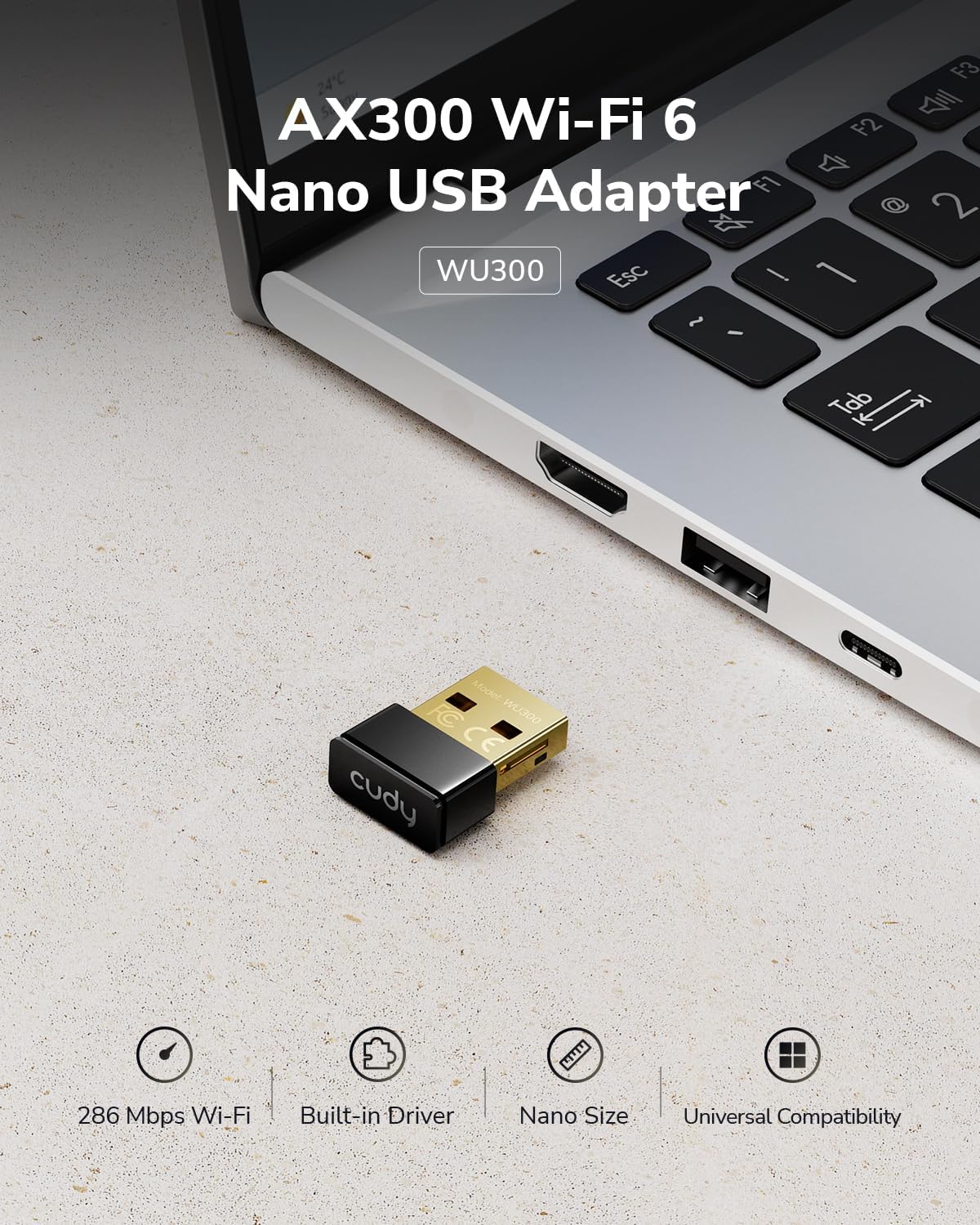
Image: The Cudy AX300 WU300 Nano USB Adapter shown plugged into a laptop's USB port, highlighting its small form factor.
2. Produktet er slutview
Nøglefunktioner:
- Ultrahurtigt Wi-Fi 6 hastigheder: Experience wireless speeds up to 286 Mbps on the 2.4GHz band for smooth online activities.
- Kompakt nanodesign: The ultra-small dimensions (20 × 15 × 8 mm) allow for discreet integration into your device without obstructing other ports.
- Flexible Soft AP Mode: Convert your computer's wired internet connection into a Wi-Fi hotspot to share with other devices.
- Universal USB 2.0 Compatibility: Works with standard USB 2.0 ports, ensuring broad compatibility with various devices.
- Bred systemunderstøttelse: Compatible with Windows 7, Windows 10, Windows 11, and Linux operating systems.
Hvad er der i æsken:
- Cudy AX300 WU300 Wi-Fi 6 Nano USB Adapter

Image: The compact design of the Cudy AX300 WU300 adapter, illustrating its small physical dimensions.
3. Opsætning
The Cudy AX300 WU300 adapter features a built-in driver for convenient installation.
Installationstrin:
- Indsæt adapteren: Plug the Cudy AX300 WU300 Nano USB Adapter into an available USB 2.0 port on your computer.
- Driver installation:
- For Windows 10 / 11: The adapter is typically plug-and-play. Your operating system should automatically detect the device and install the necessary drivers.
- For Windows 7 and Linux: Manual driver installation may be required. The adapter functions as a small flash drive containing the driver installer. Navigate to 'My Computer' or 'This PC', locate the adapter's drive, and run the installer executable. Follow the on-screen prompts to complete the installation.
- Opret forbindelse til Wi-Fi: Once the drivers are installed, you can connect to your Wi-Fi network through your operating system's network settings.

Image: The Cudy AX300 WU300 adapter illustrating its easy setup process with a built-in driver, eliminating the need for a physical CD.
4. Betjeningsvejledning
Forbindelse til et Wi-Fi-netværk:
- After driver installation, click on the Wi-Fi icon in your system tray (Windows) or network manager (Linux).
- Vælg dit ønskede Wi-Fi-netværk fra listen over tilgængelige netværk.
- Indtast netværkssikkerhedsnøglen (adgangskoden), hvis du bliver bedt om det.
- Klik på 'Opret forbindelse'. Din computer skulle nu være forbundet til Wi-Fi-netværket.
Using Soft AP Mode:
Soft AP (Access Point) mode allows your computer to act as a Wi-Fi hotspot, sharing its internet connection with other wireless devices.
- Sørg for, at din computer har en aktiv internetforbindelse (f.eks. via Ethernet).
- Open your operating system's network settings.
- Look for an option like 'Mobile hotspot', 'Wi-Fi hotspot', or 'Soft AP'.
- Configure the network name (SSID) and password for your new hotspot.
- Enable the hotspot feature. Your other devices can now connect to this new Wi-Fi network.

Image: A user demonstrating the Soft AP mode, sharing a laptop's internet connection with a smartphone.
5. Vedligeholdelse
To ensure optimal performance and longevity of your Cudy AX300 WU300 Wi-Fi 6 Nano USB Adapter, follow these general maintenance guidelines:
- Hold rent: Rengør adapteren regelmæssigt med en blød, tør klud. Undgå at bruge flydende rengøringsmidler eller opløsningsmidler.
- Undgå fysisk skade: Handle the adapter carefully. While compact, excessive force or bending can damage the USB connector or internal components.
- Optimalt miljø: Use the adapter in a dry environment, away from extreme temperatures, direct sunlight, and humidity.
- Firmwareopdateringer: Check the official Cudy website periodically for any available firmware or driver updates to ensure the best performance and security.
6. Fejlfinding
If you encounter issues with your Cudy AX300 WU300 adapter, refer to the following troubleshooting tips:
Adapter Not Recognized / Drivers Not Installing:
- Prøv en anden USB-port: Some USB ports may have power delivery issues or compatibility problems. Try plugging the adapter into another USB port on your computer.
- Geninstaller drivere: If automatic installation fails (especially on Windows 7 or Linux), manually run the driver installer from the adapter's virtual drive. Ensure you have administrator privileges.
- Tjek Enhedshåndtering (Windows): Open Device Manager and look for any unknown devices or devices with warning signs. Right-click and select 'Update driver' or 'Uninstall device' and then restart your computer.
Kan ikke oprette forbindelse til Wi-Fi-netværk:
- Verify Network Band: The Cudy AX300 WU300 adapter supports Kun 2.4 GHz Wi-Fi-netværk. Ensure your router's 2.4GHz band is enabled and that you are attempting to connect to a 2.4GHz network.
- Korrekt adgangskode: Dobbelttjek, at du indtaster den korrekte Wi-Fi-adgangskode.
- WPA3 Compatibility: This adapter does not support WPA3 security. If your network is configured for WPA3-only, you may need to adjust your router settings to allow WPA2 connections or create a separate WPA2 SSID.
- Routerafstand: Ensure you are within a reasonable range of your Wi-Fi router.
- Restart Router/PC: Sometimes, a simple restart of your router and computer can resolve connectivity issues.
Langsomme Wi-Fi-hastigheder:
- Interferens: Other electronic devices (microwaves, cordless phones, Bluetooth devices) can interfere with 2.4GHz signals. Try to minimize these or move closer to your router.
- Placering af router: Ensure your router is centrally located and not obstructed by large objects.
- Netværksoverbelastning: If many devices are using the 2.4GHz network, speeds may be reduced.
Boot Issues (Advanced Users):
- Some users have reported that the adapter's built-in storage for drivers can cause boot issues on certain systems if BIOS settings are not configured correctly. If you experience boot problems with the adapter plugged in, try adjusting your BIOS settings to prioritize your primary boot drive or disable USB boot options.
7. Specifikationer
| Model | WU300 |
| Hardware-interface | USB 2.0 Type A |
| Wi-Fi-standard | Wi-Fi 6 (802.11ax) |
| Frekvensbånd | Kun 2.4 GHz |
| Dataoverførselshastighed | Op til 286 Mbps |
| Kompatible operativsystemer | Windows 7 / 10 / 11, Linux |
| Produktmål (L x B x H) | 20 x 15 x 8 mm (0.79" x 0.59" x 0.31") |
| Varens vægt | 1.13 ounce |

Image: Visual representation of the Cudy AX300 WU300 adapter's compatibility with Windows 11, Windows 10, Windows 7, and Linux operating systems.
8. Garanti og support
Cudy products are designed for reliability and performance. For warranty information, technical support, or further assistance, please visit the official Cudy webwebstedet eller kontakt deres kundesupportteam. Gem din købskvittering til garantikrav.
Cudy officiel Webwebsted: www.cudy.com